
1. Introducción
Gracias por la compraasing the KTC 24-inch WQHD 100Hz IPS Monitor. This manual provides essential information for the safe and efficient use of your new monitor. Please read it thoroughly before use and keep it for future reference.
This monitor features a 24-inch IPS panel with WQHD (2560x1440) resolution, offering stunning visual clarity and vibrant colors with 122% sRGB coverage. A 100Hz refresh rate and FreeSync & G-Sync compatibility ensure smooth, tear-free visuals, ideal for both office work and casual gaming. Advanced eye care technologies, including blue light reduction and flicker-free operation, provide a comfortable viewing experience even during extended use. The monitor also supports HDR10 for enhanced dynamic range and features flexible connectivity options with HDMI and DisplayPort.
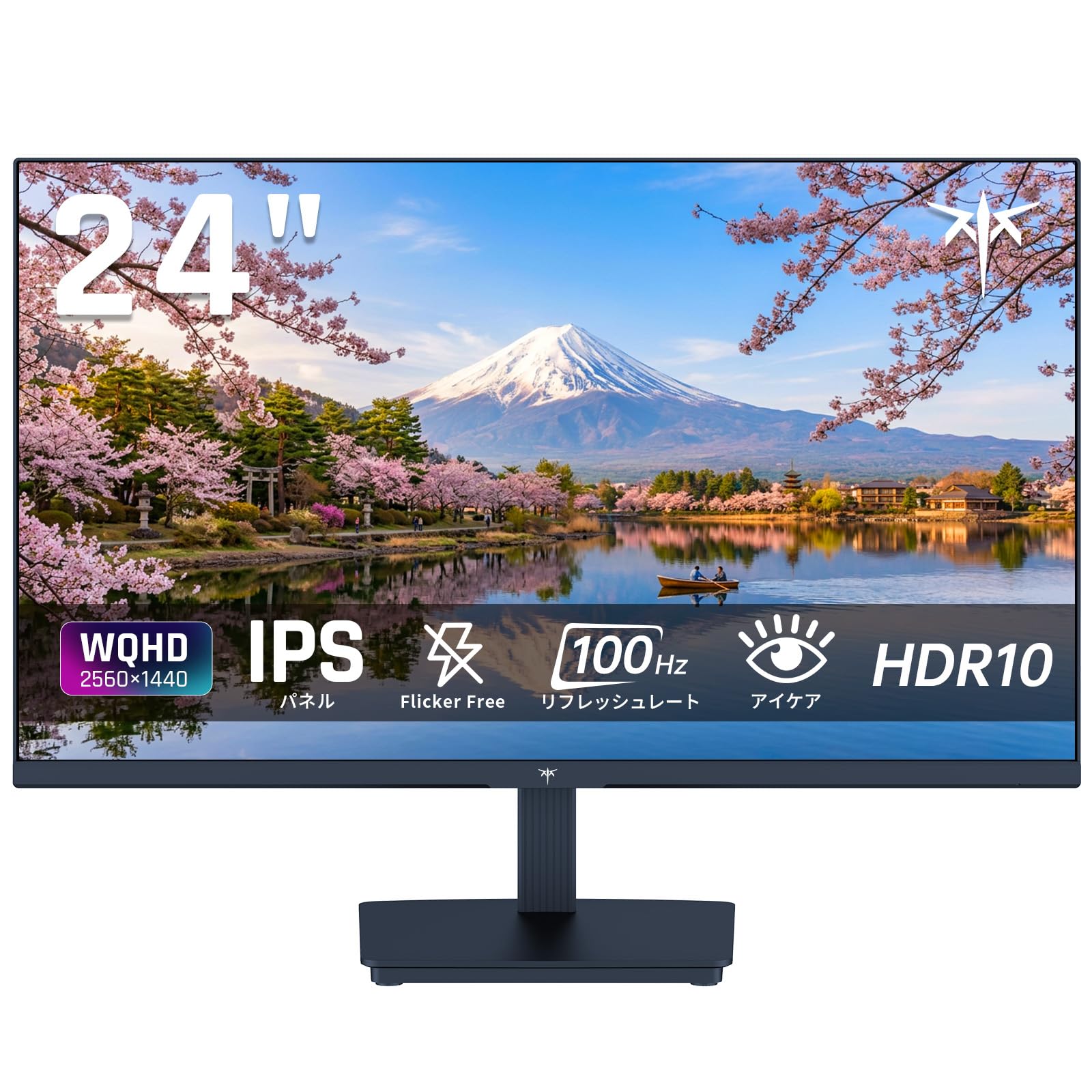
Image: KTC 24-inch WQHD 100Hz IPS Monitor.
2. Información de seguridad
Tenga en cuenta las siguientes precauciones de seguridad para evitar dañar el monitor o provocar lesiones a usted o a otras personas:
- No exponga el monitor a la lluvia, la humedad o temperaturas extremas.
- Asegúrese de que haya una ventilación adecuada alrededor del monitor para evitar el sobrecalentamiento.
- Utilice únicamente el adaptador de corriente suministrado con el monitor.
- Evite colocar objetos pesados sobre el cable de alimentación o el monitor.
- No intente desmontar ni reparar el monitor usted mismo. Contacte con personal de servicio técnico cualificado.
- Mantenga el monitor alejado de campos magnéticos fuertes.
3. Contenido del paquete
Verifique que todos los artículos estén presentes en el paquete:
- KTC 24-inch WQHD 100Hz IPS Monitor (H24T27)
- Base del monitor
- Cable HDMI
- Adaptador de corriente
- Manual de usuario
4. Configuración
4.1 Montaje del soporte
- Retire con cuidado el monitor y la base del embalaje.
- Conecte el cuello del soporte al panel del monitor.
- Fije la base al cuello del soporte utilizando los tornillos provistos.
4.2 Conexión del monitor
Conecte el monitor a su computadora u otros dispositivos usando los cables apropiados.
- Conexión de energía: Conecte el adaptador de corriente a la entrada de CC del monitor y luego conéctelo a una toma de corriente.
- Conexión de vídeo: Use the supplied HDMI cable or a DisplayPort cable to connect your computer's video output to the corresponding port on the monitor.
- Salida de audio: If desired, connect headphones or external speakers to the 3.5mm audio output jack.

Image: Close-up of the KTC monitor's rear ports, including DC power, HDMI, DisplayPort, and audio out.
5. Instrucciones de funcionamiento
5.1 Encendido y apagado
Presione el botón de encendido ubicado en el monitor para encenderlo o apagarlo.
5.2 Menú de visualización en pantalla (OSD)
El menú OSD permite ajustar diversas configuraciones del monitor. Utilice los botones de control (normalmente ubicados en la parte posterior o inferior del monitor) para navegar por el menú y realizar selecciones.
5.3 Configuración de pantalla
- Resolución: The monitor supports WQHD (2560x1440) resolution for sharp and detailed images. Ensure your graphics card is set to this resolution for optimal display.
- Frecuencia de actualización: Enjoy smooth visuals with a 100Hz refresh rate. This can be configured in your operating system's display settings.
- Gama de colores: The monitor offers 122% sRGB coverage for rich and accurate colors.

Image: KTC monitor highlighting key features like IPS panel, 100Hz, WQHD, 24-inch, Adaptive Sync, and blue light reduction.

Image: Comparison of WQHD (2560x1440) and FHD (1920x1080) resolutions, demonstrating enhanced detail with WQHD.

Image: Comparison of 100Hz and 60Hz refresh rates, showing smoother motion with 100Hz.
5.4 Adaptive Sync (FreeSync & G-Sync)
The monitor supports both FreeSync and G-Sync technologies to eliminate screen tearing and stuttering, providing a fluid gaming experience. Ensure this feature is enabled in your graphics card settings and the monitor's OSD.

Image: Monitor display showing HDR10 content on one side and standard HDR on the other, along with FreeSync & G-Sync comparison (ON/OFF).
5.5 Características para el cuidado de los ojos
The monitor includes Flicker-Free technology and a Blue Light Reduction mode to minimize eye strain during prolonged use. These settings can be adjusted via the OSD menu.

Image: KTC monitor displaying eye care features: Low Blue Light (ON/OFF) and Flicker-Free (ON/OFF).
5.6 Compatibilidad con HDR10
This monitor supports HDR10, providing a wider range of colors and contrasts for a more immersive viewing experience. Ensure HDR is enabled in your device's display settings for compatible content.
5.7 Soporte ajustable
The monitor stand allows for tilt adjustment from -5° to 15°, enabling you to find the most comfortable viewángulo de ing.

Imagen: Lateral view of the KTC monitor demonstrating the tilt-adjustable stand (-5° to 15°).
5.8 de ancho Viewángulo de ing
The IPS panel provides a wide 178-degree viewing angle, ensuring consistent color and image quality from almost any perspective.

Image: KTC monitor showcasing a wide 178-degree viewing angle with consistent color.
6. Mantenimiento
6.1 Limpieza del monitor
- Desenchufe siempre el monitor antes de limpiarlo.
- Utilice un paño suave y sin pelusa ligeramenteampLimpiar con agua o un limpiador de pantalla suave, no abrasivo.
- No rocíe el limpiador directamente sobre la pantalla.
- Evite utilizar productos químicos agresivos o materiales abrasivos.
6.2 Cuidados generales
- Mantenga el monitor en un entorno limpio y seco.
- Proteja la pantalla de objetos afilados.
- When moving the monitor, handle it carefully and avoid putting pressure on the screen.
7. Solución de problemas
Si tiene problemas con su monitor, consulte los siguientes problemas y soluciones comunes:
| Problema | Posible solución |
|---|---|
| No hay imagen en la pantalla | Check power connections. Ensure video cable is securely connected to both monitor and computer. Select correct input source via OSD. |
| La imagen está borrosa o distorsionada. | Ensure the display resolution is set to 2560x1440. Check video cable for damage. |
| Desgarro o tartamudeo de pantalla | Verify FreeSync/G-Sync is enabled in both monitor OSD and graphics card settings. |
| No hay sonido en los auriculares/altavoces | Check audio cable connection. Ensure volume is not muted on monitor or computer. |
| El monitor no se enciende | Check power outlet and power adapter connection. Try a different power outlet. |
Si el problema persiste después de probar estas soluciones, comuníquese con el servicio de atención al cliente de KTC.
8. Especificaciones
Especificaciones técnicas detalladas del monitor KTC H24T27:
| Característica | Especificación |
|---|---|
| Marca | KTC |
| Número de modelo | H24T27 |
| Tamaño de pantalla | 24 pulgadas |
| Resolución | WQHD (2560 x 1440 píxeles) |
| Relación de aspecto | 16:9 |
| Tipo de panel | IPS |
| Superficie de la pantalla | Sin reflejos |
| Frecuencia de actualización | 100 Hz |
| Tiempo de respuesta | 7 ms |
| Relación de contraste | 1300:1 |
| Brillo | 300 cd/m² |
| Gama de colores | 122 % sRGB |
| Viewángulo de ing | 178 grados |
| Tecnología HDR | HDR10 |
| Sincronización adaptativa | FreeSync, G-Sync |
| Conectividad | 1x HDMI, 1x DisplayPort, salida de audio |
| Consumo de energía | 12 vatios |
| Volumentage | 100 voltios |
| Dimensiones (D x W x H) | 18.3 x 54 x 40.5 cm |
| Características adicionales | Adaptive Sync, Eye Care, Flicker-Free, Blue Light Filter, Tilt Adjustment |
| Dispositivos compatibles | Consolas de juegos, portátiles |
| Color | Negro |
| Forma | Departamento |
| Origen | Porcelana |
9. Garantía y soporte
9.1 Información de garantía
Your KTC monitor comes with a Garantía del fabricante de 3 años. In the event of a product defect, a free replacement will be provided. Please note that this warranty does not cover loss or damage caused by customer negligence.

Image: KTC's 3-year free replacement warranty details and contact information.
9.2 Atención al cliente
For any inquiries or concerns, please feel free to contact us. We are committed to providing full support to ensure your satisfaction.
Teléfono: 050-3606-8990
Correo electrónico: soporte@ktcplay.com
You can also contact support through Amazon:

Image: Step-by-step guide on how to contact customer support via Amazon.
10. Producto terminadoview Video
Mira este video para tener una idea visualview of the KTC QHD computer monitor and its features.
Video: This video showcases the KTC QHD computer monitor, highlighting its 2560x1440 (2K) resolution, 100Hz refresh rate, FreeSync and G-Sync compatibility, flicker-free and low blue light features, 8-bit & 116% sRGB color gamut, 3-side frameless design, -5° to 15° tilt adjustable stand, and available sizes (24, 27, 32 inches). It emphasizes its suitability for professional office use.