
1. Introducción
This manual provides detailed instructions for the installation, operation, and maintenance of your Fuers 8-Channel 5MP H.265+ Hybrid Security DVR Recorder. This DVR system is designed to support various camera types, including TVI, AHD, CVBS, CVI, XVI, and IP cameras, offering a versatile surveillance solution. It features advanced H.265+ video compression, AI human detection, and remote access capabilities.
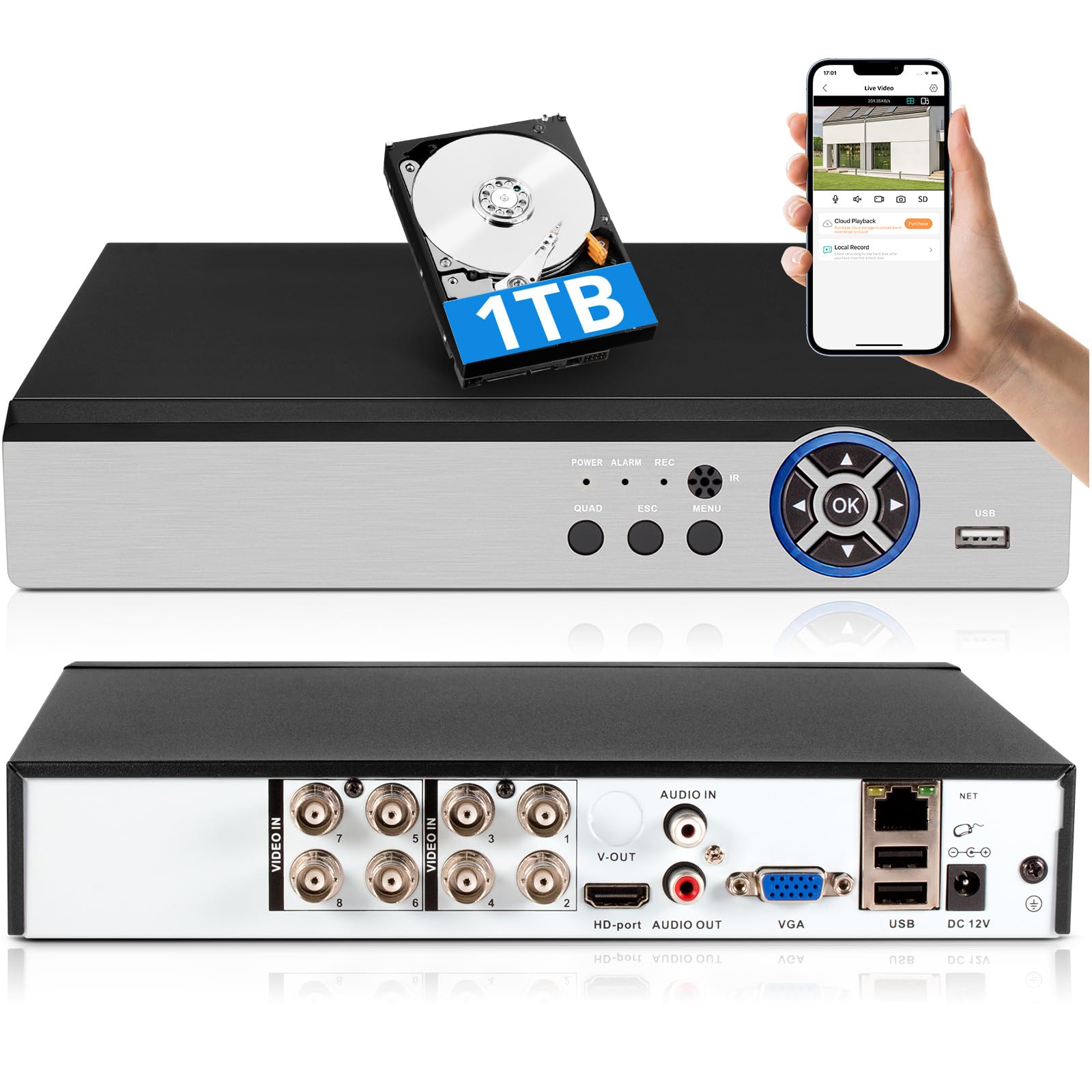
Image: The Fuers 8-Channel 5MP H.265+ Hybrid Security DVR Recorder unit.
2. ¿Qué hay en la caja?
Verifique que todos los artículos enumerados a continuación estén incluidos en su paquete:
- 1x 5MP 8CH DVR
- 1x 1TB Hard Drive (Pre-installed on DVR)
- 1x DVR Power Supply
- 1 ratón USB
- 1x Manual de usuario

Image: The DVR unit and its included accessories: 1TB HDD, power supply, USB mouse, and user manual.
3. Características del producto
- 5MP 6-in-1 Hybrid DVR: Supports up to 8 TVI, AHD, CVBS, CVI, XVI, Analog cameras and IP cameras.
- Advanced H.265+ Video Format: Offers longer recording times and up to 50% storage space savings compared to H.264 systems.
- Detección humana por IA: Advanced algorithms detect human presence, reducing false alarms.
- Acceso remoto: Controlar e view comidatage remotely via the iCSee App on smartphones, tablets, and PCs (Google Chrome, Microsoft Edge, Internet Explorer).
- Operación sin conexión: The DVR can function without an internet connection for local recording and viewing. Internet is only required for remote access features.
- Disco duro de 1 TB preinstalado: Ready for immediate recording, expandable up to 14TB via SATA.
- Simultaneous VGA/HDMI Output: Connects to PC monitors and TVs concurrently.

Imagen: Más alláview of the DVR's key features including AI Human Detection and remote access.
4. Guía de configuración
4.1 Conexiones físicas
- Conectar el monitor: Plug the HDMI or VGA cable from your monitor into the corresponding port on the DVR.
- Conectar el ratón USB: Insert the USB mouse into one of the USB ports on the DVR.
- Conectar cámaras: Connect your analog cameras (TVI, AHD, CVBS, CVI, XVI) to the BNC 'VIDEO IN' ports. For IP cameras, connect them to your network and ensure the DVR is also connected to the same network.
- Connect Network (Optional for Remote Access): Connect an Ethernet cable from the DVR's 'NET' port to your router for remote viewcapacidades de ing.
- Conecte la electricidad: Plug the DVR power supply into the DC 12V input port on the DVR, then plug the adapter into a power outlet.

Imagen: Detallada view of the DVR's rear panel showing video input, audio input/output, VGA, HDMI, USB, and network ports.
4.2 Mobile App Setup (iCSee)
To access your DVR remotely, download and configure the iCSee mobile application:
- Descargar aplicación: Scan the QR code displayed on your monitor or search for "iCSee" in your device's app store.
- Androide: Tienda Google Play
- iOS: Tienda de aplicaciones de Apple
- Registrarse/Iniciar sesión: Open the iCSee app and create a new account or log in if you already have one.
- Agregar dispositivo: In the app, select the option to add a new device. You can typically scan the QR code found in the DVR's menu (Main Menu > Info > Version) to bind the device.
- View Transmisión en vivo: Once the device is added, you can view your camera feeds live from anywhere with an internet connection.

Image: Visual guide for connecting the DVR to a network and setting up the iCSee mobile application for remote viewEn.
5. Instrucciones de funcionamiento
5.1 Reproducción de video
Para volverview comida grabadatage:
- Haga clic derecho en el vivo view Pantalla para abrir el menú principal.
- Select "Record" then "Playback".
- Choose the desired channel(s) and date from the calendar.
- Click "Start Playback" to view las grabaciones.
Video: Demonstration of DVR video playback settings and navigation.
5.2 Monitoreo Remoto
After completing the mobile app setup (Section 4.2), you can monitor your surveillance system from any location with internet access. The iCSee app allows for live viewing, reproducción de comida grabadatage, y recibir alertas.
Vídeo: Terminadoview of the H.265+ 5MP 8 Channel CCTV DVR Recorder with 1TB HDD, demonstrating its features and remote access capabilities.
5.3 Detección de movimiento y alertas
The DVR supports customizable motion detection zones and AI human detection to minimize false alarms. When motion is detected, the system can send real-time app notifications and email alerts with snapshots.

Image: Illustration of AI human detection and the alert notification system.
6. Mantenimiento
- Limpieza regular: Mantenga la unidad DVR libre de polvo y residuos para garantizar una ventilación adecuada. Utilice un paño suave y seco para limpiarla.
- Actualizaciones de firmware: Revise periódicamente las instrucciones del fabricante. webSitio para actualizaciones de firmware para garantizar un rendimiento y seguridad óptimos.
- Administración del disco duro: The DVR features automatic overwrite functionality, ensuring continuous recording by replacing older footage with new. Regularly back up important footage al almacenamiento externo si es necesario.
- Seguridad de la contraseña: Use strong, unique passwords for your DVR and mobile app accounts. Change passwords regularly.
7. Solución de problemas
| Problema | Posible causa | Solución |
|---|---|---|
| No hay visualización de video en el monitor | Conexión de cable suelta, fuente de entrada incorrecta en el monitor, DVR no encendido. | Check HDMI/VGA cable connections. Ensure monitor input source matches. Verify DVR power. |
| No se puede acceder al DVR de forma remota | Sin conexión a Internet, configuración incorrecta de la aplicación, problemas de firewall. | Ensure DVR is connected to the internet. Verify app login details and device binding. Check router/firewall settings. |
| Sin grabación | Hard drive full, recording schedule not set, hard drive malfunction. | Check hard drive status and capacity. Configure recording schedule. If HDD is faulty, replace it. |
| Alertas frecuentes de movimiento falso | Sensitive motion detection settings, environmental factors (e.g., moving branches). | Adjust motion detection sensitivity. Configure AI human detection. Define specific detection zones to exclude irrelevant areas. |
If you encounter issues not covered here, please refer to the comprehensive user manual included in your package or contact Fuers customer support.
8. Especificaciones
- Número de modelo: A6908-1TB
- Dimensiones del producto: 9.84 x 8.26 x 1.57 pulgadas
- Peso del artículo: 3.72 libras
- Tecnología de conectividad: HDMI, USB, VGA, Ethernet
- Dispositivos compatibles: Analog Cameras (TVI, AHD, CVBS, CVI, XVI), IP Cameras, Smartphone, Tablet, Computer
- Capacidad de almacenamiento de memoria: 1 TB (preinstalado), ampliable hasta 14 TB
- Compresión de vídeo: H.265 +
- Canales: 8-Channel Analog, expandable with IP channels
- Fabricante: Fuers
9. Garantía y soporte
For warranty information and technical support, please refer to the warranty card included in your product packaging or visit the official Fuers website. You may also contact the seller, MBANGDE-COM, for assistance with your purchase.