
Introducción
Thank you for choosing the Phomemo M221 Bluetooth Thermal Label Printer. This manual provides essential information for the safe and efficient operation of your device. Please read it thoroughly before use and retain it for future reference. The Phomemo M221 is designed for fast, clear, and smart label printing, supporting various label types and applications for small businesses, home, and school use.
Información de seguridad
Para garantizar un funcionamiento seguro y evitar daños, observe las siguientes precauciones:
- Do not disassemble, repair, or modify the printer.
- Mantenga la impresora alejada del agua, la humedad y la luz solar directa.
- Use only Phomemo-approved power adapters and accessories.
- Evite tocar el cabezal de impresión inmediatamente después de imprimir, ya que puede estar caliente.
- Guarde la impresora y las etiquetas en un lugar fresco y seco.
Contenido del paquete
Verifique que todos los artículos estén presentes en su paquete:
- Impresora de etiquetas Phomemo M221
- Cable de carga USB-C
- 1 roll of 40 x 30 mm thermal labels
- 1 roll of 50 x 80 mm thermal labels
- 1 roll of 70 x 80 mm thermal labels
- Estuche de transporte portátil
- Manual de usuario (este documento)
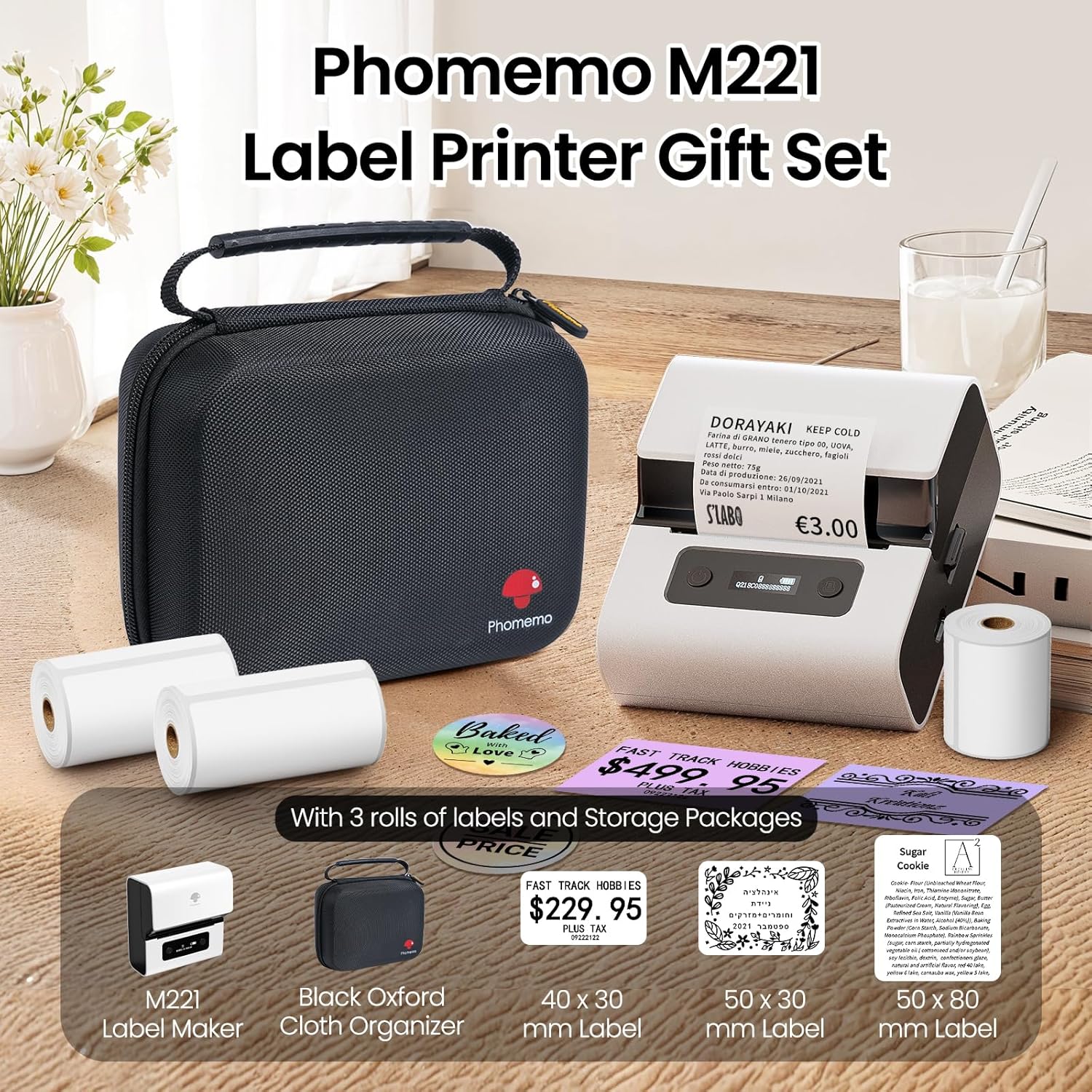
Image: Phomemo M221 Label Printer Gift Set, showing the printer, a black carrying case, and three rolls of white thermal labels.
Producto terminadoview
The Phomemo M221 is a compact and efficient thermal label printer. Key features include:
- Tecnología de impresión térmica: No requiere tinta ni tóner.
- Amplia compatibilidad de etiquetas: Supports labels from 20mm to 80mm (0.78" to 3.14") wide, including rectangular, round, transparent, and colored types.
- Conectividad: Bluetooth for iOS/Android smartphones and tablets, USB for Windows PCs.
- Batería de alta capacidad: 2200 mAh battery with Type-C fast charging.
- Funcionamiento rápido y silencioso: Prints at 50 mm/s with reduced noise.
- Diseño fácil de usar: Easy label loading and automatic gap detection.

Image: Phomemo M221 Label Maker Set, illustrating its features such as no ink requirement, large battery capacity, Bluetooth wireless printing, and its suitability as a gift.
Configuración
1. Carga de la impresora
Before first use, fully charge the Phomemo M221 printer.
- Conecte el cable USB tipo C proporcionado al puerto de carga de la impresora.
- Conecte el otro extremo del cable a un adaptador de corriente USB de 5 V (no incluido) o al puerto USB de una computadora.
- The indicator light will show charging status. A full charge typically takes several hours. The 2200 mAh battery supports extended use.
2. Carga de etiquetas
The M221 features an integrated label fixing structure for easy loading.
- Abra la cubierta de la impresora.
- Insert the label roll into the compartment, ensuring the printing side faces upwards and the labels feed smoothly.
- Adjust the side guide plates to secure the label roll in place.
- Close the printer cover. The printer will automatically detect and calibrate the label gap.
3. Conexión a su dispositivo
El Phomemo M221 admite conexiones Bluetooth y USB.
Bluetooth Connection (Smartphones/Tablets)
- Asegúrese de que Bluetooth esté habilitado en su dispositivo iOS o Android.
- Download and install the "Print Master" application from your device's app store.
- Open the "Print Master" app and follow the on-screen instructions to search for and connect to your M221 printer.

Image: Phomemo M221 printer demonstrating Bluetooth wireless connection with a tablet and a smartphone.
USB Connection (Windows PC)
- Connect the USB Type-C cable from the printer to an available USB port on your Windows PC.
- Download and install the "Labelife" software and printer drivers from the official Phomemo websitio.
- Follow the software installation prompts. Once installed, you can select the M221 as your printer.

Image: Phomemo M221 printer connected to a laptop using a USB cable, indicating wired connectivity.
Instrucciones de funcionamiento
1. Basic Printing with "Print Master" App (Mobile)
- Ensure your M221 printer is connected via Bluetooth to your mobile device.
- Abra la aplicación "Print Master".
- Select a template or create a new label design. The app offers various templates for text, images, barcodes, QR codes, and more.
- Customize your label content.
- Tap the print icon. Confirm print settings such as quantity.
- The printer will begin printing your labels.
2. Printing with "Labelife" Software (PC)
- Ensure your M221 printer is connected via USB to your Windows PC.
- Open the "Labelife" software.
- Design your label using the software's features, including text, images, barcodes, and QR codes.
- Ir a "File" > "Imprimir" o haga clic en el icono de impresión.
- Select the Phomemo M221 from the list of available printers and adjust any necessary print settings.
- Click "Print" to start printing.
3. Impresión por lotes
Both "Print Master" and "Labelife" support batch printing for efficiency.
- In the print dialogue, specify the desired number of copies.
- The printer will automatically print multiple labels consecutively.

Image: Phomemo M221 printer demonstrating its versatility with examples of address labels, price tags, ingredient labels, and gift tags.

Image: Phomemo M221 printer showcasing its compatibility with over 50 types of thermal labels, including various shapes and designs.
Mantenimiento
1. Limpieza del cabezal de impresión
La limpieza periódica del cabezal de impresión garantiza una calidad de impresión óptima.
- Apague la impresora y desconecte el cable de alimentación.
- Abra la cubierta de la impresora.
- Limpie suavemente el cabezal de impresión con un hisopo de algodón.ampenriquecido con alcohol isopropílico.
- Deje que el cabezal de impresión se seque completamente antes de cerrar la cubierta y encender la impresora.
2. Almacenamiento
Store the printer in a clean, dry environment, away from extreme temperatures and direct sunlight. When not in use for extended periods, ensure the printer is fully charged and then powered off.

Image: A man holding the Phomemo M221 printer's carrying case, illustrating its portable design.
Solución de problemas
Printer Does Not Turn On or Charge
- Verifique la conexión de energía: Ensure the USB Type-C cable is securely connected to both the printer and a working power source (5V adapter or PC USB port).
- Verificar el adaptador de corriente: Use a reliable 5V USB power adapter.
- Duración de la carga: Allow sufficient time for charging. The battery indicator should show charging status.
No Printing or Blank Output
- Check Label Orientation: Ensure the thermal labels are loaded correctly with the printing side facing upwards.
- Tipo de etiqueta: Confirm you are using thermal labels. The M221 does not use ink.
- Limpieza del cabezal de impresión: A dirty print head can cause blank lines or poor print quality. Refer to the Maintenance section for cleaning instructions.
- Label Alignment: Ensure the label roll is properly seated and aligned by the side guide plates to prevent misalignment errors.
Problemas de conexión Bluetooth
- Impresora encendida: Ensure the printer is powered on and within Bluetooth range of your device.
- Bluetooth habilitado: Verifique que Bluetooth esté activo en su teléfono inteligente o tableta.
- Conexión de la aplicación: Connect through the "Print Master" app, not directly through your device's Bluetooth settings.
- Reiniciar dispositivos: Intente reiniciar tanto la impresora como su dispositivo móvil.
Mala calidad de impresión
- Limpieza del cabezal de impresión: Limpie el cabezal de impresión como se describe en la sección Mantenimiento.
- Calidad de la etiqueta: Use high-quality thermal labels.
- Configuración de densidad de impresión: Adjust print density settings within the "Print Master" app or "Labelife" software if available.
Presupuesto
| Característica | Detalle |
|---|---|
| Número de modelo | M221 |
| Marca | Fomemo |
| Tecnología de conectividad | Bluetooth, USB tipo C |
| Tecnología de impresión | Térmico |
| Salida de impresión | Monocromo |
| Velocidad máxima de impresión (monocromo) | 15.0 pages per minute (50 mm/s) |
| Resolución máxima de impresión (monocromática) | 203 ppp |
| Ancho de etiqueta admitido | 20 mm - 80 mm (0.78" - 3.14") |
| Batería | 2200 mAh (1 D - included) |
| Peso del artículo | 820 gramos |
| Dimensiones del producto (L x An x Al) | 12.9 x 6.7 x 11.9 centímetros |
| Control Device Type | Smartphone/PC |
| Tipo de medio | Etiquetas |
Garantía y soporte
Para obtener información sobre la garantía y soporte técnico, consulte el sitio web oficial de Phomemo. webSitio web o contacte directamente con el servicio de atención al cliente. Conserve su recibo de compra como comprobante.
Recursos en línea: Visita el Tienda Phomemo en Amazon for product updates and FAQs.