
1. Introducción
The Wanbo T2 Ultra is a compact and versatile projector designed for home entertainment. It features Android TV 11.0, offering access to a wide range of streaming applications. With 500 ANSI lumens brightness and native 1080P Full HD resolution, it delivers clear and vibrant images. Advanced features like auto-focus, automatic keystone correction, and integrated HiFi speakers enhance the user experience. This manual provides detailed instructions for setup, operation, and maintenance of your Wanbo T2 Ultra projector.
2. Contenido del paquete
Por favor, marque la casilla correspondiente a los siguientes artículos:
- Wanbo T2 Ultra Projector Unit
- Mando a distancia
- Cable de alimentación
- Cable HDMI
- Manual de usuario (este documento)
- Cleaning Tools (if included)

Image: Projector and accessories in packaging. Actual contents may vary slightly.
3. Producto terminadoview
3.1 Projector Unit

Imagen: Frente view of the Wanbo T2 Ultra Projector.
3.2 Puertos y conexiones

Imagen: Trasera view of the Wanbo T2 Ultra Projector showing various input/output ports.
- Puerto HDMI (ARC): Connect to external devices such as laptops, gaming consoles, or TV boxes. Supports Audio Return Channel.
- Puerto USB: Conecte dispositivos de almacenamiento USB para reproducción multimedia.
- Puerto de audio (3.5 mm): Conecte auriculares o altavoces externos.
- Entrada de energía: Connect the power cable to supply power to the projector.
4. Configuración
4.1 Conexión de alimentación
- Conecte el cable de alimentación al puerto de entrada de energía del proyector.
- Conecte el otro extremo del cable de alimentación a una toma de corriente.
- Presione el botón de encendido en el proyector o en el control remoto para encender el dispositivo.
4.2 Configuración inicial
Upon first use, follow the on-screen prompts to complete the initial setup, including language selection and Wi-Fi connection.
4.2.1 Conexión Wi-Fi
- Navegar a Ajustes desde la pantalla de inicio.
- Seleccionar Red e Internet.
- Encienda el Wi-Fi y seleccione la red deseada de la lista.
- Introduzca la contraseña de Wi-Fi utilizando el teclado en pantalla y confirme.
Video: Illustrates Wi-Fi and Bluetooth connection steps. Note: This video may feature a different projector model but demonstrates the general process.
4.3 Focus & Keystone Correction
The Wanbo T2 Ultra features automatic focus and keystone correction for optimal image clarity and shape.
4.3.1 Ajuste automático
- The projector automatically adjusts focus and keystone when powered on or moved.
- Obstacle avoidance and automatic screen adjustment features ensure the image fits perfectly on your projection surface.

Image: The projector automatically adjusting focus and keystone correction for a clear, rectangular image.
4.3.2 Manual Adjustment (if needed)
- Ir a Ajustes > Corrección de imagen.
- Seleccionar Corrección trapezoidal manual to adjust the four corners of the image.
- Seleccionar Enfocar > Enfoque manual to fine-tune the image sharpness using the F+ and F- buttons on the remote.
4.4 Ajuste de pantalla
The projector supports digital zoom to adjust the screen size without moving the unit.
- Ir a Ajustes > Corrección de imagen.
- Seleccionar Screen Zoom and Position.
- Use the directional buttons to adjust the position and the volume buttons to adjust the zoom (50% to 100%).
4.5 Modos de proyección
El proyector se puede utilizar en varias orientaciones:
- Proyección frontal: Proyector colocado delante de la pantalla.
- Proyección trasera: Proyector colocado detrás de una pantalla translúcida.
- Proyección de techo: Projector mounted upside down on the ceiling. The integrated stand allows for easy adjustment for ceiling or wall projection.
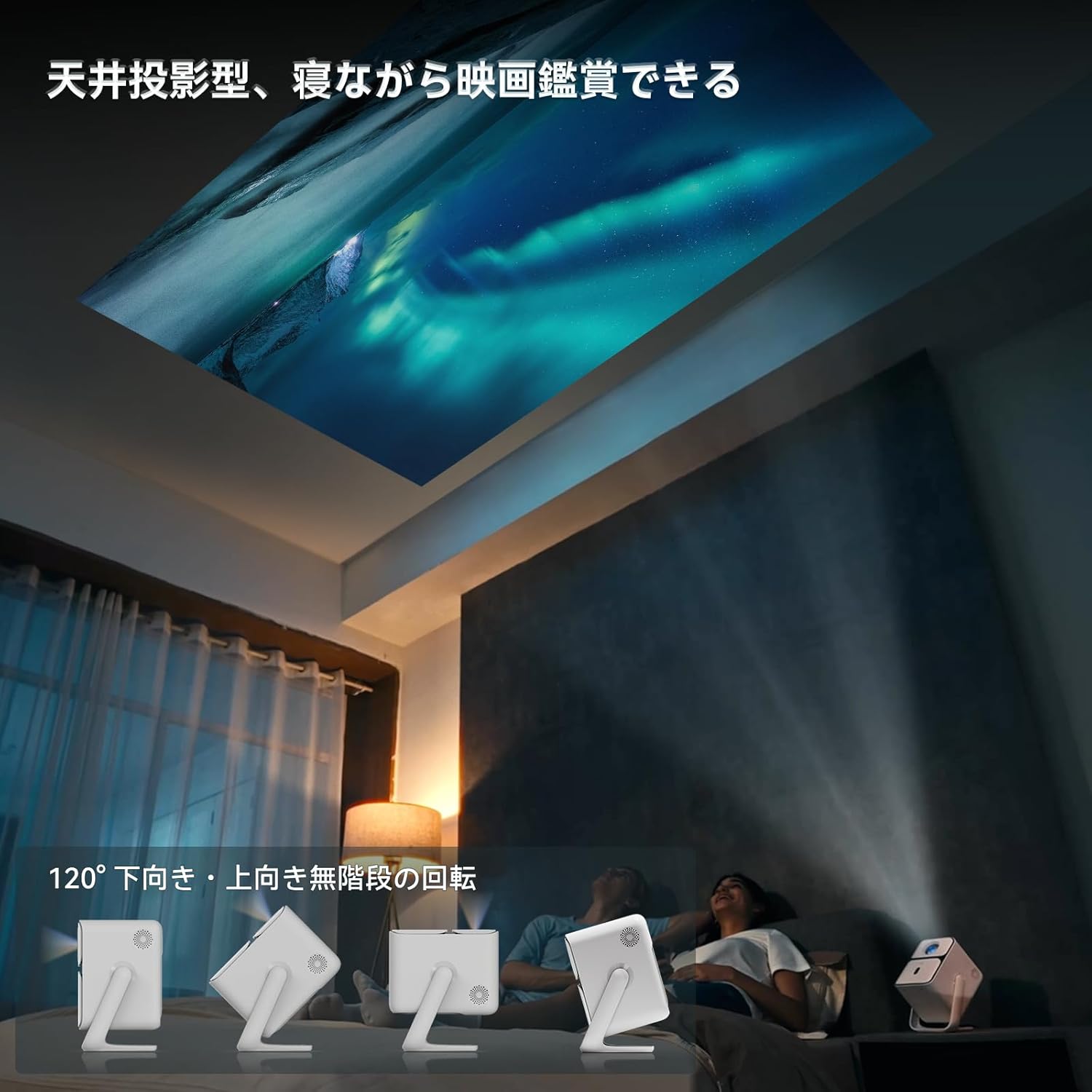
Image: Projector positioned for ceiling projection, allowing viewmientras está acostado.
Video: Demonstrates ceiling projection mode. Note: This video may feature a different projector model but demonstrates the general process.
5. Instrucciones de funcionamiento
5.1 Funciones de control remoto

Image: Remote control for the projector, showing buttons for power, navigation, volume, focus, and direct access to streaming apps like Netflix, YouTube, and Prime Video.
- Botón de encendido: Enciende/apaga el proyector.
- Búsqueda por voz: Activa el Asistente de Google para comandos de voz.
- One-Touch Focus: Inicia el ajuste automático del enfoque.
- Directional Keys (Up/Down/Left/Right): Navegar por los menús y selecciones.
- Botón OK: Confirma selecciones.
- Botón Atrás: Regresa a la pantalla anterior.
- Botón de inicio: Vuelve a la pantalla de inicio.
- Volumen +/-: Ajusta el nivel de volumen.
- Focus +/- (F+/F-): Ajusta manualmente el enfoque.
- Botón de silencio: Silencia/activa el audio.
- Input Signal Switch: Cambia la fuente de entrada.
- Ajustes de Aplicacion: Accesses application settings.
- Ajustes de proyección: Accesses projection-related settings.
- Botones de aplicación directa: Dedicated buttons for Netflix, YouTube, Prime Video, and Disney+.
5.2 App Management (Android TV 11.0)
The Wanbo T2 Ultra runs on Android TV 11.0, providing access to the Google Play Store.
- Acceder a las aplicaciones: From the home screen, you can directly launch pre-installed apps or navigate to the Google Play Store to download more.
- Servicios de transmisión: Enjoy popular services like Netflix, Prime Video, YouTube, Disney+, Hulu, U-NEXT, and more. The projector supports Google Widevine DRM L1 for high-quality content playback.
- Asistente de Google: Press the Voice Search button on the remote to use voice commands for searching content, controlling playback, and more.

Image: The projector displaying the Android TV 11.0 home screen, featuring various streaming applications.
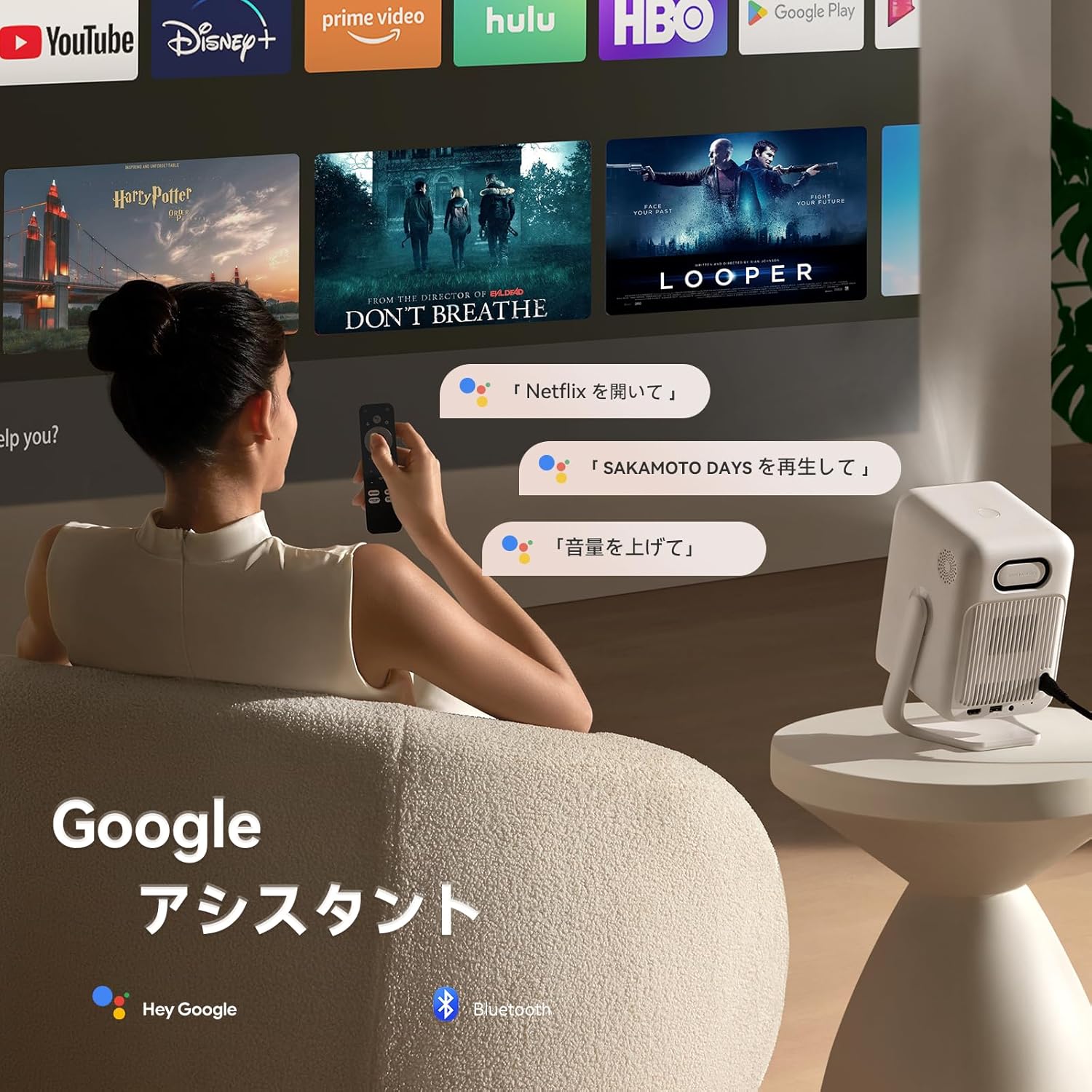
Image: A user utilizing the Google Assistant feature with the remote control to search for content.
5.3 Conectividad
The Wanbo T2 Ultra offers multiple connectivity options for various devices.
5.3.1 Conexión HDMI
- Connect an HDMI cable from your external device (e.g., laptop, game console) to the HDMI port on the projector.
- The projector will automatically detect the HDMI input. If not, navigate to Fuente de señal and select the corresponding HDMI input.
Video: Demonstrates HDMI connection. Note: This video may feature a different projector model but demonstrates the general process.
5.3.2 Conexión USB
- Inserte un dispositivo de almacenamiento USB en el puerto USB del proyector.
- A notification will appear on the screen. Select to open the file manager and browse your media.
Video: Demonstrates USB connection. Note: This video may feature a different projector model but demonstrates the general process.
5.3.3 Conexión Bluetooth
- Ir a Ajustes > Bluetooth & Accessories.
- Asegúrese de que Bluetooth esté habilitado.
- Seleccionar Agregar dispositivo and choose your Bluetooth device (e.g., headphones, speakers) from the list to pair.
Video: Illustrates Bluetooth connection steps. Note: This video may feature a different projector model but demonstrates the general process.
5.3.4 Wireless Screen Mirroring (Chromecast/AirPlay)
The projector has built-in Chromecast for seamless screen mirroring from iOS and Android devices.
- Asegúrese de que su dispositivo móvil y el proyector estén conectados a la misma red Wi-Fi.
- On your mobile device, open a compatible app (e.g., YouTube, Netflix) and tap the Cast icon to select the projector.
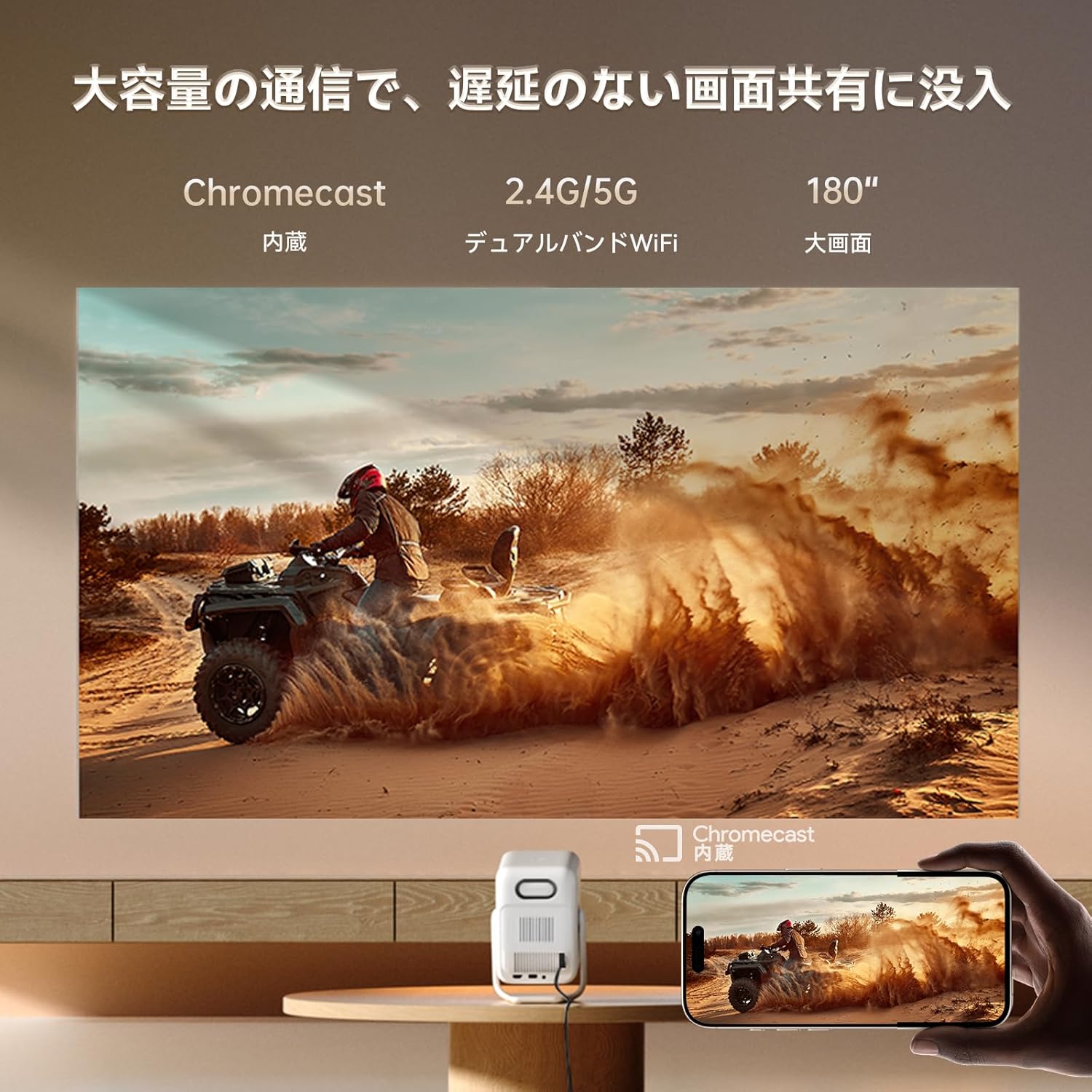
Image: A smartphone wirelessly casting content to the projector, demonstrating Chromecast functionality.
5.4 Configuración de audio
The projector features dual 5W HiFi speakers (10W total) with an independent DSP amplifier for rich sound. You can also connect external audio devices.
5.4.1 Ajuste de los modos de sonido
- Ir a Ajustes > Pantalla y sonido > Efectos sonoros.
- Choose from various sound modes like Standard, Movie, Music, News, or Sports to optimize audio for your content.
5.4.2 Modo de altavoz Bluetooth
You can use the projector as a standalone Bluetooth speaker.
- Desde la pantalla de inicio, seleccione Música Bluetooth.
- On your mobile device, enable Bluetooth and connect to the projector (device name: ISINBOX_AC311 or similar).
Video: Demonstrates Bluetooth speaker mode. Note: This video may feature a different projector model but demonstrates the general process.
6. Mantenimiento
6.1 Limpieza
- Lente: Use a soft, lint-free cloth or lens cleaning paper to gently wipe the lens. Avoid abrasive materials or excessive pressure.
- Exterior: Limpie el exterior del proyector con un paño suave y seco. No utilice limpiadores líquidos ni disolventes.
- rejillas de ventilación: Limpie periódicamente las rejillas de ventilación para evitar la acumulación de polvo, que puede afectar el rendimiento y la vida útil. Utilice un cepillo suave o aire comprimido.
6.2 Almacenamiento
- Guarde el proyector en un lugar fresco y seco, alejado de la luz solar directa y de temperaturas extremas.
- Si lo va a guardar durante un período prolongado, coloque el proyector en su embalaje original o en un estuche protector para evitar la acumulación de polvo y daños.
7. Solución de problemas
If you encounter issues with your Wanbo T2 Ultra projector, refer to the following common solutions:
| Problema | Posible causa | Solución |
|---|---|---|
| Sin imagen/Apagado | Power cable disconnected; Projector off | Check power connections; Press power button |
| Imagen borrosa | Fuera de foco; distorsión trapezoidal incorrecta | Use auto-focus or manual focus; Adjust keystone correction |
| Sin sonido | Volume too low; Muted; Incorrect audio output | Increase volume; Unmute; Check audio settings |
| Problemas de conexión Wi-Fi/Bluetooth | Incorrect password; Device out of range; Interference | Verify password; Move closer to router/device; Reduce interference |
| El control remoto no funciona | Low battery; Obstruction; Not paired | Replace batteries; Remove obstructions; Re-pair remote |
8. Especificaciones
| Característica | Especificación |
|---|---|
| Marca | WANBO |
| Modelo | T2 Ultra |
| Sistema operativo | Android TV 11.0 |
| Brillo | Lúmenes 500 ANSI |
| Resolución nativa | 1920 x 1080 píxeles (Full HD) |
| Relación de proyección | 1.2:1 |
| Vocero | 10W HiFi Stereo (Dual 5W) |
| Conectividad | HDMI (ARC), USB, 3.5mm Audio Jack, 5G Wi-Fi, Bluetooth |
| Características especiales | Auto-Focus, Auto Keystone Correction, Auto Screen Adjustment, Obstacle Avoidance, Digital Zoom (50-100%), Chromecast Built-in |
| Dimensiones (An x Pr x Al) | 14.48 x 14.22 x 21.84 cm |
| Peso | 2.2 kilogramos |
9. Garantía y soporte
9.1 Garantía del producto
The Wanbo T2 Ultra projector comes with a 12-month warranty covering quality-related issues. For customers who follow the official Wanbo social media accounts (@wanboglobal), the product warranty is automatically extended to 18 months.
9.2 Atención al cliente
For any questions or support needs, please contact us:
- Correo electrónico: soporte@szwanbo.net
We aim to respond to all inquiries within 24 hours. Lifetime support is provided for product usage.