
1. Introducción
The JeDEL WD142 is a versatile wireless mouse designed for various computing tasks. It features dual-mode connectivity, allowing connection via 2.4GHz wireless or Bluetooth, and offers adjustable DPI settings for precise control. This mouse is rechargeable, providing convenience and extended use. This manual provides instructions for setting up, operating, maintaining, and troubleshooting your WD142 mouse.
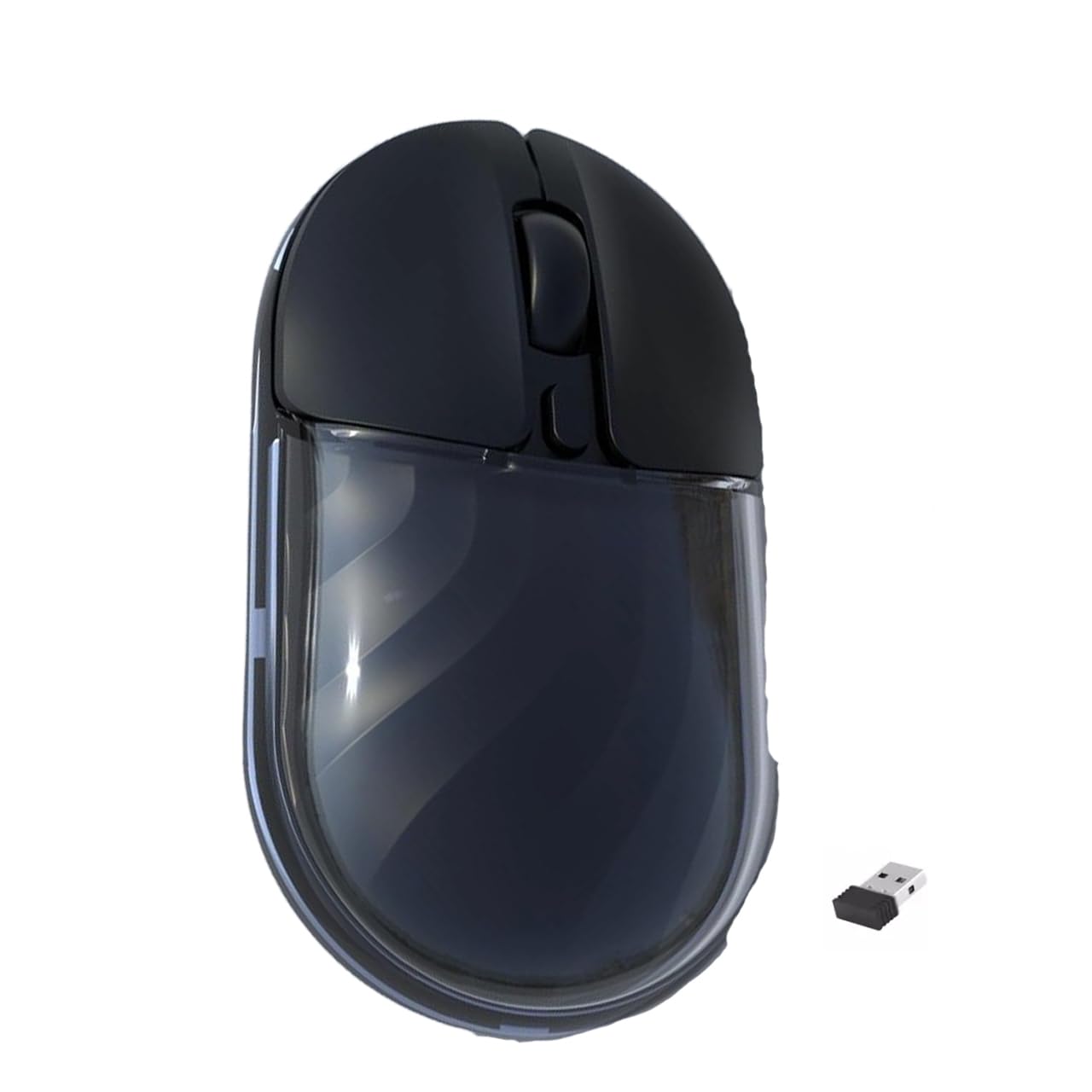
Figura 1: Arriba view of the JeDEL WD142 Wireless Bluetooth Rechargeable Mouse.
2. Configuración
2.1 Carga del ratón
Before first use, or when the battery is low, charge the mouse using the provided Type-C charging cable. Connect the Type-C end to the mouse's charging port and the USB-A end to a power source (e.g., computer USB port, USB wall adapter). The charging indicator light will illuminate during charging and turn off when fully charged. A full charge typically takes approximately 1.5 hours.
2.2 Conexión inalámbrica de 2.4 GHz
- Locate the USB 2.4GHz receiver, usually stored in a compartment on the underside of the mouse.
- Inserte el receptor USB en un puerto USB disponible en su computadora.
- Encienda el mouse usando el interruptor de encendido ubicado en la parte inferior.
- Switch the mouse to 2.4GHz mode using the mode switch button (if available, typically on the underside). The mouse should connect automatically.
2.3 Conexión Bluetooth
- Encienda el ratón utilizando el interruptor de encendido.
- Switch the mouse to Bluetooth mode using the mode switch button. The indicator light will typically blink, indicating it is in pairing mode.
- On your device (computer, smartphone, tablet), go to Bluetooth settings.
- Buscar new devices. The mouse should appear as "JeDEL WD142" or similar.
- Select the mouse to pair. Once paired, the indicator light on the mouse will stop blinking.
The JeDEL WD142 is compatible with iOS, macOS, Android, and Windows systems.
3. Instrucciones de funcionamiento
3.1 Funciones básicas
- Click izquierdo: Selección primaria y activación.
- Botón derecho del ratón: Accede a los menús contextuales.
- Rueda de desplazamiento: Scrolls content up or down. Can also be clicked for middle-click functionality.
3.2 Ajuste de ppp
The mouse features adjustable DPI (Dots Per Inch) settings, allowing you to change cursor sensitivity. Press the DPI button (usually located behind the scroll wheel) to cycle through available DPI levels: 800, 1200 (default), and 1600. Each press will change the sensitivity, indicated by a brief flash of the indicator light.
3.3 Cambio de modo
Use the mode switch button on the underside of the mouse to toggle between 2.4GHz wireless mode and Bluetooth mode as needed for different devices.
3.4 Iluminación RGB
The mouse features dynamic RGB lighting. Specific controls for RGB lighting (e.g., on/off, mode change) may be available via a dedicated button or software, if applicable. Refer to the product packaging or manufacturer's website for detailed RGB control instructions.
4. Mantenimiento
4.1 Limpieza
Para limpiar el ratón, frote suavemente su superficie con un paño suave.amp cloth. Avoid using harsh chemicals, abrasive cleaners, or excessive moisture, as these can damage the mouse. Ensure no liquid enters the mouse's internal components.
4.2 Cuidado de la batería
- Evite descargar completamente la batería con frecuencia para prolongar su vida útil.
- Charge the mouse regularly, especially if it will not be used for an extended period.
- No exponga el mouse a temperaturas extremas, ya que esto puede afectar el rendimiento de la batería.
4.3 Almacenamiento
When not in use, store the mouse in a cool, dry place away from direct sunlight and extreme temperatures. If storing for a long period, ensure the mouse is partially charged.
5. Solución de problemas
- El ratón no responde:
- Asegúrese de que el mouse esté encendido.
- Verifique el nivel de la batería y cárguela si es necesario.
- Verify the correct connection mode (2.4GHz or Bluetooth) is selected.
- For 2.4GHz, ensure the USB receiver is securely plugged into the computer.
- For Bluetooth, ensure the mouse is paired correctly and your device's Bluetooth is enabled. - El movimiento del cursor es errático o lento:
- Limpie el sensor óptico en la parte inferior del mouse.
- Asegúrese de utilizar el ratón sobre una superficie adecuada (no reflectante y de color uniforme).
- Adjust the DPI setting to a higher value if movement is too slow. - El ratón no se carga:
- Asegúrese de que el cable de carga tipo C esté conectado correctamente tanto al mouse como a la fuente de alimentación.
- Pruebe con un puerto USB o adaptador de corriente diferente.
- Compruebe si el cable de carga está dañado. - Problemas de emparejamiento de Bluetooth:
- Ensure the mouse is in Bluetooth pairing mode (indicator light blinking).
- Remove the mouse from your device's Bluetooth list and attempt to re-pair.
- Restart your device's Bluetooth function or the device itself.
6. Especificaciones
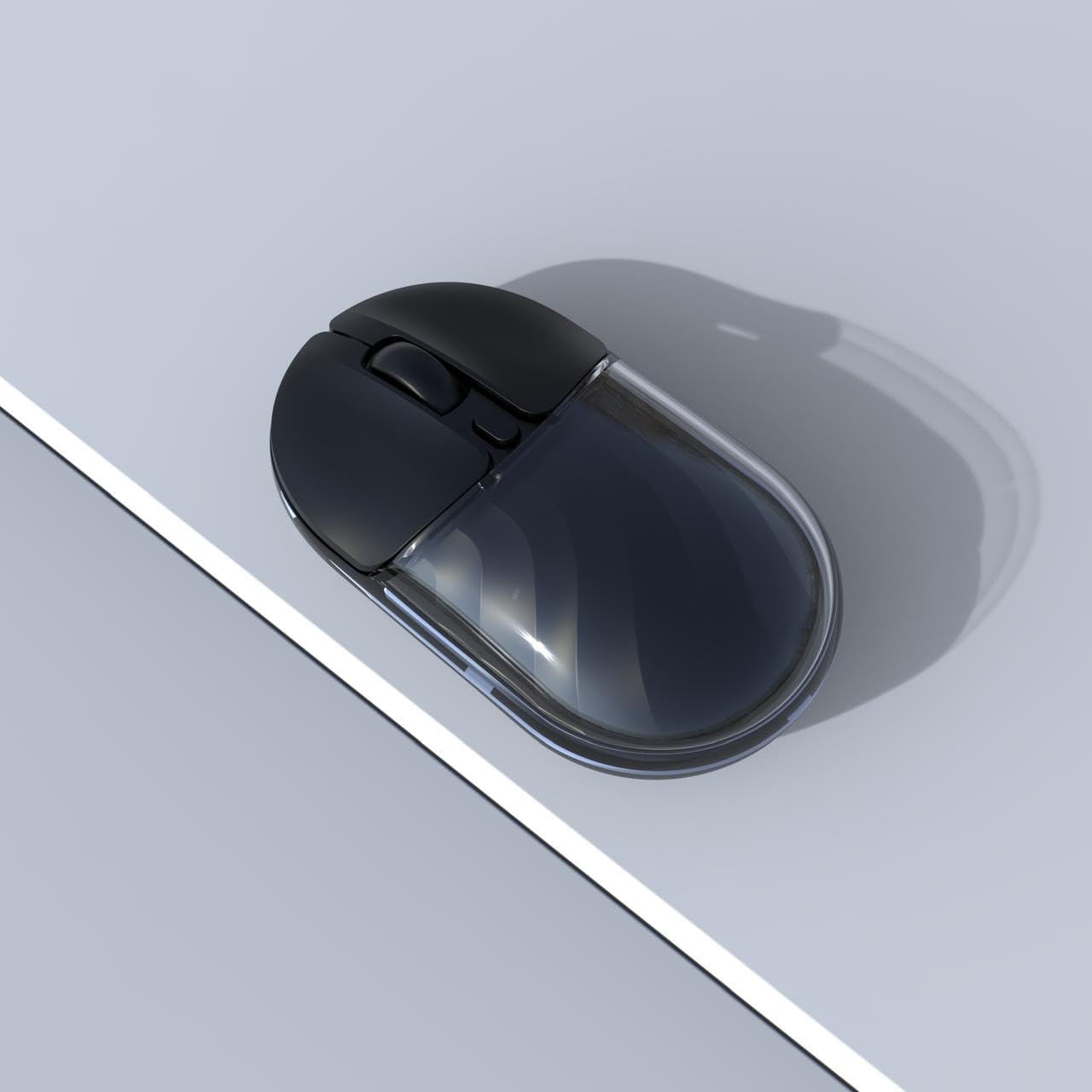
Figura 2: Lado view of the JeDEL WD142 Wireless Bluetooth Rechargeable Mouse.
| Característica | Especificación |
|---|---|
| Nombre del modelo | WD142 |
| Tecnología de conectividad | Inalámbrico de 2.4 GHz, Bluetooth |
| Configuración de DPI | 800/1200 (predeterminado)/1600 |
| Número de botones | 4 (Left, Right, Scroll Wheel, DPI) |
| Tipo de batería | Batería de litio recargable |
| Capacidad de la batería | 3.7 V 300 mAh |
| Puerto de carga | Tipo C |
| Distancia de trabajo | Hasta 10 metros (33 pies) |
| Silent Switch Life | Aproximadamente 3 millones de clics |
| Orientación de la mano | Bien |
| Dispositivos compatibles | Computadora personal, teléfono inteligente, tableta |
| Plataforma de hardware | Mac, PC |
| Peso | 69 ± 5 g (sin batería) |
| Dimensiones (L x An x Al) | 109 x 60 x 32 mm |
| Duración de la batería | Up to 180 hours (standby), 75 hours (working) |
7. Garantía y soporte
For warranty information and technical support, please refer to the documentation included with your purchase or contact the retailer/manufacturer directly. Specific warranty terms may vary by region and retailer.