

Image: The COLORROOM K10 Android 14 Tablet, showcasing su diseño y funda protectora incluida.
Introducción
This manual provides essential instructions for setting up, operating, maintaining, and troubleshooting your COLORROOM K10 Android 14 Tablet. Please read this guide thoroughly to ensure proper use and to maximize your tablet's performance and longevity. The K10 features an 11-inch IPS display, an octa-core processor, 12GB RAM, 128GB internal storage expandable up to 1TB, an 8000mAh battery with 18W PD fast charging, dual-band WiFi6, Bluetooth 5.0, GPS, and FM Radio.
¿Qué hay en la caja?
Al desembalar, verifique que estén presentes todos los elementos enumerados a continuación:
- COLORROOM Android 14 Tablet
- Cable USB
- Adaptador de corriente
- Shock-proof Case
Configuración
1. Carga de la tableta
Before first use, fully charge the tablet. Connect the provided USB cable to the tablet's charging port and the power adapter, then plug the adapter into a wall outlet. The tablet supports 18W PD fast charging. A full charge typically takes several hours.
2. Encendido / apagado
- Para encender: Mantenga presionado el botón de encendido hasta que aparezca el logotipo COLORROOM.
- Para apagar: Mantenga presionado el botón de Encendido, luego seleccione “Apagar” en las opciones.
- Para reiniciar: Mantenga presionado el botón de Encendido, luego seleccione “Reiniciar” de las opciones.
3. Asistente de configuración inicial
Siga las instrucciones en pantalla para completar la configuración inicial, que incluye seleccionar su idioma, conectarse a una red Wi-Fi e iniciar sesión con su cuenta de Google.
4. Conexión a Wi-Fi
- Ir a Ajustes > Red e internet > Wifi.
- Activar/desactivar Wi-Fi On.
- Seleccione la red que desee de la lista.
- Ingrese la contraseña si se le solicita y luego toque Conectar. The tablet supports dual-band WiFi (2.4/5GHz) for stable connections.
5. Ampliación del almacenamiento
The tablet supports up to 1TB expandable storage via a microSD card (not included). Locate the microSD card slot, insert the card gently until it clicks into place, and follow any on-screen prompts to format it if necessary.
6. Installing the Protective Case
Carefully align the tablet with the provided shock-proof case and gently press it into place, ensuring all ports and buttons are accessible and the tablet is securely fitted.
Instrucciones de funcionamiento
1. Navegación básica
- Tocar: Toque un ícono para abrir una aplicación o seleccionar un elemento.
- Golpe fuerte: Arrastre el dedo por la pantalla para desplazarse o navegar entre pantallas.
- Pellizco: Utilice dos dedos para acercar o alejar las imágenes y web páginas.
- Botón de inicio: Vuelve a la pantalla de inicio.
- Botón Atrás: Regresa a la pantalla anterior.
- Botón de aplicaciones recientes: Muestra las aplicaciones abiertas recientemente.
2. Multitarea
The tablet's octa-core processor and 12GB RAM allow for efficient multitasking. You can run multiple applications simultaneously. Use the recent apps button to switch between open applications or use split-screen mode for two apps side-by-side.
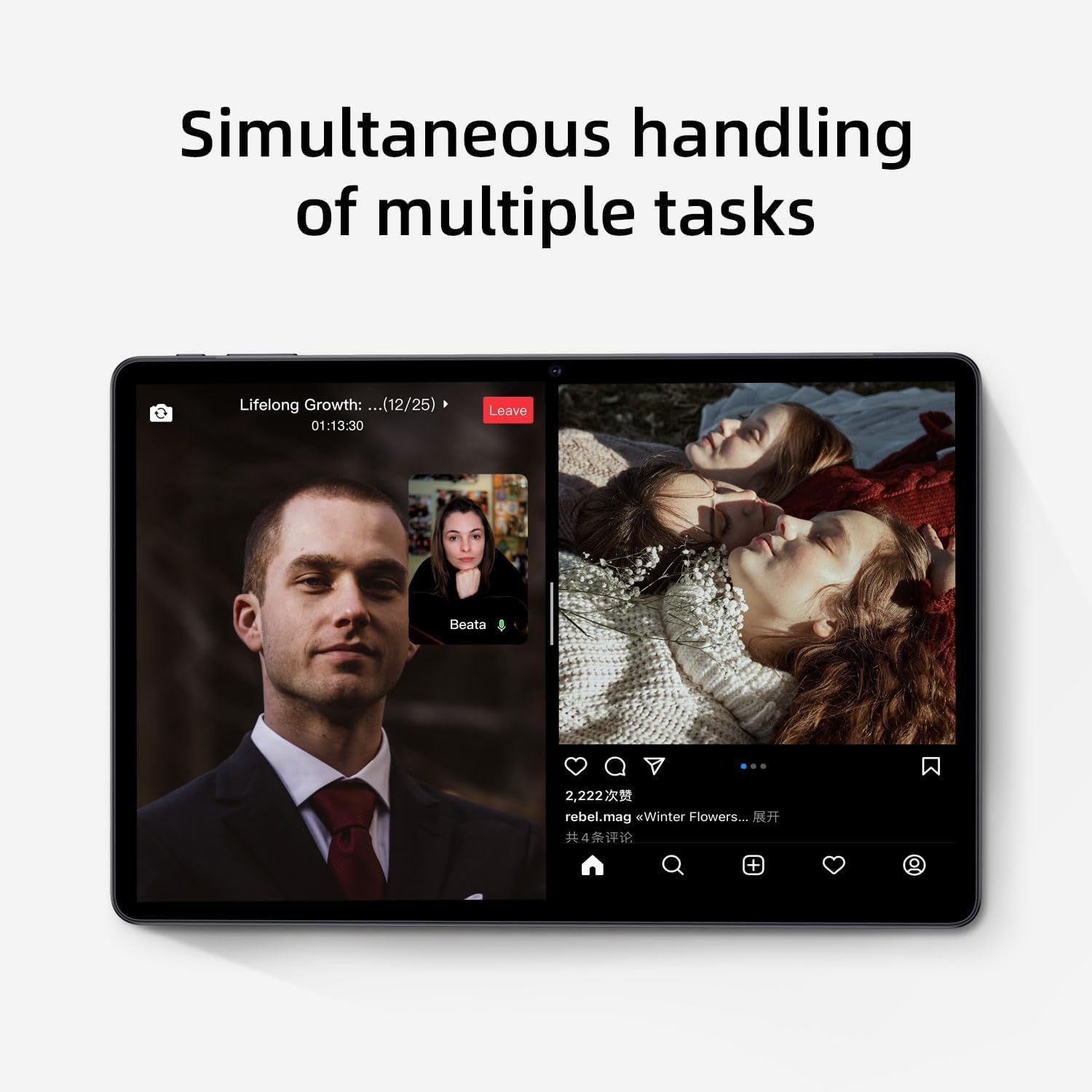
Image: The tablet screen showing two applications running simultaneously in split-screen mode, illustrating its multitasking feature.
3. Reproducción multimedia
The 11-inch IPS display with 1920x1200 resolution provides clear and vibrant visuals for streaming videos, viewing photos, and playing games. Use pre-installed media players or download your preferred apps from the Google Play Store.
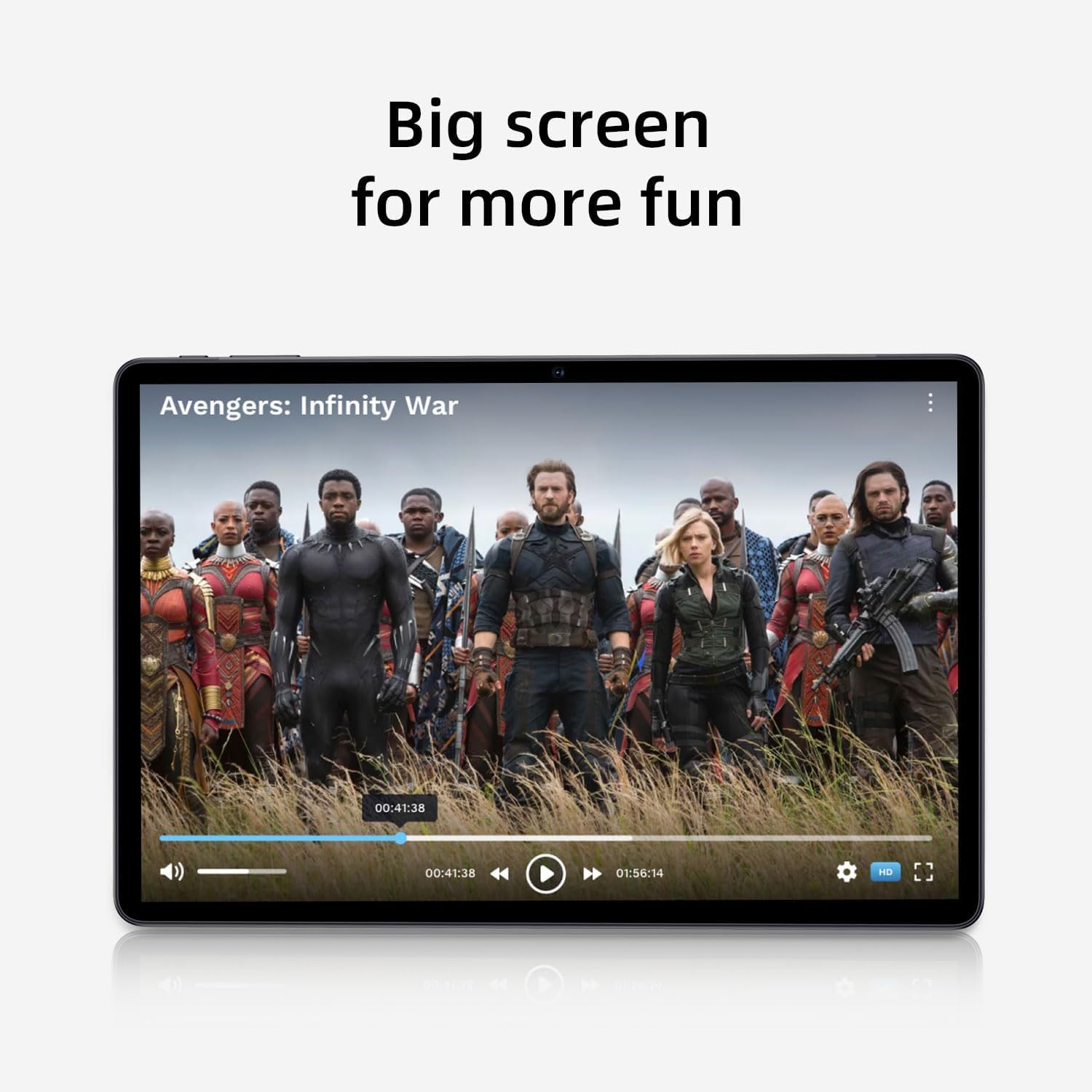
Image: The tablet screen showing a video playing, highlighting the display quality for entertainment.
4. Uso del GPS
The tablet includes built-in GPS functionality. To use navigation apps, ensure location services are enabled in Ajustes > Ubicación. Download a navigation app from the Google Play Store for turn-by-turn directions.
5. Uso de la radio FM
To use the FM Radio, connect wired headphones (not included) to the tablet's audio jack. The headphones act as an antenna. Open the pre-installed FM Radio app and scan for available stations.
6. Conectividad Bluetooth
To pair Bluetooth devices (e.g., headphones, speakers):
- Ir a Ajustes > Dispositivos conectados > Preferencias de conexión > Bluetooth.
- Activar o desactivar Bluetooth On.
- Asegúrese de que su dispositivo Bluetooth esté en modo de emparejamiento.
- Seleccione su dispositivo de la lista de dispositivos disponibles y siga las instrucciones en pantalla para completar el emparejamiento.
7. Uso de la cámara
Open the Camera app from the home screen or app drawer. Tap the shutter button to take photos or switch to video mode to record videos. Adjust settings like flash, timer, and camera mode within the app interface.
Mantenimiento
1. Limpieza de la tableta
Utilice un paño suave y sin pelusa para limpiar la pantalla y el cuerpo de la tableta. Para manchas difíciles, limpie ligeramente...ampEnjuague el paño con agua o una solución limpiadora de pantallas. Evite productos químicos agresivos o materiales abrasivos.
2. Cuidado de la batería
- Evite las temperaturas extremas, ya que pueden degradar la vida útil de la batería.
- No deje que la batería se descargue por completo con frecuencia.
- Utilice el cargador proporcionado para una carga óptima.
- The 8000mAh battery provides extended usage; however, proper care ensures long-term performance.

Image: A visual representation of the tablet's 8000mAh battery capacity, emphasizing its long-lasting power.
3. Actualizaciones de software
Revise regularmente las actualizaciones del sistema para asegurarse de que su tableta tenga las últimas funciones y parches de seguridad. Vaya a Ajustes > Sistema > Actualización del sistema.
4. Gestión del almacenamiento
Repita periódicamenteview sus aplicaciones instaladas y files. Desinstale las aplicaciones no utilizadas y elimine las innecesarias. files to free up the 128GB internal storage. Utilize the 1TB expandable storage for large media files.
Solución de problemas
La tableta no se enciende
- Asegúrese de que la tableta tenga suficiente carga. Conéctela al adaptador de corriente y espere unos minutos antes de intentar encenderla.
- Mantenga presionado el botón de encendido durante al menos 10 a 15 segundos para realizar un reinicio forzado.
Problemas de conexión Wi-Fi
- Reinicie su enrutador Wi-Fi y la tableta.
- Olvídese de la red en la configuración de Wi-Fi y vuelva a conectarse.
- Asegúrese de estar dentro del alcance de la señal Wi-Fi.
Rendimiento lento
- Cierre las aplicaciones no utilizadas que se ejecutan en segundo plano.
- Borre los datos de caché de las aplicaciones utilizadas con frecuencia.
- Busque e instale todas las actualizaciones del sistema disponibles.
- Consider performing a factory reset as a last resort (back up your data first). Go to Ajustes > Sistema > Opciones de reinicio > Borrar todos los datos (restablecer valores de fábrica).
La pantalla táctil no responde
- Reinicie la tableta.
- Asegúrese de que la pantalla esté limpia y libre de residuos o humedad.
Presupuesto

Image: The tablet shown with its physical dimensions, including screen size and overall device measurements.
| Nombre del modelo | K10 |
| Sistema operativo | Androide 14 |
| Procesador | Octa-core (Unisoc) |
| RAM | 12 GB |
| Almacenamiento interno | 128 GB |
| Almacenamiento expandible | Hasta 1 TB (microSD) |
| Tamaño de pantalla | 11 pulgadas |
| Resolución de pantalla | 1920x1200 IPS |
| Capacidad de la batería | 8000 mAh |
| Cargando | 18W PD Fast Charge |
| Wifi | Dual-band (2.4/5GHz) 802.11ac |
| Bluetooth | Bluetooth 5.0 |
| GPS | Sí |
| Radio FM | Sí |
| Peso del artículo | 2.33 libras |
| Dimensiones del producto | 10.1 x 3.5 x 0.35 pulgadas |
Información de garantía
This COLORROOM K10 Tablet is covered by a standard manufacturer's warranty. The specific terms and duration of the warranty may vary by region. Please retain your proof of purchase for warranty claims. For detailed warranty information, including coverage and how to make a claim, please refer to the warranty card included with your product or visit the official COLORROOM websitio.
Apoyo
For further assistance, technical support, or to inquire about service, please visit the COLORROOM official support websitio o contacte con su departamento de atención al cliente. La información de contacto normalmente se encuentra en la ficha del fabricante. websitio o en los materiales de embalaje.