1. Introducción
Thank you for choosing the Inefala Android 15 Car Radio. This device is designed to enhance your driving experience with advanced features such as Wireless Carplay, Android Auto, GPS navigation, Bluetooth connectivity, and a 9-inch touchscreen display. This manual provides essential information for proper installation, operation, and maintenance of your new car radio. Please read it thoroughly before use.
2. Información de seguridad
- Asegúrese siempre de que el vehículo esté estacionado de forma segura antes de operar las funciones avanzadas de la radio del automóvil.
- No intente instalar ni reparar la unidad si no está cualificado. Una instalación incorrecta puede provocar daños o lesiones.
- Consult a professional for electrical wiring if you are unsure.
- Mantenga el volumen a un nivel seguro para estar al tanto de las condiciones de la carretera y del tráfico.
- Evite exponer la unidad a temperaturas extremas, luz solar directa durante períodos prolongados o humedad excesiva.
3. Contenido del paquete
Por favor, marque la casilla correspondiente a los siguientes artículos:
- Inefala Android 15 Car Radio for Suzuki SX4 / Fiat Sedici
- Cable de alimentación
- Cable RCA
- Antena GPS
- Cable de entrada de cámara de marcha atrás
- Cámara de emergencia AHD
- Micrófono externo
- 2 x Cables USB
- Adaptador de cable USB
- Soporte de montaje
- Herramienta de instalación

Imagen: Detallada view of the wiring harness and included accessories in the package.
4. Configuración e instalación
4.1. Instalación generalview
The Inefala Android 15 Car Radio is designed for direct fitment in Suzuki SX4 (2006-2013) and Fiat Sedici (2005-2014) models. Professional installation is recommended. Ensure the vehicle's power is disconnected before starting installation.
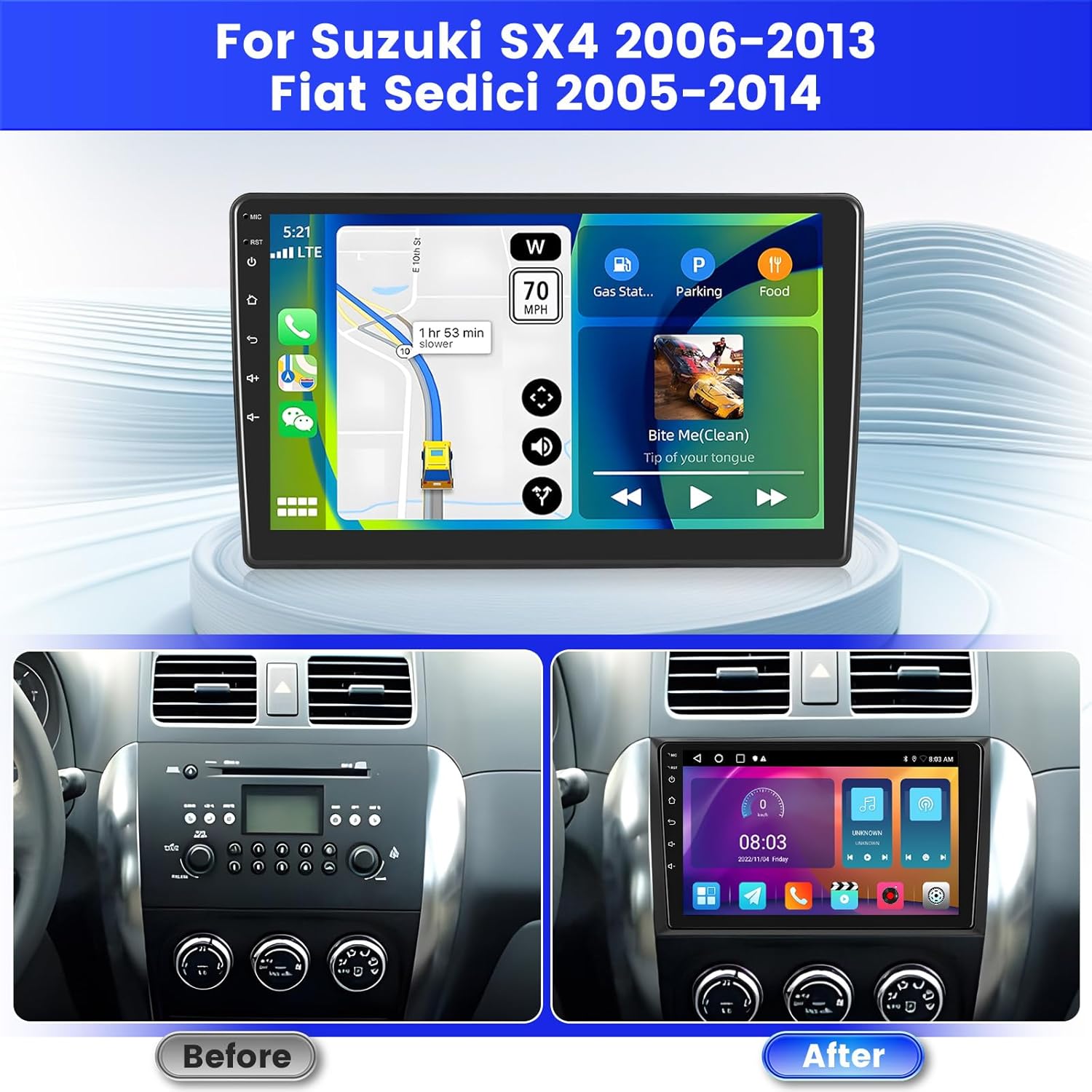
Image: Comparison of the vehicle dashboard before and after the installation of the Inefala car radio.
4.2. Diagrama de cableado
Connect the power cable, RCA cables, GPS antenna, and USB cables to their respective ports on the car radio. Refer to the detailed wiring diagram for correct connections.
Image: Close-up of the car radio's rear ports and corresponding cable connections, including power, RCA, USB, and antenna inputs.
4.3. Conexión de la cámara de respaldo
The unit supports an AHD backup camera. Connect the red cable of the reverse input cable to the positive terminal of the car's reverse light cable. Connect the black cable to the negative terminal of the car's reverse light cable. The other two red extension cables (if present) do not need to be connected.
Nota importante:
El cable de entrada de reversa debe estar conectado incluso si no se utiliza la cámara de reversa. De lo contrario, podría afectar la recepción de la señal Bluetooth y Wi-Fi.

Image: Visual guide for connecting the AHD backup camera, illustrating the wiring to the car's reverse lights and the radio unit.
4.4. Control del volante (SWC)
Para habilitar los controles del volante, siga estos pasos:
- Sin decodificador CANBUS: Connect the plugs or the steering wheel control wires (Key1/Key2) in the power cable to the corresponding port or wire of your original car. Then, go to "SWC manual match" in the radio settings to activate the button function.
- Con decodificador CANBUS: Conecte el bus CAN antes de encender la radio. Luego, siga esta ruta: Configuración del coche > Fábrica (000000) > Configuración del tipo de coche Para que el SWC funcione correctamente, primero seleccione la marca del decodificador CANBUS y, a continuación, el modelo y año correspondientes según la situación.

Image: Diagram illustrating the connection points for steering wheel controls and a screenshot of the on-screen SWC configuration interface.
5. Instrucciones de funcionamiento
5.1. Encendido/apagado y navegación básica
Press the power button to turn the unit on or off. The 9-inch touchscreen allows for intuitive navigation through menus and applications. Swipe, tap, and pinch gestures are supported.
5.2. Sistema Android y aplicaciones
The car radio runs on Android 15 with 2GB RAM and 64GB internal storage. This allows for smooth operation and the ability to download various applications from the Google Play Store (requires Wi-Fi connection).
5.3. CarPlay inalámbrico y Android Auto
Connect your smartphone wirelessly via Bluetooth to access Apple CarPlay or Android Auto. This feature allows you to use navigation, make calls, send messages, and listen to music directly from your phone's interface displayed on the car radio screen.

Image: Display of the car radio screen showing various applications accessible through Wireless Carplay and Android Auto, including navigation, music, and communication apps.
5.4. Enlace espejo
Project your smartphone screen onto the car radio display via Wi-Fi or USB cable using the Mirror Link function. This allows you to view El contenido de tu teléfono directamente en la pantalla más grande.

Image: Visual representation of the Carplay, Android Auto, and Mirror Link functionalities, showing how each projects phone content to the car radio screen.
5.5. Navegación GPS
The unit supports both online and offline GPS navigation. Connect to Wi-Fi to download maps or use real-time traffic information. The included GPS antenna ensures accurate positioning.

Image: The car radio screen displaying a navigation map with route information, alongside an illustration of Wi-Fi connectivity.
5.6. Radio FM/RDS
Tune into your favorite radio stations using the built-in FM/RDS tuner. RDS (Radio Data System) provides additional information such as station name and program type.
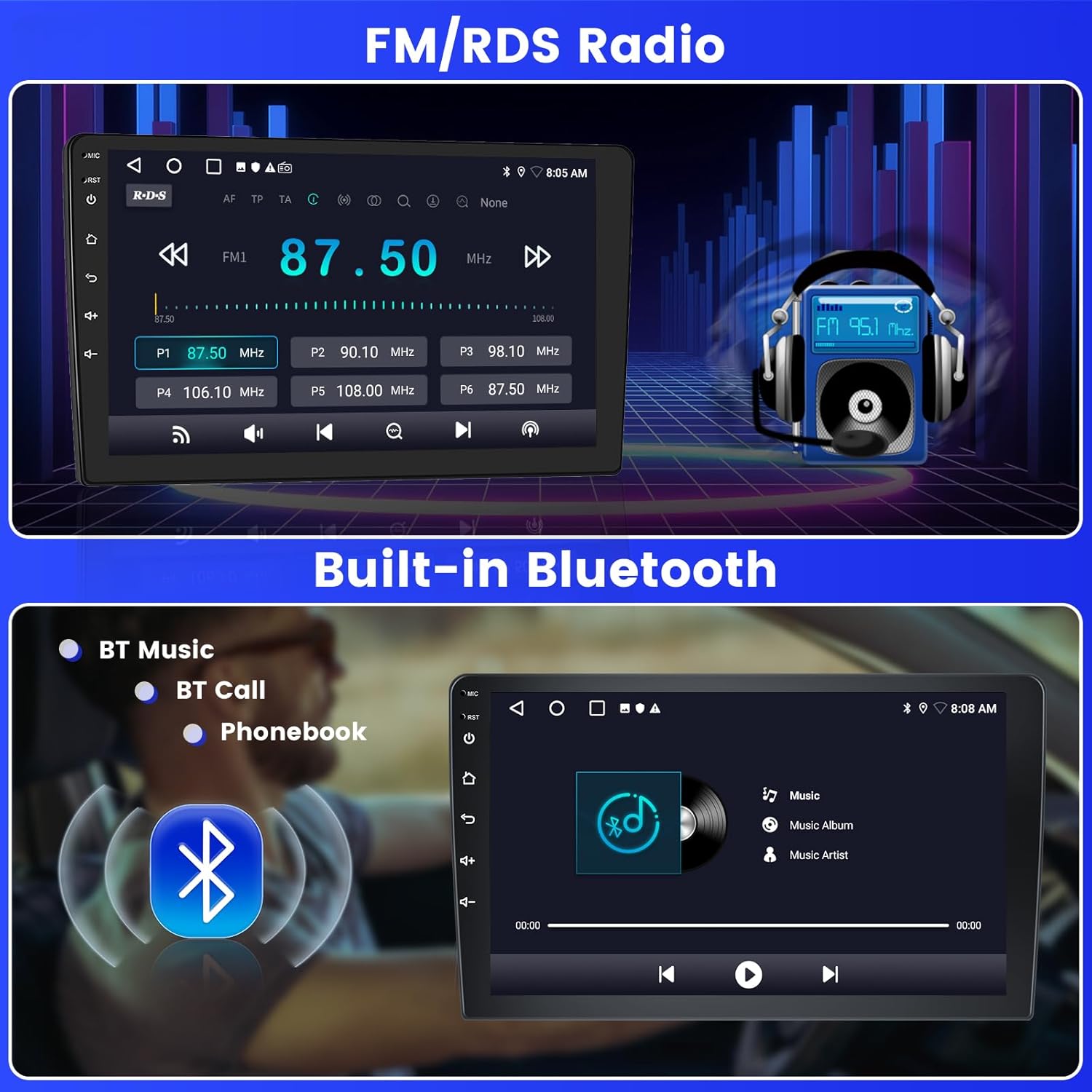
Image: The car radio screen displaying the FM radio interface with frequency selection and an illustration of Bluetooth music streaming.
5.7. Conectividad Bluetooth
Connect your phone via Bluetooth for hands-free calling, music streaming, and file transfer. Access your phonebook directly from the car radio display.
5.8 Conexión wifi
Connect the car radio to a Wi-Fi hotspot (e.g., from your smartphone) to access online features, download apps, stream videos, and update maps.
5.9. Función de pantalla dividida
La función de pantalla dividida te permite correr y view dos aplicaciones simultáneamente en la pantalla de 9 pulgadas, como navegación y reproducción de música.

Image: The car radio screen demonstrating the Digital Sound Processor (DSP) settings, the split-screen functionality with two apps running, and a selection of 26 user interface themes.
5.10. Sound Settings (EQ & DSP)
Utilize the built-in EQ (Equalizer) and DSP (Digital Sound Processor) to customize your audio experience. Adjust sound output, balance, and various sound effects to match your preferences.
5.11. Temas de interfaz de usuario
The car radio offers 26 different user interface themes. You can change the theme to personalize the look and feel of your display.
5.12. Pantalla de la cámara de respaldo
When the vehicle is in reverse gear, the screen will automatically display the high-definition image from the AHD backup camera, providing a clear view para estacionar y maniobrar de forma más segura.
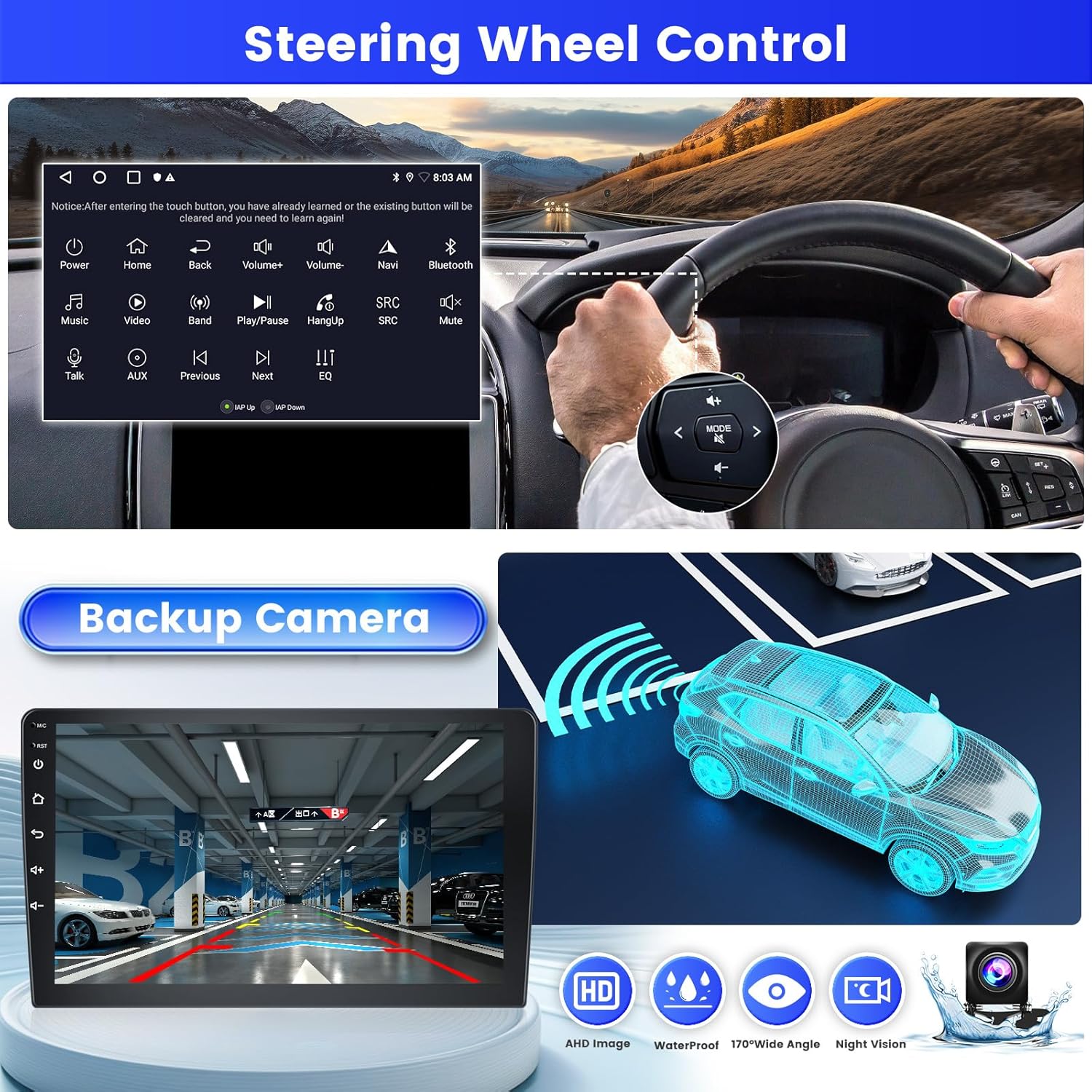
Imagen: La pantalla de la radio del automóvil muestra la view from the backup camera, along with an illustration of steering wheel controls.
6. Mantenimiento
- Limpieza de la pantalla: Utilice un paño suave y sin pelusa para limpiar suavemente la pantalla táctil. No utilice limpiadores abrasivos ni disolventes.
- Limpieza general: Mantenga la unidad libre de polvo y residuos. Utilice un paño seco para limpiar el exterior.
- Actualizaciones de software: Compruebe periódicamente si hay actualizaciones de software a través de Wi-Fi para garantizar un rendimiento óptimo y acceso a nuevas funciones.
7. Solución de problemas
| Problema | Posible causa | Solución |
|---|---|---|
| La unidad no se enciende. | Conexión de alimentación suelta, fusible quemado. | Revise los cables de alimentación y los fusibles del vehículo. Asegúrese de que el cableado sea correcto. |
| No hay sonido. | Volumen demasiado bajo, fuente de audio incorrecta, cables de altavoz sueltos. | Sube el volumen. Selecciona la fuente de audio correcta. Revisa las conexiones de los altavoces. |
| Señal GPS perdida o inexacta. | Antena GPS obstruida o conectada incorrectamente. | Asegúrese de que la antena GPS esté montada en un lugar despejado y conectada de forma segura. |
| Problemas de Bluetooth/Wi-Fi. | Reverse input cable not connected (even if camera not used). | Ensure the reverse input cable is plugged into the unit. |
| Los controles del volante no funcionan. | Cableado o configuración de software incorrectos. | Verify SWC wiring. Follow configuration steps in Section 4.4. |
8. Especificaciones
| Característica | Detalle |
|---|---|
| Nombre del modelo | 2ba21f87-18ff-4355-ad45-79b956fcb744 |
| Sistema operativo | Androide 15 |
| RAM + ROM | 2 GB de RAM + 64 GB de ROM |
| Tamaño de pantalla | 9 pulgadas |
| Tipo de pantalla | Pantalla táctil |
| Conectividad | Bluetooth, USB, Wi-Fi |
| Características especiales | Wireless Carplay, Android Auto, Mirror Link, FM RDS Radio, EQ, DSP, GPS, 26 UI Themes, SWC (Steering Wheel Control), Double USB Input |
| Vehículos compatibles | Suzuki SX4 (2006-2013), Fiat Sedici (2005-2014) |
| Modo de salida de audio | Estéreo |
| Método de control | Tocar |
| Peso del producto | 1.29 kilogramos |
| País natal | Porcelana |
9. Información de garantía
Este producto viene con un Garantía de 24 mesesInefala ofrece asistencia en línea de por vida para consultas y tiene como objetivo responder dentro de las 24 horas.
10. Atención al cliente
If you encounter any difficulties during installation or use, or have any questions regarding your Inefala car radio, please contact our customer support team.
You can reach us through the Amazon platform by clicking on the seller name "Inefala" and then selecting "Ask a question". Alternatively, you may contact our customer service team via email at inefalaservices@163.com.
We strive to respond to all inquiries within 24 hours, regardless of holidays.

Image: Guide showing how to locate the "Ask a question" option on Amazon to contact Inefala customer support.