
1. ¿Qué hay en la caja?
Verifique que todos los componentes estén presentes en el paquete:
- Teclado mecánico inalámbrico
- Ratón inalámbrico
- Receptor USB
- Alfombrilla de ratón
- USB-C Cable (for keyboard charging/wired mode)
- 1 pila AA (para ratón)
2. Producto terminadoview
The Taiahiro BK6301 set includes a 98-key mechanical keyboard and an ergonomic wireless mouse, designed for versatile use across gaming and professional tasks. The keyboard features blue mechanical switches for tactile and audible feedback, RGB backlighting, and triple-mode connectivity. The mouse offers adjustable DPI and dual-mode wireless connection.
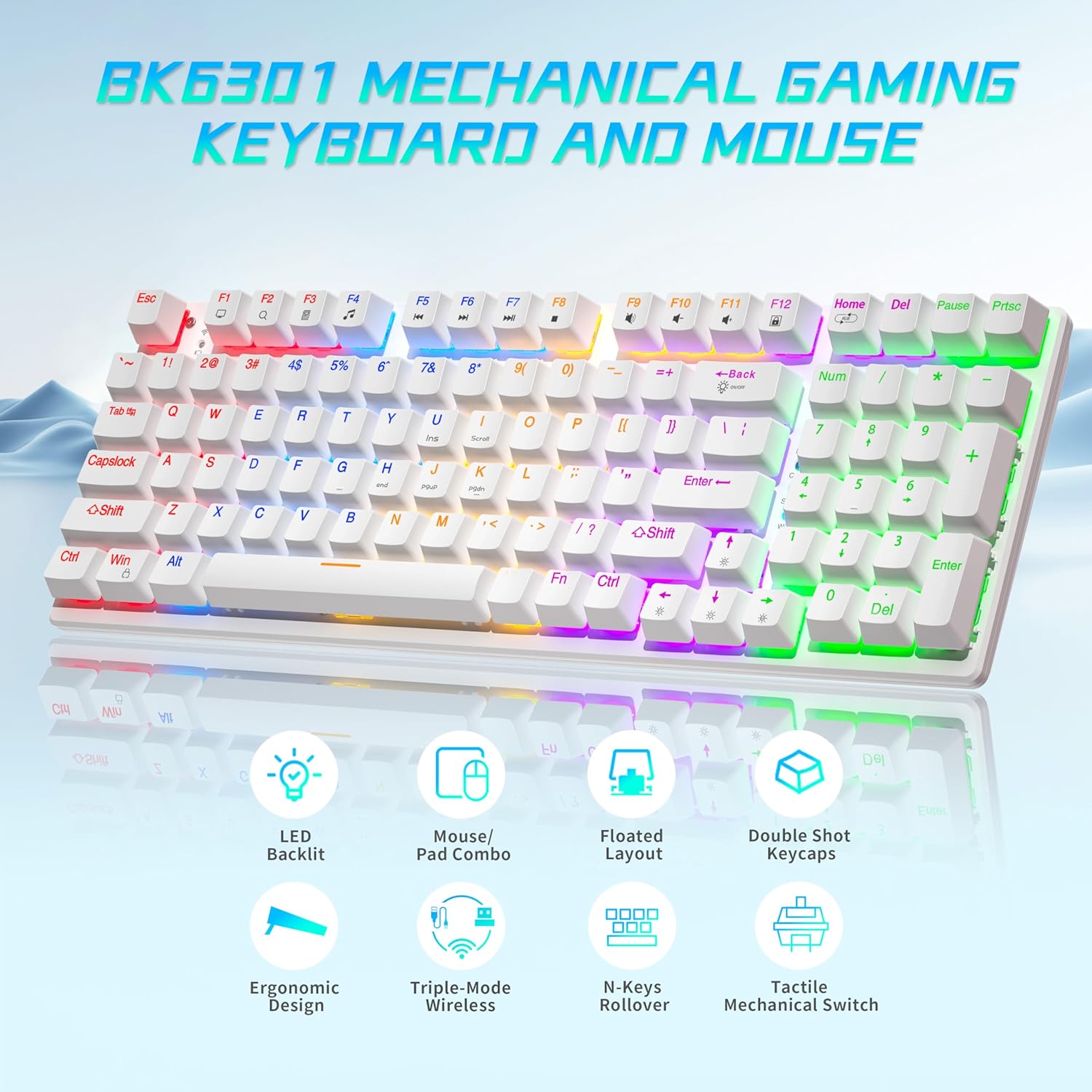
Image: The Taiahiro BK6301 keyboard and mouse combo, showcasing its LED backlit keys, mouse/pad combo, floated layout, double shot keycaps, ergonomic design, triple-mode wireless, N-keys rollover, and tactile mechanical switches.
2.1 Características del teclado
- Disposición de 98 teclas: Full-size keyboard including a numeric keypad.
- Interruptores mecánicos azules: Provides satisfying tactile and audible feedback for typing and gaming.
- Double Shot Injection Keycaps: Ensures key legends remain clear and legible over time.
- Conectividad de triple modo: Supports USB-C wired, 2.4G wireless, and Bluetooth 5.0 connections.
- Retroiluminación RGB: 8 different lighting modes with adjustable brightness and breathing speed.
- Anti-efecto fantasma: Garantiza el registro preciso de múltiples pulsaciones de teclas simultáneas.

Imagen: Un primer plano view illustrating the internal structure of the blue mechanical switches, highlighting their 50,000,000 keystroke life, 60±15g key force, and 2.4±0.2mm stroke travel.
2.2 Características del ratón
- Dual-Mode Wireless: Connects via 2.4G wireless or Bluetooth.
- DPI ajustable: Four DPI levels (800/1600/2400/3200) for precision control.
- Diseño ergonómico: Contoured shape with textured grip for comfortable use.
- Anti-Skid Scroll Wheel: For improved control.

Image: The Taiahiro wireless gaming mouse, featuring its 4 adjustable DPI levels (800/1600/2400/3200) and convenient forward/back buttons.
3. Instrucciones de configuración
3.1 Configuración del teclado
The keyboard supports three connection modes: USB-C wired, 2.4G wireless, and Bluetooth.
- Modo cableado USB-C:
Conecte el cable USB-C incluido del teclado a un puerto USB disponible en su computadora. El teclado se reconocerá automáticamente y estará listo para usar. - Modo inalámbrico 2.4G:
Locate the USB receiver, typically stored in the mouse's battery compartment. Plug the USB receiver into an available USB port on your computer. The keyboard should connect automatically. - Modo Bluetooth:
Ensure the keyboard is in Bluetooth pairing mode (refer to keyboard specific key combination, usually Fn + a Bluetooth key). On your device (PC, laptop, tablet, phone), go to Bluetooth settings and select the keyboard from the list of available devices to pair.

Image: The Taiahiro keyboard and mouse demonstrating its 3-mode wireless capabilities, connecting to a laptop via USB-C, a monitor via 2.4GHz, and a tablet via Bluetooth.
3.2 Configuración del ratón
The mouse supports 2.4G wireless and Bluetooth connections.
- Instale la batería: The mouse requires one AA battery. Open the battery compartment on the underside of the mouse and insert the included AA battery, ensuring correct polarity.
- Encendido: Deslice el interruptor de encendido en la parte inferior del mouse a la posición 'ENCENDIDO'.
- Modo inalámbrico 2.4G:
The USB receiver for the 2.4G connection is stored in the mouse's battery compartment. Remove it and plug it into an available USB port on your computer. The mouse should connect automatically. - Modo Bluetooth:
Ensure the mouse is in Bluetooth pairing mode (refer to mouse specific button, usually a button on the underside). On your device, go to Bluetooth settings and select the mouse from the list of available devices to pair.
Video: A brief demonstration of unboxing the keyboard and mouse, showing the initial setup and connection process.
4. Instrucciones de funcionamiento
4.1 Keyboard Backlighting Control
The keyboard features 8 RGB backlighting modes. Use the following key combinations to adjust:
- Cambiar el modo de iluminación: Prensa Fn + Inicio para recorrer diferentes efectos de iluminación.
- Ajustar el brillo: Prensa Fn + ↑ (Flecha arriba) para aumentar el brillo y Fn + ↓ (Flecha hacia abajo) para disminuir el brillo.
- Ajustar velocidad: Prensa Fn + ← (Flecha izquierda) para disminuir la velocidad del efecto y Fn + → (Flecha derecha) para aumentar la velocidad del efecto.
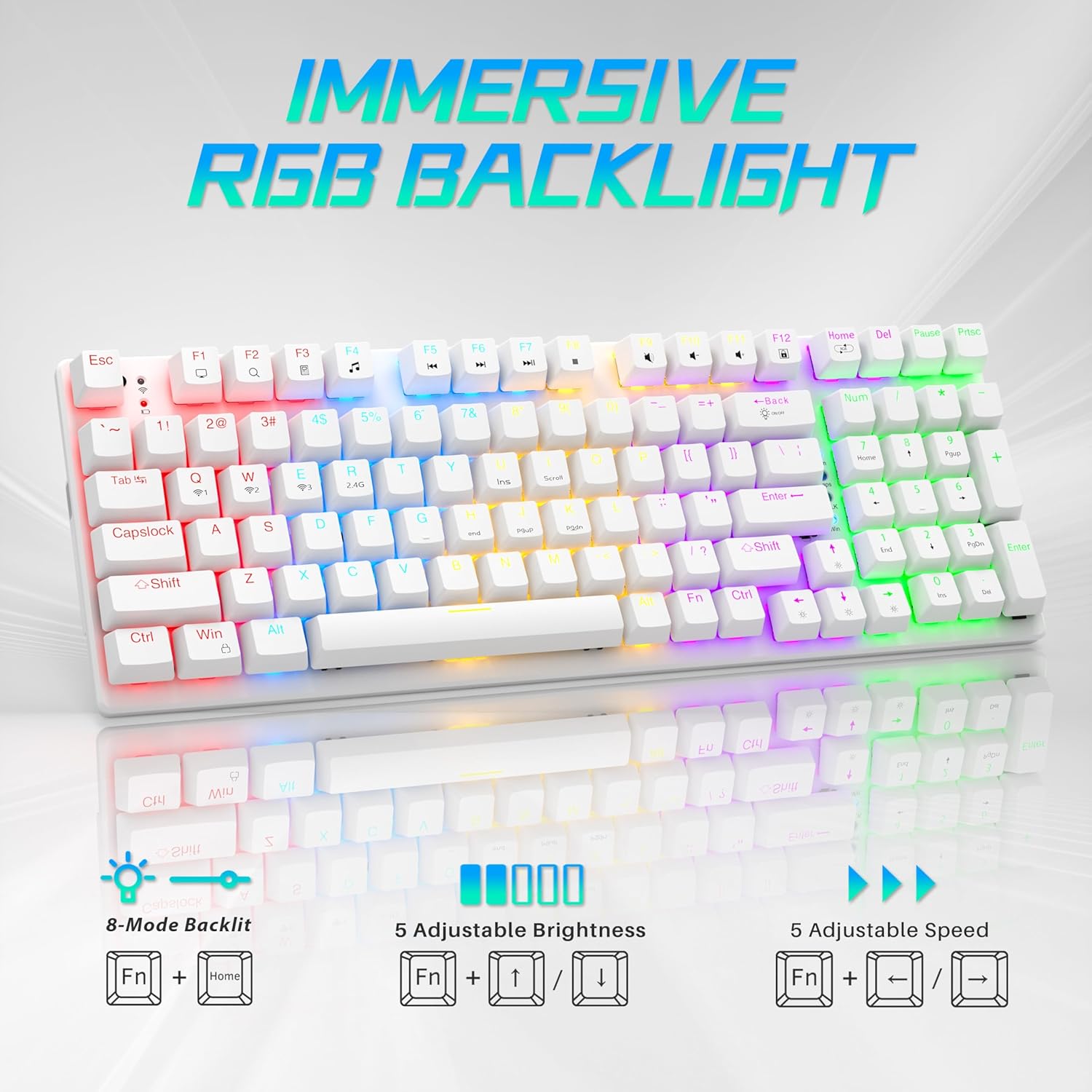
Image: Visual guide to controlling the keyboard's immersive RGB backlight, showing key combinations for 8-mode backlight, 5 adjustable brightness levels, and 5 adjustable speeds.
Video: A demonstration of the keyboard's RGB backlighting in action, highlighting the various lighting effects and colors.
4.2 Ajuste de DPI del ratón
The mouse features 4 adjustable DPI levels for varying cursor sensitivity.
- Change DPI: Press the DPI button located on the top of the mouse, below the scroll wheel, to cycle through the 800, 1600, 2400, and 3200 DPI settings.
5. Mantenimiento
- Limpieza: Use a soft, dry cloth to clean the surfaces of the keyboard and mouse. For deeper cleaning, a can of compressed air can remove dust and debris from between keycaps.
- Mouse Battery Replacement: When the mouse's performance degrades, replace the AA battery in the compartment on the underside.
- Extracción de la tecla: A keycap puller (often included with mechanical keyboards) can be used to carefully remove keycaps for cleaning or replacement.
Vídeo: Un repaso detalladoview demonstrating the mouse battery installation, USB receiver storage, and the use of a keycap puller for keyboard maintenance.
6. Solución de problemas
- Dispositivo no conectado:
- Ensure the device is powered on and fully charged (keyboard) or has a fresh battery (mouse).
- Para la conexión inalámbrica 2.4G, asegúrese de que el receptor USB esté conectado de forma segura a un puerto USB que funcione.
- For Bluetooth, ensure the device is in pairing mode and your computer's Bluetooth is enabled and searching. Try re-pairing the device.
- Si utiliza el modo cableado, asegúrese de que el cable USB-C esté conectado correctamente.
- Keyboard Backlighting Not Working:
- Asegúrese de que el teclado esté encendido.
- Try adjusting brightness using Fn + ↑.
- Recorra los modos de iluminación usando Fn + Inicio.
- El cursor del mouse salta o no responde:
- Reemplace la batería del mouse.
- Asegúrese de que el sensor del mouse esté limpio y libre de residuos.
- Try using the mouse on a different surface or the provided mouse pad.
- Re-pair the mouse with your computer.
7. Especificaciones
| Característica | Detalle |
|---|---|
| Número de modelo | BK6301 |
| Tecnología de conectividad | Conexión inalámbrica de 2.4 GHz, Bluetooth 5.0, cable USB-C |
| Tipo de teclado | Teclado de juegos mecánicos |
| Tipo de interruptor | Interruptores mecánicos azules |
| Vida clave | 50 millones de clics |
| Contraluz | RGB (8 modos) |
| Niveles de DPI del ratón | 800/1600/2400/3200 |
| Batería del ratón | 1 pila AA (incluida) |
| Dispositivos compatibles | Laptop, PC (Windows, macOS, Android) |
| Dimensiones del producto (teclado) | Aproximadamente 14.7" de largo x 5.2" de ancho x 1.8" de alto |
| Peso del artículo | 2.68 libras |

Image: The Taiahiro BK6301 keyboard and mouse with key dimensions labeled for reference.
8. Garantía y soporte
For warranty information, technical support, or any product-related inquiries, please refer to the contact details provided in your product packaging or visit the official Taiahiro websitio. Guarde su recibo de compra para reclamos de garantía.