
1. Introducción
The Rapoo MT760 PRO is a versatile multi-mode wireless mouse designed for enhanced productivity across various devices and operating systems. Featuring advanced NearLink technology, Bluetooth 5.0, and a wired option, it offers seamless connectivity and high-precision tracking. This manual provides detailed instructions for setup, operation, and maintenance to help you maximize your mouse's capabilities.
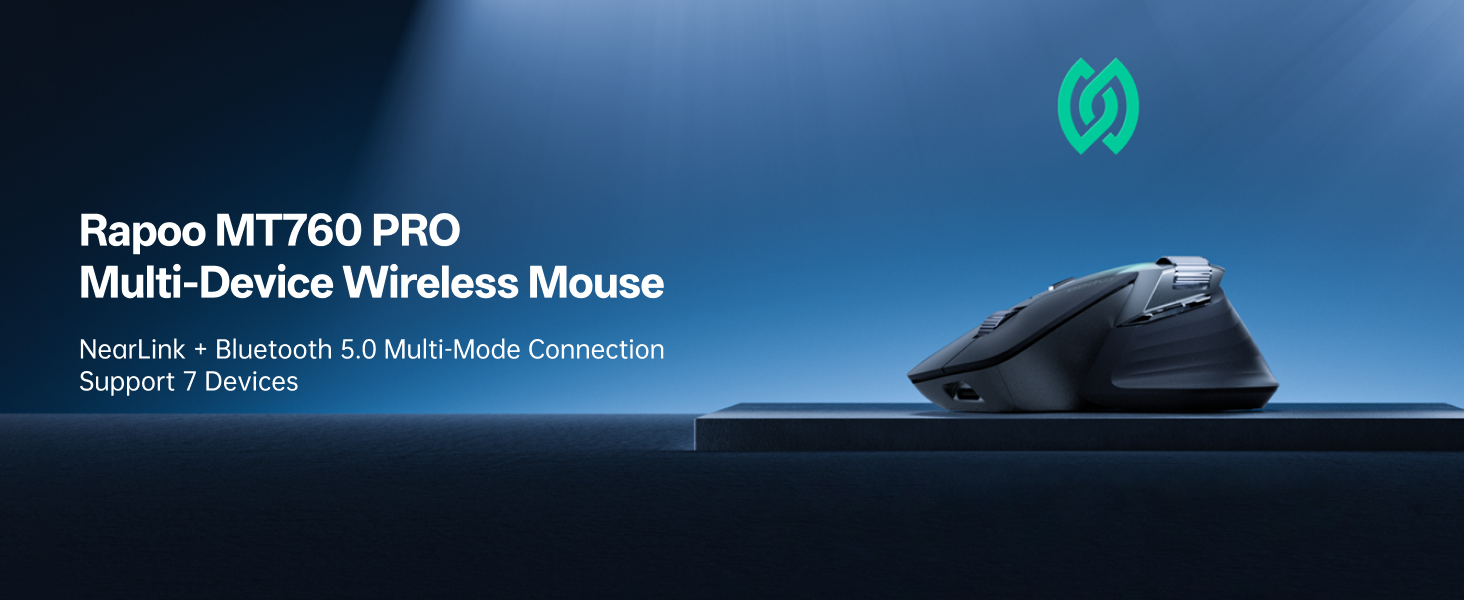
Image: The Rapoo MT760 PRO mouse shown connected to various devices, highlighting its multi-device capability.
2. Contenido del paquete
Por favor verifique que todos los artículos estén presentes en su paquete:
- 1 x Rapoo MT760 PRO Wireless Mouse
- 2 x NearLink USB Dongles
- 1 cable de carga USB-C (USB-A a USB-C)
- 1 x Manual de usuario (este documento)

Image: The Rapoo MT760 PRO mouse, USB-C charging cable, and two NearLink USB dongles laid out on a wooden surface.
3. Configuración y conectividad
3.1 Encendido / Apagado
Locate the power switch on the underside of the mouse. Slide it to the 'ON' position to power on the device. Slide it to 'OFF' when not in use to conserve battery.
3.2 Connecting via NearLink USB Dongle (2.4GHz)
- Remove one of the NearLink USB dongles from its storage slot on the underside of the mouse.
- Conecte el dispositivo USB a un puerto USB disponible en su computadora.
- On the underside of the mouse, select the 2.4G mode (indicated by '1' or '2' for the two dongles). The mouse will automatically connect to the dongle.
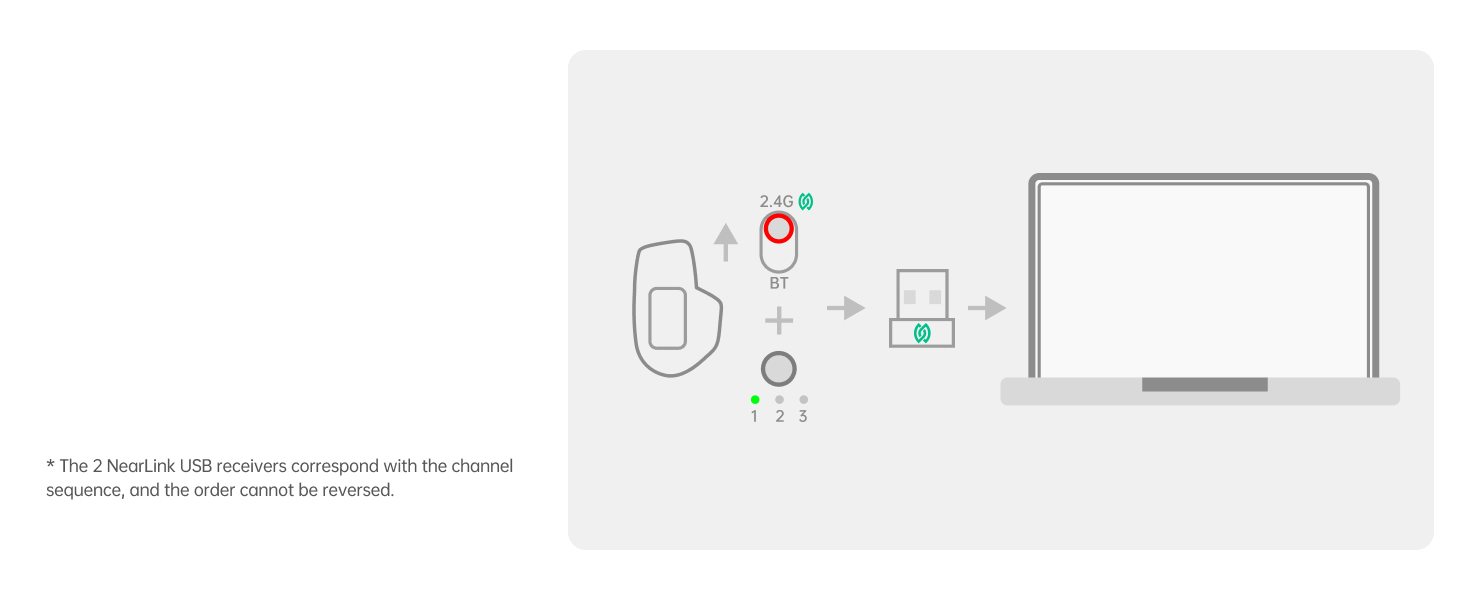
Image: Diagram illustrating the connection of the NearLink USB dongle to a laptop and selecting the corresponding channel on the mouse.
3.3 Connecting via NearLink Wireless (Direct)
- Ensure your device supports NearLink wireless direct connection.
- On the underside of the mouse, select the NearLink Wireless mode (indicated by '3').
- Follow your device's instructions to pair with the mouse.
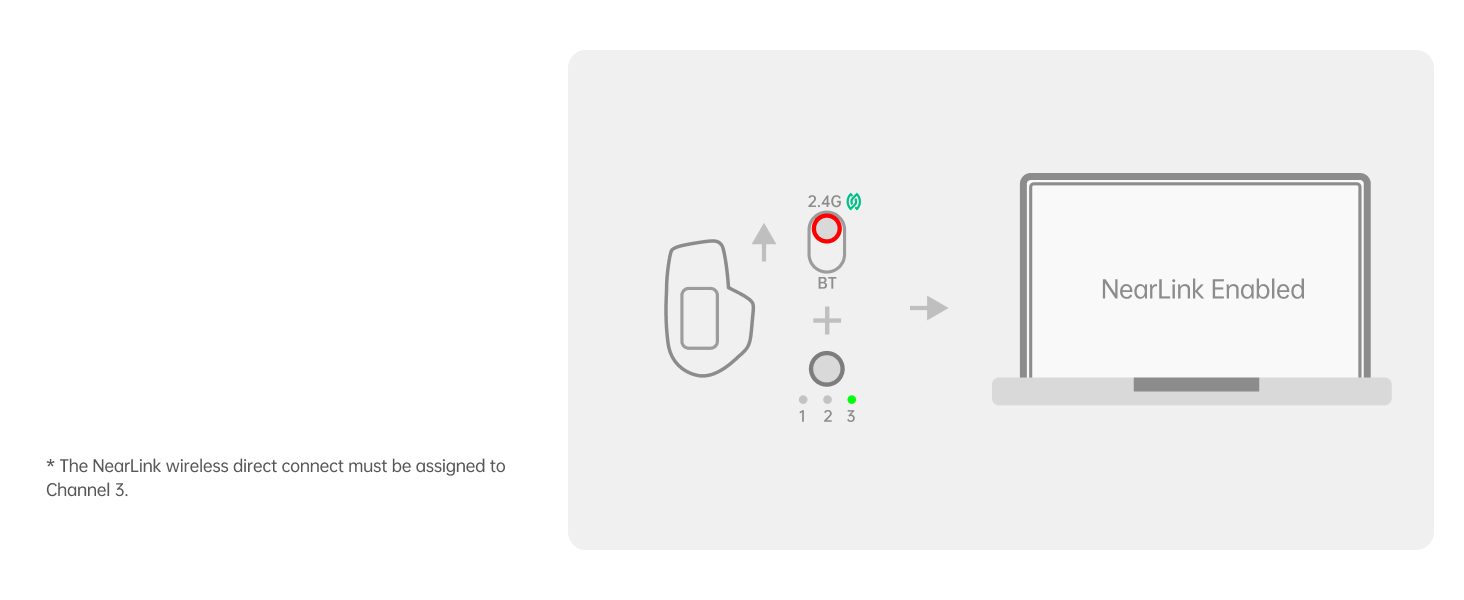
Image: Diagram showing the NearLink Wireless connection process, with the mouse set to channel 3.
3.4 Connecting via Bluetooth (BT1, BT2, BT3)
- On the underside of the mouse, select one of the Bluetooth modes (BT1, BT2, or BT3).
- Press and hold the selected Bluetooth button until the indicator light flashes rapidly, indicating pairing mode.
- On your device (computer, laptop, tablet, phone), go to Bluetooth settings and search for 'Rapoo MT760 PRO'. Select it to pair.
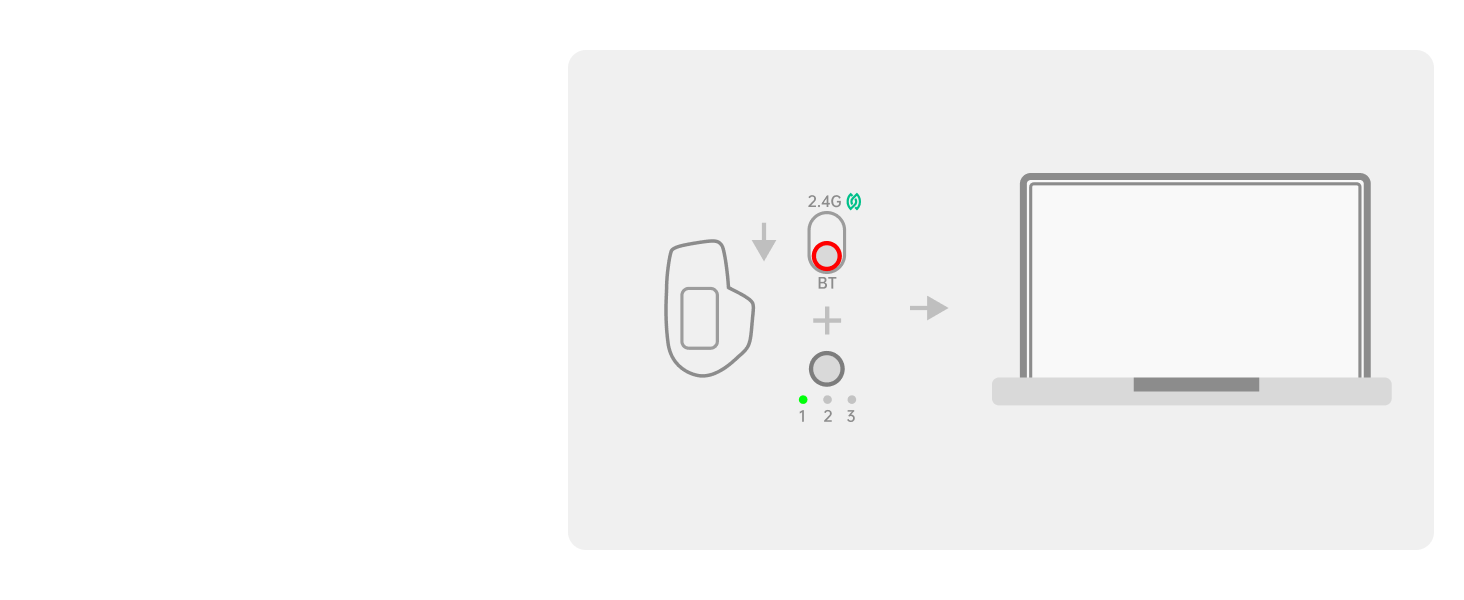
Image: Diagram illustrating the Bluetooth connection process, showing the mouse in pairing mode and connecting to a laptop.
3.5 conexiones cableadas
Connect the USB-C charging cable from the mouse to your computer. The mouse will automatically switch to wired mode. The wired option has protocol priority over NearLink and Bluetooth connections.
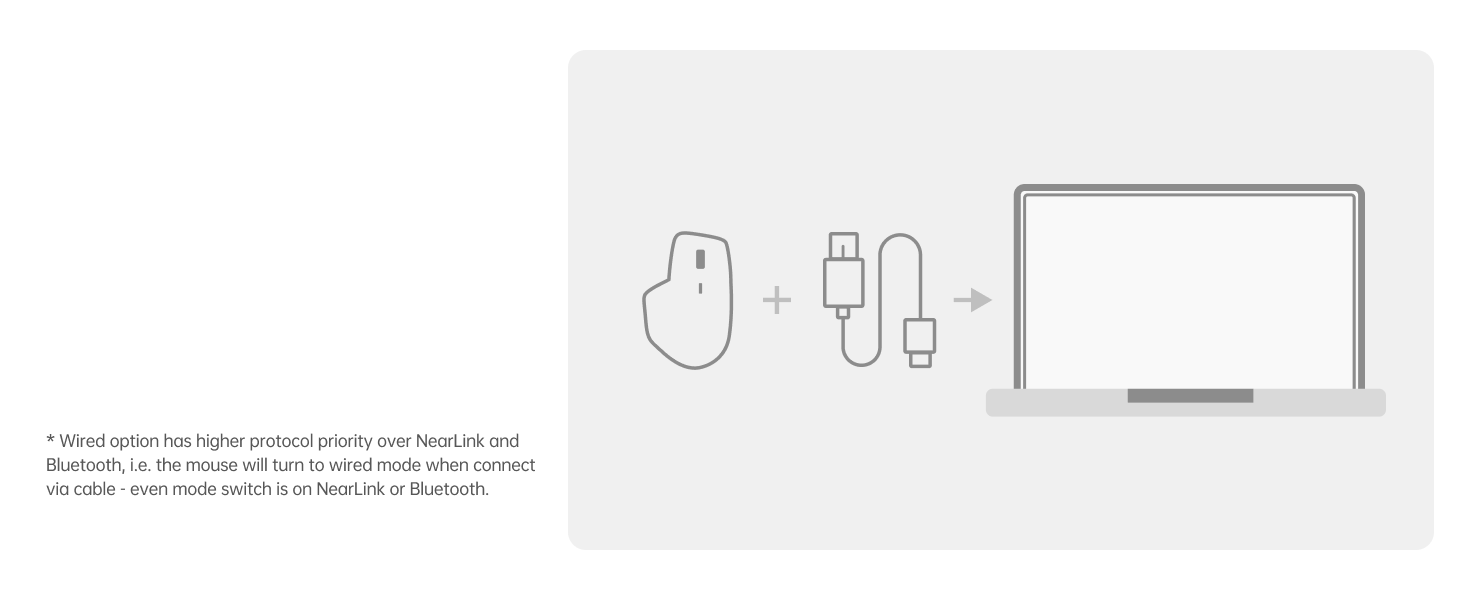
Image: Diagram showing the mouse connected to a laptop via a USB-C cable, indicating wired mode.
3.6 Instalación del controlador
For full functionality, including customizing programmable buttons, adjusting DPI with 50-interval adjustments, and utilizing M+ Cross-Computer technology, install the Rapoo mouse driver software. This software is primarily compatible with Windows systems. The on-board memory stores your settings, eliminating the need for reconfiguration after reboot or on other devices.
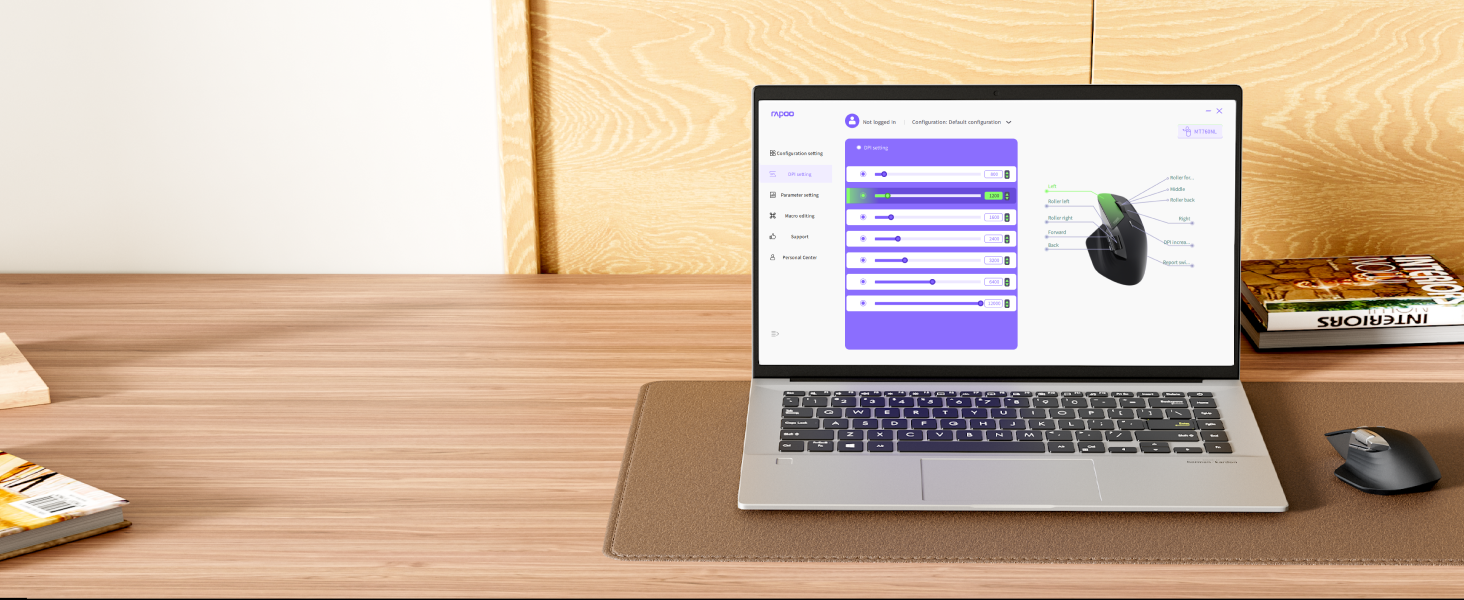
Image: Screenshot of the Rapoo software interface showing options for customizing the 11 programmable buttons.
4. Instrucciones de funcionamiento
4.1 Ajuste de ppp
The mouse features 7 adjustable DPI levels: 800, 1200, 1600, 2400, 3200, 6400, and 12000. Press the dedicated DPI button on the mouse to cycle through these preset levels. Fine-tune DPI settings in 50-interval adjustments using the driver software.
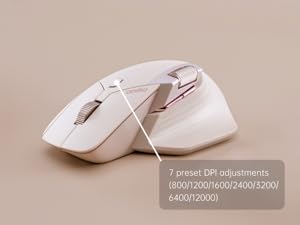
Image: Visual representation of the 7 adjustable DPI levels (800-12000) available on the Rapoo MT760 PRO mouse.
4.2 botones programables
The MT760 PRO has 11 programmable buttons. Use the Rapoo driver software to assign shortcuts, media keys, or macros to these buttons, streamlining your workflow and boosting efficiency. Settings are saved to the mouse's on-board memory.
4.3 M+ Tecnología entre computadoras
This feature allows seamless control across multiple computers. By simply moving your cursor to the edge of one screen, it will automatically appear on the adjacent screen of another connected computer. You can also wirelessly transfer files by copying from one computer and pasting on the other. Ensure the mouse driver is installed and all devices are connected to the same Wi-Fi or Ethernet network for this function.
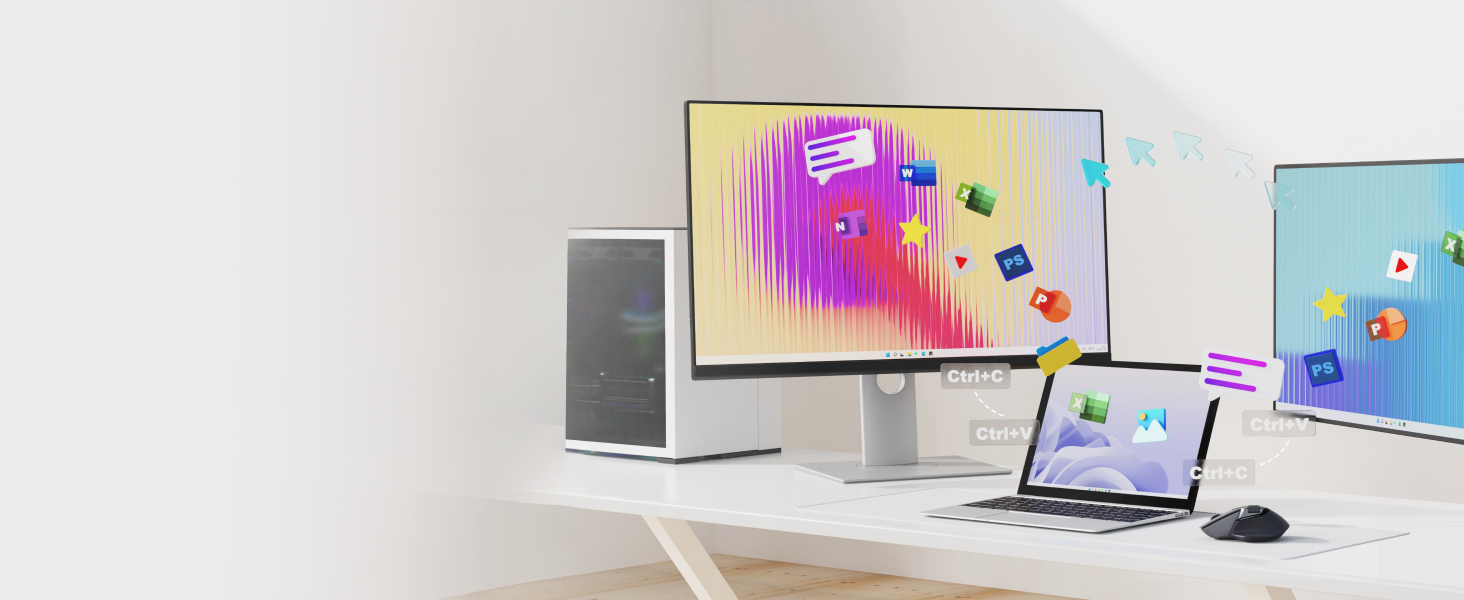
Image: Illustration of the M+ Cross-Computer feature, showing a cursor moving between two computers and files siendo transferido.
4.4 Scroll Wheels
The mouse features a Hall magnetic induction side scroll wheel and a center scroll wheel, designed for smooth and precise scrolling. These provide a comfortable and efficient experience for navigating documents and web páginas.
5. Carga y duración de la batería
5.1 Carga
The Rapoo MT760 PRO is equipped with an 800mAh Li-Po battery and supports USB-C quick charging. Connect the provided USB-C cable to the mouse and a power source (e.g., computer USB port, wall adapter) to charge. A 5-minute quick charge can provide a full day of use.
5.2 Carga inalámbrica
The mouse is wireless charging enabled and works with most Qi wireless charging mouse pads. For continuous wireless charging during use, the P3 Wireless Charging Module can be purchased separately.
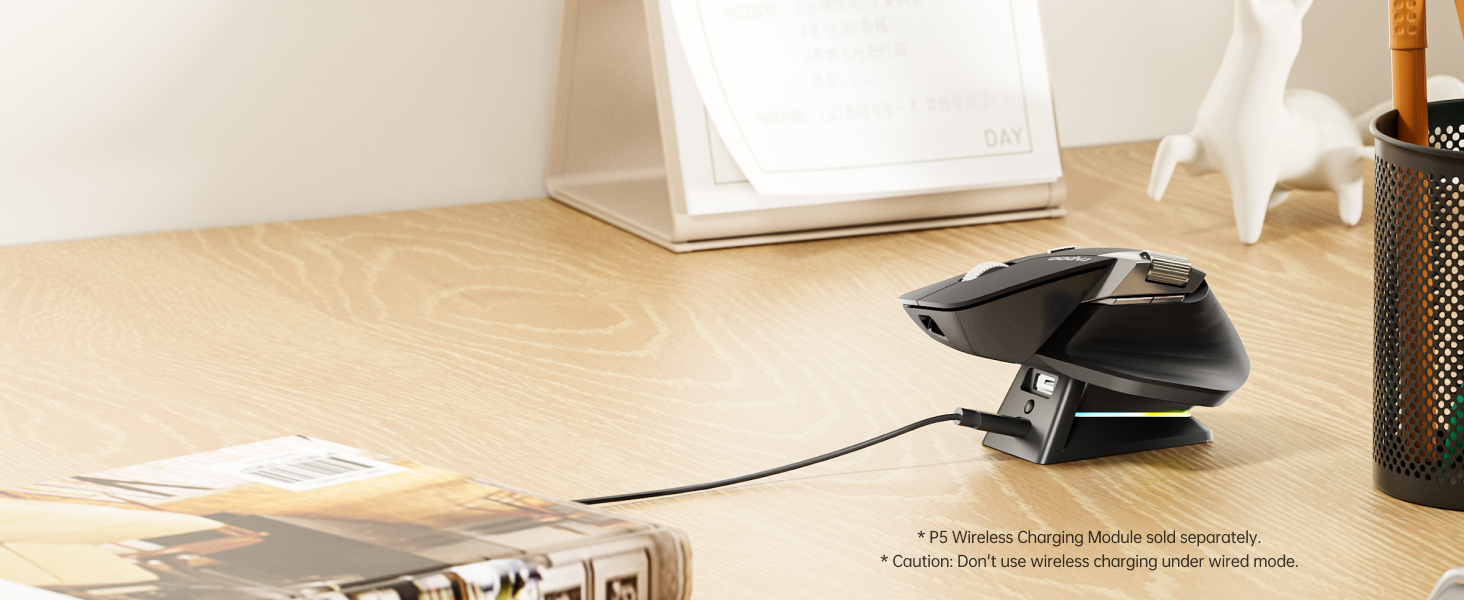
Image: The Rapoo MT760 PRO mouse resting on a wireless charging pad, illustrating its Qi wireless charging capability.
5.3 Duración de la batería
Utilizing NearLink’s low-power access mode, the mouse can achieve a battery life of up to 120 days on a single charge. Actual battery life may vary based on usage frequency, device conditions, and environmental factors.
6. Mantenimiento
To ensure the longevity and optimal performance of your Rapoo MT760 PRO mouse, follow these maintenance guidelines:
- Limpieza: Use a soft, dry cloth to clean the mouse surface. For stubborn dirt, lightly dampLave el paño con agua o una solución limpiadora suave. Evite productos químicos agresivos o materiales abrasivos.
- Cuidado del sensor: Mantenga el sensor óptico en la parte inferior del mouse limpio y libre de polvo o residuos.
- Almacenamiento: When not in use for extended periods, store the mouse in a cool, dry place. If storing for a long time, ensure the mouse is fully charged and powered off.
- Evite condiciones extremas: No exponga el mouse a temperaturas extremas, luz solar directa o humedad alta.
7. Solución de problemas
If you encounter issues with your Rapoo MT760 PRO mouse, please refer to the following common solutions:
- Sin conexión:
- Asegúrese de que el mouse esté encendido.
- Check if the correct connection mode (2.4G, BT1/2/3, or Wired) is selected on the mouse.
- For 2.4G, ensure the USB dongle is securely plugged in. Try a different USB port.
- For Bluetooth, ensure your device's Bluetooth is enabled and the mouse is in pairing mode.
- For M+ Cross-Computer, verify the driver is installed and all devices are on the same network.
- Lagging or Unresponsive Cursor:
- Verifique el nivel de la batería y cargue el mouse si es necesario.
- Ensure the optical sensor is clean.
- Intente usar el mouse en una superficie diferente.
- If using wireless, ensure there are no strong interferences (e.g., other wireless devices, metal objects) nearby.
- Botones que no funcionan/Personalización:
- Ensure the Rapoo driver software is installed and up to date.
- Verify that button assignments are correctly configured in the software.
If problems persist, please contact Rapoo customer support.
Video: An official product video demonstrating the multi-device and 12K DPI features of the Rapoo MT760 PRO Wireless Mouse.
8. Especificaciones
| Característica | Detalle |
|---|---|
| Número de modelo | MT760 PRO |
| Tecnología de conectividad | Bluetooth 5.0, NearLink (2.4GHz USB Dongle & Wireless), Wired (USB-C) |
| Niveles de DPI | 800/1200/1600/2400/3200/6400/12000 (Adjustable in 50-interval steps via software) |
| Tasa de sondeo | Hasta 2K (2000 Hz) |
| Botones programables | 11 |
| Tipo de batería | 1 polímero de litio (incluido) |
| Capacidad de la batería | 800 mAh |
| Duración de la batería | Hasta 120 días |
| Puerto de carga | USB-C |
| Carga inalámbrica | Qi-enabled (P3 Wireless Charging Module sold separately) |
| Tecnología de detección de movimiento | Óptico |
| Dimensiones del producto | 6.73 x 4.4 x 0.1 pulgadas |
| Peso del artículo | 3.88 onzas |
| Sistemas operativos | Windows, Mac, Linux, Chrome, Android |
9. Garantía y soporte
Rapoo products are designed for reliability and performance. For warranty information, please refer to the warranty card included with your purchase or visit the official Rapoo website. For technical support, troubleshooting assistance, or further inquiries, please contact Rapoo customer service through their official channels.