
1. Introducción
The AVMATRIX SC7030 is a professional multi-signal to HDMI/SDI cross converter designed for diverse applications including broadcast, AV production, medical imaging, live streaming, and commercial presentation systems. This device facilitates seamless conversion of various input signals to simultaneous 2×SDI and 1×HDMI outputs.
Key features include support for a wide range of input signals such as SDI, HDMI, DVI-I, VGA, CVBS, S-video, and YPbPr. It offers up/down scaling and frame rate conversion with output resolutions up to 1080p60. The SC7030 is fully compatible with 3G-SDI Level A and Level B standards, ensuring professional broadcast quality. It also provides flexible audio embedding and de-embedding capabilities, along with aspect ratio adjustment and hardware deinterlacing for 1080i signals.
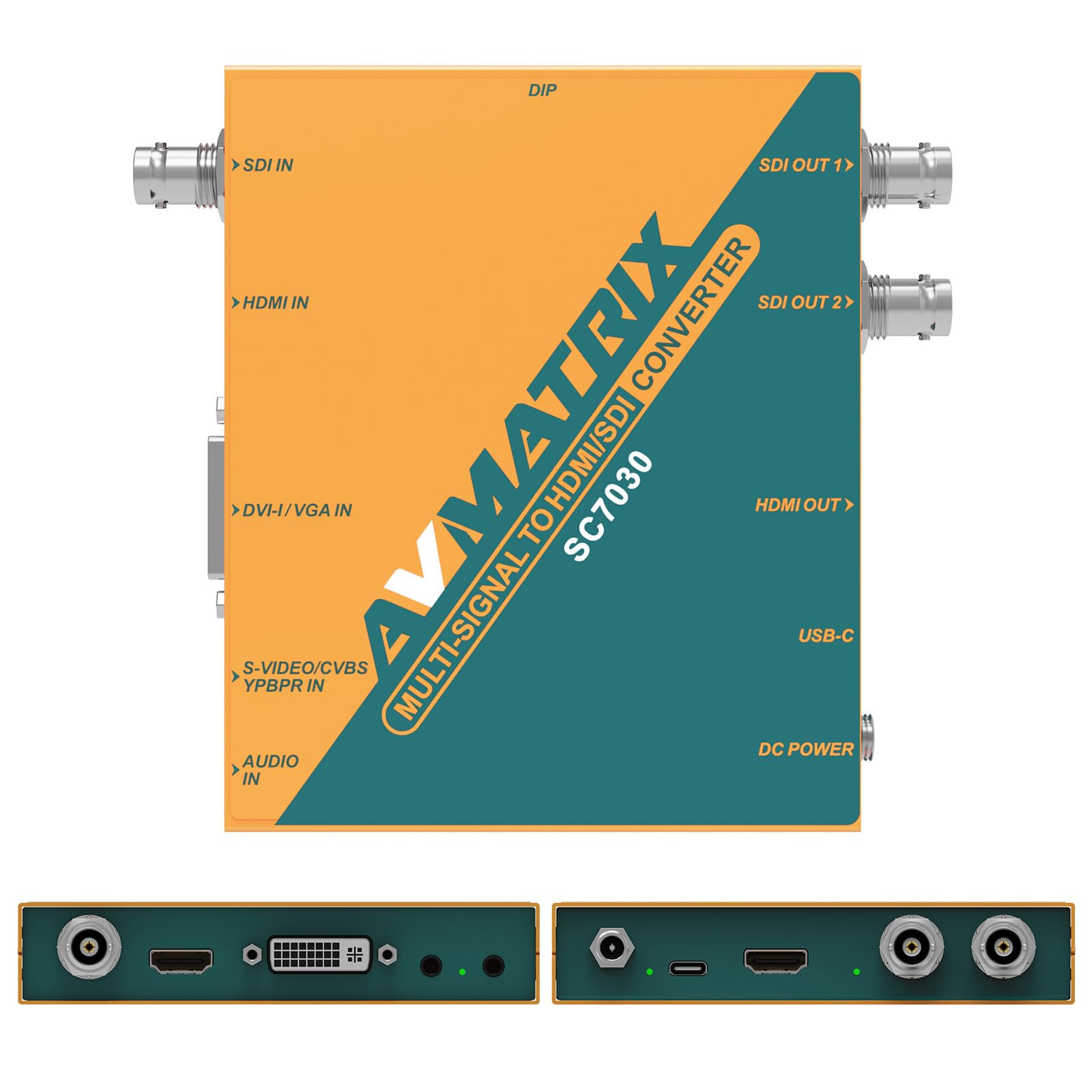
Figure 1: AVMATRIX SC7030 Multi-Signal Converter. This image shows the compact design of the converter, highlighting its various ports and controls.
2. Configuración y conexiones
2.1 Desembalaje
Carefully unpack the AVMATRIX SC7030 converter and verify that all components are present. The standard package typically includes the SC7030 unit, a DC power adapter, and a USB Type-C cable.
2.2 Conexión de la alimentación
Connect the provided DC power adapter to the DC 6-24V input port on the converter. Alternatively, the unit can be powered via the USB 5V Type-C port. Ensure a stable power supply for optimal performance.
2.3 Conexión de fuentes de entrada
The SC7030 supports a wide array of input signals. Connect your source device to the appropriate input port:
- SDI EN: Connect SDI sources using a BNC cable.
- ENTRADA HDMI: Connect HDMI sources using an HDMI cable.
- DVI-I/VGA IN: Connect DVI-I or VGA sources. A DVI-I to VGA adapter may be required for VGA connections.
- S-VIDEO/CVBS/YPbPr IN: Connect legacy analog video sources using the appropriate cables (e.g., RCA for CVBS, YPbPr component cables, S-Video cable).
- AUDIO EN: Connect external analog audio sources via the 3.5mm audio input jack for audio embedding.

Figure 2: Input and Output Ports. This image illustrates the various input (SDI, HDMI, DVI-I/VGA, S-Video/CVBS/YPbPr, Audio) and output (3G-SDI, HDMI) connections on the SC7030.
2.4 Connecting Output Displays
Connect your display devices to the output ports:
- SDI OUT (2x): Connect up to two SDI displays or recording devices using BNC cables.
- HDMI OUT (1x): Connect an HDMI display or recording device using an HDMI cable.
3. Operación
3.1 Selección de la fuente de entrada
The input source can be selected using the onboard DIP switches. Refer to the device's labeling for specific switch positions corresponding to each input type (SDI, HDMI, DVI-I, VGA, CVBS, S-Video, YPbPr).
3.2 Output Format and Scaling
The SC7030 supports up/down scaling and frame rate conversion. Output resolutions can be configured up to 1080p60. These settings are typically adjusted via onboard DIP switches or through the PC software connected via the USB Type-C port. The device also performs hardware deinterlacing for 1080i signals to enhance image clarity.
3.3 Ajuste de la relación de aspecto
Adjust the output aspect ratio to suit your display requirements. Available options include:
- 16:9 Letterbox: Maintains original aspect ratio with black bars on top/bottom.
- 16:9 Stretched: Stretches the image to fill a 16:9 screen.
- 4:3 Cropping: Crops the image to fit a 4:3 aspect ratio.
These adjustments are typically made using the onboard DIP switches or PC software.
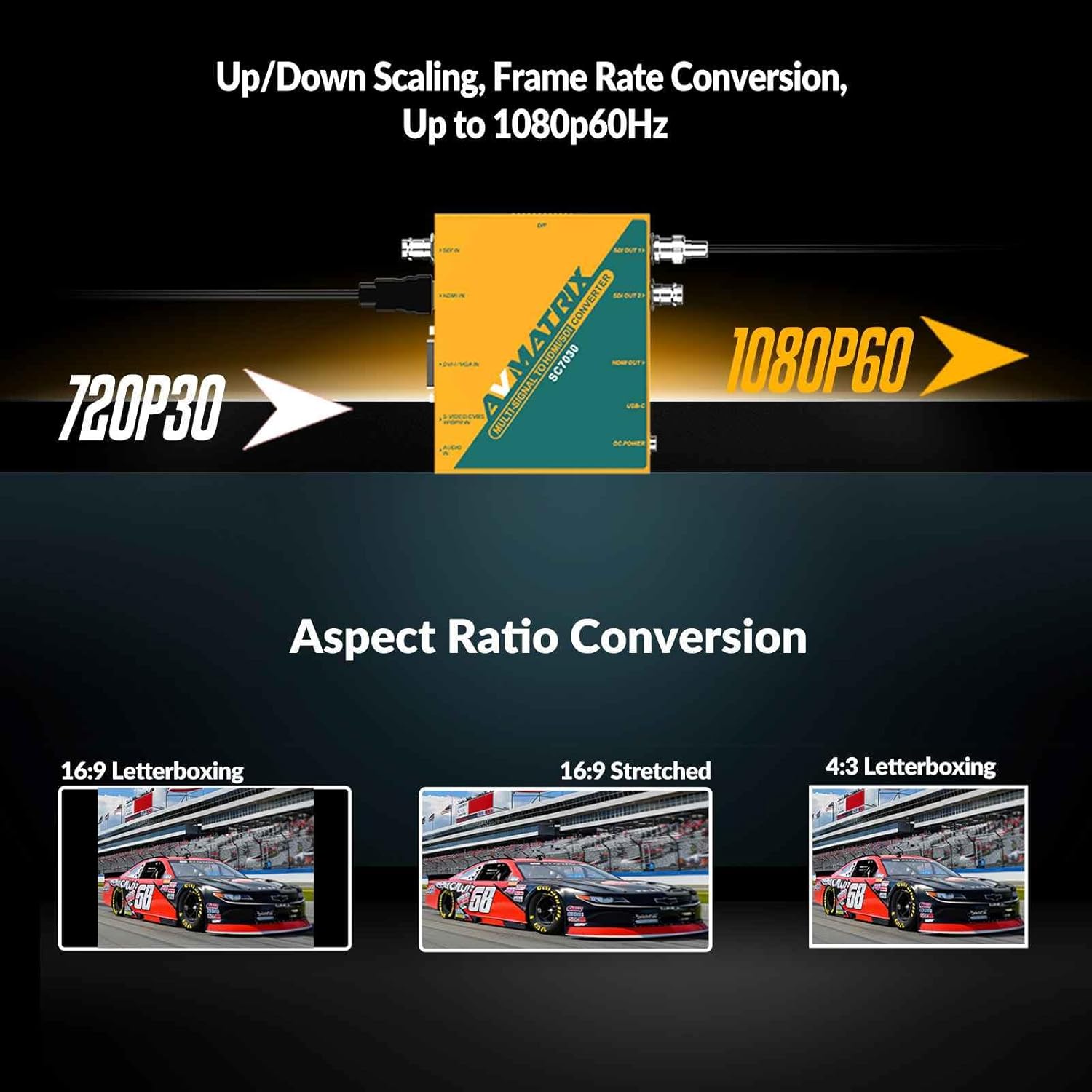
Figure 3: Aspect Ratio Conversion Examples. This image demonstrates different aspect ratio settings: 16:9 Letterboxing, 16:9 Stretched, and 4:3 Letterboxing.
3.4 Gestión de audio
The SC7030 allows for flexible audio handling:
- Incrustación de audio: Integrate external analog audio from the 3.5mm input into the SDI and HDMI output signals.
- Desembebido de audio: The device can extract embedded audio from input signals.
Switching between embedded audio and external analog audio is controlled via DIP switches.

Figure 4: Audio Embedding. This image highlights the audio input port and the capability to embed analog audio into the video output.
3.5 Advanced Configuration and Firmware Updates
For advanced settings and firmware updates, connect the SC7030 to a PC via the USB Type-C port. Use the dedicated PC software for detailed configuration and to ensure the device is running the latest firmware.
4. Mantenimiento
4.1 Limpieza
To clean the device, use a soft, dry cloth. Do not use liquid or aerosol cleaners, as they may damage the unit. Ensure the device is powered off and disconnected from all sources before cleaning.
4.2 Almacenamiento
When not in use for extended periods, store the converter in a cool, dry place, away from direct sunlight and extreme temperatures. Keep it protected from dust and moisture.
4.3 Consideraciones ambientales
The SC7030 is designed for a wide operating temperature range (-20°C to 60°C). However, avoid exposing the device to excessive heat, cold, or humidity to ensure its longevity and stable operation.
5. Solución de problemas
5.1 Sin salida de vídeo
- Comprobar potencia: Ensure the converter is properly powered on.
- Verificar conexiones: Confirm all input and output cables are securely connected.
- Selección de fuente de entrada: Ensure the correct input source is selected via the DIP switches.
- Resolución de salida: Check if the output resolution is compatible with your display. Try a common resolution like 1080p30 or 720p60.
- Señal de origen: Confirm the input source is active and outputting a signal.
5.2 Sin salida de audio
- Fuente de audio: Verify if the audio is embedded in the video signal or if an external analog audio source is connected.
- Configuración del interruptor DIP: Ensure the audio embedding DIP switches are correctly configured to select the desired audio source.
- Integridad del cable: Revise los cables de audio para detectar daños o conexiones sueltas.
5.3 Incorrect Aspect Ratio
- Aspect Ratio Settings: Adjust the aspect ratio settings using the onboard DIP switches or PC software to match your display's requirements.
5.4 Input Signal Not Recognized
- Tipo de entrada: Double-check that the input signal type matches the selected input on the converter.
- Calidad del cable: Use high-quality, properly terminated cables for all connections.
- Source Compatibility: Ensure the source device is outputting a standard video format supported by the SC7030.
6. Especificaciones
| Característica | Detalle |
|---|---|
| Marca | AVMATRIZ |
| Número de modelo | SC7030 |
| Dispositivos compatibles | Digital Camera (Refer to specific input types for full compatibility) |
| Tipo de conector | Micro USB (for power/firmware, USB Type-C also supported) |
| Color | Multicolor |
| Dimensiones del artículo (largo x ancho x alto) | 4.09 x 4.94 x 0.96 pulgadas |
| Fabricante | AVMATRIZ |
| Recuento de unidades | 1.0 Conteo |
| Número de artículos | 9 (Refers to total package contents, including accessories) |
7. Información de garantía
The AVMATRIX SC7030 Multi-Signal Converter comes with a manufacturer's warranty. The warranty description states 3 años, and the warranty type is listed as Vida. Please refer to the official AVMATRIX website or contact customer support for the most accurate and up-to-date warranty terms and conditions.
8. Atención al cliente
For technical assistance, troubleshooting beyond this manual, or further inquiries, please visit the official AVMATRIX website or contact their customer support team. You can often find FAQs, updated drivers, and additional resources online.
AVMATRIX Oficial Websitio: www.avmatrix.net