
1. Introducción
This manual provides essential information for the setup, operation, maintenance, and troubleshooting of your ViewSonic IFP55G1 55-inch 4K UHD ViewBoard Interactive Display. Please read this manual thoroughly before using the product to ensure proper and safe operation.
El ViewSonic IFP55G1 is a 55-inch 4K Ultra HD (3840x2160p) interactive display designed for educational and business environments. It features multi-point touch recognition, an OPS slot for external PCs, 10W dual speakers, and versatile connectivity options including HDMI, VGA, USB Hub, and USB-C inputs. Its OS-free design allows flexibility with various computing solutions.
Características principales:
- Resolución Ultra HD: 55 Inch 4K Ultra HD (3840x2160p) interactive display for crisp visuals.
- Advanced Multi-Touch: Allows multiple users to write and interact simultaneously with fingers and passive pens.
- Conectividad flexible: Equipped with a powerful quad-core processor and versatile ports including HDMI, VGA, RJ45, and USB.
- OS-Free Design: Provides enhanced security and flexibility to integrate with your preferred operating system via external PC or OPS device.
- Write-Away Technology: Enables instant writing with the stylus without extended setup.
2. ¿Qué hay en la caja?
Verifique que todos los artículos enumerados a continuación estén incluidos en su paquete. Si falta algún artículo o está dañado, comuníquese con su distribuidor de inmediato.
- ViewSonic IFP55G1 Interactive Display
- 3m USB 2.0 touch cable x 1
- Touch pen (Passive pen) x 2 (VB-PEN-002)
- Cable de alimentación de 3 m
- HDMI 2.0 cable 3m x 1
- Guía de inicio rápido + Declaración de cumplimiento
- Adaptador RS232
- Screw (wall mount 4)
- Placa de la cámara
- Remote control with AAA battery (Optional)
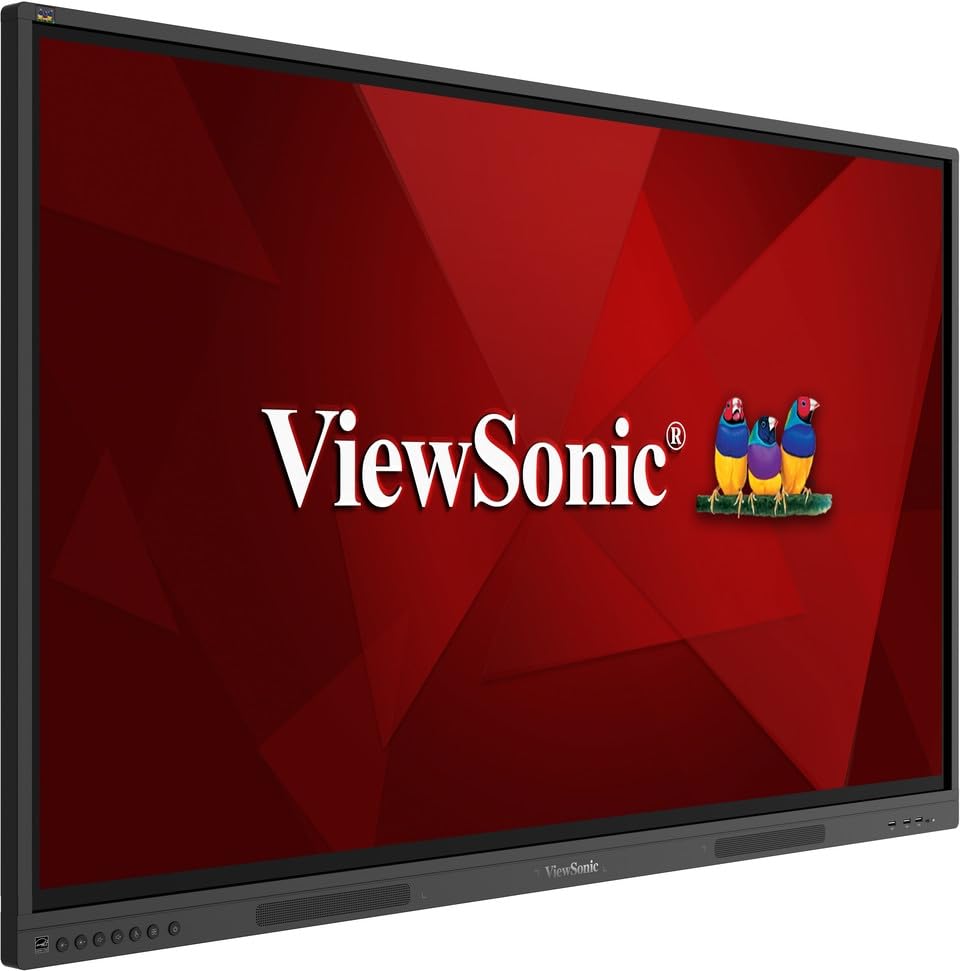
Imagen: ViewSonic IFP55G1 55-inch ViewBoard Interactive Display, front view.
3. Instrucciones de configuración
3.1 Montaje de la pantalla
The IFP55G1 can be wall-mounted or installed on a compatible mobile cart (sold separately). Ensure the mounting solution supports the display's weight (approximately 59.3 lbs / 26.9 kg) and dimensions (3.37 x 49.7 x 30.3 inches).
- For wall mounting, use the provided wall mount screws and ensure the wall structure is robust enough.
- Follow the instructions provided with your specific wall mount or mobile cart.
3.2 Conexión de periféricos
The display offers various ports for connecting external devices. Refer to the image below for port locations.

Imagen: Lateral view del ViewSonic IFP55G1 interactive display showing various input ports including HDMI, VGA, and USB.
- Conexión de energía: Connect the 3m power cable to the display and a grounded power outlet.
- Entrada de video: Connect your external PC or media player to the display using an HDMI 2.0 cable (provided), VGA cable, or USB-C cable. The display has 3 HDMI ports, 1 VGA port, and USB-C connectivity.
- Funcionalidad táctil: For interactive touch features with an external PC, connect the 3m USB 2.0 touch cable from the display's USB-B (Touch) port to a USB-A port on your PC.
- OPS Slot: If using an optional ViewSonic Slot-in PC (OPS device), insert it into the dedicated OPS slot on the rear of the display. This provides an integrated computing solution.
- Red: Conecte un cable Ethernet al puerto RJ45 para acceder a la red cableada.
- Dispositivos USB: Use the available USB-A ports to connect USB drives, keyboards, mice, or other peripherals.

Imagen: La ViewSonic IFP55G1 display demonstrating connectivity with various external devices, including laptops and mini PCs, highlighting its 'Bring Your Own Devices' capability.
4. Instrucciones de funcionamiento
4.1 Encendido / Apagado
- Encendido: Press the power button located on the display's front or side panel, or use the remote control. The display will power on and show the input source.
- Apagado: Press the power button again. A confirmation message may appear; select 'Power Off'. For complete power disconnection, unplug the power cable.
4.2 Selección de la fuente de entrada
Use the 'Source' button on the display or remote control to cycle through available input sources (HDMI 1, HDMI 2, HDMI 3, VGA, USB-C, OPS).
4.3 Uso de la función táctil
Once the USB touch cable is connected to your external PC, the display will function as a multi-touch input device. You can use your fingers or the provided passive pens for interaction.
- Finger Touch: Use gestures similar to a tablet or smartphone for navigation, zooming, and drawing.
- Passive Pens: The two included passive pens (VB-PEN-002) allow for precise writing and drawing on the screen. The display's Write-Away technology enables instant use of the pens.

Image: A group of individuals collaborating around a ViewSonic IFP55G1 interactive display in a modern meeting room, demonstrating its multi-touch capabilities for instantaneous collaboration.
4.4 Control de audio
The display features integrated 10W dual speakers. Adjust volume using the remote control or the buttons on the display panel.
5. Mantenimiento
5.1 Limpieza de la pantalla
- Pantalla: Limpie suavemente la pantalla con un paño suave que no deje pelusa. Para manchas difíciles, limpie ligeramenteampEnjuague el paño con agua o un limpiador de pantallas no abrasivo y sin amoníaco. No rocíe el limpiador directamente sobre la pantalla.
- Casing: Limpia la casinLimpie con un paño suave y seco. Evite el uso de productos químicos agresivos o materiales abrasivos.
5.2 Cuidados generales
- Evite colocar objetos pesados sobre la pantalla.
- Do not block ventilation openings on the rear of the display.
- Mantenga la pantalla alejada de la luz solar directa, fuentes de calor y humedad excesiva.
6. Solución de problemas
Si tiene problemas con su ViewSonic IFP55G1, refer to the following common problems and solutions.
6.1 Sin pantalla/pantalla negra
- Ensure the power cable is securely connected to both the display and a working power outlet.
- Verify that the display is powered on (power indicator light should be active).
- Check that the video cable (HDMI, VGA, USB-C) is securely connected to both the display and the source device (PC, OPS).
- Select the correct input source using the 'Source' button on the display or remote control.
- Ensure the source device (PC, OPS) is powered on and outputting a video signal.
6.2 La función táctil no funciona
- Confirm the USB touch cable is securely connected from the display's USB-B (Touch) port to a USB-A port on your external PC.
- Ensure your external PC's operating system has the necessary drivers installed for touch input.
- Restart both the display and the connected PC.
6.3 Sin sonido
- Check the volume level on the display and the connected source device.
- Ensure the audio output from your source device is routed correctly to the display (e.g., via HDMI).
- Si utiliza un sistema de audio externo, asegúrese de que esté correctamente conectado y encendido.
7. Especificaciones
A continuación se presentan las especificaciones técnicas del ViewSonic IFP55G1 interactive display.
| Característica | Especificación |
|---|---|
| Marca | ViewSónico |
| Nombre del modelo | IFP55G1 |
| Tamaño de pantalla | 55 pulgadas |
| Resolución máxima de pantalla | 3840x2160 Pixels (4K UHD) |
| Resolución nativa | 3840 x 2160 |
| Tipo de pantalla | Pantalla LCD |
| Relación de aspecto | 16:9 |
| Entrada de interfaz humana | Pantalla táctil |
| Tecnología de conectividad | Ethernet, HDMI, USB Type C, VGA |
| Número total de puertos HDMI | 3 |
| Puertos USB totales | 9 |
| Interfaz de salida de vídeo | Puerto de visualización |
| Salida de audio | Integrated 10W Dual Speakers |
| Dimensiones del artículo (LxWxH) | 3.37 x 49.7 x 30.3 pulgadas |
| Peso del artículo | 59.3 libras |
| Color | Negro |
| Características especiales | All-in-one USB port, Anti Glare Display, Light Sensor, Speakers, Touchscreen |
| Dispositivos compatibles | Computadora de escritorio, computadora portátil |
| Código Postal | 766907024654 |
8. Garantía y soporte
8.1 Información de garantía
El ViewSonic IFP55G1 interactive display comes with an industry-leading Garantía limitada de 3 años on parts, labor, and backlight. Onsite warranty service may also be available. Please refer to the warranty card included in your package or visit the official ViewSónico website for detailed terms and conditions, and information on optional warranty extensions.
8.2 Atención al cliente
Para asistencia técnica, consultas sobre productos o reclamos de garantía, comuníquese con ViewSonic's award-winning customer service team. Contact information can be found on the official ViewSónico website or in the Quick Start Guide provided with your product.