
1. Introducción
The Rapoo MT560L is a versatile wireless mouse designed for enhanced productivity across multiple devices. It features multi-mode connectivity, a high-resolution optical sensor, an ergonomic design, and a long-lasting rechargeable battery. This manual provides detailed instructions for setting up, operating, and maintaining your MT560L mouse to ensure optimal performance.
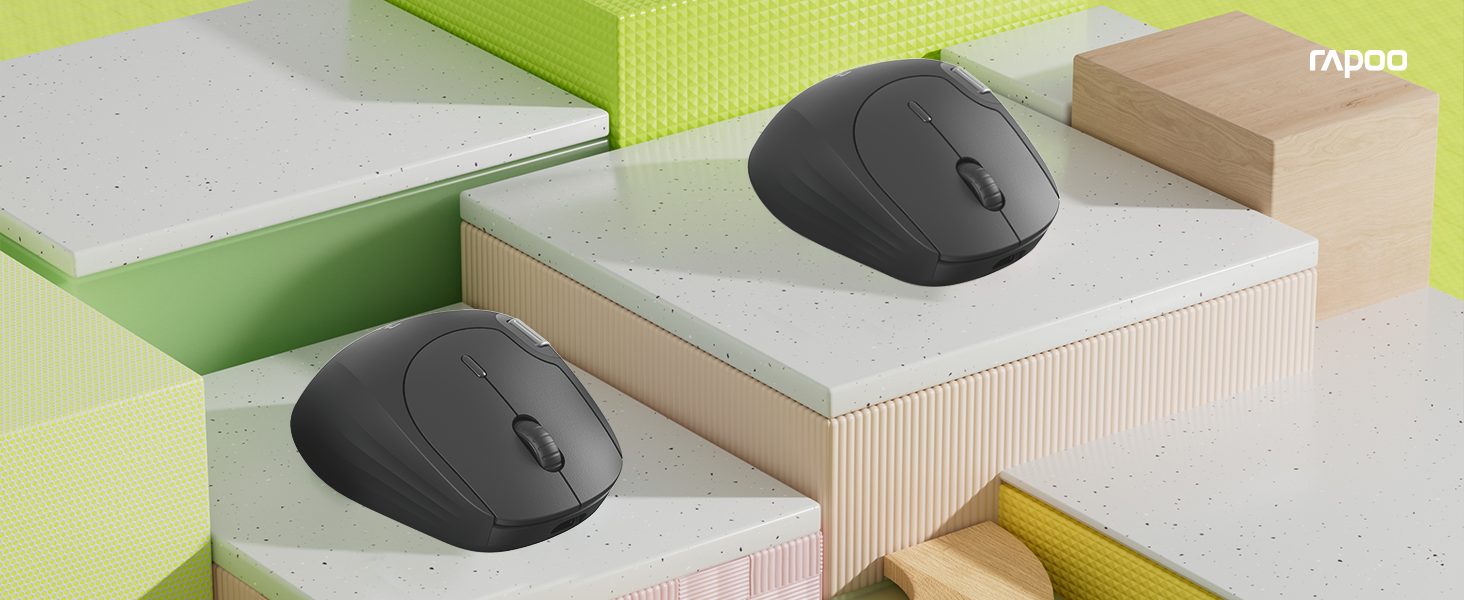
Image 1.1: The Rapoo MT560L Multi-mode Wireless Mouse, showcasing its full functionality and design.
2. Configuración
2.1 Desembalaje
Inside the product packaging, you will find the following items:
- Rapoo MT560L Wireless Mouse
- Receptor USB
2.2 Carga del ratón
The MT560L mouse is equipped with an 800mAh rechargeable battery. Before initial use, it is recommended to fully charge the mouse.
- Connect the mouse to a power source (e.g., computer USB port, USB wall adapter) using a USB Type-C cable.
- La luz indicadora de carga se iluminará.
- A full charge typically takes approximately 3 hours and can provide up to 90 days of use, depending on usage patterns.

Image 2.1: The Rapoo MT560L mouse illustrating its Type-C fast charging capability and long battery life.
2.3 Opciones de conectividad
The MT560L supports multi-mode connectivity, allowing you to connect via Bluetooth 3.0, Bluetooth 4.0, or 2.4 GHz wireless using the included USB receiver.

Image 2.2: Visual representation of the MT560L's triple-mode connectivity options: Bluetooth, 2.4GHz wireless, and wired USB (though wired is not explicitly mentioned in features, the image implies it).
2.4 Conexión inalámbrica de 2.4 GHz
- Locate the USB receiver included with your mouse.
- Inserte el receptor USB en un puerto USB disponible en su computadora.
- Ensure the mouse is powered on and the connection mode is set to 2.4 GHz (refer to the switch or button on the mouse for mode selection).
- El mouse debería conectarse automáticamente a su computadora.
2.5 Conexión mediante Bluetooth
The MT560L can connect to up to three Bluetooth devices.
- Turn on the mouse and switch its connection mode to one of the Bluetooth channels (BT1, BT2, or BT3).
- On your device (PC, Mac, smartphone, tablet), navigate to the Bluetooth settings.
- Buscar new devices and select "Rapoo MT560L" from the list of available devices to initiate pairing.
- Siga las instrucciones en pantalla para completar el proceso de emparejamiento.
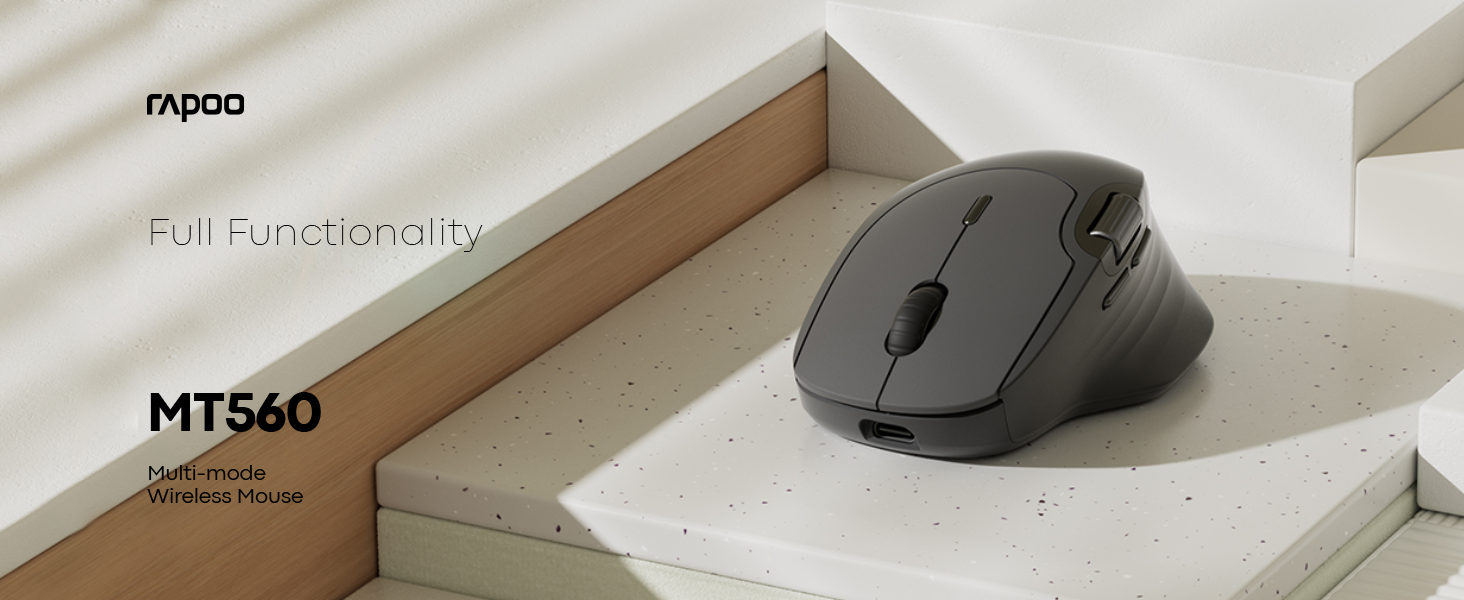
Image 2.3: The MT560L mouse demonstrating its ability to connect and switch between multiple devices seamlessly.
3. Operación del ratón
3.1 Funciones básicas del ratón
- Click izquierdo: Used for primary selection, opening items, and activating functions.
- Botón derecho del ratón: Accede a menús contextuales y funciones secundarias.
- Rueda de desplazamiento: Se desplaza verticalmente a través de los documentos y web páginas.
3.2 Ajuste de ppp
The MT560L features a 7-level adjustable optical sensor, allowing you to change the cursor sensitivity from 800 to 4000 DPI (Dots Per Inch).
- Localice el botón DPI, normalmente ubicado cerca de la rueda de desplazamiento.
- Press the DPI button to cycle through the available sensitivity settings.
- Select a DPI setting that suits your task, whether for precise graphic design work or fast-paced navigation.

Image 3.1: The MT560L's 7-level DPI adjustment feature, enabling precise control from 800 to 4000 DPI.
3.3 Conmutación entre múltiples dispositivos
The MT560L allows seamless switching between up to four connected devices (one 2.4 GHz wireless and three Bluetooth devices).
- Use the dedicated device switch button (usually located on the top or bottom of the mouse) to cycle through your paired devices.
- The mouse will connect to the selected device almost instantly.
3.4 Customizable Buttons and Onboard Memory
The mouse features 10 customizable buttons. Functions can be assigned to these buttons and saved directly to the mouse's onboard memory. This allows your personalized settings to be retained and used across different computers without requiring software reinstallation.

Image 3.2: The MT560L mouse highlighting its onboard memory for saving custom button assignments across multiple devices.
3.5 Hall Magnetic Side Scroll Wheel
The MT560L includes a Hall Magnetic Side Scroll Wheel, which provides ultra-smooth and precise horizontal scrolling. This feature is particularly useful for navigating wide documents, spreadsheets, or timelines efficiently.

Imagen 3.3: Un primer plano view of the Hall Magnetic Side Scroll Wheel on the Rapoo MT560L, designed for smooth horizontal scrolling.
3.6 Optical Sensor Performance
Equipped with a PAW3220 optical sensor, the MT560L delivers precise and reliable tracking on almost any surface, ensuring consistent performance in various environments.

Image 3.4: The underside of the Rapoo MT560L, highlighting its PAW3220 optical sensor for precise tracking.
3.7 Diseño ergonómico
The MT560L features an ergonomic design tailored for right-handed users, with an arch-back shape and thumb support. This design promotes comfortable use during extended periods, reducing strain and fatigue.

Image 3.5: An illustration of the ergonomic design of the Rapoo MT560L, showing how it comfortably fits the hand.
4. Mantenimiento
4.1 Limpieza
- To clean the mouse, gently wipe its surface with a soft, slightly damp paño.
- Evite utilizar productos químicos agresivos, limpiadores abrasivos o humedad excesiva, ya que pueden dañar el mouse.
- Periodically clean the optical sensor area on the underside of the mouse with a dry cotton swab to ensure optimal tracking performance.
4.2 Cuidado de la batería
- To prolong the lifespan of the integrated rechargeable battery, avoid fully discharging the mouse frequently.
- Cargue el mouse cuando el indicador de batería indique que tiene poca energía.
- Guarde el ratón en un lugar fresco y seco cuando no lo utilice durante períodos prolongados.
5. Solución de problemas
5.1 El ratón no responde
- Asegúrese de que el mouse esté encendido.
- Check if the battery is charged. Connect the mouse to a power source to charge if needed.
- Verify that the correct connection mode (2.4 GHz or Bluetooth) is selected on the mouse.
- For 2.4 GHz wireless: Ensure the USB receiver is securely plugged into a working USB port on your computer. Try a different USB port.
- For Bluetooth: Ensure Bluetooth is enabled on your device and the mouse is correctly paired. If necessary, remove the mouse from your device's Bluetooth list and re-pair it.
5.2 Movimiento errático del cursor
- Limpie el sensor óptico en la parte inferior del mouse para eliminar el polvo o los residuos.
- Try using the mouse on a different surface. While the PAW3220 sensor is versatile, certain highly reflective or uneven surfaces may affect tracking.
- Adjust the DPI setting to a lower value if the cursor is too sensitive or jumps excessively.
5.3 Scroll Wheel Issues
- If the scroll wheel is not functioning smoothly or is jumping, ensure it is free from any debris.
- If the issue persists after cleaning, it may indicate a hardware issue.
5.4 Connectivity Drops
- Ensure the mouse is within the optimal operating range (up to 10 meters / 360° coverage) of your connected device.
- Minimize potential interference from other wireless devices operating on similar frequencies.
6. Especificaciones
| Característica | Detalle |
|---|---|
| Marca | Rapó |
| Modelo | MT560L |
| Conectividad | Bluetooth 3.0, Bluetooth 4.0, 2.4 GHz Wireless (USB Receiver) |
| Tipo de sensor | Optical (PAW3220) |
| DPI | Adjustable 800-4000 DPI (7 levels) |
| Batería | Batería de litio recargable de 800 mAh |
| Duración de la batería | Hasta 90 días (con carga completa) |
| Puerto de carga | USB tipo C |
| Tiempo de carga | Aprox. 3 horas para carga completa |
| Orientación de la mano | Diestro |
| Peso | 82 gramos |
| Características especiales | Ergonomic Design, Multi-Device Switching, 10 Customizable Buttons, Onboard Memory, Hall Magnetic Side Scroll Wheel |
| Dispositivos compatibles | Personal Computer, Smartphone, Tablet (Windows, Mac) |
7. Garantía y soporte
7.1 Información de garantía
For detailed warranty terms and conditions applicable to your Rapoo MT560L Wireless Mouse, please refer to the warranty card included with your product or visit the official Rapoo webSitio. Conserve su comprobante de compra para reclamaciones de garantía.
7.2 Atención al cliente
Should you encounter any issues or require technical assistance beyond the scope of this manual, please contact Rapoo customer support. Contact details, including phone numbers and email addresses, can typically be found on the official Rapoo websitio o en el embalaje de su producto.