
1. Introducción
This manual provides essential information for the safe and efficient use of your BOOX Go 7 ePaper Tablet. Please read it thoroughly before operating the device and retain it for future reference.

Figure 1.1: BOOX Go 7 ePaper Tablet
2. Información de seguridad
- No exponga el dispositivo a temperaturas extremas, luz solar directa o humedad alta.
- Evite dejar caer o someter el dispositivo a impactos fuertes.
- Utilice únicamente el cable USB proporcionado para cargar.
- Keep the device away from water and liquids, despite its water-repellent features.
- No intente desmontar ni reparar el dispositivo usted mismo. Contacte con personal de servicio técnico autorizado.
3. Contenido del paquete
Verifique que todos los artículos estén presentes en el paquete:
- BOOX Go 7 ePaper Tablet
- Cable USB
- Guía de inicio rápido (puede variar según la región)

Figure 3.1: BOOX Go 7 Package Contents
4. Dispositivo terminadoview
4.1 Componentes físicos
Familiarize yourself with the main components of your BOOX Go 7 tablet:
- E Ink Screen: 7-inch monochrome display with 300 ppi resolution.
- Luz frontal: Adjustable illumination for reading in various lighting conditions.
- Botones para pasar página: Ergonomically designed buttons for easy navigation.
- Puerto USB-C: Para carga y transferencia de datos.
- Botón de encendido: Ubicado en el borde superior.
- Micrófono incorporado: Para entrada de audio.
- Altavoces duales incorporados: Para salida de audio.

Figure 4.1: Page-Turn Buttons and Water-Repellent Protection
5. Configuración
5.1 Carga inicial
Before first use, fully charge your BOOX Go 7 tablet. Connect the provided USB-C cable to the device and a compatible power adapter (not included) or a computer's USB port. The charging indicator will show the charging status.
5.2 Encendido y apagado
- Para encender: Press and hold the Power button until the BOOX logo appears.
- Para apagar: Mantenga presionado el botón de Encendido, luego seleccione “Apagar” de las opciones en la pantalla.
- Para dormir/despertar: Presione brevemente el botón de encendido.
5.3 Conexión de red (Wi-Fi)
- Desde la pantalla de inicio, deslícese hacia abajo desde la parte superior para acceder al panel de Configuración rápida.
- Toque el ícono de Wi-Fi para habilitar Wi-Fi.
- Mantenga presionado el ícono de Wi-Fi para abrir la configuración de Wi-Fi.
- Seleccione la red deseada de la lista e ingrese la contraseña si se le solicita.
- Una vez conectado, el icono de Wi-Fi indicará una conexión exitosa.
6. Instrucciones de funcionamiento
6.1 Navegación básica
- Pantalla táctil: Tap, swipe, and pinch to navigate menus, open applications, and interact with content.
- Botones para pasar página: Use the physical buttons on the side to turn pages in documents and books.
6.2 Reading Documents and Books
The BOOX Go 7 supports various document formats. Open your desired file from the library. Use the page-turn buttons or swipe gestures to navigate through pages. Adjust font size, contrast, and frontlight settings for optimal reading comfort.
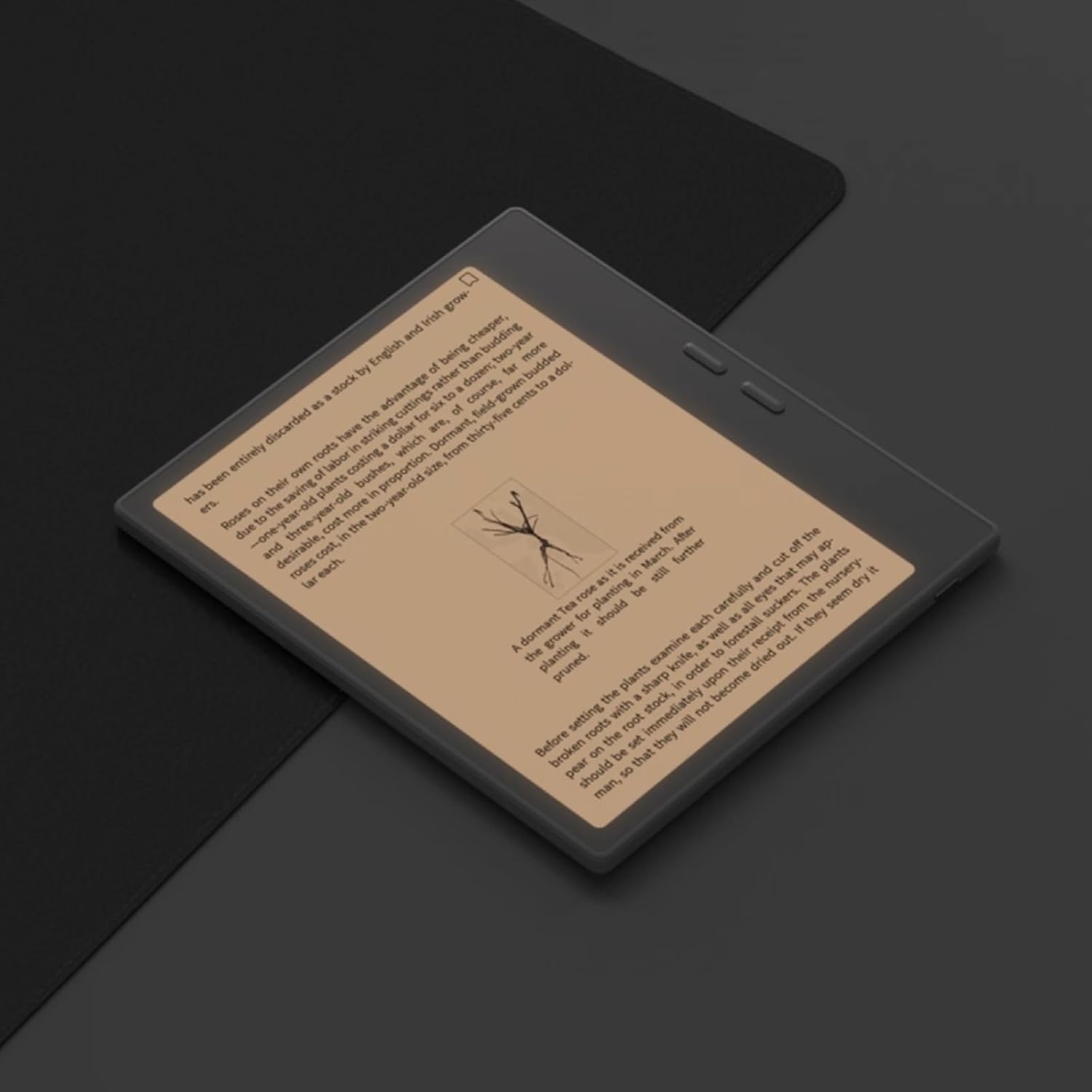
Figure 6.1: Reading with Frontlight
6.3 Using Android Applications
As an Android 13 device, the BOOX Go 7 allows installation of various applications from the Google Play Store. Navigate to the App Store, search for your desired application, and install it. Note that some applications may not be fully optimized for ePaper displays.

Figure 6.2: Various Android Applications on BOOX Go 7
6.4 Toma de notas y dibujo
Utilize the stylus (if included or purchased separately) for note-taking, sketching, and annotating documents. The device offers various templates and tools for creative and organizational tasks.

Figure 6.3: Stylus Use for Note-Taking

Figure 6.4: Handwriting to Text Conversion
7. Mantenimiento
7.1 Limpieza del dispositivo
Use a soft, lint-free cloth to gently wipe the screen and body of the device. Do not use harsh chemicals, abrasive cleaners, or excessive moisture.
7.2 Actualizaciones de software
Regularly check for and install software updates to ensure optimal performance and access to new features. Connect to Wi-Fi and navigate to Configuración > Sistema > Actualización del sistema para comprobar si hay actualizaciones disponibles.
8. Solución de problemas
- El dispositivo no enciende: Asegúrese de que el dispositivo esté cargado. Conéctelo a una fuente de alimentación y vuelva a intentarlo.
- La pantalla no responde: Perform a soft reset by holding the Power button for 10-15 seconds.
- Problemas de conexión Wi-Fi: Verify your Wi-Fi password and router settings. Try restarting your router and the device.
- Aplicaciones que fallan: Ensure applications are updated to their latest versions. Clear the app's cache or reinstall if issues persist.
9. Especificaciones
| Marca | BOOX |
| Nombre del modelo | Ir 7 |
| Capacidad de almacenamiento | 64 GB |
| Tamaño de pantalla | 7 pulgadas |
| Resolución máxima de pantalla | 300 Pixels per inch |
| Sistema operativo | Androide 13 |
| Color | Noir (Negro) |
| Tamaño de RAM instalada | 4 GB |
| Características especiales | USB OTG support, Expandable storage, Stylus support |
| Año del modelo | 2025 |
| Tipo de batería | Iones de litio |
| Contenido de energía de la batería | 8.8 vatios-hora |
| Marca del procesador | Qualcomm |
| Descripción del procesador | Qualcomm Snapdragon |
| Cámara | Sin cámara |
| Tipo de sensor | Giroscopio |
| Item Dimensions (LxWxT) | 15.6L x 0.6W x 13.7T centimeters |
| Método de entrada | Touchscreen with stylus |
| Descripción de la tarjeta gráfica | Integrado |
| Dispositivos compatibles | Aguja |
| Tipo de pantalla | Tinta electronica |
| Resolución de pantalla | 1280 x 800 píxeles |
| Relación de aspecto | 16:10 |
| hardware de conectividad | USB |
| Tecnología inalámbrica | Bluetooth, Wi-Fi (802.11ax) |
| Puertos USB totales | 1 |

Figure 9.1: BOOX Go 7 Energy Label (Enlace EPREL)
10. Información de garantía
The BOOX Go 7 ePaper Tablet comes with a Garantía limitada de 2 años. This warranty covers manufacturing defects under normal use. For specific terms and conditions, please refer to the warranty card included in your package or contact customer support.
The standard return policy allows for returns within 30 days of purchase for refund or replacement.
11. Soporte
For technical assistance, troubleshooting, or warranty claims, please contact BOOX customer service. You can find support resources and submit inquiries through the official BOOX help center.
- Actualizaciones de firmware: BOOX commits to at least 3 years of firmware updates for each product.
- Almacenamiento en la nube: 10 GB of free cloud storage is provided for each user.
- Tiempo de respuesta: Las consultas de los clientes normalmente reciben respuesta en un plazo de 24 horas.
Para obtener más información, visite el BOOX Brand Store on Amazon.