
Introducción
Thank you for choosing the Trueque Wireless Keyboard and Mouse Combo. This full-size set features vibrant RGB backlighting, light-up keycaps, and a comfortable, quiet typing experience. Designed for versatility, it offers a 2.4GHz wireless connection and dual-system layout compatibility for both Mac and Windows devices. This manual provides essential information for setup, operation, maintenance, and troubleshooting to ensure optimal performance.
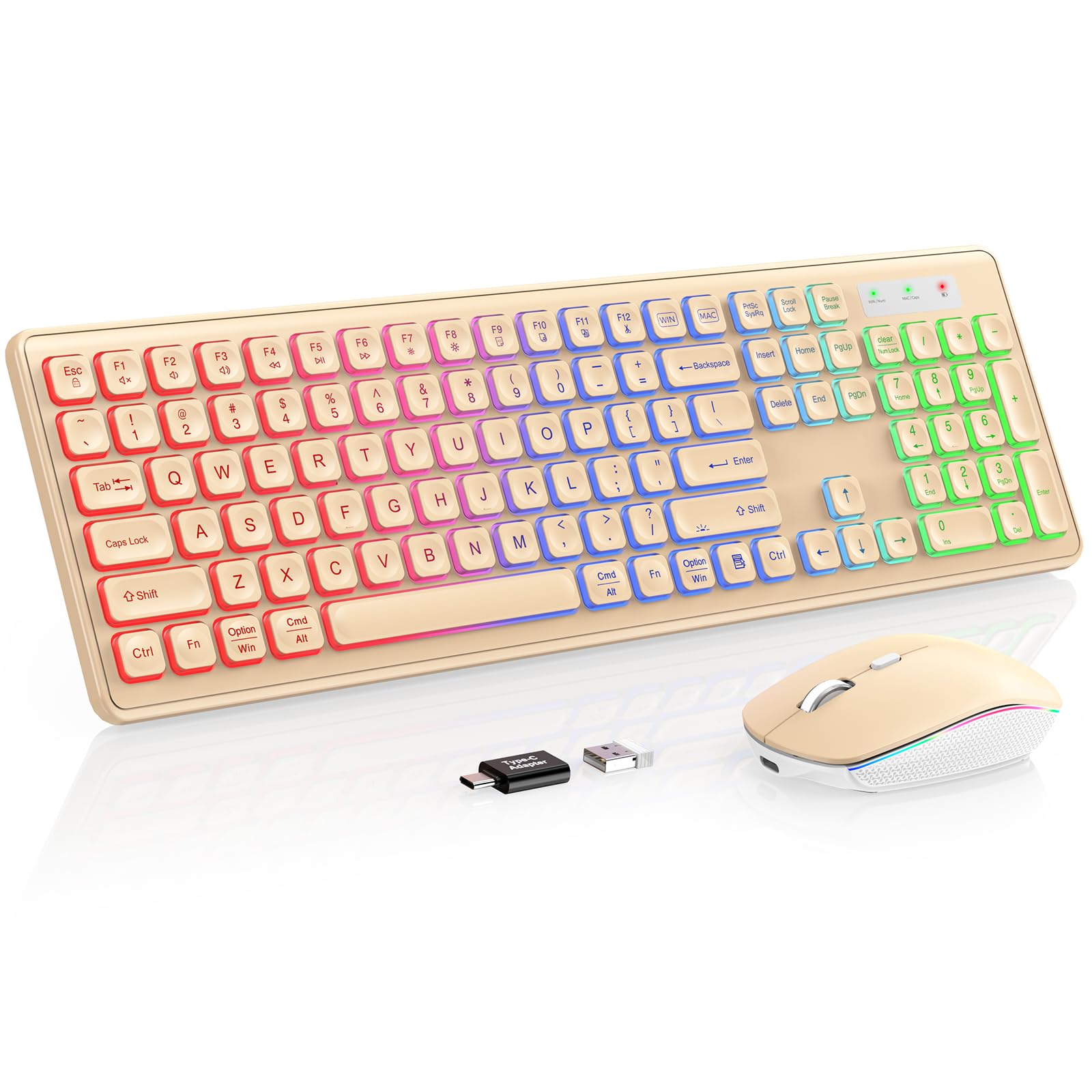
Image: The Trueque Wireless Keyboard and Mouse Combo, showcasing its full-size layout and vibrant RGB backlighting in a warm sand color.
Instrucciones de instalación
- Desempaquetar componentes: Carefully remove the keyboard, mouse, USB receiver, and USB-C charging cable from the packaging.
- Localizar el receptor USB: The USB receiver is typically stored in a compartment on the underside of the mouse. Remove it before use.
- Conectar el receptor: Plug the 2.4GHz USB receiver into an available USB-A port on your computer. If your computer only has USB-C ports, use the provided USB-A to Type-C adapter.
- Encendido: Locate the ON/OFF switches on the underside of both the keyboard and the mouse. Slide them to the "ON" position.
- Compatibilidad del sistema: The keyboard supports dual Mac and Windows layouts. Switch between layouts by pressing the dedicated "WIN" or "MAC" key. The corresponding indicator light (WIN/Num or MAC/Caps) will turn green to confirm the active layout.
- Carga inicial: For optimal performance, it is recommended to fully charge both the keyboard and mouse before first use. Use the supplied USB-C charging cable.
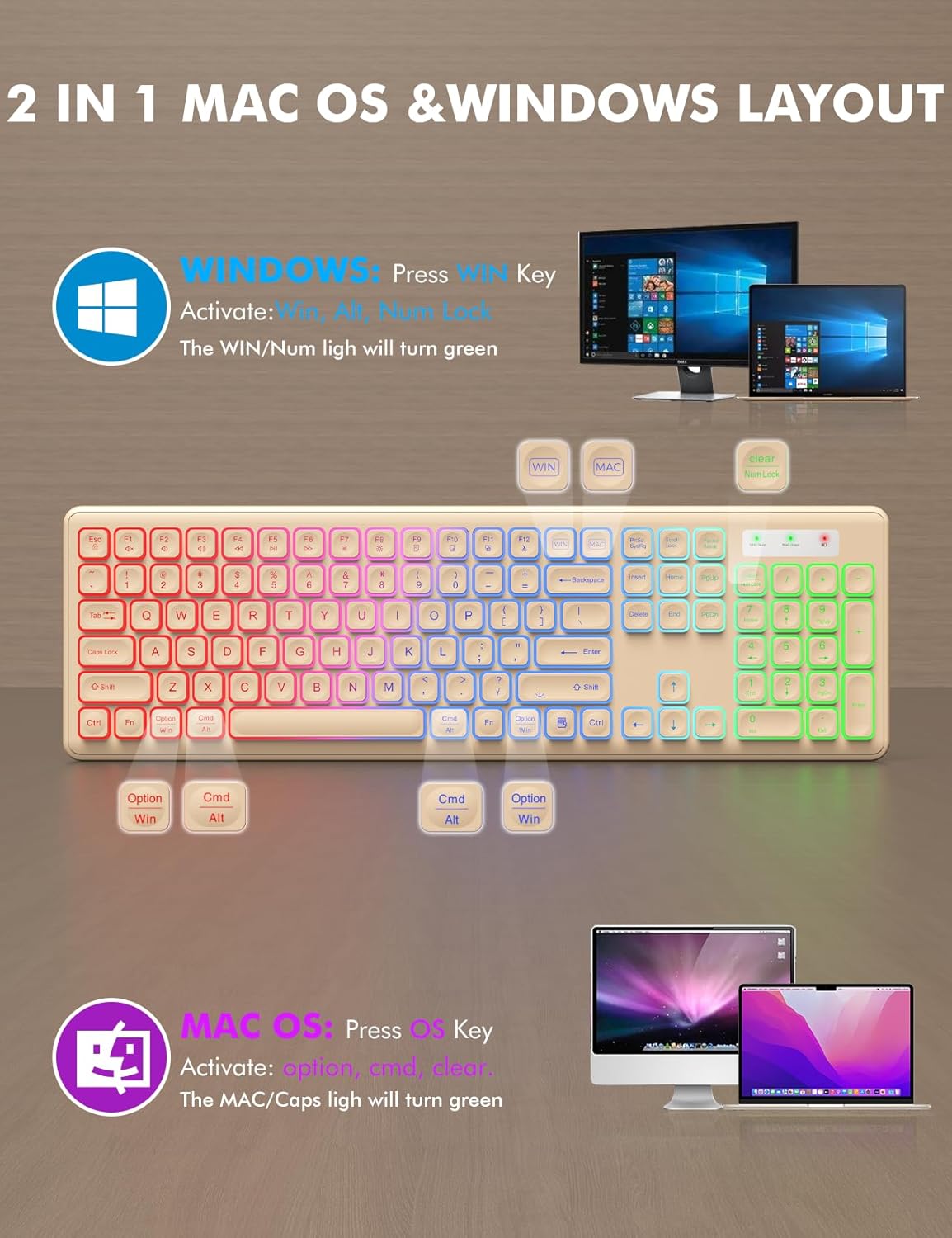
Image: Visual guide for switching between Mac OS and Windows layouts on the keyboard, highlighting the dedicated keys.
Video: An unboxing and demonstration of the wireless keyboard and mouse, including initial setup steps.
Instrucciones de funcionamiento
Funciones del teclado:
- Retroiluminación RGB: The keyboard features a rainbow color backlight with 3 adjustable brightness levels. Press Fn + Mayús to cycle through brightness levels or turn the backlight ON/OFF.
- Escritura cómoda: El teclado está diseñado con low-profile, crater-mechanism keys for soft, quiet typing. Foldable stands on the underside allow for a 15-degree tilt angle to reduce wrist pressure.
- Luces indicadoras: The keyboard includes indicator lights for Power, Mac, Caps Lock, Win, and Num Lock.

Image: The keyboard demonstrating its three adjustable RGB backlight brightness levels.

Image: A user demonstrating the ergonomic tilt angle provided by the keyboard's foldable stands, designed to reduce wrist pressure.
Funciones del ratón:
- Efectos de iluminación RGB: The mouse features 15 switchable lighting effects. A button on the underside allows you to cycle through these effects.
- DPI ajustable: The mouse offers 3 DPI levels (1000, 1500, 2000) for adjustable sensitivity. Use the DPI button to switch between settings.
- Clic silencioso: El mouse está diseñado para un funcionamiento silencioso, minimizando el ruido del clic.
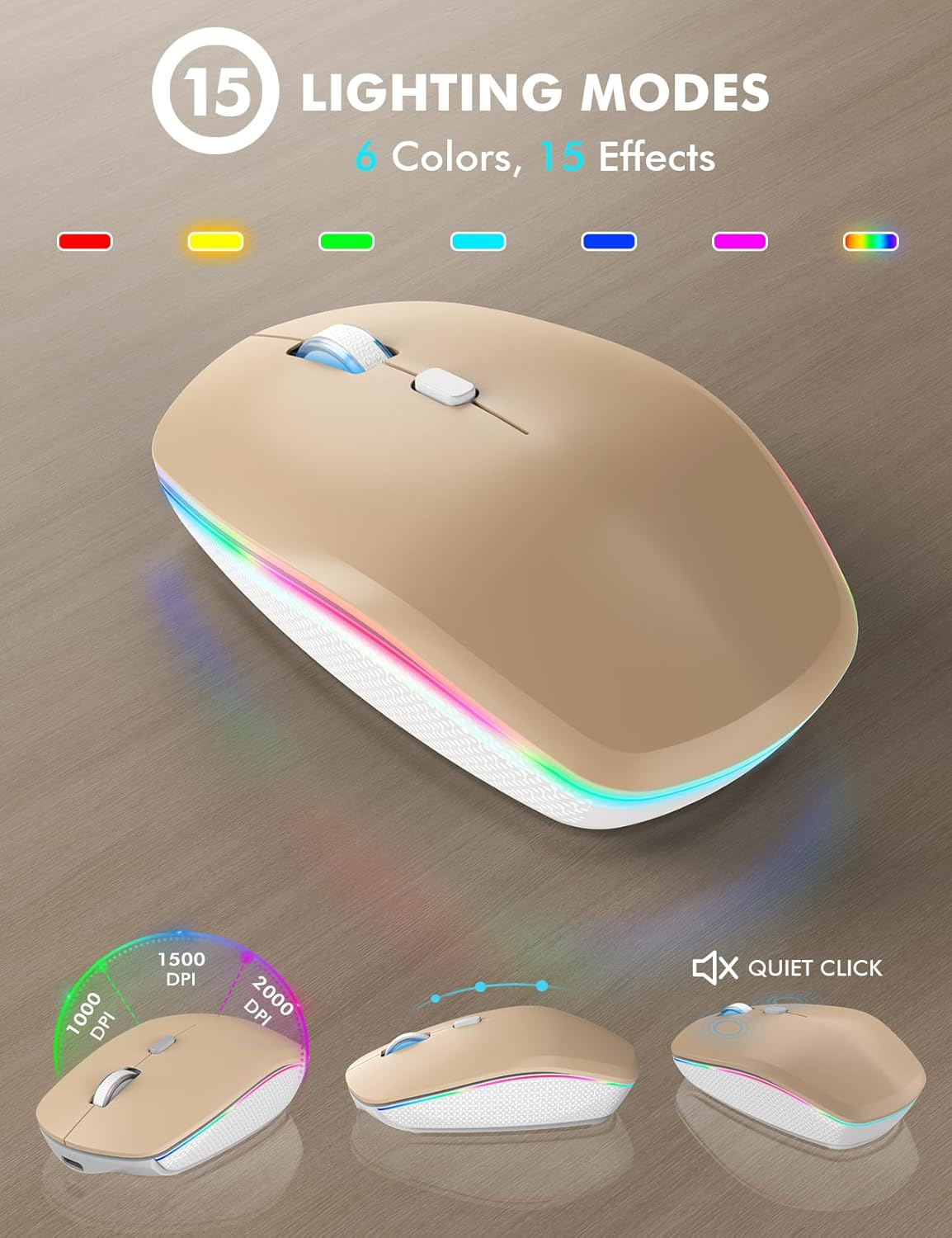
Image: The mouse highlighting its 15 lighting modes and adjustable DPI settings for customized sensitivity.
Video: Demonstration of the wireless keyboard and mouse showcasing its 7-color backlit effects.
Vídeo: Terminadoview of the features of the wireless keyboard and mouse, including its backlit keys and phone holder.
Mantenimiento
- Cargando: Both the keyboard and mouse are rechargeable via the supplied USB-C cable. Connect the cable to the respective charging ports.
- Duración de la batería: The devices feature a smart auto-sleep function to conserve power. The keyboard enters sleep mode after 30 minutes of inactivity, and the mouse after 90 seconds. Simply type or click any key to wake them up.
- Interruptores de potencia: Use the ON/OFF switches on both devices to manually save power when not in use for extended periods.
- Limpieza: The keyboard is designed to be spill-resistant. For general cleaning, use a soft, dry cloth. Avoid harsh chemicals or abrasive materials.

Image: Illustration of the smart power-saving features and USB-C charging capability for both the keyboard and mouse.
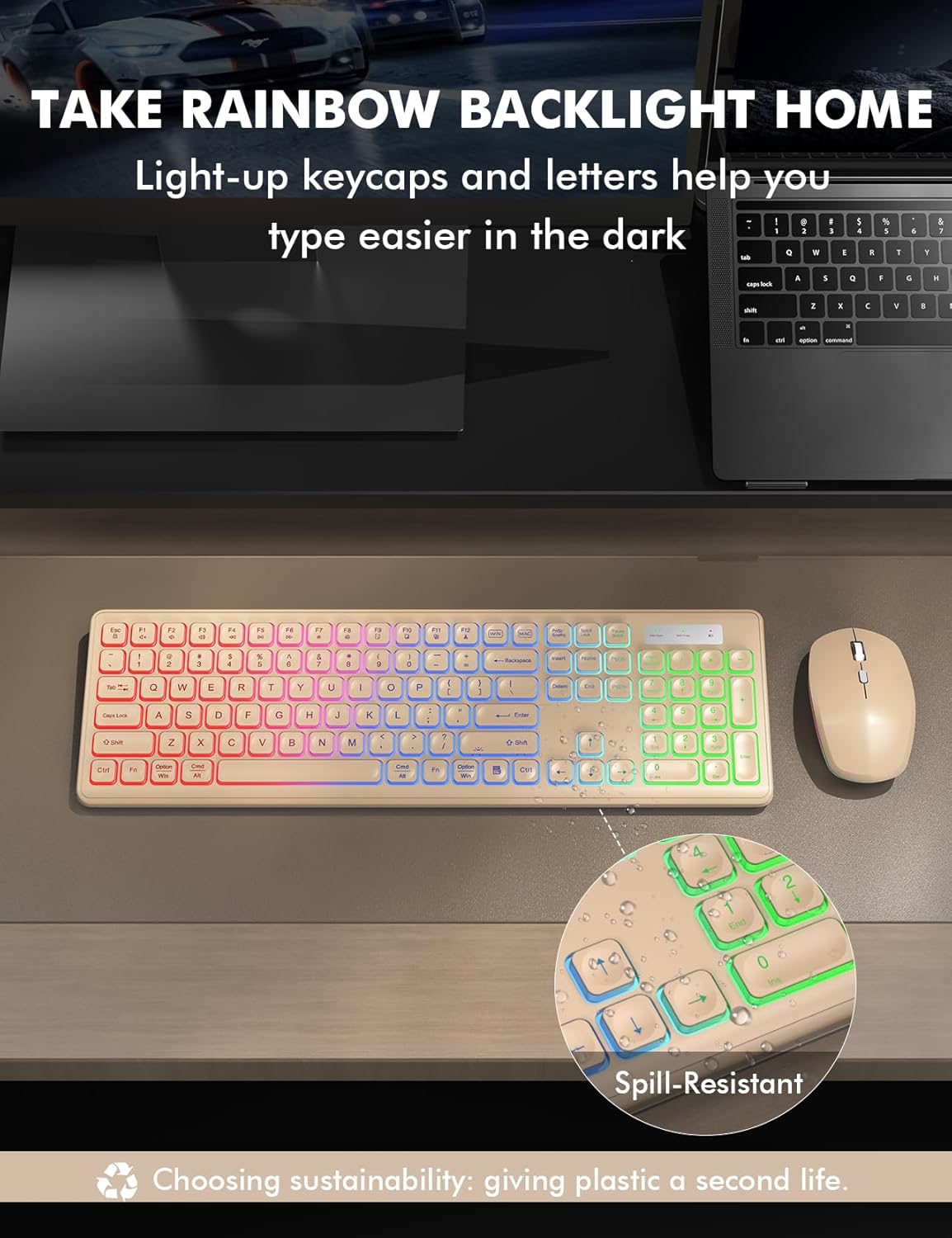
Image: The keyboard highlighting its spill-resistant design, indicating durability against accidental liquid exposure.
Solución de problemas
| Problema | Posible causa / solución |
|---|---|
| No Connection / Lagging: |
|
| La luz de fondo no funciona: |
|
| Keys Not Responding / Sticky Keys: |
|
| El ratón no sigue el rastro con fluidez: |
|
Presupuesto
- Marca: Trueque
- Modelo: B0F5GQLDH6
- Color: Warm Sand
- Tecnología de conectividad: USB inalámbrico de 2.4 GHz
- Característica especial: Rechargeable, RGB Backlit, Light-Up Letters, Dual System Layout (Mac/Windows), Foldable Stands, Quiet Click, Spill-Resistant
- Dispositivos compatibles: Chromebook, Laptop, MacBook Pro, MacBook Air, iMac, Dell XPS 13/15, Inspiron, HP ENVY, Pavilion, Personal Computer, Television
- Movement Detection (Mouse): Óptico
- Compatibilidad de colores de retroiluminación del teclado: RGB (Rainbow, 3 adjustable brightness levels)
- Mouse Lighting Effects: 15 switchable effects
- Compatibilidad del sistema operativo: All Windows Server Versions 2000, Chrome OS, Linux, Mac OS, Windows XP, Windows 7, Windows 8, Windows 10, Windows 11
- Hand Orientation (Mouse): Bien
- Number of Keys (Keyboard): 102
- Fuente de energía: Funciona con pilas (1 batería de iones de litio incluida)
- Diseño del teclado: QWERTY
- Descripción del teclado: Membrana
- Peso del artículo: 0.87 kilogramos

Image: An illustration highlighting the wide compatibility of the keyboard and mouse with different operating systems and device types.
Información de garantía
This Trueque Wireless Keyboard and Mouse Combo comes with a DOS AÑO manufacturer's warranty. Please retain your proof of purchase for warranty claims. For any issues covered under warranty, refer to the customer support section for contact details.
Atención al cliente
For pre-sales questions, troubleshooting assistance, accessory reissues, or returns and exchanges, please contact Trueque customer support:
- Soporte por correo electrónico: truequeservice@outlook.com (24-hour reply)
- Soporte telefónico (EE. UU.): 1-866-608-6766 (Mon-Fri, 9am-1pm, 2pm-6pm PST)
Trueque is committed to providing 12-month warranty and 360-day brand care for its products.

Image: Trueque customer service details, showing email and phone contact for support.