
KOORUI S2721XO 27-Inch QD-OLED Gaming Monitor User Manual
Modelo: S2721XO
1. Introducción
This manual provides instructions for the setup, operation, maintenance, and troubleshooting of your KOORUI S2721XO 27-inch QD-OLED Gaming Monitor. Please read this manual thoroughly before using the product to ensure proper function and safety.
The KOORUI S2721XO monitor features a 27-inch QD-OLED panel with QHD (2560x1440) resolution, a 240Hz refresh rate, and a 0.03ms (GtG) response time. It supports HDR True Black 400 and AdaptiveSync technology for a smooth visual experience. Connectivity options include HDMI 2.1 and DisplayPort 1.4.
2. Información de seguridad
- Asegúrese de que el monitor esté colocado sobre una superficie estable y plana para evitar caídas accidentales.
- No exponga el monitor a la lluvia ni a la humedad para evitar descargas eléctricas.
- Mantenga las aberturas de ventilación despejadas para evitar el sobrecalentamiento.
- Utilice únicamente el adaptador de corriente proporcionado con el monitor.
- Evite tocar la pantalla con objetos punzantes.
- Desconecte el cable de alimentación del tomacorriente antes de limpiarlo o si el monitor no se utilizará durante un período prolongado.
3. Configuración
3.1 Contenido del paquete
Verifique que todos los componentes estén presentes en el paquete:
- KOORUI S2721XO Monitor
- Soporte para monitor (base y mástil)
- Cable de alimentación
- Cable DisplayPort (1.8 m)
- Manual de usuario (este documento)
3.2 Montaje del soporte
- Coloque el soporte en el panel del monitor. Asegúrese de que encaje firmemente en su lugar.
- Attach the stand base to the stand neck. Tighten any screws as necessary.
Alternatively, the monitor supports VESA 100x100mm mounting for compatible wall mounts or monitor arms.
Figura 3.2.1: Posterior view of the monitor with VESA mount and stand attachment.

Figura 3.2.2: Posterior view del monitor con el soporte montado.
3.3 Conexión a un dispositivo
The monitor provides multiple input options:
- HDMI2.1: Connect to a PC or gaming console using an HDMI 2.1 cable. The monitor has two HDMI 2.1 ports.
- DisplayPort 1.4: Connect to a PC using a DisplayPort 1.4 cable. A DisplayPort cable is included.
- Salida de audio: Conecte altavoces externos o auriculares al conector de audio de 3.5 mm.

Figura 3.3.1: Puertos de entrada del monitor.
After connecting the video cable, connect the power cable to the monitor and then to a power outlet.
4. Operación
4.1 Encendido y apagado
Press the power button (usually located on the back or bottom of the monitor) to turn the monitor on or off. The power indicator light will illuminate when the monitor is on.
4.2 Menú de visualización en pantalla (OSD)
The monitor features a joystick controller for navigating the OSD menu. This allows for easy adjustment of various settings.
- Presione el joystick: Abre el menú OSD.
- Mover el joystick hacia arriba/abajo: Navega a través de las opciones del menú.
- Mover el joystick hacia la izquierda/derecha: Ajusta valores o ingresa a submenús.
- Presione de nuevo: Confirma la selección o sale de un submenú.
4.3 Configuración de pantalla
Adjust the following settings via the OSD menu for optimal performance:
- Resolución: Set to 2560x1440 (QHD) for the native display resolution.
- Frecuencia de actualización: Select 240Hz for the smoothest motion.
- Sincronización adaptativa: Enable AdaptiveSync (FreeSync compatible) to eliminate screen tearing and stuttering during gaming.
- HDR True Black 400: Activate HDR for enhanced contrast and color depth in compatible content.
- Gama de colores: Adjust color settings, including DCI-P3 99% and sRGB 100% modes, for accurate color reproduction.
- Brillo/Contraste: Fine-tune display brightness (average 280 nits) and contrast levels.
- Actualización de retención de imagen: This feature helps prevent burn-in on the OLED panel. It is recommended to keep this enabled.
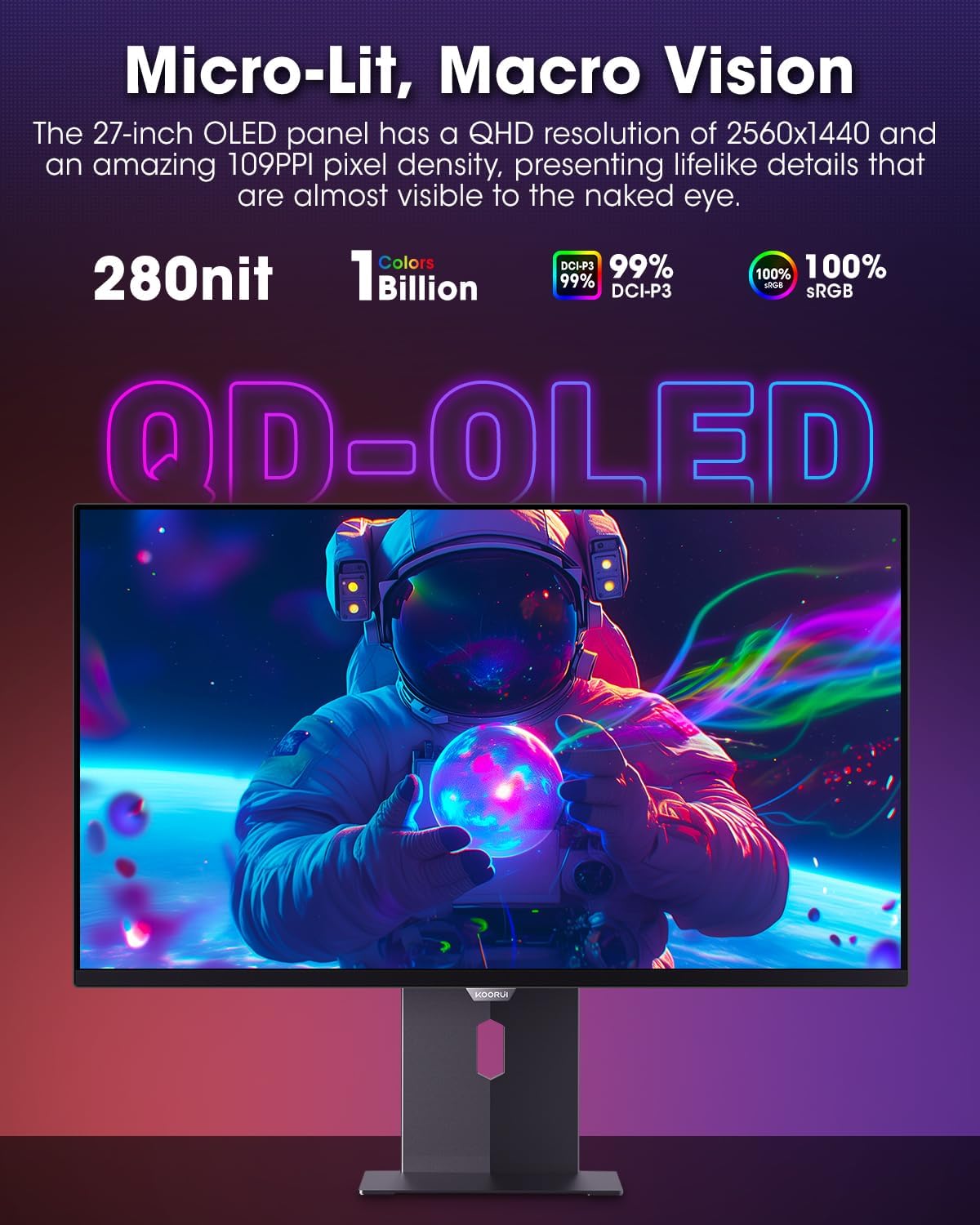
Figure 4.3.1: The QD-OLED panel delivers vivid colors and deep blacks.

Figure 4.3.2: High refresh rate and low response time for smooth gaming.
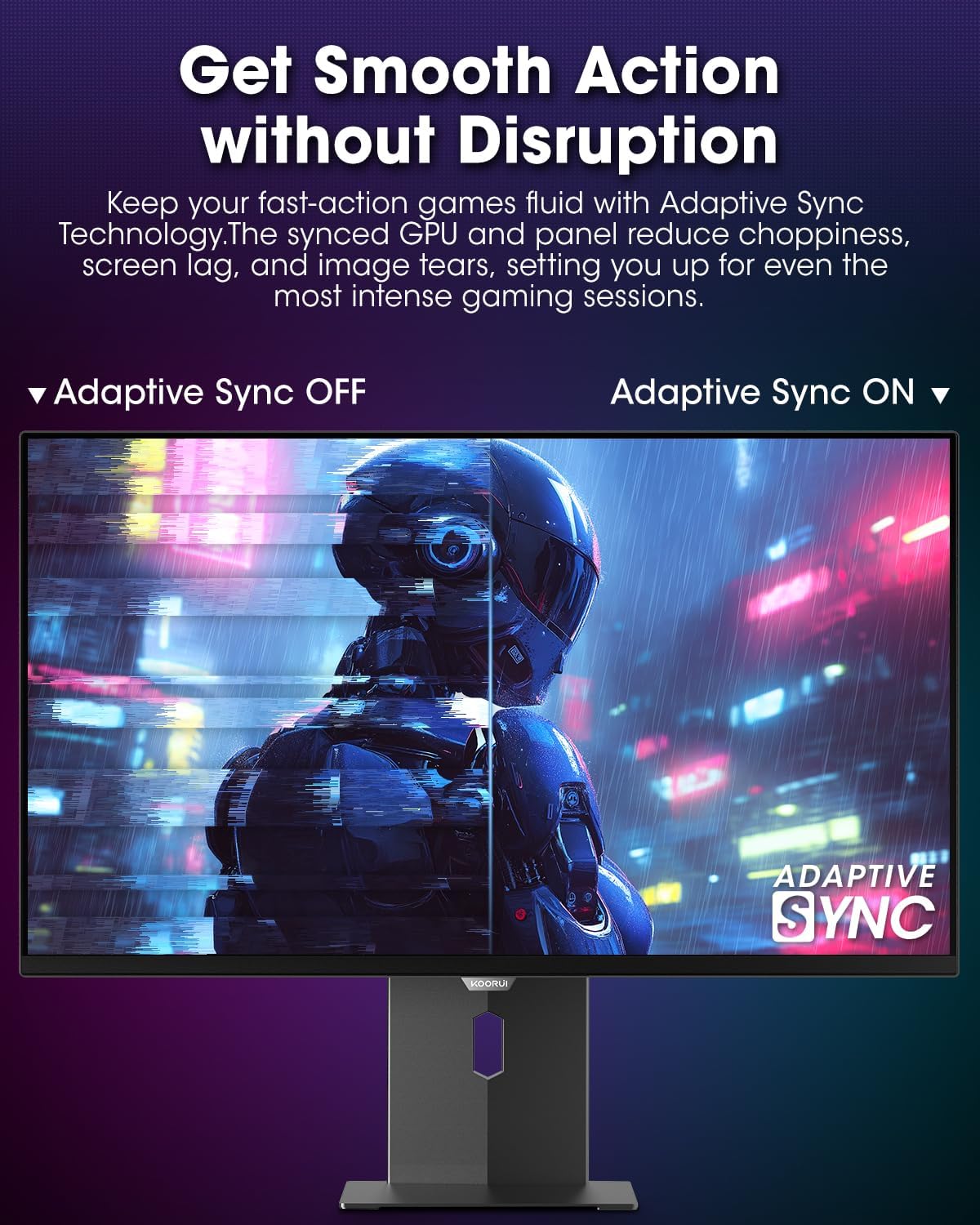
Figure 4.3.3: AdaptiveSync technology prevents screen tearing.
4.4 Ajustes ergonómicos
El soporte del monitor permite varios ajustes para mejorar viewcomodidad:
- Ajuste de altura: Suba o baje el monitor hasta el nivel de los ojos.
- Inclinación: Ajuste el ángulo de la pantalla hacia adelante o hacia atrás.
- Girar: Rotate the monitor horizontally.
- Pivote: Gire el monitor verticalmente (modo retrato).

Figura 4.4.1: Ajuste de la inclinación del monitor.

Figura 4.4.2: Ajuste del pivote del monitor al modo vertical.
5. Mantenimiento
- Limpieza de la pantalla: Utilice un paño suave y sin pelusa ligeramenteampLimpie con agua o un limpiador de pantallas. No rocíe el limpiador directamente sobre la pantalla.
- Limpieza de la Casing: Limpie el monitor casinLimpie con un paño suave y seco. Evite los limpiadores abrasivos.
- Ventilación: Ensure the monitor's ventilation holes are not blocked to prevent overheating.
- Apagado: Siempre apague y desenchufe el monitor antes de limpiarlo.
6. Solución de problemas
| Problema | Posible causa | Solución |
|---|---|---|
| No hay imagen en la pantalla | Cable de alimentación desconectado; Cable de vídeo desconectado; Fuente de entrada incorrecta seleccionada. | Verifique las conexiones del cable de alimentación y de video; seleccione la fuente de entrada correcta a través del menú OSD. |
| Imagen parpadeante o rasgada | AdaptiveSync no habilitado; problemas con el controlador de la tarjeta gráfica. | Enable AdaptiveSync in OSD menu; Update graphics card drivers. |
| Los colores parecen incorrectos | Configuración de color mal configurada; cable de vídeo defectuoso. | Restablecer la configuración de color en el menú OSD; Pruebe con un cable de video diferente. |
| El monitor no se enciende | Cable de alimentación no conectado; la toma de corriente no funciona. | Ensure power cable is securely connected; Test power outlet with another device. |
7. Especificaciones
| Característica | Detalle |
|---|---|
| Marca | KOORUI |
| Número de modelo | S2721XO |
| Tamaño de pantalla | 27 pulgadas |
| Tipo de pantalla | OLED QD |
| Resolución | QHD Wide 1440p (2560 x 1440 píxeles) |
| Frecuencia de actualización | 240 Hz |
| Tiempo de respuesta | 0.03 Milliseconds (GtG) |
| Relación de contraste | 20,000,000:1 |
| Brillo | 350 candela_per_square_meter (average 280 nits) |
| Gama de colores | 99% DCI-P3 |
| Compatibilidad con HDR | HDR True Black 400 |
| Sincronización adaptativa | Compatible con FreeSync |
| Conectividad | 2x HDMI 2.1, 1x DisplayPort 1.4, 1x Salida de audio |
| Ergonomía | Tilt, Height, Swivel, Pivot Adjustment |
| Montaje VESA | 100x100 mm |
| Dimensiones del producto | 21.58 x 61 x 51.2 cm; 8.96 kg |

Figura 7.1: Dimensiones del monitor.
8. Garantía y soporte
8.1 Información de garantía
The KOORUI S2721XO monitor comes with a Garantía limitada de 1 años. Please retain your proof of purchase for warranty claims. For detailed warranty terms and conditions, refer to the official KOORUI websitio o póngase en contacto con el servicio de atención al cliente.
8.2 Atención al cliente
For technical assistance, troubleshooting, or warranty inquiries, please contact KOORUI customer support. Refer to the contact information provided on the official KOORUI websitio web o su documentación de compra.
You can also find additional support resources and FAQs on the KOORUI brand store on Amazon: KOORUI Amazon Store
9. Vídeos de productos
KOORUI 4K OLED Gaming Monitor 240Hz (Seller Video)
Este video proporciona un resumenview of the KOORUI OLED Gaming Monitor, highlighting its key features such as high refresh rate and OLED display technology. While the title mentions "4K", the video content is generally applicable to high-performance OLED gaming monitors from KOORUI, including the S2721XO model's features like 240Hz refresh rate and fast response time.