
1. Introducción
This user manual provides detailed instructions for the KTC M27P6 27-inch MiniLED Gaming Monitor. Please read this manual thoroughly before operating the device to ensure proper usage and optimal performance. Keep this manual for future reference.
The KTC M27P6 is a high-performance gaming monitor featuring a 27-inch MiniLED panel with 1152 local dimming zones, offering exceptional contrast and brightness up to HDR1400. It supports dual display modes: 4K resolution at 160Hz and Full HD resolution at 320Hz, providing versatility for various gaming and professional needs. Key features include a 1ms GtG response time, Adaptive Sync technology, and comprehensive connectivity options including USB-C with 65W power delivery and KVM functionality.

Imagen: Más alláview of KTC M27P6 monitor's key features including MiniLED, 1152 local dimming zones, dual mode 4K@160Hz/FHD@320Hz, USB-C, KVM, HDR1400, 145% sRGB, Fast IPS, and Adaptive-Sync.
2. Información de seguridad
- Coloque siempre el monitor sobre una superficie estable y plana para evitar que se caiga.
- No exponga el monitor a la lluvia ni a la humedad para evitar descargas eléctricas o incendios.
- Mantenga el monitor alejado de la luz solar directa, fuentes de calor o temperaturas extremas.
- Asegúrese de que haya una ventilación adecuada alrededor del monitor. No bloquee las aberturas de ventilación.
- Utilice únicamente el adaptador de corriente y los cables proporcionados o recomendados por el fabricante.
- Unplug the power cord from the outlet if the monitor will not be used for a long period.
- No intente reparar el monitor usted mismo. Encargue cualquier reparación a personal técnico cualificado.
- Evite tocar la pantalla con objetos punzantes.
3. Contenido del paquete
Verify that all components are present in your package. If any items are missing or damaged, contact your retailer.
- KTC M27P6 27-inch MiniLED Gaming Monitor
- Soporte para monitor (base y brazo)
- Adaptador de corriente
- Cable de alimentación
- Cable HDMI
- Cable DisplayPort
- Cable USB-C
- USB-B to USB-A Cable (for KVM/USB Hub)
- Manual de usuario (este documento)
- Tarjeta de garantía
4. Monitorearview
Frente 4.1 View
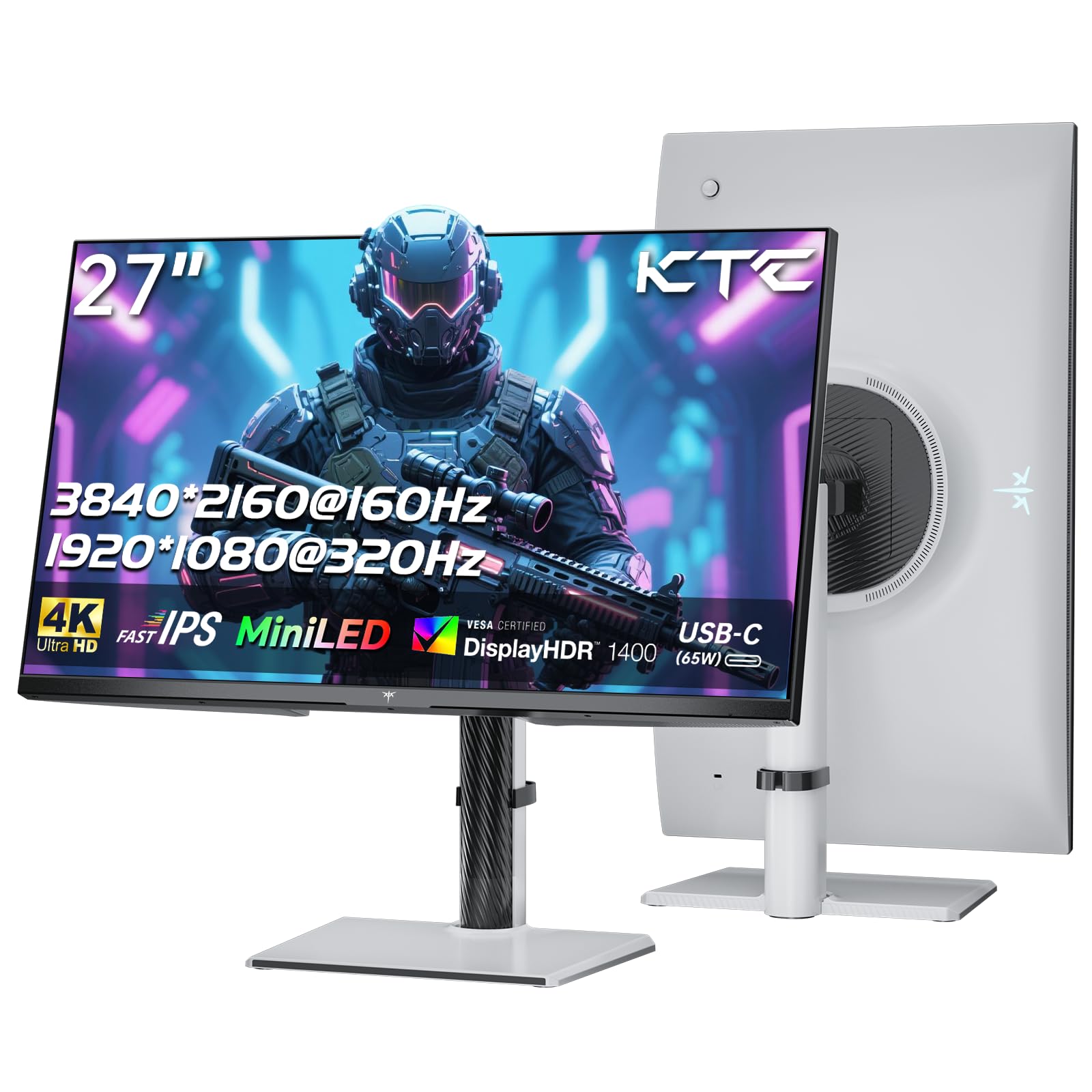
Imagen: Frente view of the KTC M27P6 27-inch MiniLED Gaming Monitor.
The front of the monitor features the 27-inch MiniLED display panel. The KTC logo is typically located at the bottom center bezel.
4.2 Trasero View y puertos

Imagen: Trasera view of the KTC M27P6 monitor, highlighting the various input/output ports and the adjustable stand.
The rear of the monitor houses the input/output ports and the stand attachment point. The ports include:
- Entrada de energía: Para conectar el adaptador de corriente.
- Puertos HDMI 2.1 (x2): For connecting to devices supporting HDMI 2.1 (4K@160Hz / FHD@320Hz).
- Puertos DisplayPort 1.4 (x2): For connecting to devices supporting DisplayPort 1.4 (4K@160Hz / FHD@320Hz).
- Puerto USB-C (x1): Full-function port supporting video input (4K@160Hz / FHD@320Hz) and 65W Power Delivery.
- USB-B Upstream Port (x1): For connecting the monitor's USB hub to your computer, enabling the downstream USB-A ports and KVM functionality.
- USB-A 3.0 Downstream Ports (x3): Para conectar periféricos como teclados, ratones o unidades USB.
- Salida de audio de 3.5 mm: Para conectar auriculares o altavoces externos.
Vídeo: Un overview of the KTC M27P6 monitor's features and design, including its connectivity options and adjustable stand.
5. Configuración
5.1 Montaje del soporte
- Retire con cuidado los componentes del monitor y del soporte del embalaje.
- Attach the stand arm to the monitor panel by aligning the mounting points and securing with screws (if applicable).
- Attach the stand base to the stand arm, ensuring it is firmly connected.
- Coloque el monitor ensamblado sobre una superficie plana y estable.
The monitor also supports VESA mounting (100x100mm) for use with compatible wall mounts or monitor arms. Ensure the VESA mount is rated for the monitor's weight.

Image: Diagram illustrating the multi-angle adjustment capabilities of the KTC M27P6 monitor stand, including height, tilt, swivel, and pivot.
5.2 Cables de conexión
- Conexión de energía: Conecte el adaptador de corriente a la entrada de alimentación del monitor y luego enchufe el cable de alimentación a una toma de corriente.
- Conexión de vídeo:
- For PC/Gaming Console: Connect one end of the HDMI or DisplayPort cable to your device's output and the other end to the corresponding port on the monitor.
- For USB-C Compatible Devices: Connect the USB-C cable from your device to the monitor's USB-C port for video, data, and power delivery.
- USB Hub/KVM Connection: To use the monitor's USB-A ports and KVM functionality, connect the USB-B to USB-A cable from the monitor's USB-B upstream port to a USB-A port on your computer.
- Conexión de audio: If using external headphones or speakers, connect them to the 3.5mm audio out port on the monitor.
6. Instrucciones de funcionamiento
6.1 Encendido y apagado
Press the power button (usually located on the back or bottom of the monitor) to turn the monitor on or off. The power indicator light will illuminate when the monitor is on.
6.2 Navegación por el menú OSD
The On-Screen Display (OSD) menu allows you to adjust various monitor settings. Use the joystick or buttons (refer to your monitor's physical layout) to navigate the OSD menu:
- Press Joystick/Button: Enter OSD menu or confirm selection.
- Mover el joystick hacia arriba/abajo: Navegar por las opciones del menú.
- Mover el joystick hacia la izquierda/derecha: Ajustar valores o moverse a submenús.
- Botón de salida: Salir del menú actual o OSD.
6.3 Dual Mode Switching (4K@160Hz / FHD@320Hz)
The KTC M27P6 supports seamless switching between two display modes: 4K (3840x2160) at 160Hz and Full HD (1920x1080) at 320Hz. This allows you to optimize performance based on your content (e.g., high-resolution graphics for AAA games or ultra-high refresh rate for competitive FPS games).
To switch modes, access the OSD menu and navigate to the "Display" or "Gaming" settings. Select the desired resolution and refresh rate. Your connected device must also support these resolutions and refresh rates for optimal performance.

Image: Illustration of the KTC M27P6 monitor's seamless dual mode switching capability, showing a 4K@160Hz gaming scene and a FHD@320Hz gaming scene.
6.4 Sincronización adaptativa
The monitor supports Adaptive Sync (AMD FreeSync and NVIDIA G-Sync compatible) to eliminate screen tearing and stuttering, providing a smoother gaming experience. Ensure Adaptive Sync is enabled in the monitor's OSD settings and in your graphics card control panel.

Image: Visual representation of Adaptive Sync technology, showing how it prevents screen tearing by synchronizing the monitor's refresh rate with the GPU's frame rate.
6.5 Funcionalidad KVM
The integrated KVM (Keyboard, Video, Mouse) switch allows you to control multiple computers or devices connected to the monitor using a single keyboard and mouse. To use KVM:
- Connect your primary computer to the monitor via DisplayPort/HDMI and the USB-B upstream cable.
- Connect your secondary device (e.g., laptop via USB-C) to the monitor.
- Connect your keyboard and mouse to the USB-A downstream ports on the monitor.
- Switch between connected devices using the KVM hotkey or OSD menu option.
6.6 Color Settings and HDR1400
The monitor features a MiniLED panel with 1152 local dimming zones and VESA DisplayHDR 1400 certification, providing high contrast and vibrant colors. You can adjust color settings (brightness, contrast, color temperature, gamma) through the OSD menu. For HDR content, ensure HDR is enabled in your operating system and the monitor's OSD. The monitor supports 10-bit color depth and a wide color gamut (145% sRGB / 99% DCI-P3).

Image: Visual comparison demonstrating the enhanced dynamic range and detail provided by HDR1400 on the KTC M27P6 monitor.
7. Mantenimiento
- Limpieza de la pantalla: Limpie suavemente la pantalla con un paño suave que no deje pelusa. Para manchas difíciles,ampen the cloth with a small amount of screen cleaner (non-ammonia based). Do not spray cleaner directly onto the screen.
- Limpieza de la Casing: Utilice un paño suave y seco para limpiar el monitor.asing. Evite utilizar limpiadores abrasivos o disolventes.
- Ventilación: Ensure the ventilation openings on the monitor are clear of dust and debris to prevent overheating.
8. Solución de problemas
| Problema | Posible causa | Solución |
|---|---|---|
| No hay imagen en la pantalla | Cable de alimentación desconectado; Cable de vídeo desconectado; Fuente de entrada incorrecta. | Verifique las conexiones de los cables de alimentación y video. Seleccione la fuente de entrada correcta mediante el menú OSD. |
| La imagen está borrosa o distorsionada. | Resolución incorrecta; cable de vídeo defectuoso. | Set the display resolution to the native 3840x2160 or 1920x1080. Try a different video cable. |
| Desgarro o tartamudeo de pantalla en los juegos | Sincronización adaptativa no habilitada; problemas con el controlador de la tarjeta gráfica. | Enable Adaptive Sync in monitor OSD and graphics card settings. Update graphics drivers. |
| Los puertos USB no funcionan | USB-B upstream cable not connected; Driver issues. | Ensure the USB-B upstream cable is connected from the monitor to your computer. Check computer's USB drivers. |
| No hay sonido en la salida de audio | Incorrect audio output selected; Volume too low. | Check audio output settings on your computer. Adjust monitor and device volume. |
9. Especificaciones
| Característica | Detalle |
|---|---|
| Marca | KTC |
| Nombre del modelo | M27P6 |
| Tamaño de pantalla | 27 Pollici (27 inches) |
| Tipo de panel | MiniLED, Fast IPS |
| Resolución (nativa) | 3840 x 2160 (4K UHD) |
| Max Refresh Rate (4K) | 160 Hz |
| Max Refresh Rate (FHD) | 320 Hz |
| Tiempo de respuesta | 1 ms GtG |
| Zonas de atenuación locales | 1152 zonas |
| Certificación HDR | Pantalla VESA HDR 1400 |
| Brillo | 1400 cd / m² (pico) |
| Relación de contraste | 1,000,000: 1 (dinámico) |
| Gama de colores | 145 % sRGB, 99 % DCI-P3 |
| Profundidad de color | 10 bits |
| Sincronización adaptativa | Compatible con AMD FreeSync y NVIDIA G-Sync |
| Viewángulo de ing | 178 grados |
| Conectividad | 2x HDMI 2.1, 2x DisplayPort 1.4, 1x USB-C (65W PD), 1x USB-B Upstream, 3x USB-A 3.0 Downstream, 1x 3.5mm Audio Out |
| Soporte KVM | Sí |
| Ajustes del soporte | Altura, inclinación, giro, pivote |
| Montaje VESA | 100 x 100 mm |
| Dimensiones (PrxAnxAl) | 21.1P x 61.7l x 54.7h cm |
10. Garantía y soporte
KTC products are covered by a limited warranty. Please refer to the warranty card included in your package for specific terms and conditions. For technical support, troubleshooting assistance, or warranty claims, please contact KTC customer service or visit the official KTC websitio.
You can find more information and contact details on the KTC official store page: Tienda KTC.