
1. Introducción
El Teclado inalámbrico portátil Rapoo E900T con panel táctil is designed for seamless multi-device and multi-operating system control. This versatile keyboard offers tri-mode wireless connectivity (Bluetooth 5.0/4.0 and 2.4GHz) allowing you to effortlessly navigate and type across various devices such as PC-connected TVs, tablets, Steam Decks, gaming consoles, Raspberry Pi, Mini PCs, and smartphones. Its ultra-thin design and integrated touchpad with gesture support enhance convenience and productivity for both Windows and Mac users.
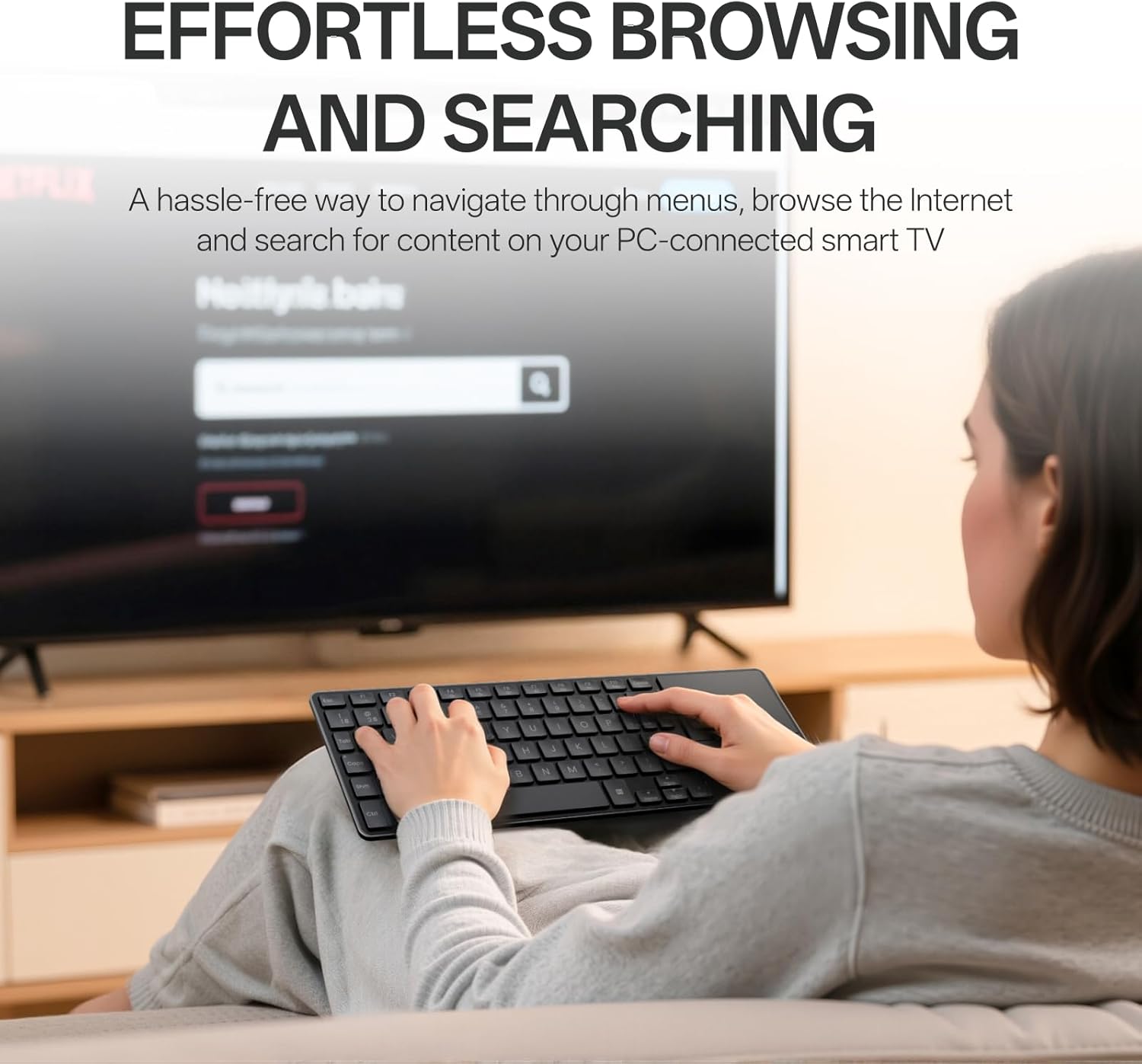
Image: The Rapoo E900T keyboard being used by a person relaxing on a couch, effortlessly browsing content on a large screen television. This highlights the keyboard's suitability for HTPC setups.
2. ¿Qué hay en la caja?
- 1 x Rapoo E900T Portable Wireless Keyboard
- 1 x Manual del usuario
- 2 pilas AAA
3. Características principales
- All-in-one Solution for Multi Media and OS: Features Bluetooth 5.0/4.0 + 2.4GHz tri-mode wireless connectivity, providing a versatile way to navigate, browse, search, or type on various devices including PC-connected TVs, tablets, Steam Decks, gaming consoles, SBCs, mini PCs, and phones.
- Diseño ultrafino y portátil: With a length of 11.09 inches (281.6mm) and a thickness of 0.15 inches (3.9mm), the E900T is highly portable and fits easily with most tablets, ideal for on-the-go use.
- Built-in Touchpad and Gestures Support for Windows & Mac: Eliminates the need for a separate mouse by integrating a touchpad that supports multi-finger gestures for both Windows and Mac OS. (Note: Press FN + W to enter Windows mode / FN + Q to enter Mac mode).
- Multi-Device and Multi-OS Support: Connects up to 4 devices across various operating systems including Windows, Mac, Chrome, and Android.
- Diseño compacto de 73 teclas: Space-saving and portable, this layout is convenient for school, travel, and business. Integrated multimedia hotkeys provide quick access to control entertainment functions such as play/pause and volume adjustments.
- Bajo consumo de energía: Upgraded low-power technology allows the E900T to operate for up to 13 months with 1 or 2 AAA batteries.

Image: The Rapoo E900T keyboard positioned on a wooden desk alongside a laptop, smartphone, and an external mouse, demonstrating its 'All-in-one for Multi Media & OS' capability.

Image: A hand performing a multi-finger gesture on the integrated touchpad of the Rapoo E900T keyboard, highlighting its gesture support for navigation.
4. Instrucciones de configuración
4.1 Encendido
- Localice el compartimento de la batería en la parte inferior del teclado.
- Insert the two provided AAA batteries, ensuring correct polarity.
- Locate the ON/OFF switch, usually on the side or top edge of the keyboard, and slide it to the 'ON' position.
4.2 2.4GHz Wireless Connection (USB-A Receiver)
- Locate the USB-A receiver, typically stored in the battery compartment or a dedicated slot on the keyboard.
- Plug the USB-A receiver into an available USB port on your device (PC, TV, console, etc.).
- El teclado debería conectarse automáticamente a tu dispositivo. Normalmente no se requieren controladores adicionales.
4.3 Conexión Bluetooth
- Asegúrese de que el teclado esté encendido.
- Press and hold the dedicated Bluetooth pairing key (often labeled B1 or B2, or an Fn key combination like Fn+C) until the Bluetooth indicator light starts flashing. This indicates the keyboard is in pairing mode.
- On your device (tablet, smartphone, laptop), go to Bluetooth settings and search for available devices.
- Select "Rapoo E900T" or a similar name from the list of found devices to pair.
- Si se le solicita, ingrese el código de emparejamiento que se muestra en su dispositivo.
- Una vez emparejado, la luz indicadora de Bluetooth en el teclado dejará de parpadear y permanecerá fija o se apagará, lo que indica una conexión exitosa.
4.4 Switching Between Devices/OS Modes
- To switch between paired Bluetooth devices (B1, B2), press the corresponding dedicated button.
- To switch between Windows and Mac OS modes for optimal key functionality, press FN + W para el modo Windows o FN+Q para el modo Mac.
Video: A short demonstration of the Rapoo E900T Portable Wireless Keyboard with Touchpad, showcasing its compact size and ease of use for basic navigation. This video is a brief preview de un vendedor.
Video: A user demonstrating how the Rapoo E900T keyboard integrates into a 'couch setup' for controlling a smart TV or other media devices, highlighting its convenience and functionality in a home entertainment environment. This video is from a seller.
5. Instrucciones de funcionamiento
5.1 Gestos del panel táctil
The integrated touchpad supports various multi-finger gestures for efficient navigation. Ensure multi-finger touch gestures are switched on in your device's settings for full functionality.
Windows Gesture Shortcuts (Press FN+W to enter Windows mode):
- One-finger glide: Cursor control.
- Toque con un dedo: Click izquierdo.
- Toque con dos dedos: Clic derecho.
- Two-finger slide (vertical/horizontal): Voluta.
- Pellizco con dos dedos: Acercar o alejar.
- Toque con tres dedos: Open the search box.
- Three-finger slide (left/right): Switch between tabs.
- Three-finger slide (up): Show thumbnails of all open apps.
- Three-finger slide (down): Mostrar el escritorio.
- Toque con cuatro dedos: Captura de pantalla.

Image: A visual guide detailing multi-finger touchpad gestures for Windows operating systems, including cursor control, clicking, scrolling, zooming, and app management.
Mac OS Gesture Shortcuts (Press FN+Q to enter Mac mode):
- One-finger glide: Cursor control.
- Toque con un dedo: Click izquierdo.
- Toque con dos dedos: Clic derecho.
- Two-finger slide (vertical/horizontal): Voluta.
- Pellizco con dos dedos: Acercar o alejar.
- Toque con tres dedos: Middle-click.
- Three-finger slide (left/right): Switch between tabs.
- Toque con cuatro dedos: Captura de pantalla.

Image: A visual guide detailing multi-finger touchpad gestures for Mac operating systems, including cursor control, clicking, scrolling, zooming, and app management.
5.2 teclas de acceso rápido multimedia
The keyboard features dedicated multimedia hotkeys (F1-F7) that provide quick access to control your entertainment. Use the Fn key in combination with the F-keys for these functions:
- Fn+F1: Silenciar/Activar sonido
- Fn+F2: Bajar volumen
- Fn+F3: Subir volumen
- Fn+F4: Pista anterior
- Fn+F5: Reproducir/Pausa
- Fn+F6: Pista siguiente
- Fn+F7: Abrir reproductor multimedia

Imagen: Un primer plano view of the Rapoo E900T keyboard, specifically showing the function keys F1 through F7 with their corresponding multimedia icons, and the 'Fn' key used for activating these functions.
5.3 indicador de bloqueo de mayúsculas
A dedicated LED indicator for Caps Lock is located on the keyboard, providing visual confirmation of its status to prevent typing errors.

Imagen: Un detalle view of the Caps Lock key on the Rapoo E900T keyboard, showing the illuminated green LED indicator when Caps Lock is active.
6. Mantenimiento
6.1 Reemplazo de batería
When the keyboard's performance degrades or the battery indicator light (if present) signals low power, replace the two AAA batteries. Always use fresh, high-quality batteries for optimal performance.
6.2 Limpieza
To clean the keyboard, power it off and use a soft, dry, lint-free cloth. For stubborn dirt, a slightly damp cloth can be used, but ensure no moisture enters the keyboard. Avoid using harsh chemicals, abrasive cleaners, or solvents.
6.3 Almacenamiento
Cuando no lo use durante un tiempo prolongado, apague el teclado para conservar la batería. Guárdelo en un lugar fresco y seco, alejado de la luz solar directa y de temperaturas extremas.
7. Solución de problemas
7.1 No Connection / Unresponsive Keyboard
- Compruebe las baterías: Asegúrese de que las baterías estén correctamente insertadas y tengan suficiente carga. Reemplácelas si es necesario.
- Interruptor de alimentación: Verify the keyboard's ON/OFF switch is in the 'ON' position.
- Conexión de 2.4 GHz: For 2.4GHz mode, ensure the USB-A receiver is securely plugged into your device. Try a different USB port.
- Conexión Bluetooth: For Bluetooth mode, ensure Bluetooth is enabled on your device and the keyboard is properly paired. Re-pair the keyboard if the connection is lost.
- Distance & Interference: Move the keyboard closer to your device and away from potential sources of interference (e.g., other wireless devices, large metal objects).
7.2 Incorrect Key Functions / Layout Issues
- Modo SO: Ensure the keyboard is in the correct operating system mode. Press FN + W para Windows o FN+Q para Mac.
7.3 Touchpad Unresponsive or Inaccurate
- Limpiar el panel táctil: Ensure the touchpad surface is clean and free from dirt or moisture.
- Configuración de gestos: Check your device's operating system settings to ensure multi-finger gestures are enabled and configured as desired.
- Disable/Enable Touchpad: Some keyboards have a function to disable/enable the touchpad (check user guide for specific key combination if available).
8. Especificaciones
| Característica | Detalle |
|---|---|
| Marca | Rapó |
| Número de modelo | E900T |
| Dimensiones del producto | 11.09 x 4.09 x 0.15 pulgadas (281.6 x 103.9 x 3.9 mm) |
| Peso del artículo | 7.7 onzas (218 g) |
| Tecnología de conectividad | Bluetooth 5.0/4.0, RF (2.4GHz) |
| Dispositivos compatibles | Portátil, PC, Smart TV, tableta, Steam Deck, consola de juegos, Raspberry Pi, mini PC, teléfono |
| Descripción del teclado | Multimedia, 73-Key Compact Layout |
| Características especiales | Lightweight, Low-Profile Key, Portable, Trackpad, Wireless, Multi-Device, Multi-OS |
| Color | Negro |
| Material | Plástico |
| Baterías | Se requieren 2 pilas AAA (incluidas) |
| Duración de la batería | Hasta 13 meses (dependiendo del uso) |

Image: A diagram illustrating the physical dimensions of the Rapoo E900T keyboard and its broad compatibility across Windows, Mac OS, and Android operating systems.
9. Garantía y soporte
The Rapoo E900T Portable Wireless Keyboard comes with a 2 año de garantía. For technical support, warranty claims, or any inquiries, please contact Rapoo customer service. You can typically find support information on the official Rapoo websitio o a través del minorista donde se compró el producto.
Correo electrónico de soporte: support@rapoo.com


