1. Introducción
This manual provides essential information for setting up, operating, maintaining, and troubleshooting your Roku Smart TV 2025 – 24-Inch Select Series 720p HD TV. Please read these instructions carefully before using your television.
The Roku Select Series HD TV offers a streamlined entertainment experience. It features bright HD picture quality, auto speech clarity, and a night mode. Access free live television directly from the home screen and utilize the voice remote for content discovery across various applications. This television is suitable for various rooms including bedrooms, living rooms, kitchens, or children's rooms.
2. ¿Qué hay en la caja?
Verifique que todos los componentes estén presentes en el embalaje:
- Roku Select Series 24" HD TV
- Soportes y tornillos
- Roku Voice Remote with batteries
- Guía de inicio rápido
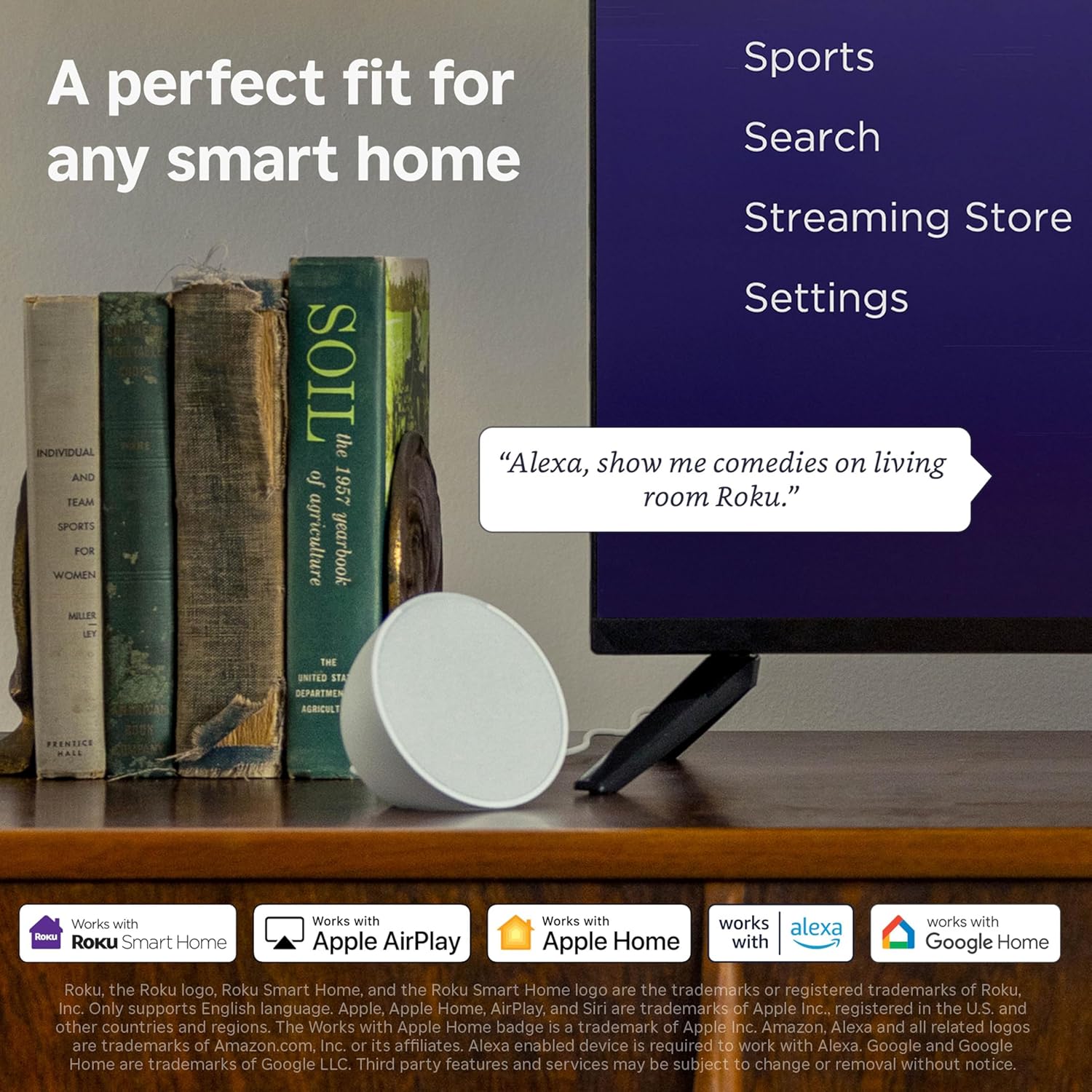
Image: The Roku Select Series TV box contents, showing the television, remote, and stand components.
3. Configuración
3.1 Fijación de los soportes del televisor
- Coloque con cuidado el televisor con la pantalla hacia abajo sobre una superficie suave y limpia para evitar rayones.
- Alinee cada soporte con los orificios para tornillos correspondientes en la parte inferior del televisor.
- Fije los soportes con los tornillos incluidos. Asegúrese de que estén bien apretados.
3.2 Conexión de periféricos
Your Roku TV includes multiple ports for connecting external devices:
- Puertos HDMI: Connect devices such as cable boxes, gaming consoles, or Blu-ray players. The HDMI 1 (ARC) port supports Audio Return Channel for simplified audio connections.
- Puerto USB: Para reproducción de medios desde una unidad USB o para alimentar dispositivos compatibles.
- Entrada de antena/cable: Conecte una antena para transmisiones por aire o una conexión de TV por cable.
- Salida de audio óptica: Para conectar a una barra de sonido o un receptor de audio.
- Entrada AV: Para conectar dispositivos más antiguos mediante cables de audio estéreo y vídeo compuesto.

Image: Close-up of the back of the Roku TV, highlighting the HDMI, USB, optical, and AV input ports.
3.3 Encendido inicial y conexión a la red
- Conecte el cable de alimentación al televisor y luego a una toma de pared.
- Inserte las pilas AAA incluidas en el control remoto por voz.
- Presione el botón de encendido del control remoto para encender el televisor.
- Siga las instrucciones en pantalla para seleccionar su idioma, conectarse a su red Wi-Fi y activar su cuenta Roku.
4. Operación de su Roku TV
4.1 Uso del control remoto por voz
The Roku Voice Remote simplifies navigation and content search. It features dedicated buttons for popular streaming services and voice control capabilities.
- Botón de voz: Press and hold to speak commands for searching content, launching apps, or controlling playback.
- Pad de navegación: Utilice las flechas direccionales y el botón OK para moverse por los menús y seleccionar elementos.
- Atajos de aplicaciones: Dedicated buttons provide quick access to services like Netflix, Disney+, and Prime Video.
- Controles de volumen: Adjust TV volume directly from the remote.
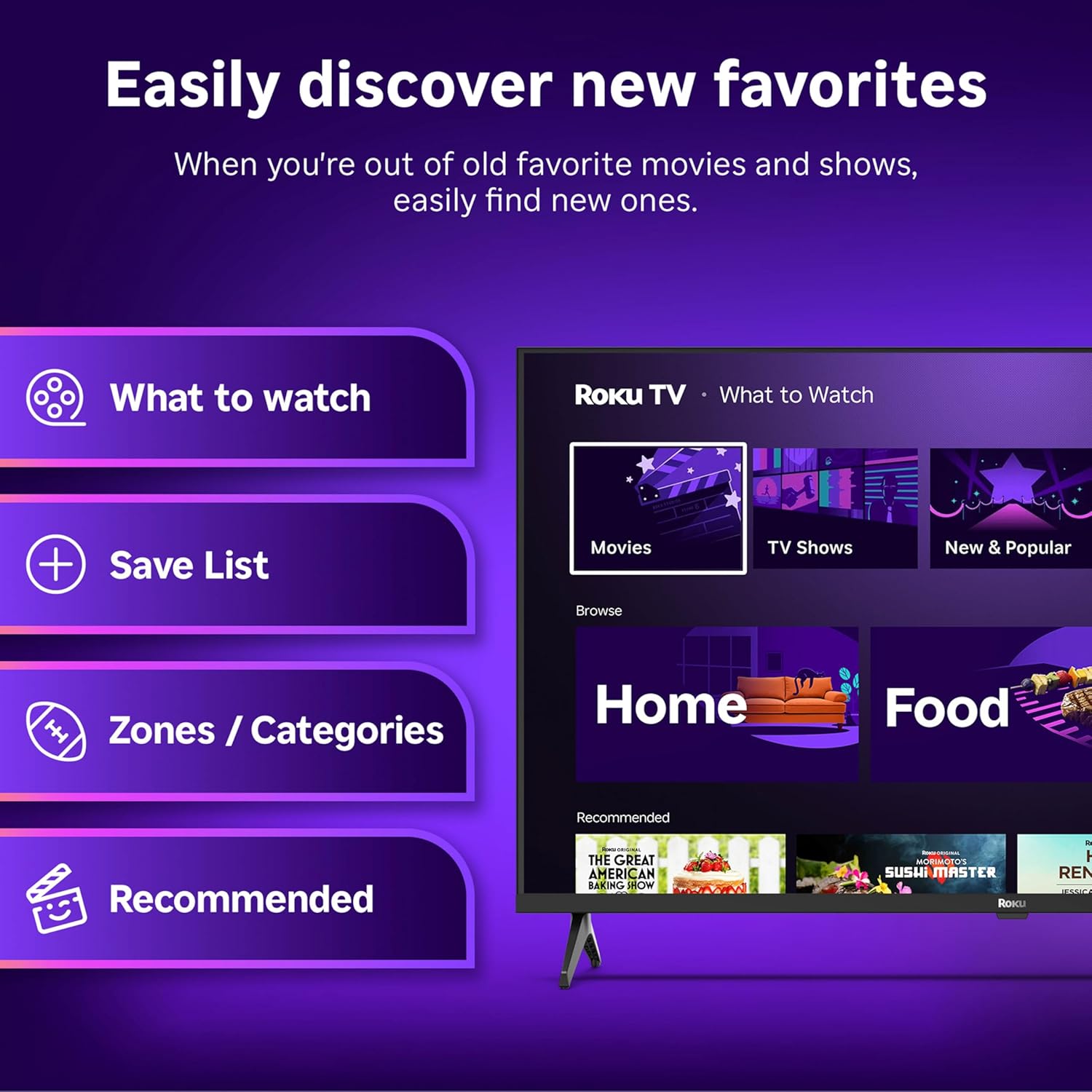
Image: The Roku Voice Remote, showing its layout and key functions.
4.2 Streaming and App Navigation
The Roku TV home screen provides quick access to all your streaming channels and inputs. You can customize the order of your apps for personalized access.
- Pantalla de inicio: Displays your installed apps, recommended content, and TV inputs.
- Tienda de streaming: Explorar y agregar nuevos canales de transmisión.
- Televisión en vivo: Access free live television channels directly from the home screen.
- Buscar: Use the search function or voice remote to find movies, shows, actors, or directors across various services.

Image: The Roku TV user interface, showing the home screen with app tiles and menu options.
4.3 Configuración de imagen y sonido
Your Roku TV features Smart Picture technology to optimize viewing and offers enhanced audio features.
- Smart Picture: Automatically adjusts picture settings based on the content being viewed (e.g., movie, sports, vivid, standard).
- Claridad del audio: Designed for clear speech and louder sound.
- Modo de auriculares Bluetooth: Connect your wireless headphones for private listening.

Image: A vibrant nature scene displayed on the Roku TV, demonstrating the clear picture quality.
4.4 Integración de casas inteligentes
The Roku TV integrates with various smart home ecosystems for convenient voice control and content sharing.
- Control de voz: Compatible with Roku Voice, Siri, Alexa, and Google Assistant for hands-free operation.
- Apple AirPlay: Effortlessly share videos, photos, and music from your Apple devices to your TV.

Image: A Roku TV screen with a smart speaker nearby, illustrating voice control integration with smart home systems.
5. Mantenimiento
5.1 Limpieza de su televisor
- Desenchufe siempre el televisor antes de limpiarlo.
- Utilice un paño suave que no suelte pelusa para limpiar con cuidado la pantalla y el gabinete.
- Para marcas difíciles, aplique ligeramenteampEnjuague el paño con agua o un limpiador de pantallas suave y no abrasivo. Nunca rocíe el limpiador directamente sobre la pantalla.
- Evite utilizar productos químicos agresivos, estropajos abrasivos o disolventes.
5.2 Actualizaciones de software
Your Roku TV receives automatic software updates to provide new features and improve performance. Ensure your TV is connected to the internet to receive these updates.
6. Solución de problemas
If you encounter issues with your Roku TV, try the following basic troubleshooting steps:
- Sin energía: Asegúrese de que el cable de alimentación esté bien conectado tanto al televisor como a una toma de corriente que funcione. Pruebe con otra toma de corriente.
- Sin imagen/sonido: Verifique que la fuente de entrada seleccionada sea la correcta. Compruebe que todas las conexiones de cable (HDMI, AV, etc.) estén bien conectadas.
- El control remoto no responde: Cambie las pilas del control remoto. Asegúrese de que no haya obstáculos entre el control remoto y el televisor.
- Problemas de conexión de red: Restart your Wi-Fi router. Go to the TV's network settings to reconnect to your Wi-Fi.
- La aplicación no se carga: Try restarting the app. If the issue persists, remove the app and reinstall it from the Streaming Store.
- Restablecimiento de fábrica: As a last resort, a factory reset can resolve many software issues. This will erase all personal settings and installed apps. Access this option through the TV's Settings menu.
7. Especificaciones
| Característica | Especificación |
|---|---|
| Marca | Roku |
| Número de modelo | 24R2D5 |
| Tamaño de pantalla | 24 pulgadas |
| Tecnología de visualización | CONDUJO |
| Resolución | 720p |
| Frecuencia de actualización | 60 Hz |
| Relación de aspecto | 16:9 |
| Tecnología de conectividad | Bluetooth, wifi |
| Características especiales | Bluetooth Headphone Mode, Dolby Audio, Voice Remote |
| Peso del artículo | 5.7 libras |
| Dimensiones del producto | 7 x 21.1 x 14.3 pulgadas |
| Pilas necesarias | 2 pilas AAA (para el control remoto) |
8. Garantía y soporte
For warranty information and technical support, please refer to the documentation included with your product or visit the official Roku support websitio. Guarde su recibo de compra para reclamos de garantía.
Roku offers various support resources, including online FAQs, troubleshooting guides, and customer service contact options.