
ClokoWe HY300PRO+
Manual de usuario del miniproyector CLOKOWE
Modelo: HY300PRO+
Introducción
This manual provides detailed instructions for the safe and efficient operation of your CLOKOWE Mini Projector. Please read this manual thoroughly before using the product and retain it for future reference. The CLOKOWE Mini Projector is a portable device designed for versatile projection, featuring built-in streaming apps, Wi-Fi 6, Bluetooth 5.2, 180° rotation, and automatic keystone correction.

Image: The CLOKOWE Mini Projector, a compact white cylindrical device with a lens, shown projecting content onto a curved screen displaying various streaming app logos and a movie scene.
¿Qué hay en la caja?
Verifique que todos los artículos estén presentes al desembalar:
- CLOKOWE Mini Projector (Model: HY300PRO+)
- Cable de alimentación
- Cable HDMI
- Mando a distancia
- Manual de usuario (este documento)
Características del producto
The CLOKOWE Mini Projector offers a range of features for enhanced viewing experiences:
- Aplicaciones de transmisión integradas: Access platforms like YouTube, Disney+, and more directly via Wi-Fi.
- Conectividad versátil: Supports wireless mirroring (iPhone, Android, tablet, laptop) and wired connections (HDMI, USB).
- Proyección giratoria de 180°: The projector body can rotate 180° for flexible projection angles, including ceiling projection.
- Corrección trapezoidal automática: Ensures aligned visuals automatically.
- Enfoque manual: Allows for fine-tuning image clarity.
- Wi-Fi 6 y Bluetooth 5.2: Provides fast, stable wireless streaming and audio pairing with external speakers.
- Diseño ultraportátil: Compact size (3.73 × 3.73 × 6.17 inches) and lightweight (0.77 lb).
- High Clarity Display: 8000 Lux brightness, supports 1080P display, with a 0.9:1 short throw ratio.
- Fondos de pantalla personalizables: Upload personal background images via USB.
- Temporizador de apagado automático: Set a timer for controlled usage.

Image: A visual representation of the projector's built-in app store, showing various streaming service icons like Netflix, YouTube, Spotify, and Prime Video on a projected screen.

Image: A family watching a movie projected onto the ceiling of a bedroom, demonstrating the 180° rotation feature for ceiling projection.
Guía de configuración
1. Initial Placement and Power
- Coloque el proyector sobre una superficie plana y estable.
- Conecte el cable de alimentación al proyector y luego a una toma de corriente.
- Presione el botón de encendido del proyector o del control remoto para encenderlo.
2. Adjusting Projection Angle (180° Rotation)
The projector features a 180° rotatable body, allowing projection onto walls, screens, or ceilings without needing a tripod.
- Gently rotate the projector body to achieve the desired projection angle.
- Ensure the lens is facing the intended projection surface.
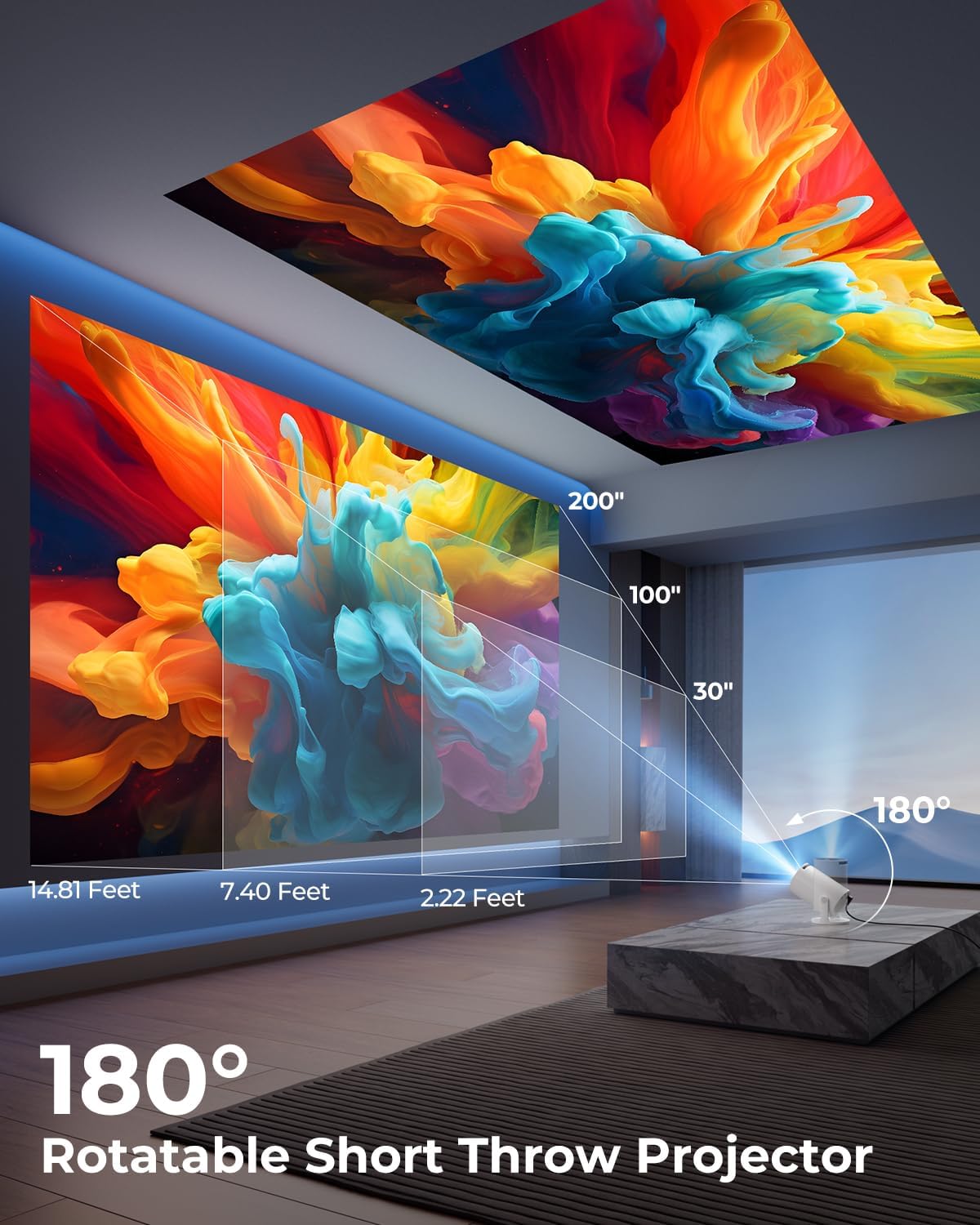
Image: A diagram illustrating the 180° rotation capability of the projector and various projection distances (30", 100", 200") with corresponding throw distances in feet.
3. Corrección de enfoque y distorsión trapezoidal
- Corrección trapezoidal automática: The projector will automatically adjust the image to be rectangular. If further adjustment is needed, navigate to the settings menu.
- Enfoque manual: Gire el anillo de enfoque alrededor de la lente hasta que la imagen aparezca nítida y clara.

Image: A projected image on a wall demonstrating automatic keystone correction and manual focus adjustments, with icons for ±45° Auto Keystone, Manual Focus, and 50%-100% Zoom.
4. Conexión de red y Bluetooth
- Conexión Wi-Fi:
- Navegue hasta el menú "Configuración" en el proyector.
- Seleccione “Red” o “Configuración de Wi-Fi”.
- Choose your Wi-Fi network from the list and enter the password. The projector supports Wi-Fi 6 (2.4G and 5G).
- Conexión Bluetooth:
- Vaya a “Configuración” y seleccione “Bluetooth”.
- Habilite Bluetooth y busque dispositivos disponibles.
- Seleccione su altavoz o auriculares Bluetooth de la lista para emparejarlos.

Image: A projected image showing Wi-Fi 6 and Bluetooth 5.2 connectivity, with a smartphone mirroring content to the projector and a soundbar connected via Bluetooth.
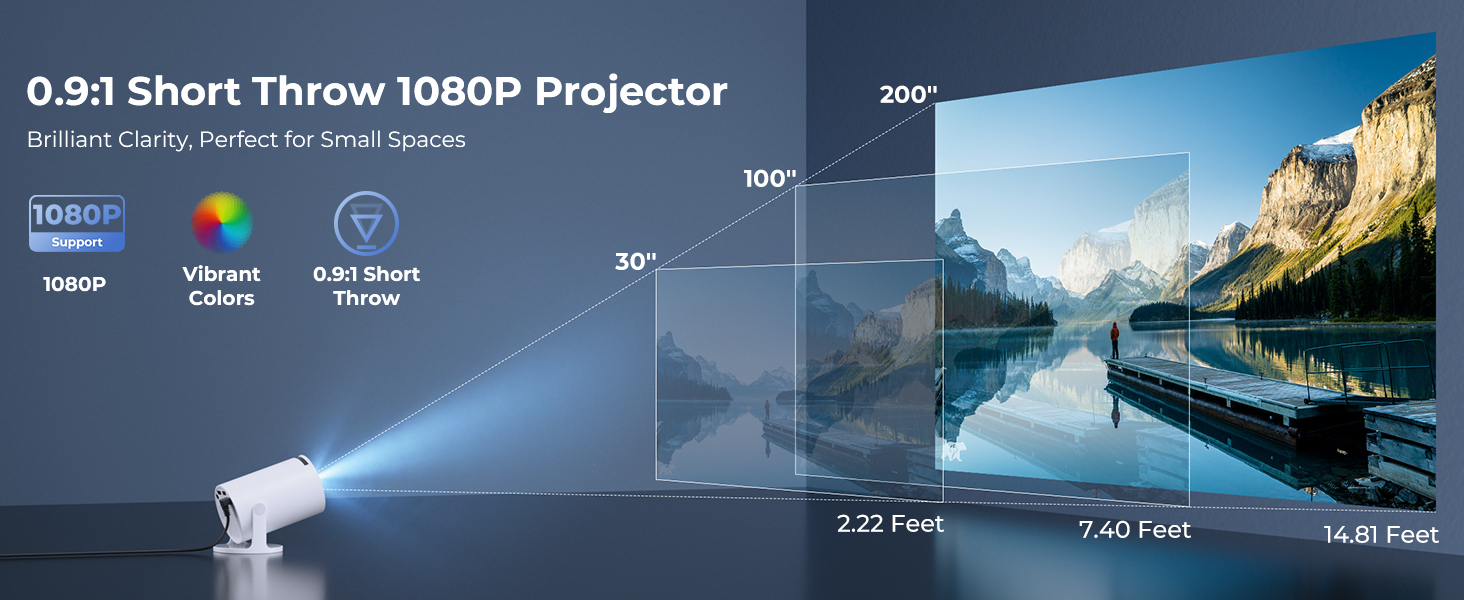
Image: A visual demonstrating Bluetooth 5.2 audio connection, showing the projector wirelessly paired with headphones and a portable speaker.
Instrucciones de funcionamiento
1. Navegación por la interfaz
- Use the provided remote control to navigate through menus and select options.
- Basic navigation buttons are also available on the projector unit.
2. Uso de aplicaciones integradas
- Once connected to Wi-Fi, access the main interface to find pre-installed streaming applications.
- Select an app (e.g., YouTube, Disney+) and log in with your credentials to start streaming.
3. Duplicación de pantalla
The projector supports wireless mirroring from compatible smartphones, tablets, and laptops.
- Asegúrese de que su dispositivo y el proyector estén conectados a la misma red Wi-Fi.
- Seleccione la opción “Duplicación de pantalla” o “Pantalla inalámbrica” en el menú del proyector.
- On your mobile device, activate its screen mirroring feature (e.g., AirPlay for iOS, Smart View para Android) y seleccione el proyector de la lista de dispositivos disponibles.
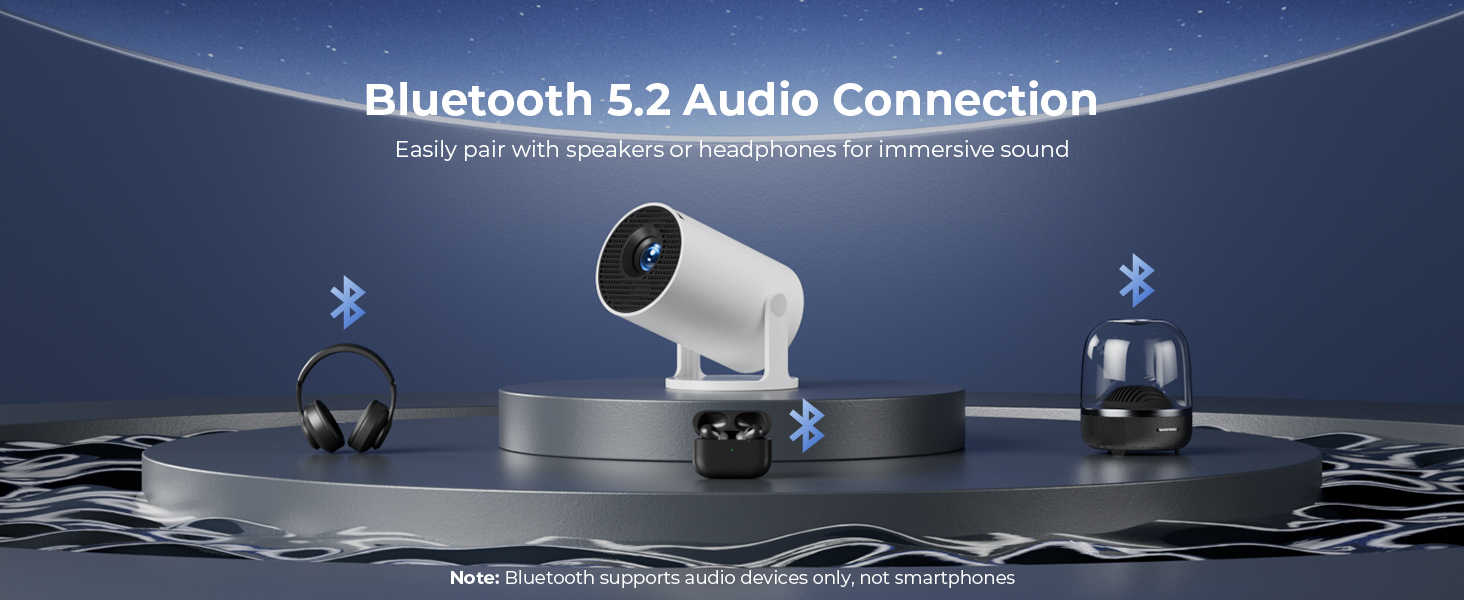
Image: A diagram illustrating Dual-Band Wi-Fi 6 connection for faster, smoother screen mirroring from various devices like smartphones, tablets, and laptops to the projector.
4. Wired Connections (HDMI/USB)
- Connect devices like game consoles, TV sticks, or computers using the HDMI port.
- Utilice el puerto USB para reproducir medios files directly from a USB drive or to upload custom wallpapers.
- To select the input source, press the "Source" button on the remote control and choose HDMI or USB.
Imagen: Un primer plano view of the projector's rear panel, highlighting the HDMI, USB, and power ports, along with an ON/OFF switch and manual focus ring.
5. Custom Wallpapers and Timer
- Fondos de pantalla personalizados: Insert a USB drive containing your desired background images. Navigate to the settings to select and apply them.
- Temporizador de apagado automático: Access the system settings to set a timer for the projector to automatically power off after a specified duration.
Mantenimiento
- Limpieza de la lente: Utilice un paño suave y sin pelusa, especialmente diseñado para lentes ópticas. No utilice limpiadores abrasivos ni disolventes.
- Limpieza del exterior: Limpie el exterior del proyector con un paño suave y seco. Para manchas difíciles, limpie ligeramenteampen el paño con agua.
- Ventilación: Asegúrese de que las aberturas de ventilación del proyector no estén bloqueadas para evitar el sobrecalentamiento.
- Almacenamiento: Cuando no utilice el proyector durante períodos prolongados, guárdelo en un lugar fresco y seco, alejado de la luz solar directa y de temperaturas extremas.
Solución de problemas
| Problema | Posible causa | Solución |
|---|---|---|
| No hay imagen o la imagen está borrosa | Incorrect focus; lens cap on; input source not selected; projector too far/close. | Adjust manual focus; remove lens cap; select correct input source; adjust projection distance. |
| La imagen es trapezoidal o distorsionada | El proyector no está perpendicular a la pantalla. | Utilize automatic keystone correction or manually adjust in settings. Ensure projector is on a level surface. |
| Sin sonido o volumen bajo | Volume too low; external audio device not connected/paired; projector's internal speaker off. | Increase volume on projector/source device; ensure Bluetooth speaker is paired; check audio settings. |
| El control remoto no responde | Batteries low/dead; obstruction between remote and projector; remote sensor blocked. | Replace batteries; ensure clear line of sight to projector's IR sensor. |
| Problemas de conexión wifi | Contraseña incorrecta; fuera de rango; interferencia de red. | Re-enter password; move projector closer to router; restart router and projector. |
Presupuesto
| Característica | Detalle |
|---|---|
| Número de modelo | HY300PRO+ |
| Marca | ClokoNosotros |
| Dimensiones del producto | 3.73 x 6.17 x 3.73 pulgadas |
| Peso del artículo | 1.61 libras (0.73 kg) |
| Resolución de pantalla | 1280 x 720 (compatible con 1080P) |
| Brillo | 8000 lux |
| Tecnología de conectividad | Bluetooth 5.2, HDMI, USB, Wi-Fi 6 (2.4G & 5G) |
| Características especiales | Built-in Apps, Digital Keystone Correction, Short Throw (0.9:1), 50%-100% Zoom, 180° Rotatable Projection, Mini Portable Design |
| Usos recomendados | Cine en casa, juegos, negocios, educación |
Garantía y soporte
The CLOKOWE Mini Projector includes 2-years factory support. For technical assistance, troubleshooting, or warranty claims, please contact ClokoWe customer support through the retailer where the product was purchased or visit the official ClokoWe websitio para información de contacto.
Conserve su comprobante de compra para validar la garantía.