
Introducción
Thank you for choosing the Rapoo 9390M Wireless Multi-Mode Keyboard and Mouse Combo. This ultra-slim set offers versatile connectivity options, including 2.4 GHz wireless and Bluetooth 4.0/5.0, allowing seamless switching between multiple devices. Designed for efficiency and comfort, this combo features a full-size QWERTZ keyboard with multimedia keys and an ambidextrous optical mouse.
This manual provides essential information for setting up, operating, and maintaining your new Rapoo 9390M combo. Please read it carefully before use.
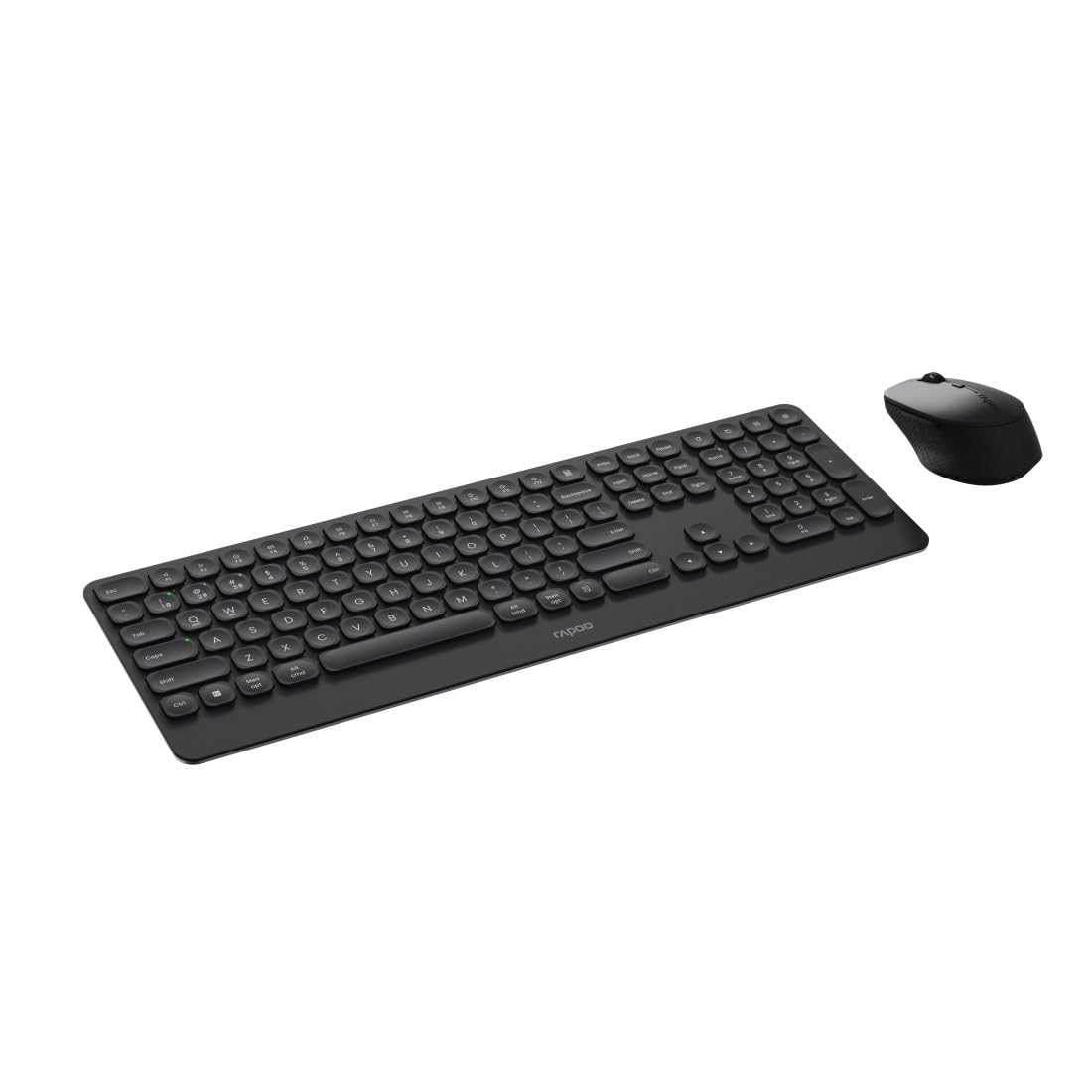
Image: The Rapoo 9390M wireless keyboard and mouse combo, showcasing its sleek design and full QWERTZ layout.
Configuración
1. Instalación de la batería
The Rapoo 9390M combo requires batteries for operation. Ensure correct polarity when inserting.
- Teclado: Requires 2 x AAA alkaline batteries.
- Ratón: Requires 1 x AA alkaline battery.
Batteries are included in the package.

Imagen: Side profile of the Rapoo 9390M keyboard and mouse, illustrating their ultra-slim design. Battery compartments are typically located on the underside of each device.
2. Conexión de los dispositivos
The Rapoo 9390M supports multi-mode connectivity: 2.4 GHz wireless via USB receiver and Bluetooth 4.0/5.0.
2.1. Conexión inalámbrica de 2.4 GHz
- Insert the USB receiver into an available USB Type-A port on your computer or device.
- Encienda el teclado y el mouse utilizando sus respectivos interruptores de encendido.
- Los dispositivos deberían conectarse automáticamente a su computadora.
2.2. Conexión Bluetooth
The keyboard can pair with up to 3 Bluetooth devices, and the mouse with up to 2.
Emparejamiento de teclado Bluetooth:
- Encienda el teclado.
- Mantenga pulsado Fn + 1, Fn + 2, o Fn + 3 for 3 seconds to select a Bluetooth channel. The indicator light will flash slowly.
- Open Bluetooth settings on your device (PC, laptop, tablet, TV).
- Buscar "Rapoo BT3.0 Keyboard" or "Rapoo BT5.0 Keyboard" and select to pair.
- Una vez emparejado, la luz indicadora dejará de parpadear.
Emparejamiento Bluetooth del ratón:
- Encienda el ratón.
- Press the Bluetooth pairing button on the underside of the mouse. The indicator light will flash slowly.
- Abra la configuración de Bluetooth en su dispositivo.
- Buscar "Rapoo BT3.0 Mouse" or "Rapoo BT5.0 Mouse" and select to pair.
- Una vez emparejado, la luz indicadora dejará de parpadear.
Instrucciones de funcionamiento
1. Cambiar entre dispositivos conectados
The Rapoo 9390M allows you to switch between multiple connected devices (up to 4 for keyboard, 3 for mouse, including 2.4 GHz).
- Teclado: Prensa Fn + 1, Fn + 2, Fn + 3 (for Bluetooth devices) or Fn + 4 (for 2.4 GHz USB receiver) to switch between paired devices.
- Ratón: Press the mode switch button on the underside of the mouse to cycle between Bluetooth 1, Bluetooth 2, and 2.4 GHz modes.
2. Funciones del teclado
The keyboard features a full QWERTZ layout with 110 keys, including a numeric keypad and dedicated function keys.
- Teclas multimedia: Utilice las teclas de función (F1-F12) en combinación con las Fn key to access multimedia controls (e.g., volume, play/pause, browser).
- Browser Buttons: Dedicated keys for browser functions may be present.

Imagen: de arriba hacia abajo view of the Rapoo 9390M keyboard and mouse, highlighting the QWERTZ key layout and mouse button configuration.
3. Funciones del ratón
The optical mouse features 5 buttons, including a scroll wheel, and adjustable DPI.
- Ajuste de PPP: The mouse supports a DPI range of up to 2400. A dedicated DPI button (often located near the scroll wheel) allows you to cycle through different sensitivity levels.
- Diseño ambidiestro: The mouse is designed for comfortable use by both right-handed and left-handed users.
Mantenimiento
1. Limpieza
Para garantizar un rendimiento óptimo y una larga duración, mantenga limpios el teclado y el mouse.
- Utilice un paño suave y sin pelusa ligeramente seco.amplimpiado con agua o una solución de limpieza suave.
- Evite productos químicos agresivos, limpiadores abrasivos o humedad excesiva.
- Para el teclado, utilice aire comprimido para eliminar el polvo y los residuos de entre las teclas.
2. Reemplazo de la batería
Cuando la luz indicadora de la batería parpadea o el rendimiento se degrada, es momento de reemplazar las baterías.
- Open the battery compartment on the underside of the keyboard (2x AAA) and mouse (1x AA).
- Retire las baterías viejas y deséchelas de forma responsable según las regulaciones locales.
- Insert new alkaline batteries, ensuring correct polarity.
- Cierre bien el compartimento de la batería.
Solución de problemas
Problemas de conexión
- No connection (2.4 GHz): Ensure the USB receiver is securely plugged into a working USB port. Try a different USB port. Ensure the keyboard and mouse are powered on.
- Sin conexión (Bluetooth): Ensure Bluetooth is enabled on your device. Re-initiate the pairing process as described in the Setup section. Ensure the keyboard/mouse is in Bluetooth mode and not 2.4 GHz mode.
- Conexión intermitente: Move the devices closer to the receiver/device. Avoid placing the devices near other wireless interference sources (e.g., Wi-Fi routers, other wireless peripherals).
Input Not Registering / Lag
- Compruebe las baterías: Low batteries can cause performance issues. Replace them if necessary.
- Modos de cambio: Ensure the keyboard and mouse are set to the correct connection mode (2.4 GHz or Bluetooth) for the device you are using.
- Reiniciar dispositivos: Turn off and on the keyboard, mouse, and your computer/device.
Presupuesto
| Característica | Descripción |
|---|---|
| Modelo | 9390 millones |
| Conectividad | 2.4 GHz RF (USB Type-A receiver), Bluetooth 4.0, Bluetooth 5.0 |
| Disposición del teclado | QWERTZ (alemán) |
| Teclas del teclado | 110 keys, Scissor mechanism, Laser engraved keycaps |
| Características del teclado | Multimedia keys, Browser buttons, Ultra-slim design, Aluminum base |
| Sensor de ratón | Óptico |
| DPI del ratón | Hasta 2400 DPI |
| Botones del ratón | 5 buttons (including scroll wheel) |
| Diseño de ratón | Ambidextrous, High-quality plastic |
| Rango de operación | Hasta 10 metros |
| Compatibilidad del sistema operativo | Windows XP / Vista / 7 / 8 / 10 / 11 |
| Fuente de poder | Battery powered (Alkaline) |
| Pilas incluidas | Yes (2x AAA for keyboard, 1x AA for mouse) |
| Dimensiones del teclado (An. x Pr. x Al.) | 42.6 x 14.3 x 2 cm |
| Peso del teclado | 409 gramos |
| Mouse Dimensions (W x D x H) | 6.6 x 10.4 x 3.7 cm |
| Peso del ratón | 60 gramos |
Garantía y soporte
For warranty information and technical support, please refer to the warranty card included in your product packaging or visit the official Rapoo webSitio. Conserve su comprobante de compra para reclamaciones de garantía.