
Introducción
The SENCKIT Smart Air Conditioner Controller is a WiFi-enabled thermostat designed to integrate your existing air conditioning units or heat pumps into a smart home system. It features a large LCD touch screen display for easy readability and cleaning, and includes a child lock function to prevent unintended adjustments. This device allows for remote control and automation, enhancing comfort and energy efficiency.
¿Qué hay en la caja?
- 1x Wireless Programmable Thermostat
- 1x Manual de usuario en inglés
Presupuesto
| Característica | Detalle |
|---|---|
| Fuente de alimentación | CC 5 V/1 A |
| Tipo de WiFi | 2.4 GHz (IEEE 802.11b/g/n) |
| alcance inalámbrico | 45 m |
| Corriente de trabajo | 550 mA |
| Corriente de espera | 25 mA |
| Rango de detección de temperatura | -10-60 ℃ |
| Rango de detección de humedad | 0-90 % de humedad relativa |
| Precisión de detección de temperatura | ±0.3℃ |
| Precisión de detección de humedad | ±5 % HR |
| Tipo de controlador | Control de aplicaciones |
| Método de control | aplicación, voz |
| Dimensiones | 3.3 x 3.3 x 1.2 pulgadas |
| Peso | 3.52 onzas |
The device is compatible with 229+ major AC brands and over 8,000 models, including window, mini-split, and portable air conditioners or heat pump systems.
Guía de configuración
1. Encender el dispositivo
Connect the Smart Air Conditioner Controller to a DC 5V/1A power source using the provided cable. Ensure the device powers on and the display activates.
2. Instalación de la aplicación
Descargar el Tuya inteligente or Vida inteligente app from your mobile device's app store (available on iOS and Android). Create an account or log in if you already have one.
3. Conexión a WiFi
- Abra la aplicación Tuya Smart o Smart Life.
- Toque “Agregar dispositivo” o el ícono “+”.
- Select 'IR Remote Control' or 'Universal Remote Control' from the device list.
- Follow the on-screen instructions to connect the controller to your 2.4GHz WiFi network. Ensure your phone is connected to the same 2.4GHz network during setup.

Image: The SENCKIT Smart Air Conditioner Controller displayed next to a smartphone showing the companion app interface, illustrating the device's connectivity.
4. Pairing with Your AC Unit
Once the controller is connected to WiFi, you will need to pair it with your air conditioner or heat pump. The app will guide you through a process to identify your AC unit's remote control signals. This typically involves selecting your AC brand and model, or using an IR learning function where you point your original AC remote at the SENCKIT controller to teach it the commands.

Image: An illustration of a smart home environment where the SENCKIT controller is centrally located, managing an air conditioner and interacting with other smart devices, demonstrating its integration capabilities.
Instrucciones de funcionamiento
Controles básicos
The device features an LCD color screen with sensitive touch buttons for direct control:
- Botón de encendido: Enciende o apaga la unidad de aire acondicionado.
- Botón de modo: Cycles through AC modes (e.g., Cool, Heat, Fan, Dry, Auto).
- Flechas arriba/abajo: Ajusta la temperatura objetivo.
- Botón de velocidad del ventilador: Ajusta la velocidad del ventilador.

Imagen: Un primer plano view of the SENCKIT controller's LCD color screen, highlighting the sensitive touch buttons for power, mode, and temperature adjustment.
Función de bloqueo para niños
To prevent accidental changes, the controller includes a child lock. This feature can be activated or deactivated via the device's interface or through the companion app. When active, the physical buttons on the device will not respond to touches.
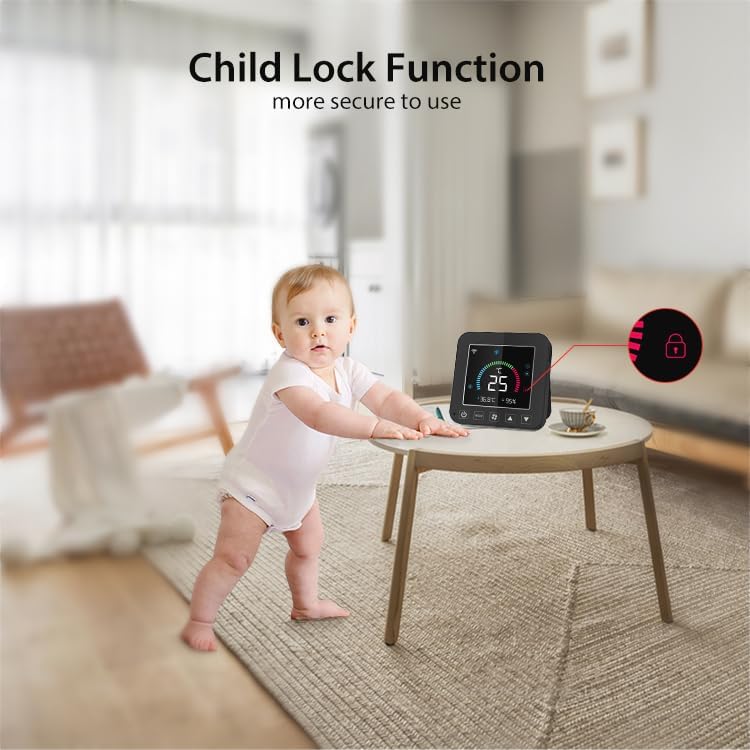
Image: A baby reaching towards the SENCKIT controller, with an icon indicating the child lock function is active, demonstrating enhanced safety.
Control remoto mediante aplicación
Use the Tuya Smart or Smart Life app to control your AC unit from anywhere. The app provides a full interface mirroring your AC remote, allowing you to adjust settings, change modes, and monitor the environment remotely.
Integración de control por voz
The SENCKIT controller is compatible with Alexa and Google Home. Once integrated, you can use voice commands for hands-free operation. For example, say "Alexa, turn on the AC" or "Hey Google, set the temperature to 72°F."
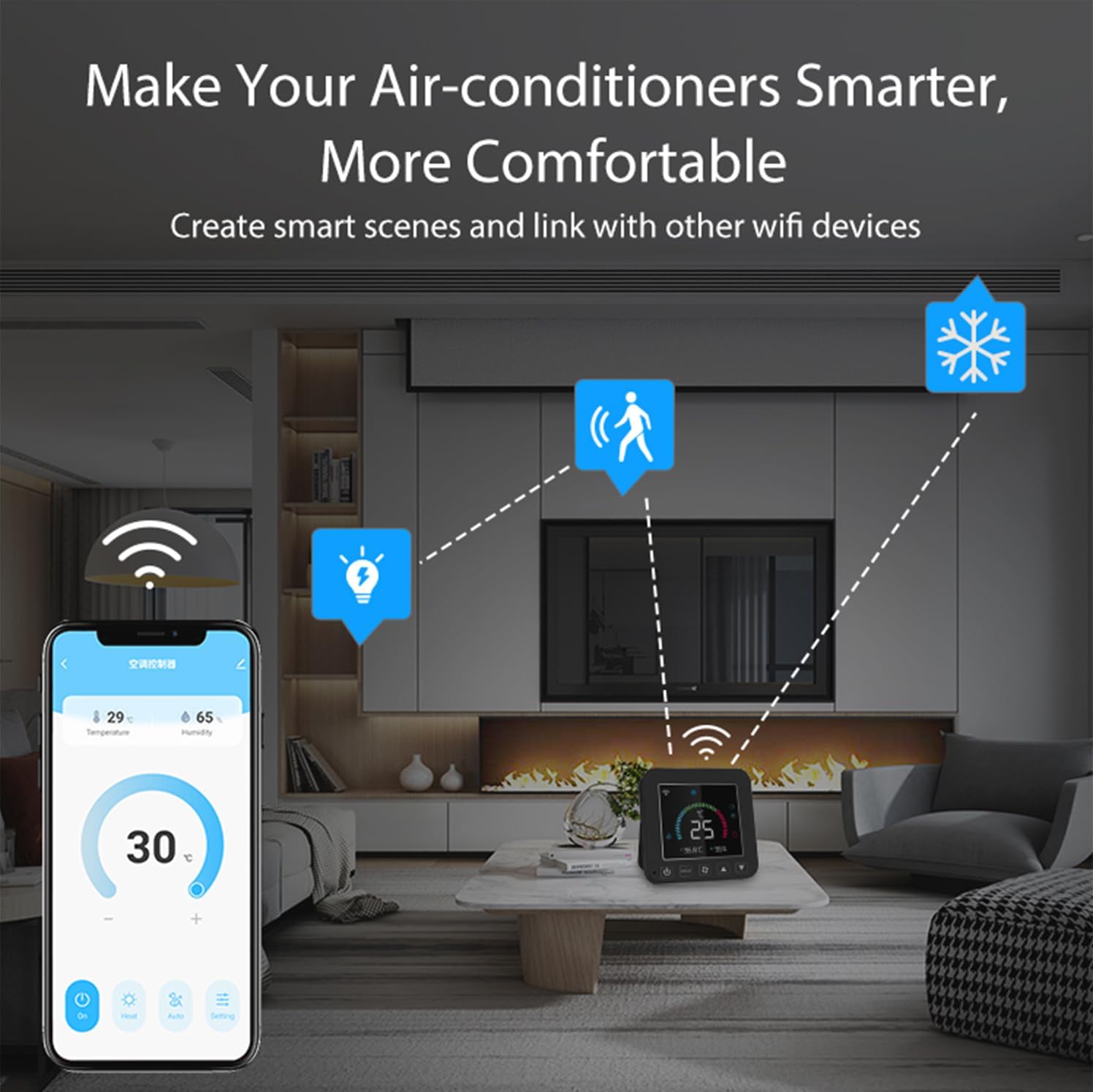
Image: The SENCKIT Smart Air Conditioner Controller positioned next to an Amazon Echo device, illustrating its compatibility with voice control systems like Amazon Alexa and Google Home.
Smart Scheduling and Automation
Set daily schedules within the app to automatically adjust your AC. For instance, program it to cool your home before you arrive or turn off when you leave. This feature helps optimize energy consumption.

Image: A person using a smartphone to set scheduled tasks for the SENCKIT controller, showing the app interface for programming automated climate control.
Monitoreo de temperatura y humedad
The built-in temperature and humidity sensors provide real-time environmental data. This information is displayed on the device and in the app, allowing for intelligent control based on current conditions. The sensors offer an accuracy of ±0.3℃ for temperature and ±5% RH for humidity.

Image: The SENCKIT controller's screen showing precise temperature and humidity readings, emphasizing its accurate measurement capabilities.
Group Control and Smart Scenes
Integrate the SENCKIT controller with other smart devices (e.g., lights, fans) within the Tuya Smart/Smart Life ecosystem. Create custom smart scenes, such as a "Goodnight Mode" that turns off the AC, dims lights, and locks doors simultaneously.
Mantenimiento
To ensure optimal performance and longevity of your SENCKIT Smart Air Conditioner Controller, follow these maintenance guidelines:
- Limpieza: Wipe the device with a soft, dry cloth. Avoid using abrasive cleaners, solvents, or harsh chemicals, as these can damage the screen and casing.
- Colocación: Place the controller in a central location within the room, away from direct sunlight, heat sources, or drafts, to ensure accurate temperature and humidity readings. Ensure it has a clear line of sight to your AC unit for optimal infrared signal transmission.
- Fuente de alimentación: Use only the specified DC 5V/1A power adapter to prevent damage to the device.
- Actualizaciones de software: Periodically check the Tuya Smart/Smart Life app for firmware updates for the controller. Keeping the software updated ensures access to the latest features and performance improvements.
Solución de problemas
If you encounter issues with your SENCKIT Smart Air Conditioner Controller, refer to the following common problems and solutions:
- El dispositivo no enciende:
Ensure the power cable is securely connected to both the device and a working power outlet. Verify the power adapter meets the DC 5V/1A specification. - No se puede conectar a WiFi:
Confirm your WiFi network is 2.4GHz. The device does not support 5GHz networks. Ensure your mobile device is connected to the same 2.4GHz network during setup. Check that the WiFi password is entered correctly. Move the controller closer to your WiFi router. - AC unit not responding to commands:
Verify that the controller has a clear line of sight to your AC unit's infrared receiver. Ensure the AC unit is powered on. Re-check the pairing process in the app to confirm the correct AC brand and model were selected, or re-perform the IR learning function. Some AC units may require specific remote codes; consult your AC manual if issues persist. - Lecturas inexactas de temperatura y humedad:
Ensure the controller is not placed near heat sources (e.g., direct sunlight, lamps, appliances) or in direct drafts, which can affect sensor accuracy. Allow the device some time to stabilize after placement. - El control de voz no funciona:
Confirm that the SENCKIT controller is successfully linked to your Alexa or Google Home account within the respective voice assistant app. Ensure your voice commands are clear and match the device names set in the Tuya Smart/Smart Life app. - Child lock cannot be deactivated:
Attempt to deactivate the child lock through the Tuya Smart/Smart Life app. If using the device buttons, ensure you are performing the correct sequence or long-press action as indicated in the app or quick start guide.
If these steps do not resolve your issue, please contact SENCKIT customer support for further assistance.
Garantía y soporte
SENCKIT products are designed for reliability and performance. For warranty information, please refer to the documentation included with your purchase or visit the official SENCKIT website. For technical support, troubleshooting assistance, or general inquiries, please contact SENCKIT customer service through the contact information provided on our website or within the Tuya Smart/Smart Life application.