
1. Introducción
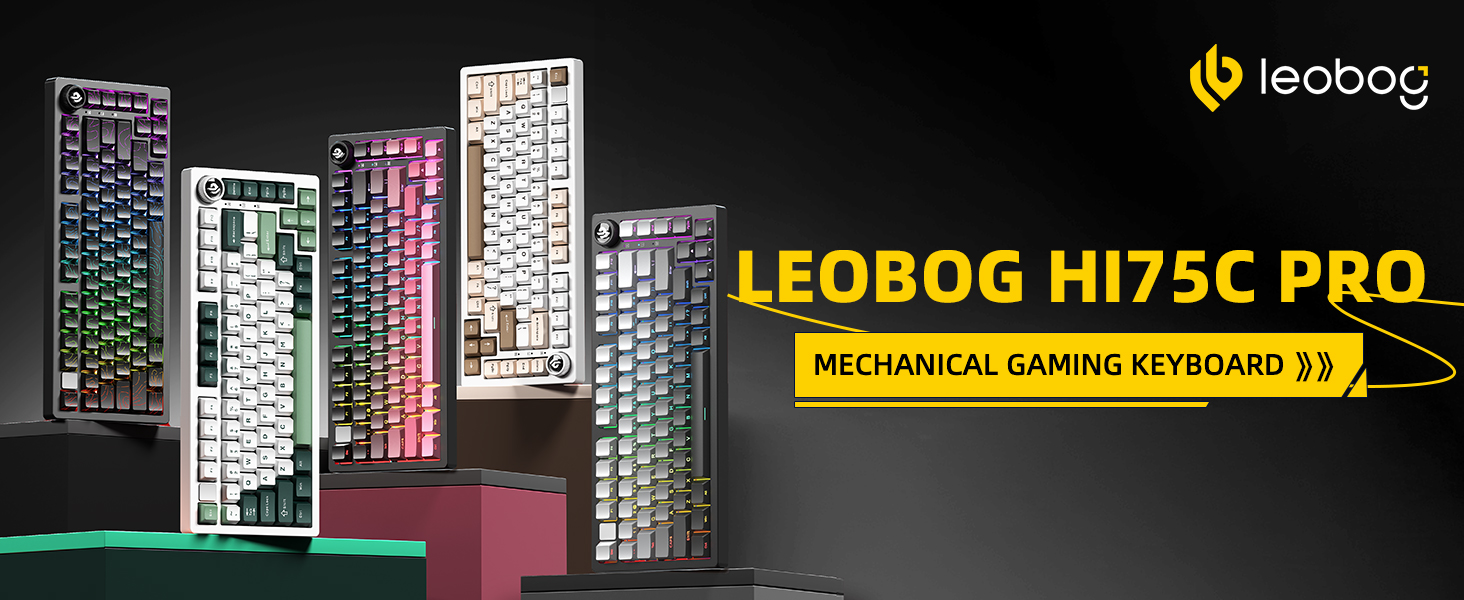
The LEOBOG HI75C Pro is a versatile gaming keyboard designed for optimal performance and user experience. Featuring a durable aluminum alloy construction, multi-mode connectivity, vibrant RGB backlighting, and hot-swappable switches, it caters to both gaming enthusiasts and professional users. This manual provides detailed instructions for setup, operation, and maintenance to ensure you get the most out of your keyboard.
Presentación oficial del producto en vídeoasing the LEOBOG HI75C Pro Aluminum Alloy Mechanical Gaming Keyboard.
2. Contenido del paquete
- LEOBOG HI75C Pro Gaming Keyboard
- USB-C to USB-A Cable (Coiled, braided)
- Extractor de teclas
- Manual de usuario (este documento)
3. Producto terminadoview
The LEOBOG HI75C Pro features a compact 75% layout, combining essential keys with a space-saving design. Its robust aluminum alloy casing ensures durability and a premium feel.

Frente view of the LEOBOG HI75C Pro Gaming Keyboard, highlighting its 75% layout and keycap colors.

Diagram illustrating key features: BT5.0/2.4G/Wired connectivity, hot-swappable switches, RGB backlighting, 75% layout, gasket structure, and 4000mAh battery.
4. Características principales
- Construcción de aleación de aluminio: Provides superior heat dissipation, robustness, and durability. Features an exquisite powder coating process to prevent fingerprints.
- Estructura de la junta: Incorporates multi-layered sound-silencer cotton to significantly reduce cavity noise and enhance typing sound for a softer, more pleasant experience.
- Conectividad de 3 modos: Supports Bluetooth 5.0, 2.4GHz wireless, and USB wired connections. Connect up to five devices and switch easily via shortcut keys or the side button.
- Disposición del 75% (81 teclas): Offers a balance between a concise design and full functionality, optimizing desktop space.
- Retroiluminación RGB: Features 16.8 million colors with 17 lighting effects. Includes 10 music rhythm lighting modes via the driver. Lighting can be turned off using the knob to extend battery life (approx. one month without lights).
- Perilla de modo dual: A multi-functional knob for precision control, allowing seamless switching between work and gaming modes, and adjusting volume or lighting brightness.
- High-Speed Response: Equipped with an advanced gaming keyboard chip, achieving a response speed of up to 2.8ms.
- Conmutadores intercambiables en caliente: Supports 3-pin and 5-pin switches, allowing for easy customization and a HIFI typing sound. Comes with LEOBOG Ice Vein Switches (38gf initial, 42gf conductive, 55gf bottom pressure, 60M+ clicks mechanical life, 2mm trigger, 4mm total stroke).
- Diseño ergonómico: Scientific step-by-step keycap height design promotes relaxed wrist and finger positioning.
- Cable USB-C desmontable: Includes an extendable spring-loaded data cable (1.8 to 2 meters) for instant wired connection.

Detailed diagram of the keyboard's gasket structure, showing layers for sound dampening and typing comfort.

Illustration demonstrating the ergonomic keycap height design, promoting comfortable typing posture.
5. Configuración
The LEOBOG HI75C Pro offers multiple connectivity options to suit your needs.

Visual representation of the keyboard's three connection modes: Type-C wired, 2.4G wireless, and Bluetooth.
5.1 conexiones cableadas
- Localice el puerto USB-C en el teclado.
- Conecte el cable USB-C provisto al teclado y el extremo USB-A a su computadora.
- El teclado será reconocido automáticamente y estará listo para usarse.
5.2 Conexión inalámbrica de 2.4 GHz
- Localice el dispositivo USB de 2.4 GHz, que normalmente se guarda en un compartimento del teclado.
- Conecte el dongle a un puerto USB disponible en su computadora.
- Switch the keyboard's mode selector to 2.4G. The keyboard will connect automatically.
5.3 Conexión Bluetooth
- Switch the keyboard's mode selector to BT (Bluetooth).
- En su dispositivo (PC, Mac, teléfono inteligente, tableta), abra la configuración de Bluetooth.
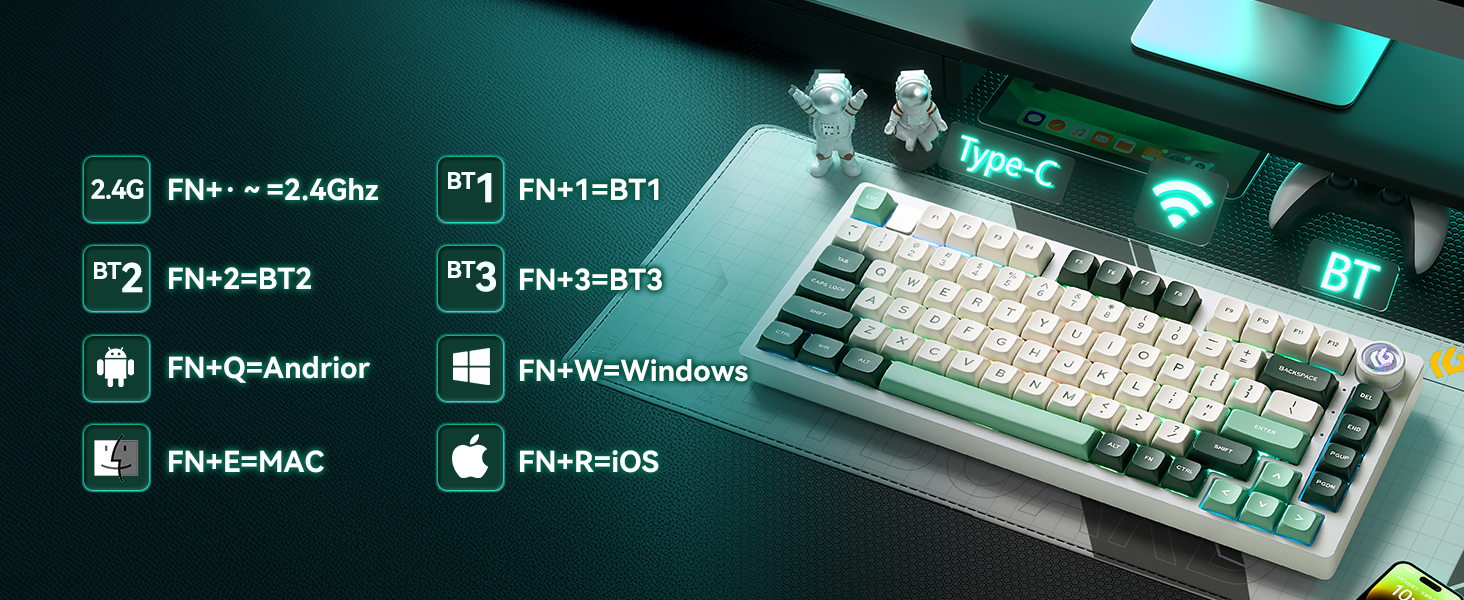
- The keyboard supports up to three Bluetooth devices (BT1, BT2, BT3). Use FN+1, FN+2, or FN+3 to select a channel.
- Press and hold FN+1 (or FN+2/FN+3) for 3-5 seconds until the indicator light flashes, indicating pairing mode.
- Select "LEOBOG HI75C Pro" from your device's Bluetooth list to pair.
- Una vez conectado, la luz indicadora dejará de parpadear.
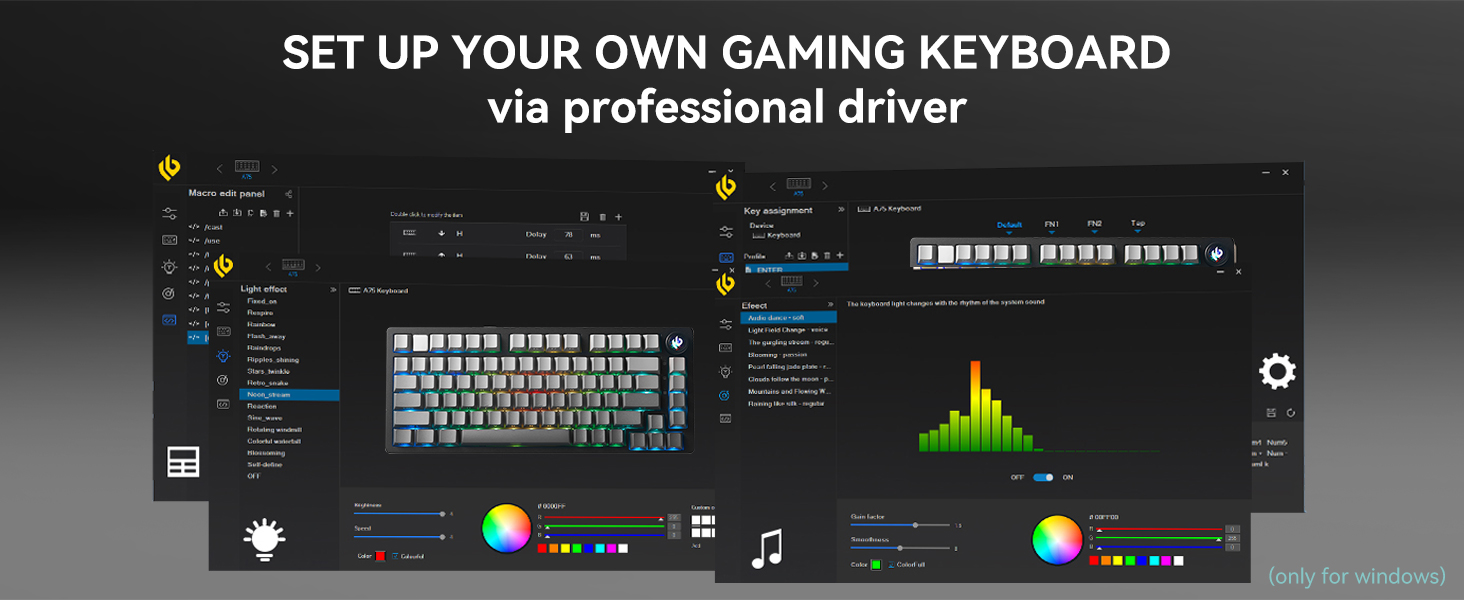
Diagram showing connectivity options (2.4G, BT1, BT2, BT3) and operating system hotkeys (FN+Q for Android, FN+W for Windows, FN+E for Mac, FN+R for iOS).
5.4 Carga
The keyboard is equipped with a 4000mAh battery. Connect the USB-C cable to the keyboard and a power source to charge. The FN key will illuminate red to indicate charging status and turn off when fully charged.
Image indicating the 4000mAh battery capacity of the keyboard.
6. Instrucciones de funcionamiento
6.1 Dual-Mode Knob Control
The multi-functional knob allows you to switch between two primary modes:
- Modo oficina: When the knob indicator light is on continuously, rotate the knob to adjust system volume.
- Modo de juego: When the knob indicator light is breathing, rotate the knob to adjust RGB lighting brightness.
Press and hold the knob to toggle between Office Mode and Game Mode.

Diagram explaining the multimedia knob's function, including switching between game and office modes.
6.2 Control de retroiluminación RGB
The keyboard features 16.8 million RGB lighting colors and various effects. Use the knob in Game Mode to adjust brightness. Specific lighting effects can be cycled through using FN key combinations or the dedicated driver software.
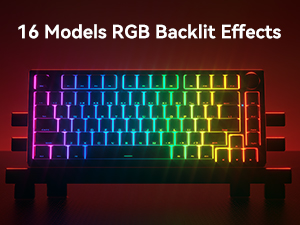
Image displaying various RGB backlit effects available on the keyboard.
6.3 Multimedia Control
Use the Function (FN) key in combination with other keys for multimedia control. Refer to the key layout diagram for specific combinations (e.g., FN+F1-F12 for media functions).
6.4 Conmutadores intercambiables en caliente
The LEOBOG HI75C Pro supports 3-pin and 5-pin mechanical switches, allowing you to customize your typing experience without soldering. Use the provided keycap puller and switch puller (not included in package contents, but implied by hot-swappable feature) to replace switches.

Image demonstrating hot-swappable keycaps and switches, highlighting the Ice Vein Switch specifications.
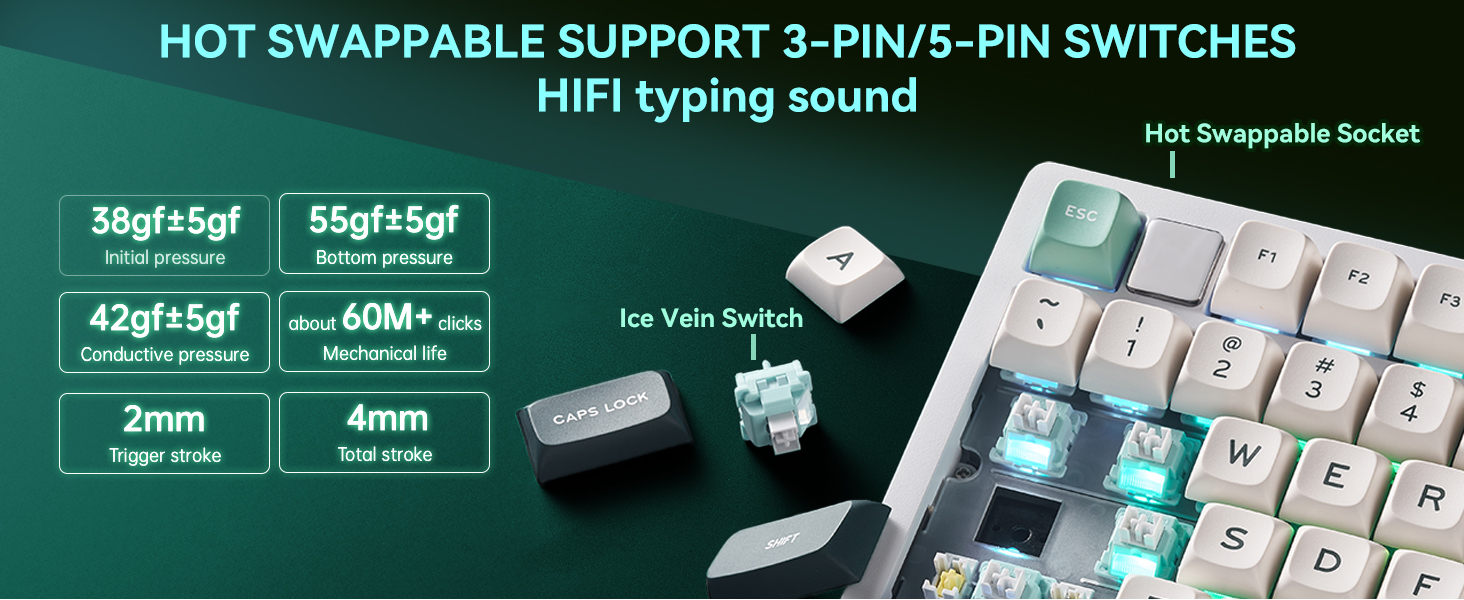
Visual confirming hot-swappable support for both 3-pin and 5-pin switches, emphasizing HIFI typing sound.
6.5 Software del controlador
For advanced customization of key assignments, macro settings, and RGB lighting effects, download and install the professional driver software from the official LEOBOG website. The software is typically Windows-compatible.
Screenshot of the professional driver software interface, showing options for macro editing, key assignment, and light effects.
7. Especificaciones
| Característica | Detalle |
|---|---|
| Modelo | HI75C PRO |
| Marca | LEOBOG |
| Disposición | 75% (81 teclas) |
| Conectividad | Bluetooth 5.0, conexión inalámbrica de 2.4 GHz, cable USB-C |
| Interruptores | LEOBOG Ice Vein Switch (Hot-swappable 3-pin/5-pin) |
| Contraluz | RGB (16.8 millones de colores, múltiples efectos) |
| Capacidad de la batería | 4000 mAh |
| Velocidad de respuesta | 2.8 ms (con cable) |
| Material de las teclas | PBT (Side Engraved) |
| Construcción | Aluminum Alloy Case, Gasket Mount |
| Dimensiones del producto | 16.38 x 7.08 x 1.74 pulgadas |
| Peso del artículo | 3.69 libras |
| Sistema operativo compatible | PC, Mac, Windows, Android, iOS |
8. Mantenimiento
- Limpieza de teclas: Utilice un paño suave y seco.amp cloth to wipe keycaps. For deeper cleaning, remove keycaps with the provided puller and wash with mild soap and water. Ensure they are completely dry before reattaching.
- Interruptores de limpieza: Use compressed air to remove dust and debris from around the switches. Avoid spraying liquids directly into the switches.
- Limpieza de cajas: Wipe the aluminum alloy case with a soft, dry cloth. Avoid abrasive cleaners that may damage the finish.
- Almacenamiento: When not in use, store the keyboard in a dry, dust-free environment. The included plastic cover can help protect it.
9. Solución de problemas
- El teclado no responde: Ensure the keyboard is charged or connected via USB-C. Check the mode selector switch (Wired, 2.4G, BT). For wireless modes, ensure the dongle is properly inserted or Bluetooth is paired.
- Claves que no se registran: If specific keys are not working, try removing and re-inserting the switch using a switch puller. Ensure the switch pins are not bent.
- Las luces RGB no funcionan: Check if the keyboard is in Game Mode and the knob is used to adjust brightness. Ensure the driver software is installed and configured correctly.
- Problemas de conectividad: For 2.4GHz, try a different USB port for the dongle. For Bluetooth, unpair and re-pair the device. Ensure no other wireless devices are causing interference.
- La batería no se carga: Verify the USB-C cable is securely connected to both the keyboard and the power source. Try a different cable or power adapter.
10. Garantía y soporte
LEOBOG products are manufactured to high-quality standards. For warranty information, technical support, or service inquiries, please refer to the official LEOBOG website or contact customer support directly. Please retain your proof of purchase for warranty claims.

Icons representing various customer support contact methods.