
1. Introducción
This manual provides essential information for the safe and effective use of your Mibro GS Pro2 Multisport Smartwatch. Please read this manual thoroughly before using the device and retain it for future reference.
Producto terminadoview
The Mibro GS Pro2 is a versatile multisport smartwatch designed for various activities, featuring a 1.43-inch AMOLED display, Bi-Band GNSS for precise positioning, and extensive health and fitness tracking capabilities.

Image 1.1: Mibro GS Pro2 Smartwatch. This image displays the Mibro GS Pro2 smartwatch from an angled perspective, showcasing its round dark gray casing, black silicone strap, and the digital watch face with various data points like time, date, and weather.
2. Configuración
2.1 Carga inicial
Before first use, fully charge your Mibro GS Pro2 smartwatch. Connect the magnetic charging cable to the charging contacts on the back of the watch and plug the USB end into a standard USB power adapter (not included).
- Una carga completa suele tardar aproximadamente 2.5 horas.
- El reloj mostrará un indicador de carga en la pantalla.
2.2 Emparejamiento con su teléfono inteligente
To unlock the full functionality of your Mibro GS Pro2, pair it with your smartphone via the dedicated Mibro Fit application.
- Descargar la aplicación: Buscar "Mibro Fit" in your smartphone's app store (iOS or Android) and install it.
- Crear una cuenta: Abra la aplicación Mibro Fit y siga las instrucciones en pantalla para crear una cuenta o iniciar sesión.
- Habilitar Bluetooth: Asegúrese de que Bluetooth esté habilitado en su teléfono inteligente.
- Agregar dispositivo: In the Mibro Fit app, navigate to the "Device" or "Add Device" section.
- Select Watch: Select "Mibro GS Pro2" from the list of available devices.
- Confirmar emparejamiento: Aparecerá una solicitud de emparejamiento tanto en tu reloj como en tu smartphone. Confirma el emparejamiento en ambos dispositivos.
Once paired, the watch will synchronize data with the app, and you can customize settings, receive notifications, and view detailed activity reports.
3. Operación del dispositivo
3.1 Navegación básica
The Mibro GS Pro2 features a responsive touchscreen and physical buttons for navigation.
- Pantalla táctil: Desliza el dedo hacia arriba, abajo, izquierda o derecha para navegar por los menús y widgets. Toca para seleccionar elementos.
- Botones laterales: Use the physical buttons on the side of the watch to access specific functions (e.g., power on/off, return to home screen, quick access to sports modes). Refer to the watch's on-screen prompts for specific button assignments.
3.2 Encendido y apagado
- Encendido: Mantenga presionado el botón de encendido (generalmente el botón superior derecho) hasta que aparezca el logotipo de Mibro.
- Apagado: Mantenga presionado el botón de encendido, luego seleccione "Apagar" de las opciones que se muestran en la pantalla.
3.3 Realizar y recibir llamadas
When connected to your smartphone, the Mibro GS Pro2 allows you to manage calls directly from your wrist.
- Recibir llamadas: When a call comes in, the watch will display the caller ID. You can tap the green icon to answer or the red icon to reject the call.
- Haciendo llamadas: Access the call function on your watch (usually through the phone icon or a dedicated widget) to dial numbers or select contacts from your synced phonebook.
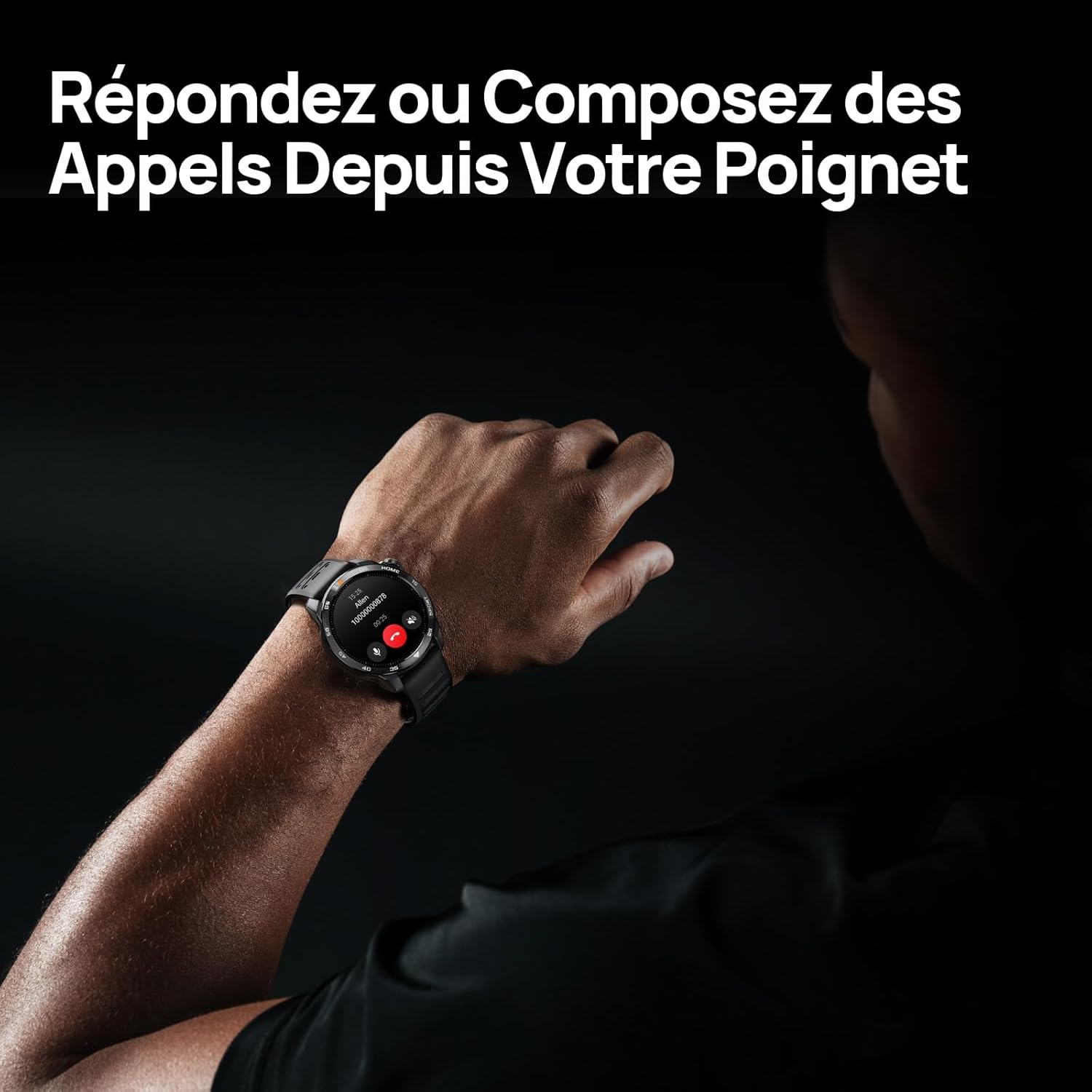
Image 3.1: Responding to calls on the Mibro GS Pro2. This image shows a person's wrist with the Mibro GS Pro2 smartwatch displaying an incoming call notification, illustrating the ability to answer or decline calls directly from the watch.
4. Características
4.1 Pantalla
The Mibro GS Pro2 features a vibrant 1.43-inch AMOLED display, offering clear visibility even in bright outdoor conditions.
- Tamaño: 1.43 pulgadas
- Tipo: AMOLED
- Resolución: 466x466 píxeles
- Brillo: Brillo máximo de hasta 1200 nits
- Características: Touchscreen, Anti-fingerprint coating.

Image 4.1: Mibro GS Pro2 1.43" AMOLED High Brightness Screen. This image highlights the smartwatch's display specifications, including 1200 nits peak brightness, 466x466 resolution, and 60 fps refresh rate, demonstrating its clarity and responsiveness.
4.2 Multisport Modes
The watch supports over 150 sports modes, providing tailored data analysis for each activity. This includes intelligent transitions for multi-discipline events like triathlons.
- Aquatic Sports: Suitable for open water swimming and pool swimming, calculating parameters such as distance, pace, and trajectory. The watch is 5ATM water resistant.
- Ciclismo: Tracks various cycling metrics, including outdoor cycling, indoor cycling, mountain biking, and short-distance modes.
- Correr: Offers professional running algorithms, including running dynamics, performance index, and physical analysis based on real-time data. It records trajectories and provides long-term training plans.
- Otros deportes: Includes modes for hiking, skiing, padel, and many more.

Image 4.2: Mibro GS Pro2 with 150+ Sports Modes. This image shows the smartwatch displaying various sports icons, indicating its extensive support for over 150 different physical activities, including swimming, cycling, and running.

Image 4.3: Mibro GS Pro2 5ATM Water Resistant. This image depicts a swimmer wearing the Mibro GS Pro2 smartwatch, with on-screen data showing swimming metrics like distance, stroke count, and calories burned, highlighting its water resistance and aquatic sport tracking capabilities.
4.3 GPS and Outdoor Navigation
The smartwatch features precise dual-frequency geolocation (Bi-Band GNSS) with real-time deviation alerts. It provides accurate route data and altitude variation measurements for outdoor activities like cycling tours or hiking.
- Dynamically adjust start/end points directly on the watch.
- Store up to 10 backup routes for navigation in areas without signal.
- Includes Barometer and Altimeter functions for environmental data.

Image 4.4: Mibro GS Pro2 Dual-Frequency GPS for Precise Outdoor Navigation. This image shows the smartwatch displaying a map and route tracking, alongside a smartphone app showing a detailed outdoor run trajectory, emphasizing its accurate GPS capabilities for outdoor activities.

Image 4.5: Mibro GS Pro2 Barometer and Altimeter. This image displays the watch showing barometric pressure, a compass, and altitude readings, with a person climbing in the background, illustrating its environmental sensing capabilities.
4.4 Monitoreo de Salud
The Mibro GS Pro2 provides comprehensive health tracking features to help you monitor your well-being.
- Monitoreo del ritmo cardíaco: Seguimiento continuo de la frecuencia cardíaca.
- Monitoreo de oxígeno en sangre (SpO2): Mide los niveles de saturación de oxígeno en sangre.
- Seguimiento del sueño: Monitorea el sueñotages (ligero, profundo, REM) y proporciona una puntuación del sueño.
- Monitoreo del estrés: Realiza un seguimiento de los niveles de estrés a lo largo del día.
- VO2 Max & Recovery Time: Professional metrics for training optimization.
- Seguimiento de actividad: Records calories burned, total distance, and steps taken.

Image 4.6: Mibro GS Pro2 VO2 Max & Recovery Time. This image shows the smartwatch displaying VO2 Max percentage and recovery time recommendations, along with training effect metrics, aiding in professional workout analysis.

Image 4.7: Mibro GS Pro2 Blood Oxygen (SpO2) Monitoring. This image illustrates the watch's ability to track blood oxygen saturation levels over a 24-hour period, displayed as a graph on the watch face.

Image 4.8: Mibro GS Pro2 Sleep Tracking. This image shows the smartwatch displaying sleep quality metrics (Good, BPM, Stress) and a breakdown of sleep stages (Awake, Light Sleep, Deep Sleep), with a person sleeping in the background.
4.5 Duración de la batería
The Mibro GS Pro2 offers extended battery life to support prolonged use.
- Modo diario: Aproximadamente 20 días.
- Modo GPS: Aproximadamente 20 horas.
- Modo de ahorro de energía: Up to 50+ days.

Image 4.9: Mibro GS Pro2 Ultra-Long Battery Life and Fast Charging. This image illustrates the watch's battery performance, showing 2.5 hours for a full charge and estimated usage times for daily mode (20+ days), power-saving mode (50+ days), and GPS mode (20 hours).
4.6 Funciones inteligentes
Beyond fitness tracking, the Mibro GS Pro2 integrates seamlessly with your digital life.
- Notificaciones de mensajes: Receive alerts for calls, SMS, and app notifications (e.g., TikTok, WhatsApp, Telegram, Instagram, Facebook, Snapchat).
- Control de música: Controla la reproducción de música en tu teléfono inteligente directamente desde el reloj.
- Encuentra mi teléfono: Localiza tu teléfono inteligente emparejado usando el reloj.
- Esferas de reloj personalizables: Personalize your watch with various watch face designs.

Image 4.10: Mibro GS Pro2 New Daily Health & Well-being Features. This image shows icons representing sleep tracking, wake-up reminders, music control, and 'find my phone' functionality, indicating the watch's smart features for daily use.

Image 4.11: Mibro GS Pro2 Message Push Notifications. This image shows the smartwatch displaying a message notification, surrounded by logos of popular social media and messaging apps, illustrating its capability to receive alerts from various platforms.

Image 4.12: Mibro GS Pro2 Personalized Watch Faces. This image displays a variety of digital watch faces, showcasing the customization options available to users for personalizing their smartwatch display.
5. Mantenimiento
5.1 Limpieza de su reloj inteligente
- Regularly clean the watch casing y correa con un suave, damp paño.
- Para la suciedad difícil, utilice una solución de jabón suave y enjuague bien con agua limpia.
- Asegúrese de que los contactos de carga estén limpios y secos antes de cargar para evitar la corrosión.
- Evite utilizar productos químicos agresivos, limpiadores abrasivos o disolventes, ya que pueden dañar el acabado y los sellos del reloj.
5.2 Resistencia al agua
The Mibro GS Pro2 is 5ATM water resistant, meaning it can withstand pressures equivalent to a depth of 50 meters. This makes it suitable for swimming and showering. However, it is not recommended for diving or high-pressure water activities.
- No opere los botones bajo el agua.
- Después de la exposición al agua salada, enjuague el reloj con agua dulce y séquelo completamente.
5.3 Cuidado de la batería
- Evite descargar completamente la batería con frecuencia.
- Guarde el reloj en un lugar fresco y seco cuando no lo utilice durante períodos prolongados.
- Utilice únicamente el cable de carga proporcionado.
6. Solución de problemas
6.1 El reloj no se enciende
- Asegúrese de que el reloj esté completamente cargado. Conéctelo al cargador durante al menos 30 minutos.
- Mantenga presionado el botón de encendido durante 10 a 15 segundos para intentar un reinicio forzado.
6.2 No se puede emparejar con el teléfono inteligente
- Asegúrese de que Bluetooth esté habilitado en su teléfono inteligente y en el reloj.
- Asegúrese de que el reloj esté dentro del alcance Bluetooth de su teléfono.
- Reinicie tanto su teléfono inteligente como el reloj.
- Borre la memoria caché de Bluetooth de su teléfono (si corresponde) e intente emparejarlo nuevamente.
- Asegúrese de que la aplicación Mibro Fit esté actualizada a la última versión.
6.3 Lecturas de GPS inexactas
- Asegúrese de estar en un área abierta al aire libre con un espacio despejado. view del cielo.
- Espere a que el reloj adquiera una señal GPS estable antes de comenzar su actividad.
- Ensure the watch's firmware is up to date via the Mibro Fit app.
6.4 Notificaciones que no aparecen
- Check notification settings in the Mibro Fit app to ensure they are enabled for desired applications.
- Verify that your phone's notification permissions are granted to the Mibro Fit app.
- Asegúrese de que el reloj esté conectado a su teléfono a través de Bluetooth.
7. Especificaciones
| Característica | Detalle |
|---|---|
| Marca | Microbio |
| Número de modelo | GS Pro2 |
| Tamaño de la pantalla | 1.43 pulgadas |
| Tipo de pantalla | AMOLED |
| Sistema operativo | Sistema operativo en tiempo real |
| Conectividad | Bluetooth |
| Características especiales | Touchscreen, Water Resistant (5ATM), Bi-Band GNSS, Health Monitoring |
| Dispositivos compatibles | Teléfono inteligente |
| Composición de la batería | Iones de litio |
| Duración de la batería (modo diario) | Aprox. Días 20 |
| Duración de la batería (modo GPS) | Aproximadamente 20 horas |
| Resistencia al agua | 5 cajeros automáticos |
| Dimensiones (Cuerpo del reloj) | 48 mm (diámetro) x 12 mm (grosor) |
| Longitud de la correa | 265 mm |
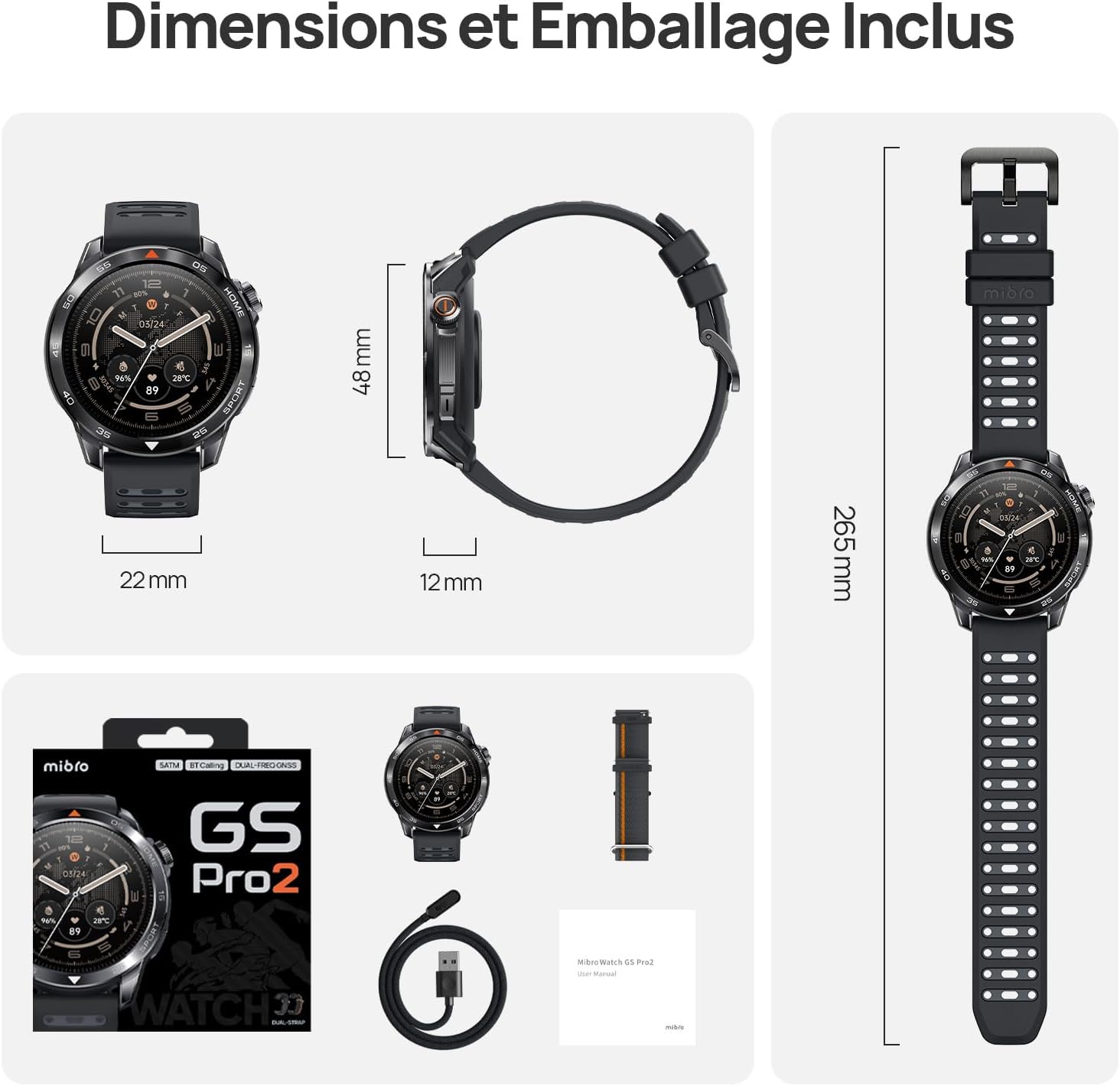
Image 7.1: Mibro GS Pro2 Dimensions and Included Packaging. This image provides a visual representation of the watch's dimensions (48mm diameter, 12mm thickness, 265mm strap length) and shows the contents of the product packaging, including the watch, charging cable, and user manual.
8. Garantía y soporte
8.1 Garantía del fabricante
The Mibro GS Pro2 comes with a Garantía del fabricante de 1 añosEsta garantía cubre defectos de materiales y mano de obra en condiciones normales de uso. Conserve su comprobante de compra para reclamaciones de garantía.
La garantía no cubre daños causados por mal uso, accidentes, modificaciones no autorizadas o desgaste normal.
8.2 Atención al cliente
For technical assistance, troubleshooting, or warranty inquiries, please refer to the official Mibro website or contact their customer support channels. Specific contact details may be found on the product packaging or the official Mibro websitio.