
Introducción
This manual provides detailed instructions for setting up, operating, and maintaining your Gisotu T1 Magnetic Selfie Monitor Screen. Please read this manual thoroughly before use to ensure optimal performance and safety.
¿Qué hay en la caja?
- Vlog Selfie Monitor Screen (x1)
- Bluetooth Remote Control (x1)
- Magnetic Ring (x1)
- Manual de usuario (x1)
- USB A to Type-C cable (x1)

Image: The Gisotu T1 Magnetic Selfie Monitor Screen package contents, showing the monitor, Bluetooth remote, magnetic ring, user manual, and USB-C charging cable.
Configuración
1. Encendido y carga
Before first use, ensure the device is fully charged using the provided USB A to Type-C cable. The charging port is located on the side of the monitor. To power on, slide the power switch to the "ON" position.

Imagen: Un detalle view of the Gisotu T1 monitor's side, highlighting the power switch, Type-C charging port, and indicator light.
2. Attaching the Monitor to Your Phone
The Gisotu T1 features a powerful magnetic grip for secure attachment. For iPhone 12-16 models, the monitor attaches directly. If using an iPhone case, remove it for the most stable connection. For other smartphones, use the included magnetic sheet by peeling off its adhesive backing and securely applying it to your device.
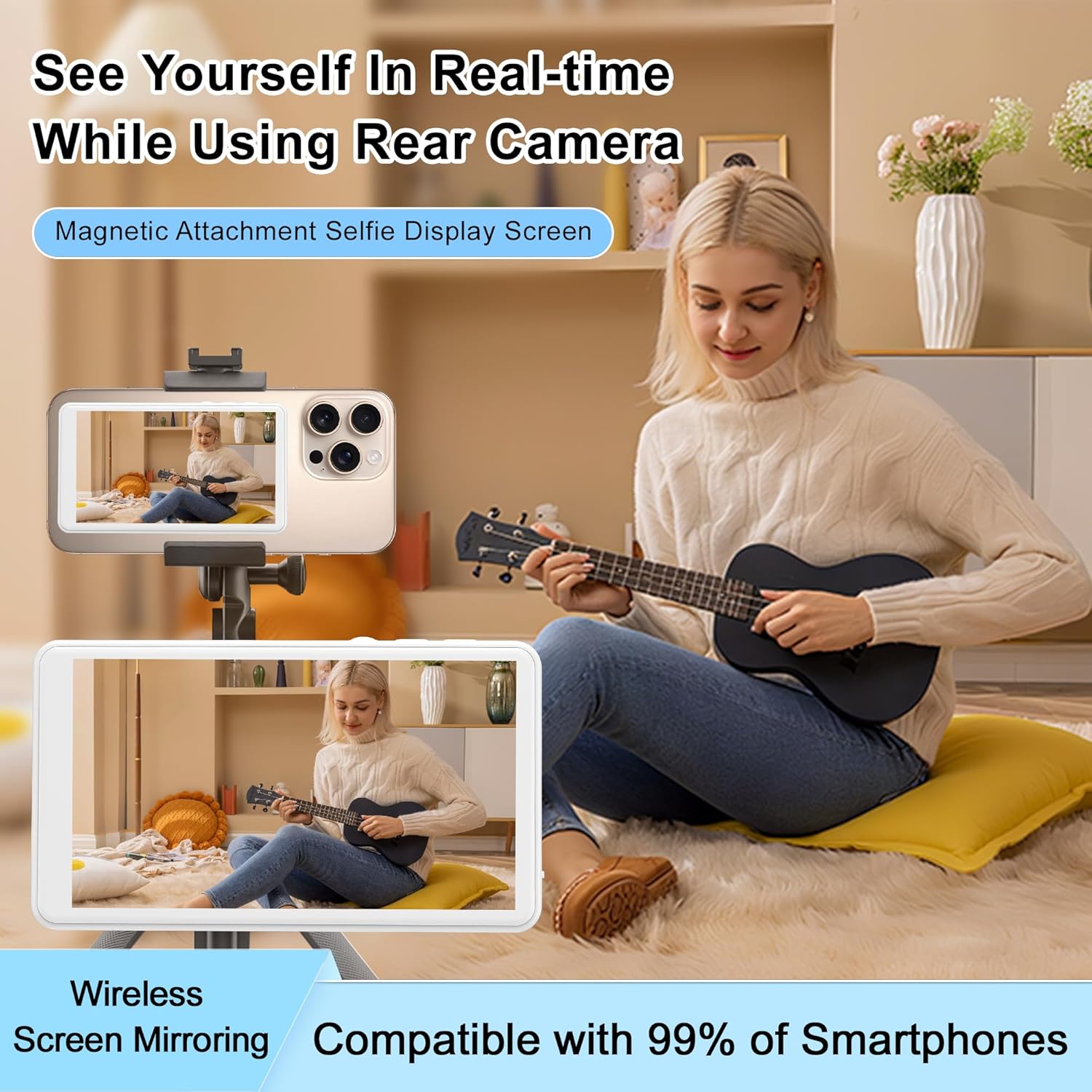
Image: A hand demonstrating the magnetic attachment of the Gisotu T1 monitor to the back of an iPhone.

Image: Illustration of how the magnetic selfie monitor attaches to iPhones and how to use the magnetic ring for other smartphone models.
3. Connecting to Your Phone (Screen Mirroring)
The monitor connects wirelessly via screen mirroring, requiring no additional apps.
For iPhone Devices:
- Swipe down from the top-right corner of your iPhone screen to open the Control Center.
- Toque el ícono "Duplicación de pantalla".
- In the list of available devices, find and select "Gisotu_p2p".
- For the first connection, you will be prompted to enter a verification code. The default code is "1234".
Video: Demonstrates the screen mirroring connection process for iPhone devices, including swiping down for Control Center, selecting "Screen Mirroring", choosing "Gisotu_p2p", and entering the verification code.
Para dispositivos Android:
- Swipe down from the top menu on your Android phone to access the "Casting Function" (this may be labeled as "Wireless Projection", "Smart View", or similar depending on your phone model).
- Find and select "Gisotu_p2p" in the list of search devices.
- The first connection may require a verification code "1234".
Video: Illustrates the screen mirroring connection process for Android devices, showing how to access the casting function and connect to "Gisotu_p2p".
4. Connecting the Bluetooth Remote Control
El control remoto Bluetooth incluido permite capturar fotografías y vídeos con manos libres.
- Encienda el control remoto Bluetooth.
- En su teléfono inteligente, vaya a la configuración de Bluetooth.
- Find and pair with "AB Shutter3".
Video: Shows how to pair the Bluetooth remote control ("AB Shutter3") with a smartphone for remote photo and video capture.
Instrucciones de funcionamiento
1. Real-time Screen Display
Once connected, the Gisotu T1 monitor will instantly mirror your phone's screen, allowing you to see yourself clearly when using your phone's rear camera for vlogging, live streaming, or taking selfies.
Video: A short demonstration of the Gisotu T1 monitor displaying a smartphone's rear camera view in real-time, enabling users to frame themselves for selfies or vlogs.

Image: A user utilizing the Gisotu T1 monitor to frame herself while recording with the rear camera of her smartphone.
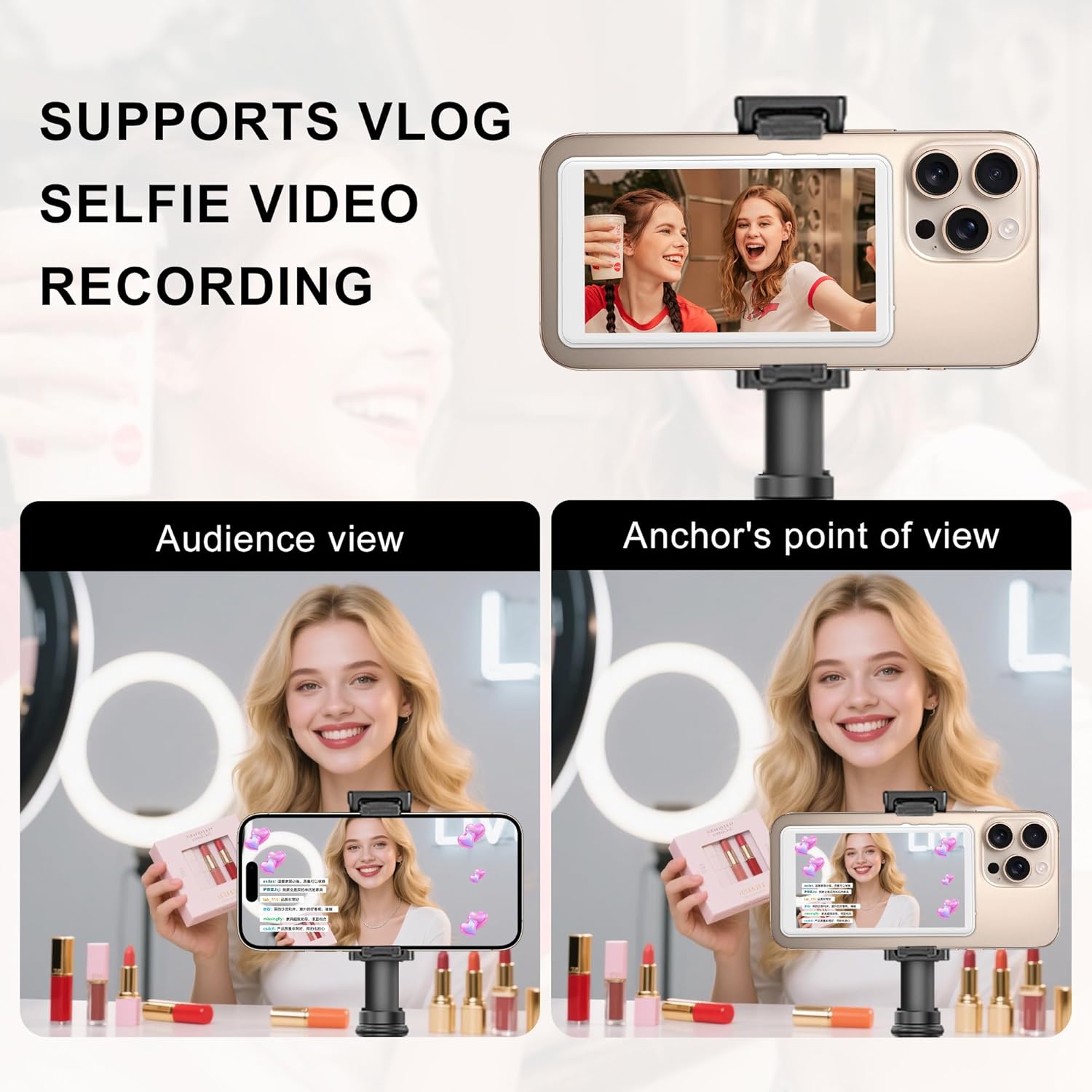
Image: Demonstrates the improved image quality when using the phone's rear camera with the Gisotu T1 monitor compared to the front camera.
2. Rotación de pantalla
The monitor supports 180° rotation and one-touch portrait/landscape switching. Use the dedicated screen rotation button on the side of the monitor to adjust the orientation as needed.

Image: The Gisotu T1 monitor demonstrating its 180-degree rotation capability for flexible viewángulos de ing.
Video: Shows the screen rotation feature of the Gisotu T1 monitor, allowing users to switch between portrait and landscape views.
3. Ajuste de brillo
The monitor offers three levels of brightness adjustment (low/medium/high) to ensure optimal visibility in various lighting conditions. Use the brightness adjustment button on the side of the monitor to cycle through the levels.

Image: Illustrates the three adjustable brightness levels (low, medium, high) of the Gisotu T1 monitor for different environments.
Video: Demonstrates how to adjust the brightness of the Gisotu T1 monitor using the dedicated button.
4. Uso del control remoto Bluetooth
After pairing the Bluetooth remote, you can use it to remotely trigger your phone's camera for photos or start/stop video recording. This is ideal for group photos, vlogging, or any situation where you need to operate your camera from a distance.

Image: A user holding a smartphone with the Gisotu T1 monitor attached, demonstrating the use of the Bluetooth remote control.
Mantenimiento
- Limpieza: Use a soft, dry cloth to clean the screen and body of the monitor. Avoid using harsh chemicals or abrasive materials.
- Almacenamiento: Guarde el monitor en un lugar fresco y seco, alejado de la luz solar directa y de temperaturas extremas.
- Cuidado de la batería: Para prolongar la vida útil de la batería, evite descargarla por completo con frecuencia. Cargue el dispositivo regularmente, incluso si no lo usa durante períodos prolongados.
Solución de problemas
- Monitor not connecting to phone:
- Ensure the monitor is powered on and has sufficient battery.
- Verify Wi-Fi is enabled on your iPhone for connection.
- If "Gisotu_p2p" does not appear in your phone's device list, restart the Selfie Screen and search again.
- Confirm you have entered the correct verification code (default is "1234") for the first connection.
- Incompatibilidad:
- The Selfie Monitor Screen is no compatible with iPhone 17 and Google Pixel devices.
- No sound or photography function:
- This device is a sharing screen only. It does not have built-in sound recording or photography capabilities. These functions are handled by your connected smartphone.
- 4K video recording lag on iPhone:
- The iPhone native camera may not support 4K video recording without lag when screen mirroring. For 4K recording, it is recommended to download and use third-party camera apps like Blackmagic Camera.
- 4K 60fps recording is supported for Samsung Galaxy devices.
- Magnetic attachment not stable:
- If using an iPhone case, remove it for the most stable magnetic connection.
- Ensure the magnetic ring (for non-MagSafe phones) is securely attached and properly aligned.
Presupuesto
| Dimensiones del producto | 0.43 x 2.36 x 4.13 pulgadas |
| Peso del artículo | 5 onzas |
| Número de modelo del artículo | T1 |
| Baterías | Se requieren 1 baterías de polímero de litio (incluidas) |
| Tecnologías de comunicación inalámbrica | Bluetooth, wifi |
| Tecnologías de conectividad | Bluetooth |
| Color | Blanco |
| Fabricante | Gisotu |
| Primera fecha disponible | 10 de julio de 2025 |
Garantía y soporte
For warranty information and customer support, please refer to the contact details provided by Gisotu at the point of purchase or visit the official Gisotu webSitio. Conserve su recibo de compra como comprobante de compra para cualquier reclamación de garantía.
Visita el Gisotu Store para más productos y soporte.