
Introducción
This manual provides detailed instructions for the setup, operation, maintenance, and troubleshooting of your EVICIV 15.6" 1080P Portable Monitor. Please read this manual thoroughly before using the product to ensure proper functionality and to maximize your user experience.
Características del producto
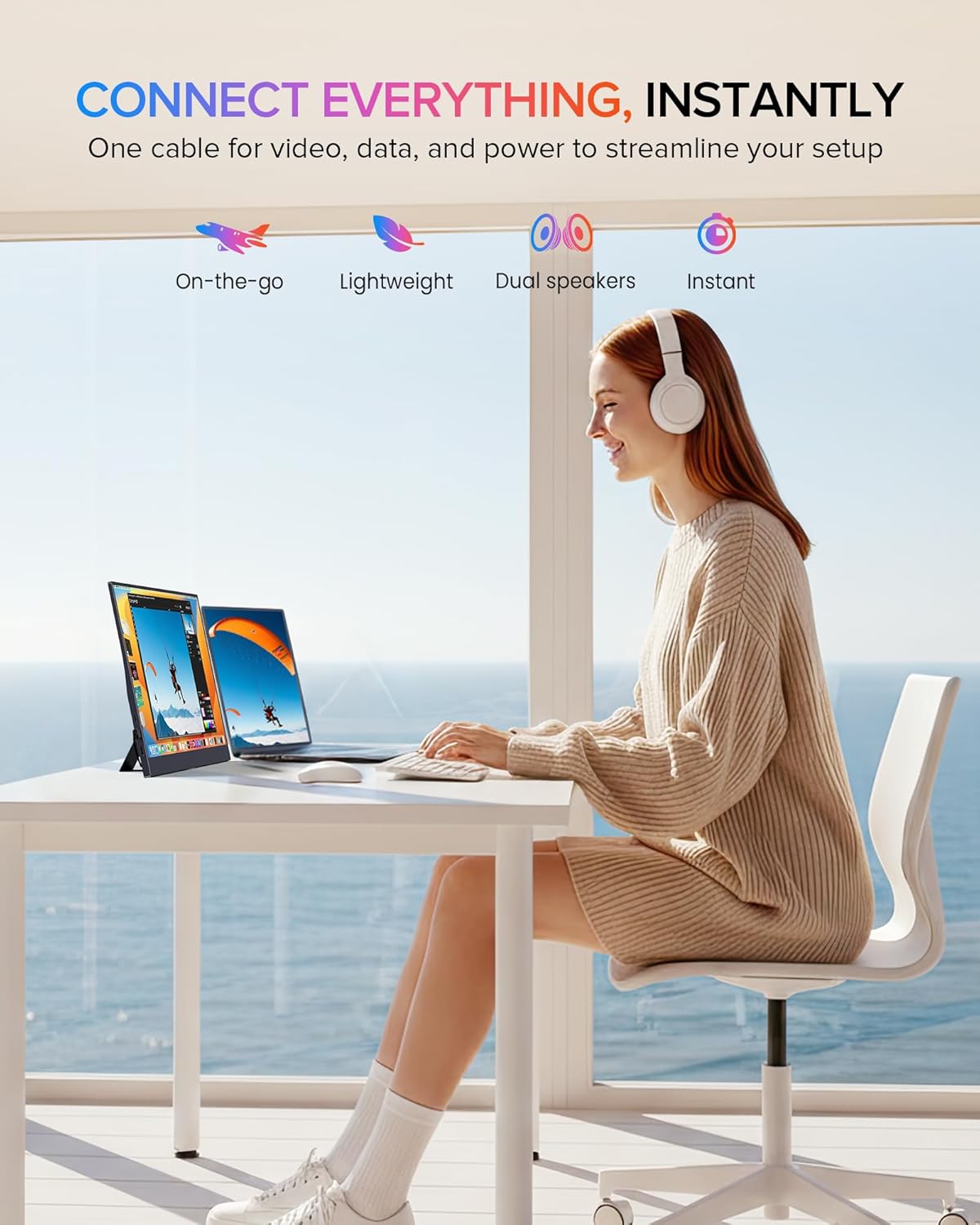
- Universal Compatibility & VESA: Equipped with USB-C/Type-C and Mini HDMI ports, this portable monitor connects with laptops, smartphones, and gaming consoles. It includes a VESA interface (75x75@M4) for mounting options.
- Integrated Convenience: Features a built-in stand for adjustable viewing angles and integrated speakers for audio output, eliminating the need for external audio devices.
- Ultra-Slim & Portable: Weighing approximately 0.6 kilograms (1.46 pounds), this 15.6-inch monitor has an ultra-slim profile designed for portability.
- Pantalla IPS de 15.6 pulgadas: Provides a 1920x1080 FHD resolution IPS panel with a 178° viewing angle, offering consistent colors and visuals without distortion.
Experience vibrant and accurate colors with the monitor's 125% sRGB wider gamut, 350 Nits brightness, and 2000:1 contrast ratio, ensuring a true-to-life visual experience.
Contenido del paquete
Verifique que todos los artículos estén presentes en el paquete:
- EVICIV 15.6" Portable Monitor
- Cable USB-C a USB-C
- Cable Mini HDMI a HDMI
- Cable de alimentación USB-A a USB-C
- Adaptador de corriente
- Manual de usuario
Instrucciones de instalación
Conexión a dispositivos

The monitor is equipped with full-featured USB-C ports and a Mini HDMI port, allowing plug-and-play connectivity with a wide range of devices including Android phones, tablets, laptops, MacBooks, Nintendo Switch, PS4/PS5, and PCs.
USB-C Connection (Full-featured USB-C)
For devices with a full-featured USB-C port (supporting DisplayPort Alternate Mode and power delivery), a single USB-C to USB-C cable can transmit video, audio, and power. Connect one end of the USB-C cable to your device's USB-C port and the other end to one of the monitor's USB-C ports.
Conexión MiniHDMI
For devices with an HDMI output, use the Mini HDMI to HDMI cable to connect your device to the monitor's Mini HDMI port. When using HDMI, the monitor requires external power. Connect the USB-A to USB-C power cable to the monitor's USB-C power input and plug the USB-A end into a power adapter or a powered USB port.
Encendido del monitor
The monitor can be powered via a full-featured USB-C connection from a compatible device or by using the provided USB-A to USB-C power cable and power adapter. Ensure the monitor receives adequate power for stable operation.
Using the Integrated Stand and VESA Mounting

Featuring an ultra-thin design and a flexible kickstand, the monitor can be adjusted from 0-70 degrees. It also includes VESA mounting holes (75x75@M4) for alternative setups.
Soporte integrado
The monitor features a flexible kickstand on the back. Gently pull out the stand and adjust it to your desired viewing angle, ranging from 0 to 70 degrees.
Montaje VESA
For alternative mounting solutions, the monitor is equipped with VESA mounting holes (75x75@M4). This allows for attachment to compatible desk arms or wall mounts (mounting hardware sold separately).
Operación del monitor
Menú de visualización en pantalla (OSD)
The monitor's settings can be adjusted using the OSD menu. The control buttons are typically located on the side of the monitor. Use the 'Pulley Button/Menu' to access the OSD and navigate through options. The 'Return/Power' button can be used to exit menus or power the monitor on/off.
Modos de visualización

The monitor supports various display configurations including Duplicate Mode, Extend Mode, and Vertical Mode, adapting to your workflow needs.
Depending on your connected device and operating system, you can configure the monitor to operate in different display modes:
- Modo duplicado: Displays the same content as your primary screen.
- Modo extendido: Extends your desktop workspace across both screens.
- Modo vertical: Allows the monitor to be used in a portrait orientation, often useful for coding or document viewEn.
Salida de audio
The monitor includes built-in stereo speakers for audio playback. Additionally, a 3.5mm audio jack is available for connecting external headphones or speakers.

The EVICIV portable monitor seamlessly integrates into various setups, offering an extended display for enhanced productivity or entertainment.
Mantenimiento
Limpieza del monitor
Para limpiar la pantalla del monitor, límpiela suavemente con un paño suave que no suelte pelusa. Para manchas difíciles, dampen the cloth slightly with water or a non-abrasive screen cleaner. Avoid using harsh chemicals, alcohol, or ammonia-based cleaners, as these can damage the screen surface. Ensure the monitor is powered off and unplugged before cleaning.
Para limpiar el monitor casinUtilice un paño suave y seco. No rocíe líquidos de limpieza directamente sobre el monitor.
Solución de problemas
Si tiene problemas con su monitor, consulte los siguientes pasos de solución de problemas comunes:
- Sin señal / Pantalla negra:
- Ensure all cables (USB-C, Mini HDMI) are securely connected to both the monitor and the source device.
- Verifique que el dispositivo fuente esté encendido y emitiendo una señal.
- If using HDMI, confirm the monitor is receiving external power.
- Intente conectar el monitor a un dispositivo diferente o utilizar cables diferentes para descartar problemas con el cable o la fuente.
- Sin energía:
- Check if the power adapter is properly connected to a working power outlet and the monitor.
- If powering via USB-C, ensure the source device's USB-C port supports power delivery and is providing sufficient power.
- Presione el botón de encendido del monitor para asegurarse de que esté encendido.
- Poor Display Quality:
- Adjust the display settings via the OSD menu. Consider changing the screen setting to 'Movie' mode for improved display quality.
- Ensure the display resolution on your source device is set to 1920x1080 (FHD).
- Verifique si hay daños físicos en la pantalla o los cables.
- Sin audio:
- Verify that the volume on both the monitor and the source device is not muted and is turned up.
- Ensure the correct audio output device is selected in your source device's sound settings.
- Si utiliza auriculares/altavoces externos, asegúrese de que estén conectados correctamente al conector de audio de 3.5 mm.
Especificaciones técnicas
| Característica | Especificación |
|---|---|
| Marca | EVICIV |
| Tamaño de pantalla | 15.6 pulgadas |
| Resolución | FHD 1080p (1920 x 1080) |
| Relación de aspecto | 16:9 |
| Tiempo de respuesta | 1 milisegundo |
| Tipo de pantalla | Pantalla LCD IPS |
| Viewángulo de ing | 178 grados |
| Peso del artículo | 0.6 kilogramos |
| Volumentage | 5 voltios |
| Puertos HDMI totales | 1 (Mini HDMI) |
| Puertos USB totales | 2 (USB tipo C) |
| Tecnología de conectividad | USB-C, mini HDMI |
| hardware de conectividad | 3.5mm Audio, USB Type C, Mini HDMI |
Garantía y atención al cliente
EVICIV is committed to providing comprehensive customer care. This product includes a 2-year support period. For any inquiries or assistance, please contact EVICIV customer support. We aim to address all inquiries efficiently, typically within an 8-hour timeframe.
Please refer to the contact information provided with your product packaging or visit the official EVICIV websitio para detalles de soporte.