
Introducción
This manual provides essential information for setting up, operating, maintaining, and troubleshooting your Lenovo IdeaCentre AIO 27IRH9 All-in-One Desktop. Please read these instructions carefully before using your device.
¿Qué hay en la caja?
Verifique que todos los artículos estén presentes en el embalaje de su producto:
- Lenovo IdeaCentre AIO Desktop Unit
- Wireless EOS Keyboard
- Wireless EOS Mouse
- Adaptador de corriente
- Guía del usuario (este documento)
Configuración
Follow these steps to set up your Lenovo IdeaCentre AIO desktop:
- Desempaque el dispositivo: Carefully remove the All-in-One desktop, keyboard, mouse, and power adapter from the packaging.
- Posicionamiento del escritorio: Place the AIO unit on a stable, flat surface, ensuring adequate ventilation around the back and sides.
- Conecte el adaptador de corriente: Plug the power adapter into the power-in port on the back of the AIO unit, then connect it to a power outlet.
- Conectar teclado y ratón inalámbricos: The included keyboard and mouse are wireless. Ensure they have batteries installed (if not pre-installed) and are powered on. They should automatically connect to the AIO. If not, refer to their individual manuals for pairing instructions.
- Conectar periféricos (opcional):
- Dispositivos USB: Connect USB devices (e.g., external hard drives, printers) to the available USB ports (USB-A, USB-C).
- Pantalla externa: Si utiliza un monitor externo, conéctelo al puerto de salida HDMI.
- Cable de red: Para una conexión a Internet por cable, conecte un cable Ethernet al puerto RJ-45.
- Dispositivos de audio: Connect headphones or external speakers to the headphone/microphone combo jack.
- Arranque inicial: Press the power button. The system will boot up, and you will be guided through the Windows 11 initial setup process. Follow the on-screen instructions to configure your operating system, network, and user accounts.

Figura 1: Trasero view of the IdeaCentre AIO, highlighting the power input, USB-A ports, Ethernet port, HDMI-in, HDMI-out, USB-C port, and headphone/microphone combo jack.

Figura 2: Frente view of the IdeaCentre AIO, showcasing the 27-inch display, wireless keyboard, and mouse.
Operar su dispositivo
Your Lenovo IdeaCentre AIO is designed for efficient daily use. Here are key operational aspects:
- Inicio de Windows 11: The desktop comes pre-loaded with Windows 11 Home. Familiarize yourself with the operating system's interface, Start Menu, and settings.
- Características de la pantalla: The 27-inch Full HD IPS display offers a resolution of 1920x1080 pixels, 300 nits brightness, and a 100Hz refresh rate for smooth visuals. It features an anti-glare coating and hardware low blue light technology for eye comfort.
- Sistema de audio: Enjoy clear audio with the integrated 3Wx2 HARMAN speakers. The dual microphone setup ensures clear voice input for calls and recordings.
- Cámara integrada: The 5.0 MP camera is suitable for video conferencing and online communication.
- Conectividad:
- Inalámbrico: Built-in Wi-Fi 6 provides fast and reliable internet access. Bluetooth 5.2 allows for seamless connection with wireless peripherals.
- Wired: Utilize the Ethernet port for stable wired network connections. Multiple USB ports (USB-A, USB-C) are available for various accessories.
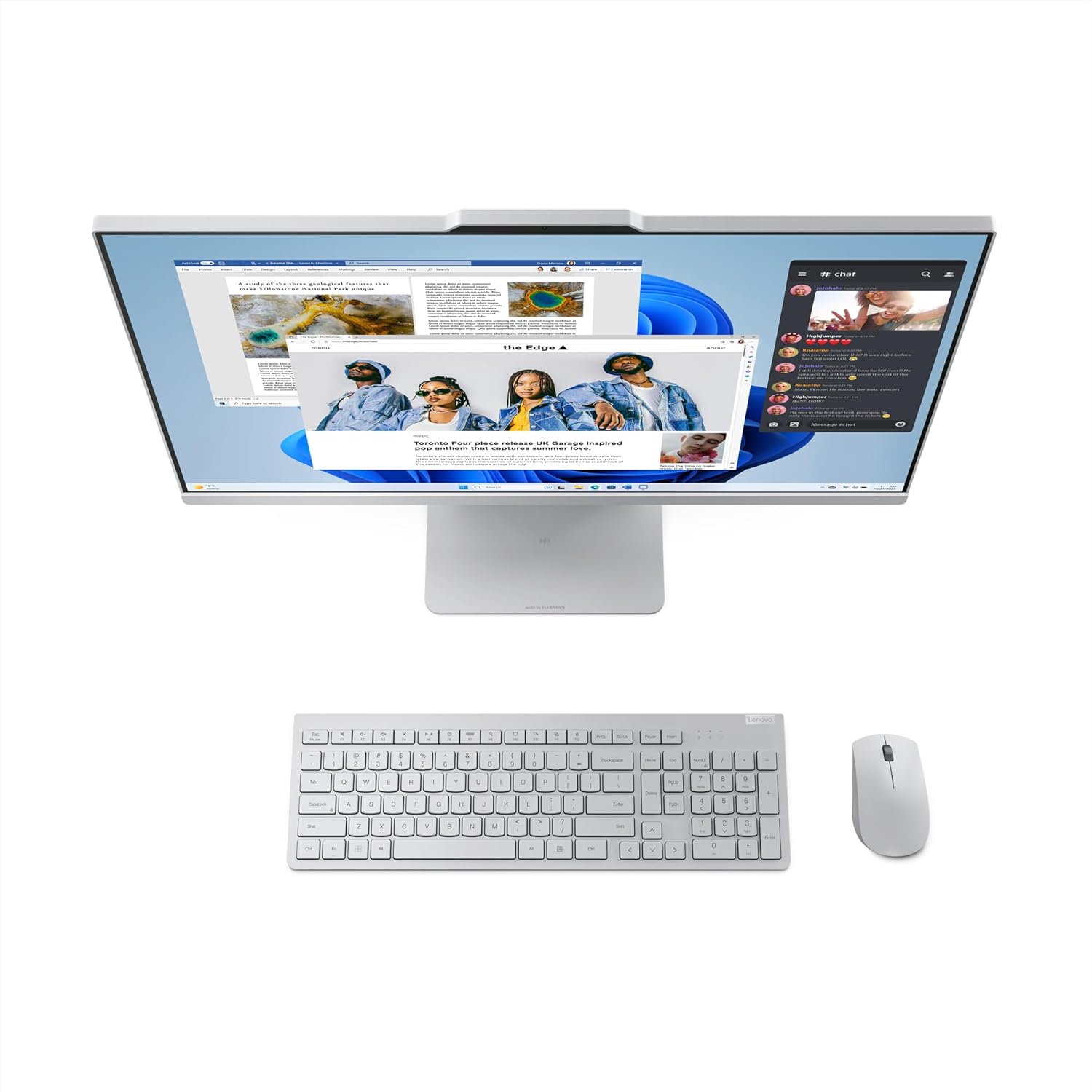
Figura 3: Key features of the IdeaCentre AIO, including the 27" FHD IPS display, 99% sRGB, 100Hz refresh rate, 5MP camera, and Harman speakers.

Figura 4: Lado profesionalfile of the IdeaCentre AIO, demonstrating the adjustable tilt feature for ergonomic viewEn.
Mantenimiento
Proper maintenance ensures the longevity and optimal performance of your IdeaCentre AIO desktop:
- Limpieza de la pantalla: Utilice un paño suave y sin pelusa, diseñado específicamente para dispositivos electrónicos. Ligeramente dampen the cloth with water or a screen cleaner solution (avoid harsh chemicals) and gently wipe the screen. Do not spray liquid directly onto the screen.
- Limpieza del chasis: Limpie las superficies exteriores con un paño suave y seco. Para la suciedad difícil, utilice un paño ligeramente seco.amp cloth can be used, followed by a dry cloth. Ensure no liquid enters the vents or ports.
- Actualizaciones de software: Verifique e instale periódicamente actualizaciones del sistema operativo (Windows Update) y actualizaciones de controladores desde el soporte de Lenovo. website. This ensures security, stability, and performance improvements.
- Ventilación: Keep the ventilation openings on the back and sides of the AIO clear of obstructions to prevent overheating.
- Responsabilidad ambiental: The base stand and hinge of this product utilize 65% post-consumer recycled plastic, and the system bag contains 30% ocean-bound plastic. The packaging uses FSC® certified paper. Please dispose of the product and its components responsibly at the end of its life cycle.
Solución de problemas
If you encounter issues with your IdeaCentre AIO, refer to the following common troubleshooting steps:
- Sin energía:
- Ensure the power adapter is securely connected to both the AIO and a working power outlet.
- Compruebe si la toma de corriente funciona enchufando otro dispositivo.
- Problemas de visualización (sin imagen/parpadeo):
- Verify the AIO is powered on.
- If an external display is connected, ensure the correct input source is selected on the external monitor.
- Reinicie la computadora.
- El teclado o el mouse no responden:
- Check the batteries in the wireless keyboard and mouse and replace them if necessary.
- Asegúrese de que el teclado y el mouse estén encendidos.
- Try re-pairing the devices if they have a pairing button or process.
- Sin conexión a Internet:
- For Wi-Fi, ensure Wi-Fi is enabled in Windows settings and you are connected to the correct network.
- For wired connection, check the Ethernet cable connection and your router/modem status.
- Restart your router/modem and the AIO.
- Ralentización del sistema:
- Cierre las aplicaciones innecesarias.
- Ejecutar un análisis de virus.
- Asegúrese de que Windows y los controladores estén actualizados.
- Verifique el espacio en disco y libere almacenamiento si es necesario.
If these steps do not resolve the issue, please contact Lenovo Support for further assistance.
Presupuesto
| Característica | Detalle |
|---|---|
| Nombre del modelo | IdeaCentre todo en uno |
| Número de modelo | 27IRH9 |
| Procesador | Intel Core i3-1315U (6 Cores, 8 Threads, 1.2GHz Base, 4.5GHz Max) |
| Sistema operativo | Windows 11 Home Single Language, English |
| Software preinstalado | Microsoft 365 Basic + Office Home 2024 |
| Memoria (RAM) | 8GB DDR5-5200 (Expandable up to 32GB, 2 SO-DIMM slots) |
| Almacenamiento | SSD de 512 GB M.2 2280 PCIe 4.0x4 NVMe |
| Gráficos | Gráficos Intel UHD integrados |
| Mostrar | 27-inch Full HD (1920x1080) IPS, 300 nits, Anti-Glare, 99% sRGB, 100Hz, 3-side borderless, Hardware Low Blue Light, Non-Touch |
| Cámara | 5.0 MP |
| Audio | 2x3W HARMAN Speakers, Dual Microphone |
| Conectividad inalámbrica | Wi-Fi 6, Bluetooth 5.2 |
| Puertos | 1x USB-C (10Gbps / USB 3.2 Gen 2, data transfer only), USB-A (10Gbps), USB-A (Hi-Speed USB), HDMI-in 1.4, HDMI-out 2.1 TMDS, Ethernet (RJ-45), 1x Headphone/Microphone Combo Jack (3.5mm) |
| Dimensiones (An x Pr x Al) | 61.1 x 19.2 x 47.3 centímetros |
| Peso | 7.1 kilogramos |
| Periféricos incluidos | Wireless EOS Keyboard, Wireless EOS Mouse |
Garantía y soporte
Your Lenovo IdeaCentre AIO 27IRH9 comes with a 1 Year Onsite Warranty. For warranty claims or technical assistance, please contact Lenovo Support.
Información del contacto:
- Lenovo (India) Private Limited: RBD Icon, Level 2, Doddenakundi Village, Marathahalli Outer Ring Road, K. R. Puram Hobli, Bangalore 560037, Karnataka, India
- Manufacturer (Compal Information Technology): No. 58., FIRST AVENUE, A ZONE, KUNSHAN COMPREHENSIVE FREE TRADE ZONE KUNSHAN, JIANGSU CHINA
For the most up-to-date support information, drivers, and manuals, please visit the official Lenovo support websitio.