
Insignia NS-24F201CA26
Insignia NS-24F201CA26 24-inch 720p HD HDR LED Fire TV Smart TV User Manual
Model: NS-24F201CA26
Introducción
Gracias por la compraasing the Insignia NS-24F201CA26 24-inch 720p HD HDR LED Fire TV Smart TV. This manual provides essential information for the safe and efficient use of your television. Please read these instructions thoroughly before operating your new TV and retain them for future reference.
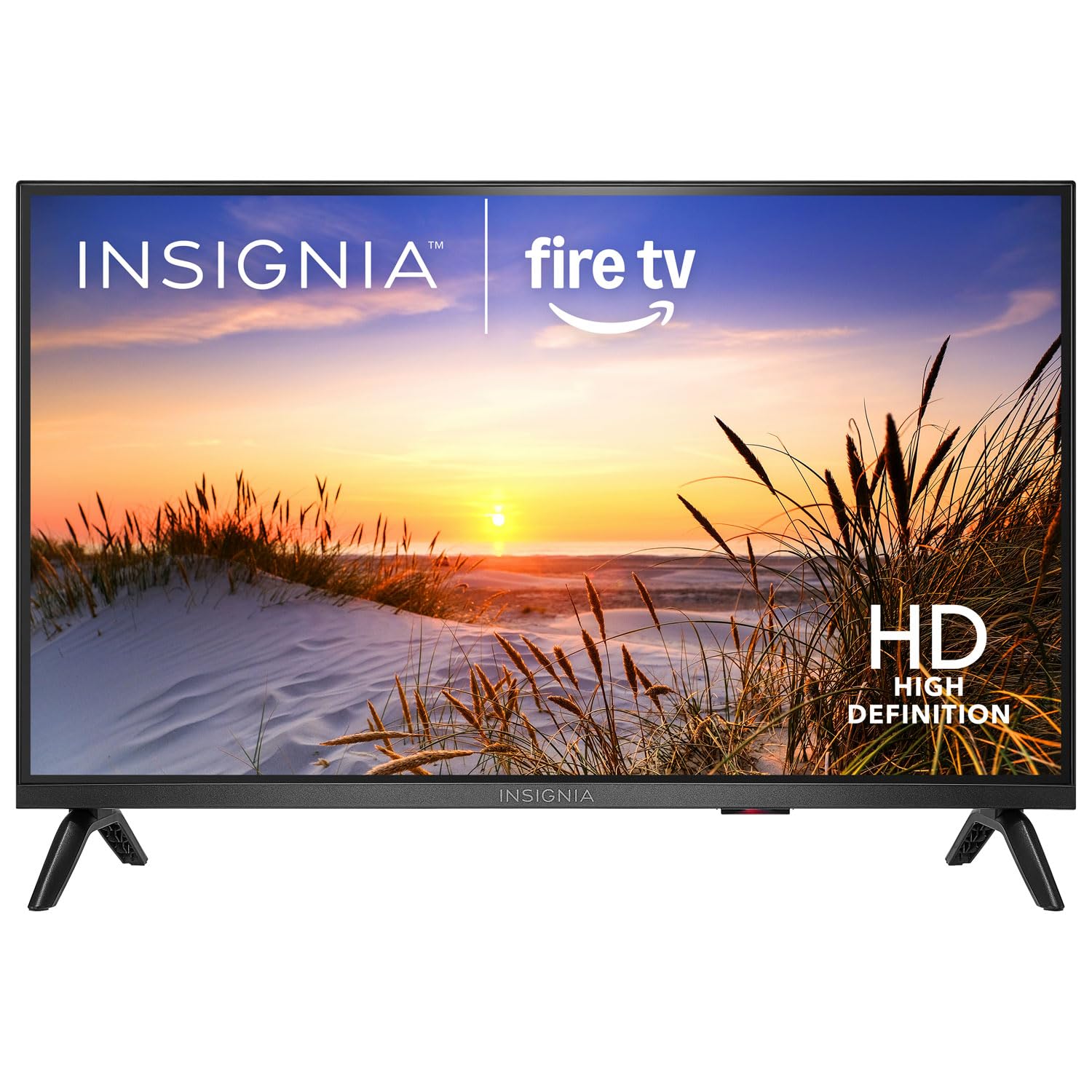
Imagen: Frente view of the Insignia NS-24F201CA26 24-inch Fire TV Smart TV, showcasing su bisel delgado y pantalla.
Información importante de seguridad
Siga siempre estas precauciones básicas de seguridad al utilizar su televisor para reducir el riesgo de incendio, descarga eléctrica y lesiones:
- No exponga el televisor a la lluvia o la humedad.
- No abra el mueble del televisor. Deje todas las reparaciones a personal técnico cualificado.
- Asegúrese de que haya una ventilación adecuada. No bloquee las aberturas de ventilación.
- Proteja el cable de alimentación para que no sea pisado ni aplastado.
- Desenchufe el televisor durante tormentas eléctricas o cuando no lo utilice durante períodos prolongados.
- Mantenga el televisor alejado de fuentes de calor como radiadores, rejillas de calefacción, estufas u otros aparatos que produzcan calor.
- Utilice únicamente accesorios especificados por el fabricante.
¿Qué hay en la caja?
Carefully unpack your new product and ensure all items are present:
- Insignia NS-24F201CA26 24-inch Fire TV Smart TV
- Control remoto por voz con Alexa
- Pilas AAA (2)
- Cable de alimentación
- Soporte para TV (2 piezas)
- Tornillos para soporte de TV
- Guía de configuración rápida
- Important Safety Information Sheet
Configuración
1. Fijación del soporte o montaje en pared
You can either attach the included stand or mount the TV to a wall. If wall mounting, refer to the instructions provided with your wall mount kit. For stand attachment:
- Place the TV face-down on a clean, cushioned surface to prevent screen damage.
- Alinee las piezas del soporte con los orificios de los tornillos en la parte inferior del televisor.
- Fije cada soporte con los tornillos incluidos. Asegúrese de que estén bien apretados.
Image Description: An illustration showing the process of attaching the two stand feet to the bottom of the television using screws. (Specific image not available in provided data)
2. Conexión de dispositivos
Connect your external devices (e.g., cable box, Blu-ray player, gaming console) to the TV's HDMI ports. The TV has 2 HDMI ports.
- HDMI: Para vídeo y audio de alta definición.
- USB: Para conectar dispositivos de almacenamiento USB.
- Antena/Cable: Para conectar una antena o señal de TV por cable.
- Salida de audio digital óptica: Para conectar a una barra de sonido o un receptor de audio.
- Fuerza: Conecte el cable de alimentación al televisor y luego a una toma de pared.
Image Description: A diagram illustrating the various input/output ports on the back of the television, including HDMI, USB, and power connections. (Specific image not available in provided data)
3. Encendido inicial y configuración inicial
- Conecte el cable de alimentación a una toma eléctrica.
- Presione el FUERZA Botón en el control remoto.
- Follow the on-screen instructions to complete the initial setup, which includes selecting your language, connecting to a Wi-Fi network, and signing in to your Amazon account for Fire TV features.
Operación de su televisor
Control remoto terminadoview
The included Voice Remote with Alexa allows you to navigate the Fire TV interface, control playback, and use voice commands.
Image Description: A detailed diagram of the Voice Remote with Alexa, highlighting each button and its function. (Specific image not available in provided data)
- Botón de encendido: Enciende o apaga el televisor.
- Botón de voz (Alexa): Mantenga presionado para activar los comandos de voz de Alexa.
- Anillo de navegación: Úselo para moverse por los menús y seleccionar elementos.
- Botón de inicio: Regresa a la pantalla de inicio de Fire TV.
- Botón Atrás: Regresa a la pantalla anterior.
- Subir/Bajar volumen: Ajusta el volumen del televisor.
- Botón de silencio: Silencia o reactiva el sonido.
- Botones de la aplicación: Quick access to popular streaming apps.
Funciones básicas
- Encendido/apagado: Presione el FUERZA Botón en el control remoto.
- Control de volumen: Utilice el VOL+ or VOLUMEN - botones.
- Selección de entrada: From the Fire TV home screen, navigate to the "Inputs" section to switch between HDMI inputs, live TV, or other sources.
Funciones de Smart TV (Fire TV)
Your Insignia Fire TV provides access to a vast library of streaming content, apps, and live TV options.
- Pantalla de inicio: Displays recommended content, recently used apps, and input options.
- Aplicaciones: Download and manage streaming applications from the Amazon Appstore.
- Control de voz de Alexa: Press and hold the Voice button on your remote and speak commands to search for content, launch apps, control smart home devices, and more.
Controles parentales
To manage content access for children, you can set up parental controls:
- From the Fire TV home screen, navigate to Ajustes.
- Seleccionar Preferencias, entonces Controles parentales.
- Follow the on-screen prompts to enable parental controls and set a PIN. You can restrict purchases, app launches, and content based on ratings.
Mantenimiento
Limpieza de la pantalla
- Desenchufe siempre el televisor antes de limpiarlo.
- Utilice un paño suave y sin pelusa ligeramenteampLimpiar con agua o un limpiador de pantallas especializado.
- Wipe the screen gently. Do not apply excessive pressure.
- Never use abrasive cleaners, waxes, or solvents.
Cuidados generales
- Mantenga el televisor en un área bien ventilada.
- Evite colocar objetos encima del televisor.
- No exponga el televisor a la luz solar directa ni a temperaturas extremas.
Solución de problemas
Antes de contactar con el soporte técnico, pruebe estas soluciones comunes:
| Problema | Posible solución |
|---|---|
| Sin poder | Asegúrese de que el cable de alimentación esté bien enchufado al televisor y a una toma de corriente que funcione. Pruebe con otra toma de corriente. |
| No hay imagen, pero hay sonido | Verifique la fuente de entrada. Asegúrese de que el dispositivo conectado esté encendido y funcionando correctamente. |
| No hay sonido, pero hay imagen | Check the volume level and ensure the TV is not muted. Verify audio cables are connected correctly. |
| El control remoto no funciona | Replace the batteries (2 AAA batteries). Ensure there are no obstructions between the remote and the TV. |
| No se puede conectar al wifi | Asegúrate de que tu router Wi-Fi esté encendido y dentro del alcance. Vuelve a introducir la contraseña de Wi-Fi. Reinicia el televisor y el router. |
Presupuesto
| Característica | Detalle |
|---|---|
| Número de modelo | NS-24F201CA26 |
| Tamaño de pantalla | 24 inches (Display Size Class) |
| Resolución | Alta definición 720p |
| Tecnología de visualización | CONDUJO |
| Frecuencia de actualización | 60 Hz |
| Picture Quality Enhancement | Alto rango dinámico (HDR) |
| Sistema operativo | Sistema operativo FireOS |
| Tecnología de conectividad | Wifi |
| Puertos HDMI totales | 2 |
| Dimensiones del producto (Pr. x An. x Al.) | 17.7D x 53.7W x 36.3H cm (with stand) |
| Quétage | 35 W |
| Pilas necesarias | 2 AAA (incluidas para el control remoto) |
| Características especiales | Parental Controls, Smart Home Compatible |
Garantía y soporte
This Insignia product is covered by a limited warranty. For specific warranty terms and conditions, please refer to the warranty card included with your product or visit the official Insignia websitio.
For technical support, troubleshooting assistance, or service inquiries, please contact Insignia Customer Support. Contact information can typically be found on the manufacturer's websitio o en la guía de configuración rápida.
- Soporte en línea: Visita www.insigniaproducts.com/support (examp(el enlace real puede variar).
- Soporte telefónico: Consulte la documentación de su producto para obtener números de teléfono regionales.
Ask a question about this manual
Ask about setup, troubleshooting, compatibility, parts, safety, or missing instructions. Manuals+ will review the question and use this page’s manual context to help answer it.