
OMOTON B0FCMD15TF
OMOTON Foldable Bluetooth Keyboard with Touchpad (QWERTZ Layout)
Model: B0FCMD15TF
Marca: OMOTON
1. Introducción
Thank you for choosing the OMOTON Foldable Bluetooth Keyboard with Touchpad. This portable QWERTZ keyboard is designed for convenience and efficiency, offering multi-device connectivity and an integrated touchpad. This manual provides detailed instructions for setup, operation, and maintenance to ensure optimal performance.
2. Contenido del paquete
Por favor revise el paquete para ver los siguientes artículos:
- Teclado Bluetooth plegable OMOTON
- Soporte para teléfono celular
- Cable de carga tipo C
- Estuche de transporte
- Manual de usuario
3. Producto terminadoview
The OMOTON Foldable Bluetooth Keyboard features a compact QWERTZ layout with 78 full-size keys and a multi-touch touchpad. It supports connection to up to three devices simultaneously across iOS, Android, and Windows operating systems. Its magnetic folding design makes it highly portable.
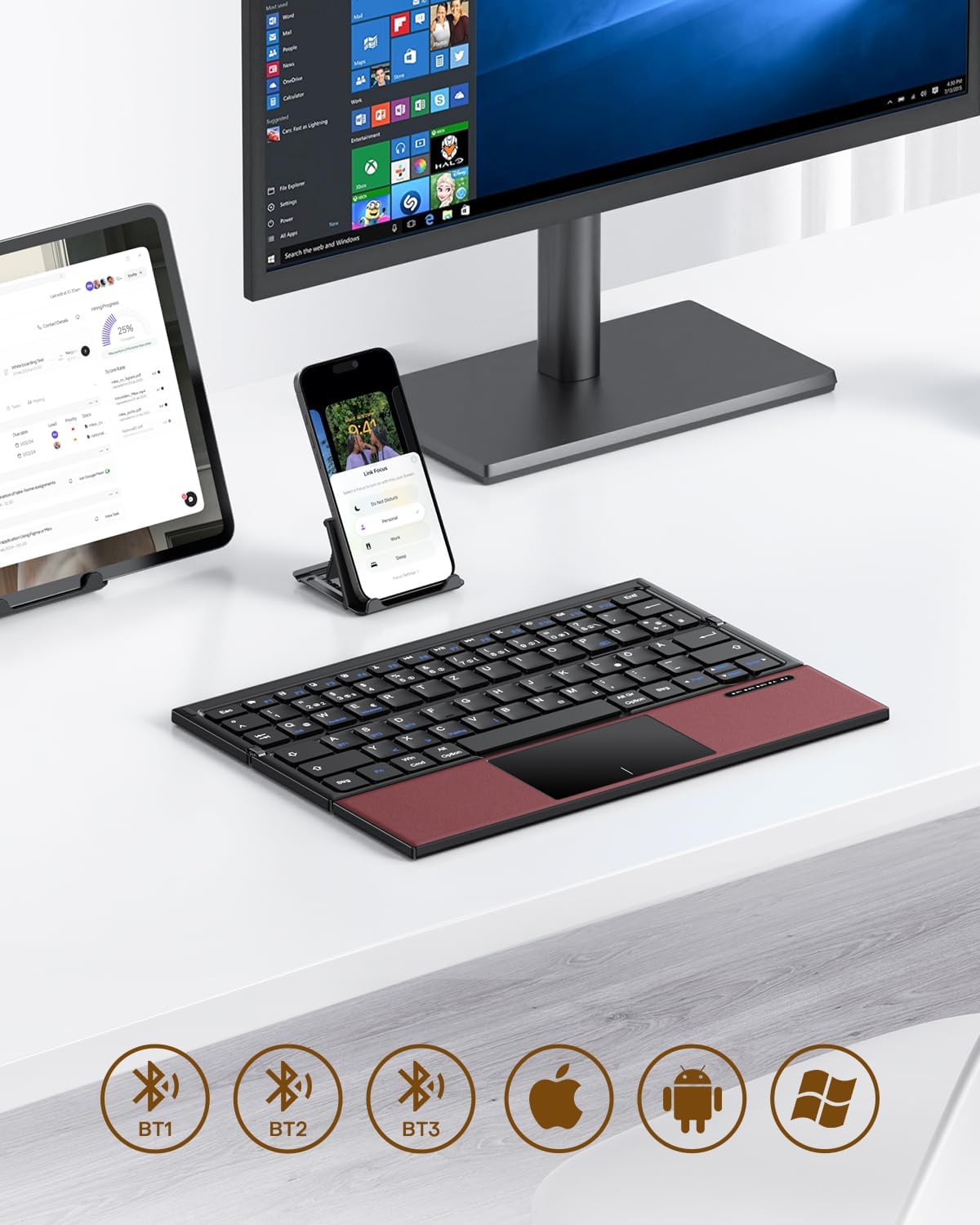
Image 3.1: The OMOTON Foldable Bluetooth Keyboard in use with a tablet, smartphone, and monitor, demonstrating multi-device connectivity via BT1, BT2, and BT3 channels.
Características principales:
- Diseño triple: Compact and portable for travel.
- Panel táctil integrado: Multi-touch functionality for navigation without an external mouse.
- Conectividad multidispositivo: Connects to up to three Bluetooth-enabled devices (BT1, BT2, BT3).
- Diseño QWERTZ: Standard German keyboard layout with 78 full-size keys.
- Batería recargable: Batería incorporada de 180 mAh con carga tipo C.

Image 3.2: Close-up details of the keyboard, highlighting its magnetic closure, indicator lights, silent scissor keys, elegant PU leather finish, and durable metal hinge.
Portabilidad:
The keyboard's compact, tri-fold design makes it ideal for travel and on-the-go use. It easily fits into bags and pockets, making it a convenient companion for various environments.

Image 3.3: The keyboard in use in a cafe, on an airplane, and in a meeting room, demonstrating its versatility for different work and travel scenarios.

Image 3.4: The folded keyboard being placed into a carrying case inside a bag and slipped into a jacket pocket, illustrating its compact size and ease of transport.
4. Configuración
4.1 Carga del teclado
Before first use, fully charge the keyboard. Use the included Type-C charging cable to connect the keyboard to a power source (e.g., computer USB port, USB wall adapter).
- The power indicator light will show charging status.
- Una carga completa suele tardar de 2 a 3 horas.
- The keyboard offers up to 60 hours of operating time and 90 days of standby time on a full charge.

Image 4.1: The keyboard connected via its Type-C port for charging, with icons indicating charging time, working time, and standby time.
4.2 Emparejamiento con un dispositivo
The keyboard supports up to three Bluetooth connections (BT1, BT2, BT3). Follow these steps to pair your keyboard with a device:
- Encendido: Unfold the keyboard to automatically power it on. The indicator light will flash.
- Seleccionar canal: Presione el Fn + BT1, Fn + BT2, o Fn + BT3 keys simultaneously to select a Bluetooth channel. The corresponding indicator light will flash slowly.
- Ingrese al modo de emparejamiento: Prensa Fn+C (or the Bluetooth icon key) to enter pairing mode. The selected channel indicator light will flash rapidly.
- Habilitar Bluetooth en el dispositivo: En su dispositivo (teléfono inteligente, tableta, computadora portátil), vaya a la configuración de Bluetooth y active Bluetooth.
- Seleccionar teclado: Buscar "OMOTON Keyboard" (or similar) in the list of available devices and select it to connect.
- Confirmar conexión: Once connected, the indicator light on the keyboard will stop flashing and remain solid for a few seconds before turning off.
Note: The Type-C cable is for charging only and does not support wired connectivity.
4.3 Cambio entre dispositivos
Para cambiar entre dispositivos emparejados, simplemente presione Fn + BT1, Fn + BT2, o Fn + BT3 to select the desired channel. The keyboard will automatically connect to the last paired device on that channel.
5. Instrucciones de funcionamiento
5.1 Keyboard Layout and Special Keys
The keyboard features a QWERTZ layout with 78 standard keys and 12 multimedia shortcuts. Familiarize yourself with the layout for efficient typing.

Image 5.1: The keyboard displaying its full-size keys and integrated multi-touch touchpad, designed for a laptop-like typing experience.
5.2 Uso del panel táctil
The multi-touch touchpad supports various gestures for navigation. This eliminates the need for an external mouse.
- Toque con un solo dedo: Click izquierdo.
- Toque con dos dedos: Haga clic derecho (menú contextual).
- Desplazamiento con dos dedos: Desplácese hacia arriba/abajo o hacia la izquierda/derecha.
- Pellizcar para hacer zoom: Zoom in/out (supported on some devices/apps).
- Gestos de deslizamiento: Specific gestures may vary by operating system (Windows, Android, iOS).
Note for iPad users: You may need to enable "AssistiveTouch" in your iPad settings for full touchpad functionality. Some gestures may vary between applications. Scrolling direction can be adjusted in your device settings.
5.3 Modo de ahorro de energía
To conserve battery, the keyboard will automatically enter sleep mode after 30 minutes of inactivity. To wake it up, press any key.
5.4 Uso ergonómico
For comfortable and ergonomic typing, ensure your screen is positioned correctly to maintain a healthy posture.

Image 5.2: A visual guide showing the recommended ergonomic posture for using the keyboard with a screen, emphasizing proper neck and back alignment.
6. Mantenimiento
- Limpieza: Utilice un paño suave y seco para limpiar la superficie del teclado. Para la suciedad difícil, limpie ligeramenteampEnjuague el paño con agua o una solución limpiadora suave. Evite la humedad excesiva.
- Almacenamiento: When not in use, fold the keyboard and store it in the provided carrying case to protect it from dust and scratches.
- Cuidado de la batería: Evite descargar completamente la batería con frecuencia. Cargue el teclado regularmente, especialmente si lo guardará durante un período prolongado.
- Evite condiciones extremas: No exponga el teclado a temperaturas extremas, luz solar directa o humedad alta.
7. Solución de problemas
7.1 El teclado no se conecta
- Asegúrese de que el teclado esté encendido (desplegado).
- Asegúrese de que Bluetooth esté habilitado en su dispositivo.
- Check if the keyboard is in pairing mode (indicator light flashing rapidly after pressing Fn+C).
- Ensure you have selected the correct Bluetooth channel (BT1, BT2, or BT3).
- Intente desvincular y volver a vincular el teclado desde la configuración de Bluetooth de su dispositivo.
- Asegúrese de que la batería del teclado esté cargada.
7.2 El panel táctil no responde
- Asegúrese de que el teclado esté conectado correctamente a través de Bluetooth.
- For iPad users, verify that "AssistiveTouch" is enabled in your iPad settings.
- Reinicie el teclado y su dispositivo.
- Limpie la superficie del panel táctil para eliminar cualquier suciedad o residuo.
7.3 Incorrect Key Output (QWERTZ vs. QWERTY)
- This keyboard has a QWERTZ layout. Ensure your device's software keyboard setting is also set to QWERTZ (German layout) for correct character output.
- If your device is set to QWERTY, some keys (e.g., Y/Z, special characters) will not match the physical keyboard. Adjust your device's input language/keyboard layout settings.
7.4 Duración corta de la batería
- Asegúrese de que el teclado esté completamente cargado antes de usarlo.
- The keyboard automatically enters sleep mode after 30 minutes of inactivity to save power.
- Avoid leaving the keyboard unfolded and powered on when not in use for extended periods.
8. Especificaciones
| Marca | OMOTON |
| Modelo | B0FCMD15TF |
| Tecnología de conectividad | Bluetooth |
| Dispositivos compatibles | iPadOS, iOS, Android, Windows (Laptops, PCs, Tablets, Smartphones) |
| Disposición del teclado | QWERTZ (diseño alemán) |
| Número de llaves | 78 |
| Características especiales | Foldable, Portable, Rechargeable, Integrated Multi-touch Touchpad |
| Material | Plástico, poliuretano (PU) |
| Capacidad de la batería | Batería de iones de litio de 180 mAh |
| Puerto de carga | Tipo C |
| Tiempo de carga | Aprox. 2-3 horas |
| Tiempo de funcionamiento | Hasta 60 horas |
| Tiempo de espera | Hasta 90 días |
| Dimensiones plegadas | 25.3 x 6 x 2.1 cm |

Image 8.1: Visual representation of the keyboard's dimensions when unfolded and folded, alongside a tablet and smartphone for scale.
9. Garantía y soporte
OMOTON products come with a standard warranty. For detailed warranty information, please refer to the warranty card included in your package or visit the official OMOTON websitio.
If you encounter any issues or have questions regarding your OMOTON Foldable Bluetooth Keyboard, please contact OMOTON Customer Support:
- Websitio: Tienda oficial de OMOTON en Amazon
Please have your model number (B0FCMD15TF) and purchase details ready when contacting support.
Ask a question about this manual
Ask about setup, troubleshooting, compatibility, parts, safety, or missing instructions. Manuals+ will review the question and use this page’s manual context to help answer it.