
Introducción
The RAPOO E9050L is a versatile wireless keyboard designed for seamless connectivity across multiple devices and operating systems. Its ultra-slim profile, quiet keys, and long-lasting rechargeable battery make it ideal for various environments, from office to travel. This manual provides detailed instructions for setup, operation, maintenance, and troubleshooting to ensure optimal use of your keyboard.
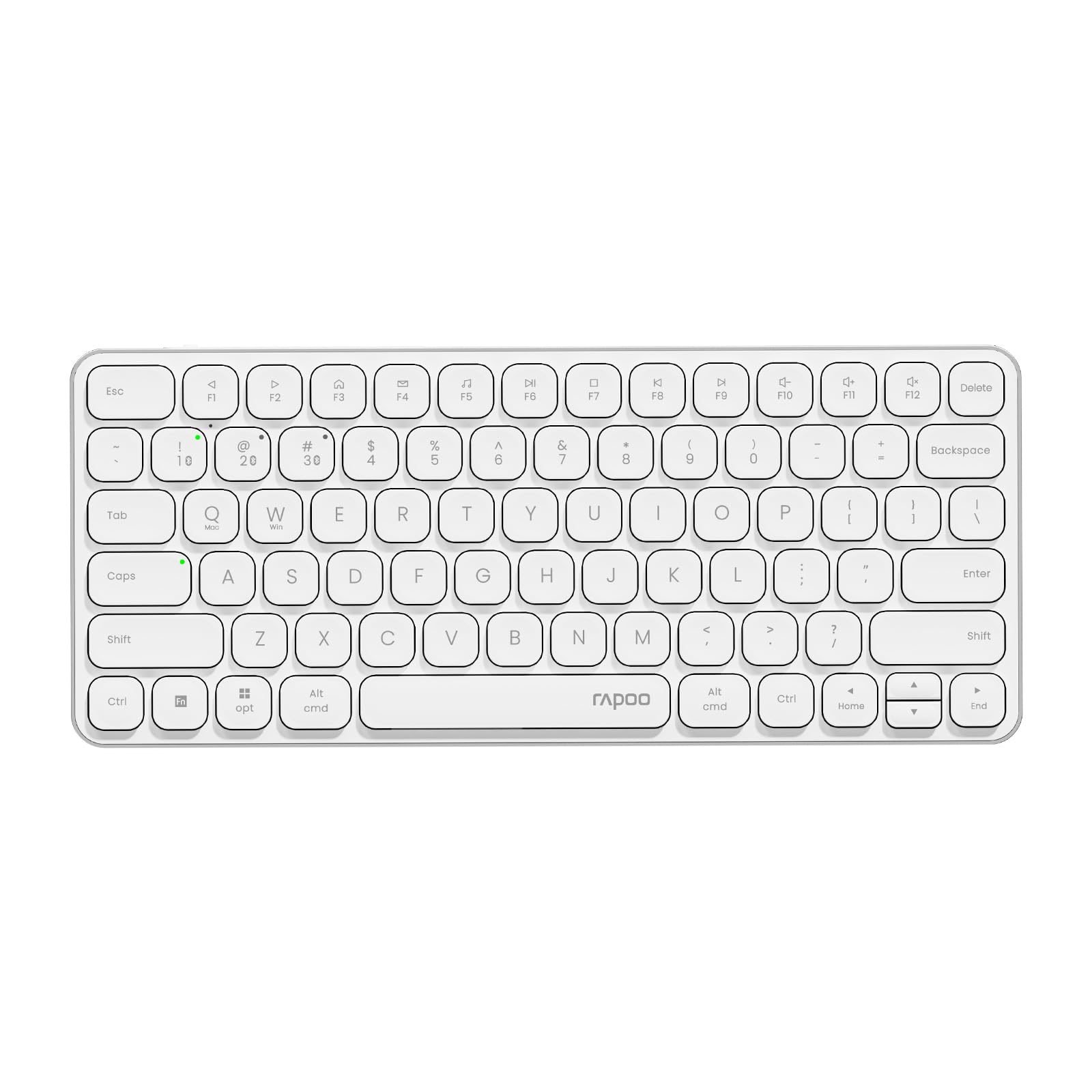
Image: The RAPOO E9050L Wireless Keyboard, showcasing su elegante diseño.
Configuración
Contenido del paquete
- RAPOO E9050L Wireless Keyboard
- Cable de carga USB-C
- Manual de usuario
Cargando el teclado
The E9050L features a built-in rechargeable battery. Before first use, fully charge the keyboard using the provided USB-C cable. A full charge can provide up to 90 days of continuous use. A quick 10-minute charge can provide enough power for one day of use.

Image: Diagram illustrating the rechargeable battery and charging indicators.
Connecting to Devices (Multi-Device & Multi-OS)
The keyboard supports wireless connection via 2.4GHz USB receiver or Bluetooth 5.0/4.0, allowing connection to up to 4 devices simultaneously. You can seamlessly switch between a notebook PC, desktop PC, tablet, or smartphone.

Image: Visual representation of multi-device and multi-OS connectivity options.
- Conexión inalámbrica de 2.4 GHz:
Inserte el receptor USB en un puerto USB disponible de su computadora. El teclado debería conectarse automáticamente. - Conexión Bluetooth:
Press and hold the Bluetooth pairing key (usually indicated by a Bluetooth icon or a specific Fn key combination) until the indicator light flashes. On your device (PC, tablet, smartphone), enable Bluetooth and search for "RAPOO E9050L". Select it to pair. - Cambiar entre dispositivos:
Use the dedicated device switching keys (e.g., Fn + 1, Fn + 2, Fn + 3, Fn + 4) to switch between your paired devices. The corresponding indicator light will show which device is currently active.

Image: Icons representing compatibility with various operating systems including Windows, Mac OS, Linux, iOS, Android, and Chrome OS.
Instrucciones de funcionamiento
Key Functions and Multimedia Hotkeys
The E9050L features a compact 78-key layout with 12 multimedia hotkeys for quick access to common functions like play/pause, volume control, and email. These functions are accessed by pressing the Fn tecla en combinación con las teclas F correspondientes (F1-F12).

Image: Diagram showing the multimedia hotkeys and their functions when used with the Fn key.
Cambio de sistema operativo
The keyboard supports dual system compatibility. To switch between Windows and Mac OS layouts, use the following key combinations:
- Para Windows: Presione Fn + W
- Para Mac OS: Presione Fn + Q
Luces indicadoras
The keyboard includes indicator lights for device connection, Caps Lock status, and battery level. These lights provide clear visual feedback on the keyboard's current state, addressing user feedback for improved clarity.

Imagen: Primer plano view of the device indicator lights and Caps Lock indicator.
Experiencia de mecanografía
The E9050L utilizes thin chiclet keycaps and a scissor-switch mechanism, providing a quiet and comfortable typing experience. The ultra-thin design (0.2 inches / 0.53 cm) reduces wrist strain, eliminating the need for a separate palm rest.

Imagen: Detallada view of the thin chiclet keycaps and scissor-switch mechanism.
Mantenimiento
To ensure the longevity and optimal performance of your RAPOO E9050L keyboard, follow these maintenance guidelines:
- Limpieza: Utilice un paño suave y sin pelusa ligeramente seco.ampened with water or a mild cleaning solution to wipe the keycaps and surface. Avoid harsh chemicals or abrasive materials.
- Eliminación de polvo: Utilice aire comprimido para eliminar el polvo y los residuos entre las teclas.
- Evite los líquidos: Do not expose the keyboard to excessive moisture or submerge it in liquids. In case of spills, immediately disconnect the keyboard and allow it to dry completely before reuse.
- Almacenamiento: Guarde el teclado en un lugar fresco y seco, alejado de la luz solar directa y de temperaturas extremas.
Solución de problemas
If you encounter issues with your RAPOO E9050L keyboard, refer to the following common solutions:
- El teclado no se conecta:
- Asegúrese de que el teclado esté cargado.
- Verify that the 2.4GHz USB receiver is properly inserted or that Bluetooth is enabled and paired on your device.
- Try re-pairing the Bluetooth connection or re-inserting the USB receiver.
- Ensure you are on the correct device channel (Fn + 1/2/3/4).
- Keys Not Responding or Delayed Response:
- Verifique el nivel de la batería; una batería baja puede afectar el rendimiento.
- Ensure the keyboard is within range of your device (for Bluetooth/2.4GHz).
- Interference from other wireless devices can cause issues; try moving closer to your device or away from other wireless sources.
- Reinicie su computadora o dispositivo.
- Incorrect Key Output (e.g., @ key types "):
- This often indicates an incorrect keyboard layout setting on your operating system. Ensure your device's keyboard settings match the US layout of the E9050L.
- Verify the correct OS mode is selected on the keyboard (Fn + W for Windows, Fn + Q for Mac).
- Caps Lock / Device Indicator Not Working:
- Asegúrese de que el teclado esté encendido y conectado.
- If the issue persists, try restarting the keyboard and your device.
Presupuesto
| Característica | Detalle |
|---|---|
| Marca | RAPOO |
| Número de modelo | E9050L |
| Dispositivos compatibles | Smartphones, Tablets, Notebook PCs, Desktop PCs |
| Tecnología de conectividad | Bluetooth, USB (2.4GHz) |
| Descripción del teclado | Integrado |
| Usos recomendados | Personal, Business, Student, Everyday Use |
| Características especiales | Ergonomic, Silent |
| Color | Blanco |
| Dimensiones del producto (L x An x Al) | 28.4 cm x 11.9 cm x 1.3 cm (11.18 pulgadas x 4.69 pulgadas x 0.51 pulgadas) |
| Material | Plastic (with aluminum frame) |
| Fuente de poder | Funciona con pilas (recargables) |
| Tipo de interruptor | Mecánico (interruptor de tijera) |
| Disposición del teclado | QWERTY (diseño de EE. UU.) |
| Sistemas operativos compatibles | Linux, Windows, Mac OS, iOS, Android, Chrome OS |
| Número de llaves | 78 |

Image: Diagram showing the precise dimensions of the RAPOO E9050L keyboard.
Garantía y soporte
Información de garantía
The RAPOO E9050L Wireless Keyboard comes with a Garantía del fabricante de 1 años A partir de la fecha de compra. Esta garantía cubre defectos de materiales y mano de obra en condiciones normales de uso. Conserve su comprobante de compra para reclamaciones de garantía.
Atención al cliente
For technical assistance, troubleshooting, or warranty inquiries, please contact RAPOO customer support through the official website or your retailer. Detailed contact information can typically be found on the product packaging or the RAPOO official support page.