
1. Introducción
This manual provides essential information for the proper setup, operation, and maintenance of your Veout 15.6-inch Portable Monitor. Please read these instructions thoroughly before using the product to ensure optimal performance and longevity.
2. Contenido del paquete
Verifique que todos los elementos enumerados a continuación estén presentes en el embalaje de su producto:
- 1 monitor portátil.
- 1 cable USB-A a USB-C
- 1 cable USB-C a USB-C
- 1 x cable mini HDMI a HDMI
- 1 x Manual de usuario

Figure 2.1: Included accessories with the portable monitor.
3. Producto terminadoview
The Veout portable monitor features a 15.6-inch IPS display with a slim profile and integrated kickstand for versatile use.
3.1. Características físicas

Figura 3.1: Frente view of the Veout 15.6-inch Portable Monitor.

Figura 3.2: Posterior view highlighting connectivity ports.

Figura 3.3: Perfil lateralfile demonstrating the monitor's thin design.
3.2. Puertos y controles
- Puertos USB-C con funciones completas: For video, audio, data, and power delivery with a single cable.
- Puerto Mini-HDMI: For video and audio input. Requires external power via USB-C when used.
- Conector de audio de 3.5 mm: Para conectar auriculares o altavoces externos.
- Control Wheel/Buttons: Used for adjusting volume, brightness, and navigating the On-Screen Display (OSD) menu.
3.3. Integrated Kickstand
The monitor features a foldable kickstand for stable positioning at various viewángulos de ing.
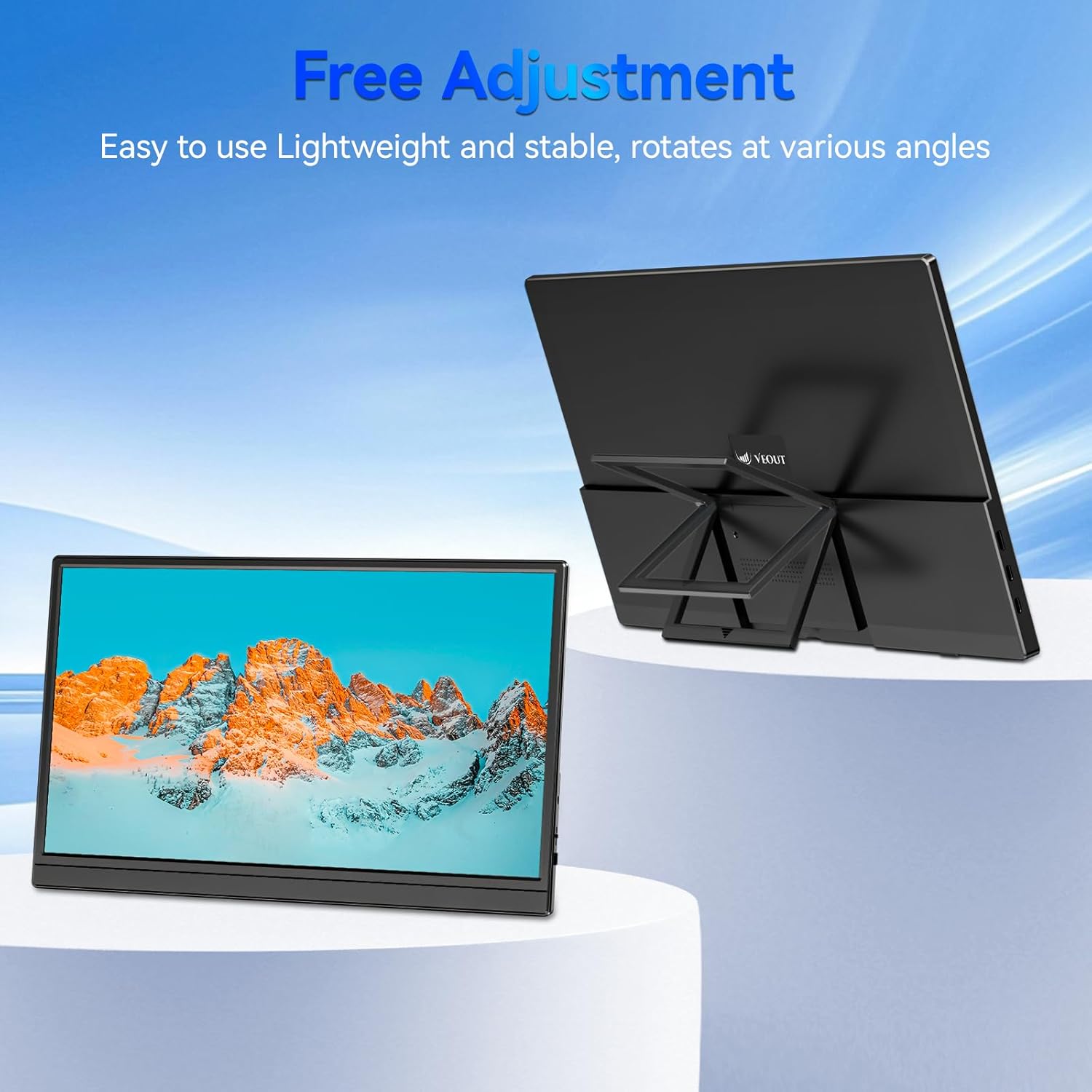
Figure 3.4: Monitor with kickstand for adjustable viewEn.
4. Configuración
The Veout portable monitor supports plug-and-play functionality, requiring no driver installation for most devices.
4.1. Conexión a un dispositivo
- Conexión USB-C (cable único):
- Connect one end of the USB-C to USB-C cable to a full-function USB-C port on your laptop, smartphone, or other compatible device.
- Connect the other end of the USB-C to USB-C cable to one of the full-function USB-C ports on the portable monitor.
- This connection provides video, audio, and power to the monitor.
- HDMI Connection (Requires Additional Power):
- Connect one end of the Mini-HDMI to HDMI cable to the Mini-HDMI port on the monitor.
- Connect the other end of the Mini-HDMI to HDMI cable to the HDMI port on your device.
- For power, connect the USB-A to USB-C cable or a USB-C to USB-C cable from your device's USB port or a power adapter (not included) to one of the monitor's USB-C ports.
4.2. Positioning the Monitor
Deploy the integrated kickstand to position the monitor on a flat surface. Adjust the angle for optimal viewing. The monitor can be used in both landscape and portrait orientations.

Figure 4.1: Monitor used in portrait mode for document viewEn.
5. Instrucciones de funcionamiento
5.1. Modos de visualización
Cuando esté conectado a una computadora, puede configurar el modo de visualización a través de la configuración de pantalla de su sistema operativo:
- Copy Mode (Mirror Display): Duplica el contenido de tu pantalla principal en el monitor portátil. Útil para presentaciones o para compartir contenido.
- Modo extendido: Extends your desktop across both screens, providing additional workspace for multitasking.
- Modo de segunda pantalla solamente: Displays content only on the portable monitor, with the primary device's screen turned off.
5.2. Ajuste de la configuración
The monitor features an intuitive control mechanism for quick adjustments:
- Ajuste de brillo: Scroll the control wheel up or down to instantly adjust screen brightness.
- Ajuste de volumen: Scroll the control wheel up or down to instantly adjust speaker volume.
- Menú OSD: Press the control wheel or designated button to access the On-Screen Display menu for advanced settings like color, contrast, and input source selection.
5.3. Tecnología para el cuidado ocular
The monitor incorporates advanced eye-care technology designed to reduce blue light emission and screen flicker, promoting comfortable viewing durante un uso prolongado.
6. Mantenimiento
To maintain your monitor's performance and appearance, follow these guidelines:
- Limpieza de la pantalla: Limpie suavemente la pantalla con un paño suave que no deje pelusa. Para manchas difíciles, limpie ligeramenteampEnjuague el paño con agua o una solución limpiadora de pantallas. Evite productos químicos agresivos o materiales abrasivos.
- Limpieza de la Casing: Utilice un paño suave y seco para limpiar el monitor.asing.
- Almacenamiento: When not in use, store the monitor in a cool, dry place, preferably in its original packaging or a protective sleeve.
- Evite los líquidos: Do not expose the monitor to excessive moisture or spill liquids directly onto it.
7. Solución de problemas
Si tiene problemas con su monitor, consulte los siguientes problemas y soluciones comunes:
| Problema | Posible causa | Solución |
|---|---|---|
| Sin pantalla/mensaje "Sin señal" | Conexión de cable incorrecta, potencia insuficiente, fuente de entrada incorrecta. | Ensure cables are securely connected. If using HDMI, ensure a separate power source is connected to the monitor's USB-C port. Check your device's display settings to ensure the monitor is detected and enabled. Select the correct input source via the OSD menu. |
| Pantalla parpadeante | Loose cable connection, incompatible resolution/refresh rate, power fluctuations. | Reconnect cables. Adjust display resolution or refresh rate on your connected device. Ensure stable power supply. |
| No hay sonido en los altavoces del monitor | Monitor volume too low, incorrect audio output selected on device. | Increase monitor volume using the control wheel. On your connected device, ensure the portable monitor is selected as the audio output device. |
| El monitor no enciende | Sin fuente de alimentación, cable defectuoso. | Ensure the monitor is receiving power via a USB-C connection from a compatible device or power adapter. Try a different USB-C cable. |
8. Especificaciones
| Característica | Detalle |
|---|---|
| Número de modelo del producto | Veout-15.6 |
| Tamaño de pantalla | 15.6 pulgadas |
| Resolución | 1920 x 1080 píxeles (FHD 1080p) |
| Relación de aspecto | 16:9 |
| Tipo de panel | IPS |
| Superficie de la pantalla | Mate |
| Dimensiones del producto | 1.97 x 13.78 x 11.02 pulgadas |
| Peso del artículo | 3.08 libras |
| Vol de entradatage | 5V |
| Corriente nominal | 3A |
| Potencia de salida | 5.5 W |
| Fabricante | Guangdong Zhanwei electronic Technology Co., LTD |

Figure 8.1: Product information and certification details.
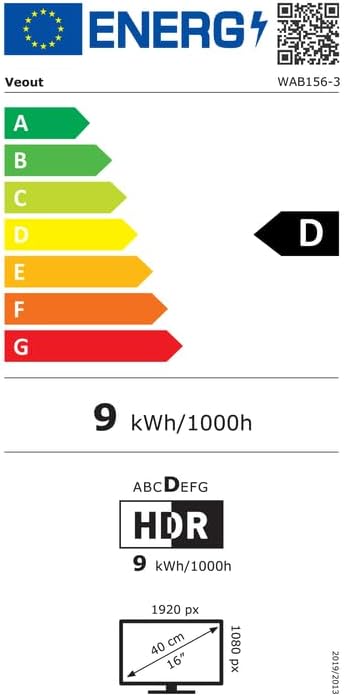
Figure 8.2: EU Energy Label for model WAB156-3. For more details, visit eprel.ec.europa.eu/qr/2209122.
9. Garantía y soporte
Your Veout Portable Monitor is backed by a 12-month warranty from the date of purchase. We are committed to providing customer service and support.
- Periodo de garantía: 12 meses
- Política de devoluciones: Garantía de devolución de dinero de 30 días
- Servicio al cliente: Disponible las 24 horas

Figura 9.1: Información de garantía y soporte.
For technical assistance or warranty claims, please contact Veout customer support at soporte@veout.com.