
Xbox EP2-29563
Xbox Wireless Controller Storm Breaker Special Edition
Modelo: EP2-29563
Marca: Xbox
Introducción
The Xbox Wireless Controller Storm Breaker Special Edition is designed to provide an enhanced gaming experience across multiple platforms. This controller features a unique aesthetic with classic grays and blacks, offset with whites, along with textured grips for improved handling. It offers seamless connectivity and customizable controls to optimize your gameplay.
Características principales
- Storm Breaker Special Edition Design: Features a distinctive gray, black, and white pattern.
- Textured Triggers: Provides enhanced grip and control during gameplay.
- Empuñaduras de goma: Located on the back cases for secure handling.
- Wireless & Bluetooth Connectivity: Easily pairs with Xbox consoles, PCs, and mobile devices.
- Botón de compartir: Seamlessly capture and share screenshots and game recordings.
- Asignación de botones personalizable: Personalize controls using the Xbox Accessories app.
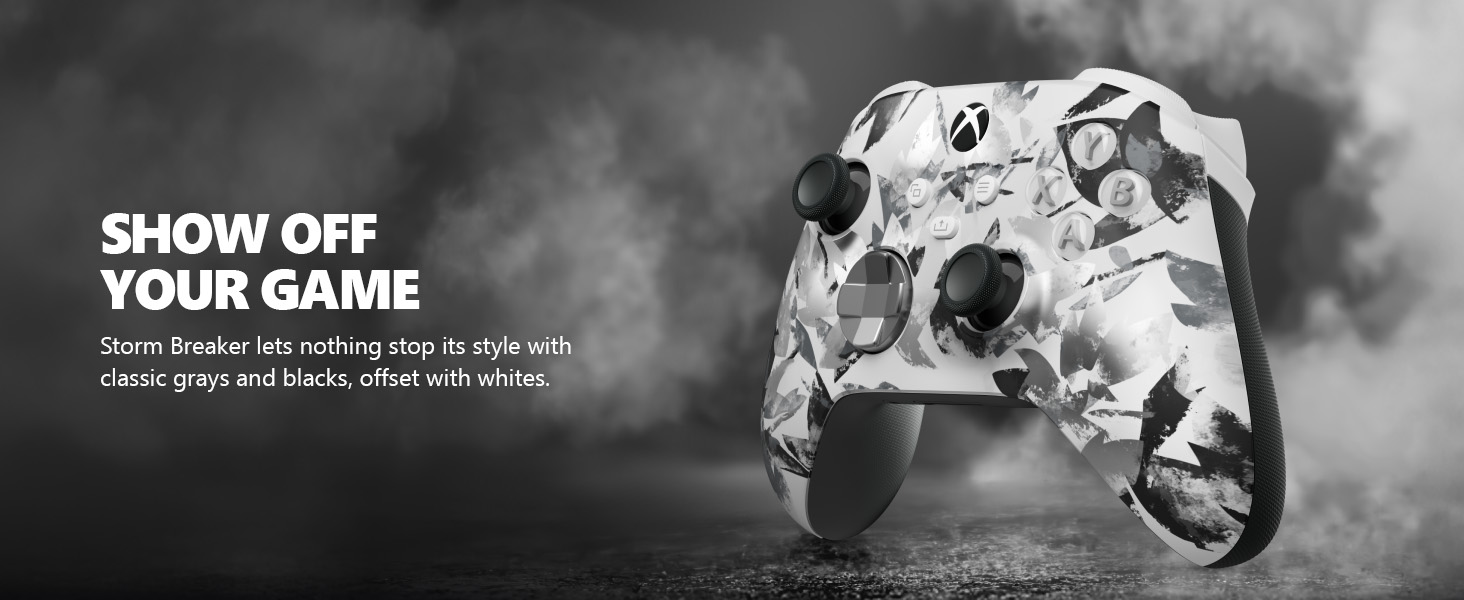
Image: The Xbox Wireless Controller Storm Breaker Special Edition showcasing its distinctive color scheme.
Configuración
1. Instalación de la batería
The controller requires two AA batteries (included). To install:
- Localice el compartimento de la batería en la parte posterior del controlador.
- Press the small tab and lift the battery cover.
- Inserte las dos pilas AA, asegurándose de la polaridad correcta (+ y -).
- Vuelva a colocar la tapa de la batería hasta que encaje en su lugar.
2. Emparejamiento con dispositivos
The controller supports both Xbox Wireless and Bluetooth for versatile connectivity.
- For Xbox Console:
- Enciende tu consola Xbox.
- Press the Xbox button on your controller to turn it on.
- Mantenga presionado el botón Emparejar (⏚) on the top of the controller until the Xbox button flashes rapidly.
- Press the Pair button on your Xbox console (usually near the USB port or on the front).
- The Xbox button on the controller will become solid when connected.
- For PC (Windows 10/11) via Bluetooth:
- Asegúrese de que su PC tenga Bluetooth habilitado.
- Press the Xbox button on your controller to turn it on.
- Mantenga presionado el botón Emparejar (⏚) on the top of the controller until the Xbox button flashes rapidly.
- En su PC, vaya a Configuración > Dispositivos > Bluetooth y otros dispositivos.
- Seleccione “Agregar Bluetooth u otro dispositivo” y luego “Bluetooth”.
- Choose "Xbox Wireless Controller" from the list and follow on-screen prompts.
- Para dispositivos móviles (Android/iOS):
- Habilite Bluetooth en su dispositivo móvil.
- Press the Xbox button on your controller to turn it on.
- Mantenga presionado el botón Emparejar (⏚) on the top of the controller until the Xbox button flashes rapidly.
- On your mobile device, search for Bluetooth devices and select "Xbox Wireless Controller" to pair.
Vídeo: Un overview of the Xbox Wireless Controller, demonstrating its physical features and ports, useful for understanding setup.
Operar el controlador
1. Controles básicos
- Joysticks: Úselo para el movimiento y el control de la cámara.
- Almohadilla direccional: Ideal for precise directional input in games and menu navigation.
- Botones A, B, X, Y: Primary action buttons for in-game commands.
- Gatillos (LT/RT) y parachoques (LB/RB): Used for various actions like shooting, accelerating, or menu selection.
2. Botón para compartir
The dedicated Share button (⤓) allows you to quickly capture and share your gaming moments:
- Press once to take a screenshot.
- Press and hold to record the last 30 seconds of gameplay.
3. Toma de auriculares
A 3.5mm audio jack is located at the bottom of the controller, allowing you to connect compatible headsets for in-game audio and chat.
4. Customization with Xbox Accessories App
Download the Xbox Accessories app on your Xbox console or Windows PC to customize button mapping and create personalized controller profiles.
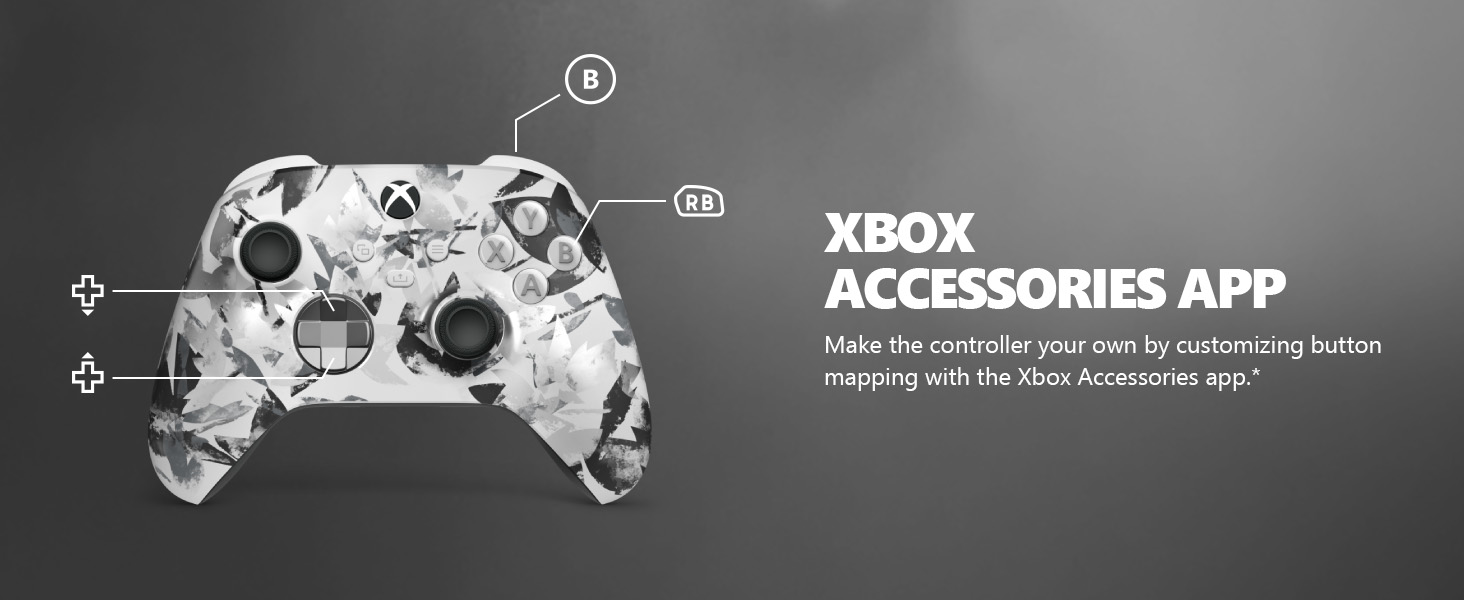
Image: The Share button and an illustration of button mapping customization via the Xbox Accessories app.
Mantenimiento
- Limpieza: Utilice un paño suave y seco para limpiar el mando. Evite limpiadores abrasivos o disolventes.
- Cuidado de la batería: Retire las baterías si el controlador no se utilizará durante un período prolongado para evitar fugas.
- Almacenamiento: Guarde el controlador en un lugar fresco y seco, alejado de la luz solar directa y de temperaturas extremas.
Solución de problemas
- El controlador no se conecta:
- Asegúrese de que las baterías estén correctamente instaladas y cargadas.
- Vuelva a intentar el proceso de emparejamiento como se describe en la sección Configuración.
- Compruebe si hay interferencias de otros dispositivos inalámbricos.
- Update controller firmware via the Xbox Accessories app.
- Los botones no responden:
- Limpie alrededor de los botones para eliminar cualquier residuo.
- Test the controller with another device or game to isolate the issue.
- Duración corta de la batería:
- Utilice pilas AA nuevas y de alta calidad.
- Consider using a rechargeable battery pack (sold separately) for extended play.
Presupuesto
| Característica | Detalle |
|---|---|
| Número de modelo | EP2-29563 |
| Conectividad | Xbox inalámbrico, Bluetooth |
| Compatibilidad | Xbox Series X|S, Xbox One, Windows 10/11, Android, iOS |
| Fuente de poder | 2 pilas AA (incluidas) |
| Puerto de audio | Conector para auriculares de 3.5 mm |
| Dimensiones | 6.91 x 5.61 x 2.76 pulgadas |
| Peso | 14.1 onzas |
| Fabricante | Microsoft |
Garantía y soporte
For warranty information and technical support, please refer to the documentation included with your product or visit the official Xbox support webSitio. Conserve su comprobante de compra para reclamaciones de garantía.
Soporte en línea: soporte.xbox.com
Ask a question about this manual
Ask about setup, troubleshooting, compatibility, parts, safety, or missing instructions. Manuals+ will review the question and use this page’s manual context to help answer it.