
Phanteks G400A
Manual del usuario del chasis de torre media ATX Phanteks Eclipse G400A
Model: G400A | Brand: Phanteks
Introducción
The Phanteks Eclipse G400A is a high-performance ATX Mid-Tower computer case designed for optimal airflow and component compatibility. Featuring a tempered glass side panel and pre-installed D-RGB fans, it offers both aesthetic appeal and efficient cooling. This manual provides detailed instructions for setting up, operating, maintaining, and troubleshooting your Eclipse G400A case.

Figure 1: Phanteks Eclipse G400A ATX Mid-Tower Computer Case (White)
Guía de configuración
1. Desembalaje e inspección
Carefully remove the computer case from its packaging. Inspect the case for any signs of damage during transit. Ensure all accessories, including screws, cable ties, and the user manual, are present.
2. Instalación de componentes
The Eclipse G400A is designed for easy installation of your PC components. Follow these general steps:
- Instalación de la placa base: Install your ATX motherboard onto the pre-installed standoffs. Ensure proper alignment and secure it with screws. The case supports rear-side connector mainboards for a cleaner build.
- Instalación de la unidad de fuente de alimentación (PSU): Install your PSU into the dedicated compartment at the bottom rear of the case. The case supports PSUs up to 270mm in length.
- Instalación de la unidad de almacenamiento: The case supports 2x 2.5" SSDs and 2x 3.5" HDDs. Utilize the dedicated storage brackets and cable management tray for a clean setup.

Figure 2: Internal layout with highlighted storage and cable management areas
- Instalación de la tarjeta gráfica (GPU): Install your graphics card into the appropriate PCIe slot. The case supports large GPU cards and includes triple mid-plate 120mm fan locations for direct GPU cooling.
- Instalación de radiador y ventilador: The case comes with 4x M25-140 Gen2 D-RGB fans pre-installed. It offers dedicated 360mm radiator support in the top without restrictions.
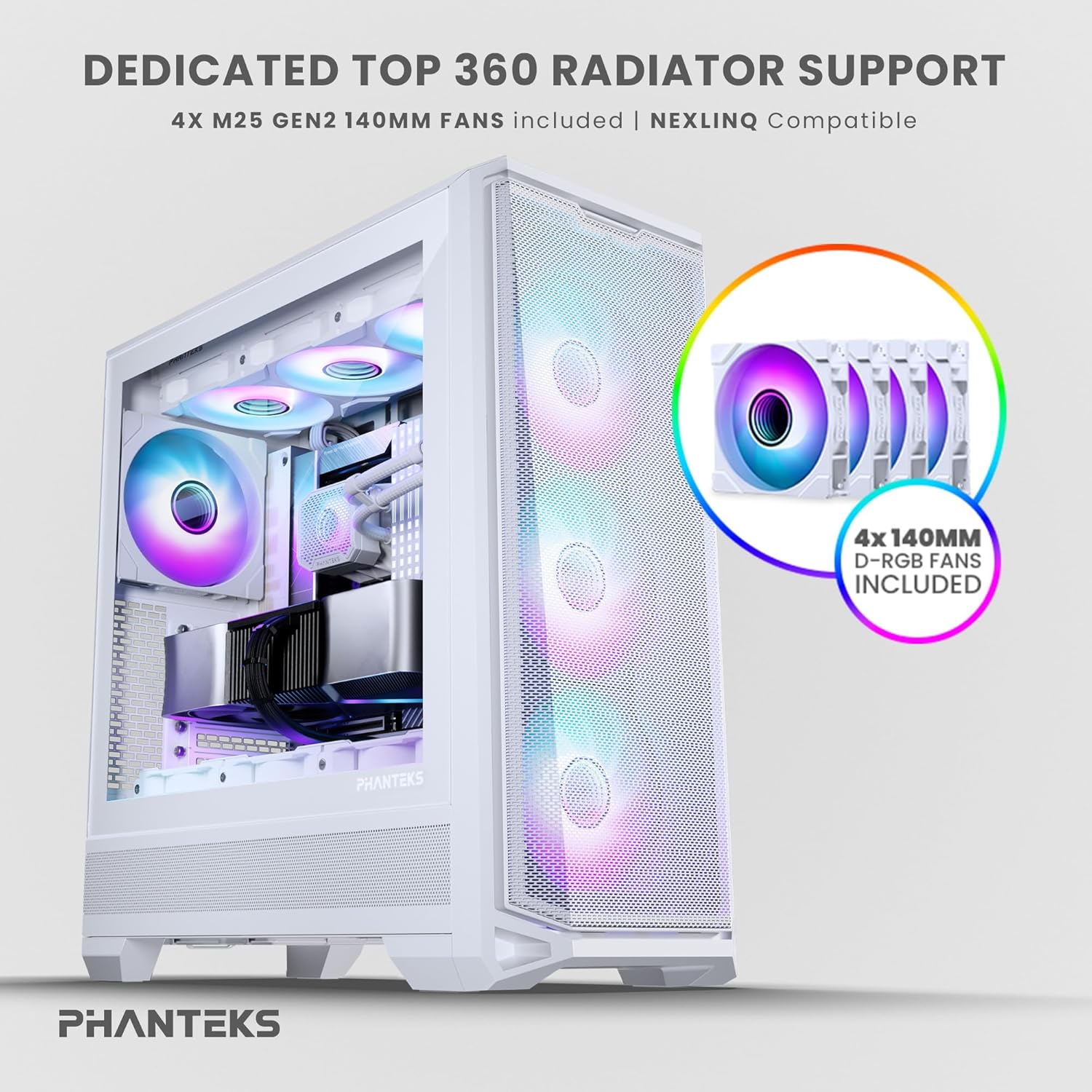
Figure 3: Top radiator support and pre-installed 140mm D-RGB fans

Figure 4: Dedicated 120mm fan positions for direct GPU cooling
3. Gestión de cables
Utilize the dedicated cable management tool and Velcro ties provided to route and secure cables behind the motherboard tray. This ensures optimal airflow and a clean interior.
Instrucciones de funcionamiento
1. Encendido
After connecting all internal components and external peripherals, connect the power cable to your PSU and a wall outlet. Press the power button located on the top I/O panel of the case to power on your system.

Figura 5: Disposición del panel de E/S frontal
2. Control de iluminación RGB
The pre-installed M25-140 Gen2 D-RGB fans feature addressable RGB lighting. Control the lighting effects through your motherboard's RGB software (if compatible with D-RGB/ARGB) or a dedicated Phanteks RGB controller (sold separately).
Mantenimiento
1. Limpieza
La limpieza regular ayuda a mantener un rendimiento óptimo y prolonga la vida útil de sus componentes.
- Filtros de polvo: The Eclipse G400A features ultra-fine performance mesh panels on the top, left, and right sides, acting as dust filters. Regularly remove and clean these filters using compressed air or a soft brush to prevent dust buildup.
- Exterior: Limpie las superficies exteriores con un paño suave, damp Paño. Evite limpiadores abrasivos o disolventes.

Figure 6: Removable front mesh panel and dust filter for easy cleaning

Figure 7: Disassembled panels demonstrating airflow and access for cleaning
2. Optimización del flujo de aire
Ensure cables are neatly managed to avoid obstructing airflow. Periodically check fan operation to ensure they are spinning freely and quietly.
Solución de problemas
- El sistema no se enciende:
- Check all power connections, including the PSU to wall outlet, PSU to motherboard (24-pin and CPU 8-pin), and front panel power switch header.
- Asegúrese de que el interruptor de la fuente de alimentación esté en la posición "ENCENDIDO".
- Los ventiladores no giran / La iluminación RGB no se enciende:
- Verify fan and RGB cables are correctly connected to the motherboard headers or a dedicated RGB controller.
- Verifique la configuración del BIOS/UEFI de la placa base para el control del ventilador y la configuración RGB.
- Flujo de aire deficiente / Altas temperaturas:
- Clean all dust filters and fans.
- Ensure proper cable management to avoid airflow obstruction.
- Verify fan orientation (intake/exhaust) for optimal airflow path.
Especificaciones técnicas
| Característica | Especificación |
|---|---|
| Marca | Fantasmas |
| Nombre del modelo | Eclipse G400A |
| Tipo de caso | Torre Media |
| Color | Blanco |
| Material | Acero inoxidable, vidrio templado |
| Dimensiones (LxAnxAl) | 49.48 x 22.99 x 52.20 cm (19.48" de profundidad x 9.05" de ancho x 20.55" de alto) |
| Peso del artículo | 19 libras (8.62 kg) |
| Ventiladores preinstalados | 4x M25-140 Gen2 D-RGB 140mm Fans |
| Soporte del radiador | Hasta 360 mm (superior) |
| Soporte de almacenamiento | 2 SSD de 2.5", 2 discos duros de 3.5" |
| E/S frontal | USB-C 3.2 Gen 2, 2x USB 3.0, Audio/Microphone, Power Button, Reset Button |
Garantía y soporte
Phanteks products are manufactured to the highest quality standards. For warranty information and technical support, please refer to the official Phanteks webSitio web o contacte directamente con el servicio de atención al cliente. Conserve su comprobante de compra para reclamaciones de garantía.
For further assistance, visit the official Phanteks support page: www.phanteks.com/support.html
Ask a question about this manual
Ask about setup, troubleshooting, compatibility, parts, safety, or missing instructions. Manuals+ will review the question and use this page’s manual context to help answer it.