
1. Introducción
This manual provides detailed instructions for the setup, operation, maintenance, and troubleshooting of your Jectse WiFi 6 4G/5G CPE LTE Router. Please read this manual carefully before using the device to ensure optimal performance and safety.
Características principales:
- Rendimiento alto: Connects up to 32 devices simultaneously, covering an area of approximately 300 square meters. Ideal for home or small office environments.
- Comprehensive 4G LTE Support: Compatible with a wide range of 4G LTE bands including FDD (B1, 3, 5, 7, 8, 20), TDD (B38, 40, 41), and WCDMA (B1, 5, 8), ensuring stable connectivity across various network providers.
- 6 Antenna Design: Equipped with six antennas for enhanced signal coverage and faster network speeds, providing a stable and consistent internet experience.
- Fast Internet Speeds: Achieves 4G download speeds up to 150 Mbps, upload speeds up to 50 Mbps, and wireless transfer rates up to 300 Mbps for smooth streaming, gaming, and browsing.
- Fácil configuración: Simply insert a standard SIM card to convert 4G LTE into a WiFi hotspot, allowing multiple devices to connect without complex installations.
2. Contenido del paquete
Por favor revise el paquete para ver los siguientes artículos:
- Jectse WiFi 6 4G/5G CPE LTE Router
- Adaptador de corriente
- Cable Ethernet
- Manual de usuario (este documento)

Image: Package contents including the router, power adapter, and Ethernet cable.
3. Producto terminadoview
Frontal y Superior View:
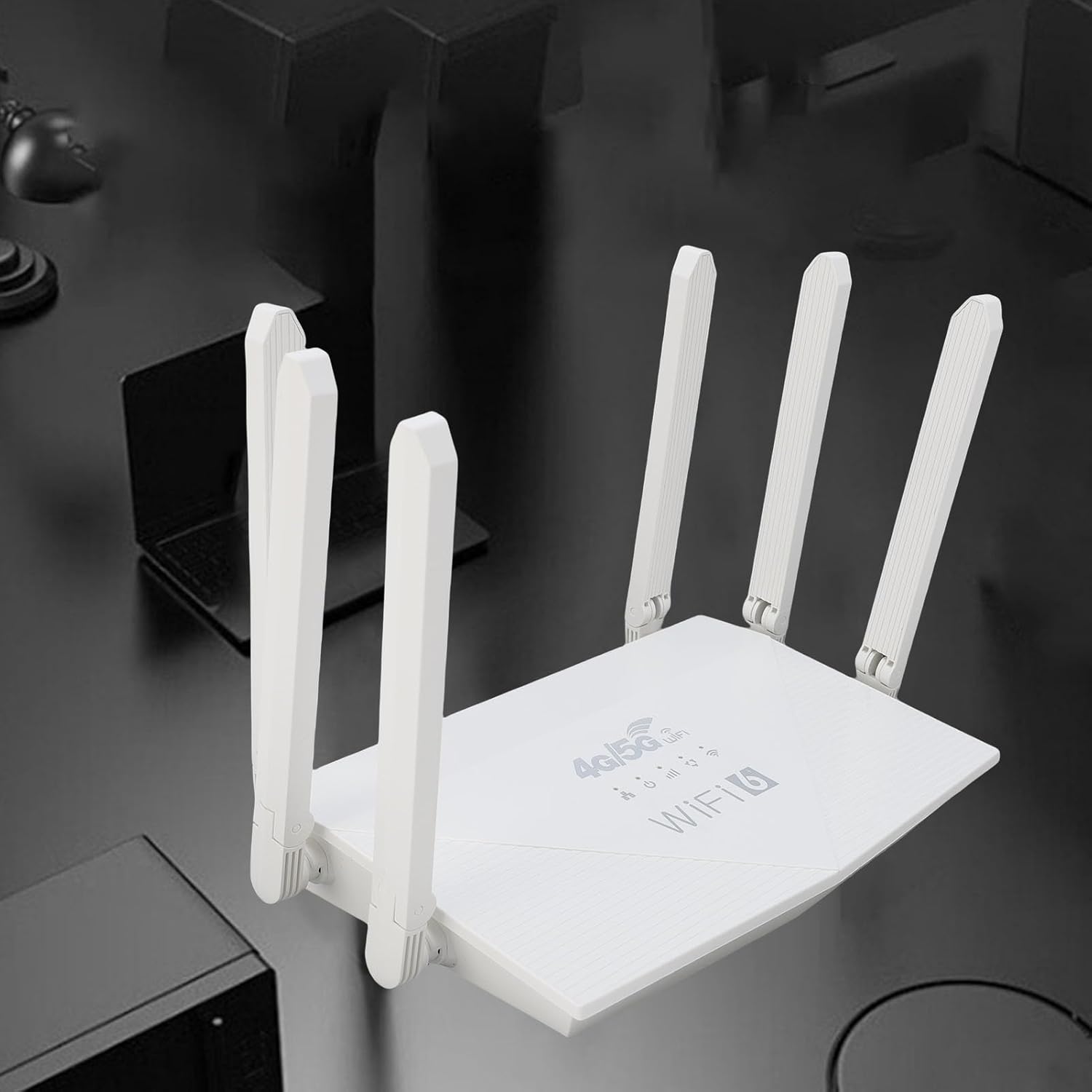
Imagen: Arriba view of the router, showing the '4G/5G LTE WiFi 6' branding and six external antennas.
Panel trasero y puertos:

Imagen: Trasera view of the router, displaying the various ports and antenna connections.
- Botón de reinicio: Se utiliza para restaurar la configuración de fábrica.
- Puerto Tipo-C: For power input (if applicable, check power adapter type).
- Puerto de alimentación: Entrada de alimentación de CC.
- Ranura para tarjeta SIM: For inserting a standard 4G/5G SIM card.
- ETH1-ETH4 Ports: Four Ethernet LAN ports for wired connections.

Image: Close-up of the reset button, Type-C port, power port, and SIM card slot.

Image: Close-up of the four Ethernet LAN ports (ETH1, ETH2, ETH3, ETH4).
Bottom Label:
The bottom label contains important information such as the default WiFi name, WiFi key, IP address, and login credentials.

Image: Bottom label of the router with essential network details.
4. Instrucciones de configuración
- Insertar tarjeta SIM: Locate the SIM card slot on the rear panel. Gently insert a standard-sized 4G/5G SIM card until it clicks into place. Ensure the SIM card is correctly oriented.
- Conecte la electricidad: Connect the provided power adapter to the router's power port and then plug the adapter into a power outlet.
- Encendido: The router will automatically power on. Wait for the indicator lights to stabilize, which typically takes a few minutes.
- Conectar dispositivos:
- Conexión inalámbrica: On your device (smartphone, tablet, laptop), search for available Wi-Fi networks. Select the network name (SSID) found on the router's bottom label. Enter the default Wi-Fi key (password) also found on the label.
- Conexión por cable: Connect one end of the Ethernet cable to any of the ETH1-ETH4 ports on the router and the other end to the Ethernet port on your computer or other wired device.
- Acceso Web Interfaz (opcional): Abrir una web browser and enter the default IP address (e.g., 192.168.0.1) found on the bottom label. Use the default username and password (e.g., admin/admin) to log in and configure advanced settings.
5. Instrucciones de funcionamiento
Conexión a la red:
Once the router is powered on and the SIM card is active, your devices can connect to the internet:
- Wifi: Use the SSID and password printed on the router's bottom label to connect your wireless devices.
- Ethernet: Connect devices directly to the ETH ports for a stable wired connection.
Administrar la configuración del enrutador:
To customize your network, such as changing the Wi-Fi name or password, or configuring advanced features:
- Asegúrese de que su dispositivo esté conectado al enrutador (a través de Wi-Fi o Ethernet).
- Abrir una web navegador e ingrese la dirección IP del enrutador (por ejemplo, 192.168.0.1).
- Log in using the username and password from the bottom label.
- Navegue por la interfaz para ajustar la configuración según sea necesario.
6. Mantenimiento
- Limpieza: Mantenga el router limpio y sin polvo. Utilice un paño suave y seco. No utilice limpiadores líquidos.
- Ventilación: Asegúrese de que el router esté ubicado en un área bien ventilada para evitar el sobrecalentamiento. No cubra los orificios de ventilación.
- Actualizaciones de firmware: Revise periódicamente las instrucciones del fabricante. webSitio para actualizaciones de firmware. Mantener el firmware de tu router actualizado puede mejorar el rendimiento y la seguridad.
- Reiniciando: Si experimenta problemas de red, intente reiniciar el enrutador desenchufando el adaptador de corriente, esperando 10 segundos y volviéndolo a enchufar.
7. Solución de problemas
Sin conexión a Internet:
- Compruebe si la tarjeta SIM está correctamente insertada y activa.
- Verify that the router's indicator lights are stable.
- Reinicie el enrutador y el dispositivo conectado.
- Asegúrese de que su tarjeta SIM tenga un plan de datos activo.
- Acceder al enrutador web interface to check the network status and APN settings.
Velocidades lentas de Internet:
- Asegúrese de que el enrutador esté ubicado en un área abierta, lejos de obstrucciones y fuentes de interferencia.
- Reducir la cantidad de dispositivos conectados o actividades que consumen mucho ancho de banda.
- Check your 4G/5G signal strength in the router's web interfaz.
- Contact your mobile network provider to inquire about network congestion or data plan limits.
No se puede acceder a la configuración del enrutador:
- Asegúrese de que su dispositivo esté conectado a la red del enrutador.
- Verify you are entering the correct IP address (e.g., 192.168.0.1) in your browser.
- Confirm the username and password are correct (check the bottom label).
- Prueba una opción diferente web navegador o borre el caché de su navegador.
- If all else fails, perform a factory reset by pressing the reset button for 5-10 seconds (note: this will erase all custom settings).
8. Especificaciones
| Característica | Descripción |
|---|---|
| Marca | Inyección |
| Número de modelo | Jectse7yitc28aer |
| Color | Blanco |
| Sistema operativo | Sistema operativo RouterOS |
| Tecnología de conectividad | LTE, Wi-Fi |
| Características especiales | Integrated firewall, full 4G LTE support, fast internet speeds |
| Dispositivos compatibles | Smartphone, tablet, computer |
| Clase de banda de frecuencia | banda única |
| Estándar de comunicación inalámbrica | 802.11b, 802.11g, 802.11n |
| Usos recomendados | Hogar, Profesional |
| Velocidad de descarga 4G | Hasta 150 Mbps |
| Velocidad de subida 4G | Hasta 50 Mbps |
| Wireless Transfer Rate | Hasta 300 Mbps |
| Máximo de dispositivos conectados | 32 |
| Área de cobertura | 300㎡ |
| Bandas LTE compatibles | FDD (B1, 3, 5, 7, 8, 20), TDD (B38, 40, 41), WCDMA (B1, 5, 8) |
| Antenas | 6 Antenas externas |
9. Garantía y soporte
Información de garantía:
This Jectse router comes with a Garantía del fabricante de 2 añosConserve su comprobante de compra para reclamaciones de garantía. La garantía cubre defectos de materiales y mano de obra en condiciones normales de uso.
Atención al cliente:
If you encounter any issues or have questions not covered in this manual, please contact Jectse customer support or your retailer for assistance. You may find contact information on the product packaging or the official Jectse websitio.