
1. Introducción
Thank you for choosing the Rapoo VT7 Wireless Gaming Mouse. This manual provides essential information for setting up, operating, and maintaining your new gaming mouse. Designed for high performance, the VT7 offers advanced features for an optimal gaming and work experience.
2. ¿Qué hay en la caja?
- 1 ratón inalámbrico para juegos
- 1 x cable tipo C
- 1 x adaptador USB
- 1 x Adhesivo antideslizante
- 1 x Pies de ratón de PTFE de repuesto

Imagen: The Rapoo VT7 Wireless Gaming Mouse shown with its included accessories: a Type-C cable, USB adapter, anti-slip sticker, and replacement PTFE mouse feet.
3. Producto terminadoview
The Rapoo VT7 Wireless Gaming Mouse is engineered for precision and comfort, featuring a lightweight design and advanced technology to enhance your performance.

Imagen: Two Rapoo VT7 Wireless Gaming Mice, one white and one black, highlighting their sleek design and performance focus.

Imagen: The white Rapoo VT7 mouse emphasizing its 53g ultra-lightweight design, optimized for comfort and accuracy.

Imagen: A hand holding the white Rapoo VT7 mouse, illustrating its ambidextrous ergonomic form, balanced for swift and precise movements.

Imagen: Un detallado view of the Rapoo VT7 mouse's mechanical switch, highlighting its 100-million click lifespan for crisp feedback and durability.

Imagen: The white Rapoo VT7 mouse showcasing its true 8K wireless polling rate capability, offering top-tier responsiveness without extra dongles.

Imagen: The white Rapoo VT7 mouse highlighting its impressive battery life of up to 750 hours, enabled by ultra-low-power wireless technology.
4. Configuración
4.1. Conexión inalámbrica (2.4 GHz)
- Locate the USB adapter inside the mouse's bottom compartment.
- Plug the USB adapter into an available USB port on your computer.
- Encienda el mouse usando el interruptor de encendido en la parte inferior.
- Su computadora debería detectar e instalar automáticamente los controladores necesarios.
4.2. Conexión por cable
- Connect the Type-C cable to the mouse's front port.
- Conecte el otro extremo del cable tipo C a un puerto USB disponible en su computadora.
- El ratón funcionará inmediatamente en modo cableado y también se cargará.
5. Instrucciones de funcionamiento
5.1. Ajuste de DPI
The Rapoo VT7 features 26K independent X/Y DPI for precise tracking. Use the DPI +/- buttons on the mouse to switch between sensitivity levels on-the-fly. You can customize these settings further using the A Hub software.
5.2. Botones programables
The mouse is equipped with 10 programmable buttons. These buttons can be customized for macros or specific functions using the A Hub software. Settings can be saved to the onboard memory for use across different devices.
5.3. Tasa de sondeo
Experience a true 8000Hz wireless polling rate for minimal lag and fast reactions, ideal for competitive gaming environments.
6. Carga
The Rapoo VT7 is equipped with a long-lasting internal rechargeable battery. To charge the mouse:
- Conecte el cable tipo C provisto al puerto de carga del mouse.
- Conecte el otro extremo del cable a una fuente de alimentación USB (por ejemplo, puerto USB de computadora o adaptador de pared USB).
- The mouse supports wireless charging (P5 Wireless Charging Dock sold separately).
A full charge can provide up to 750 hours of battery life at 1000Hz, thanks to the integrated Nordic nRF54L15 MCU for ultra-low-power wireless technology.
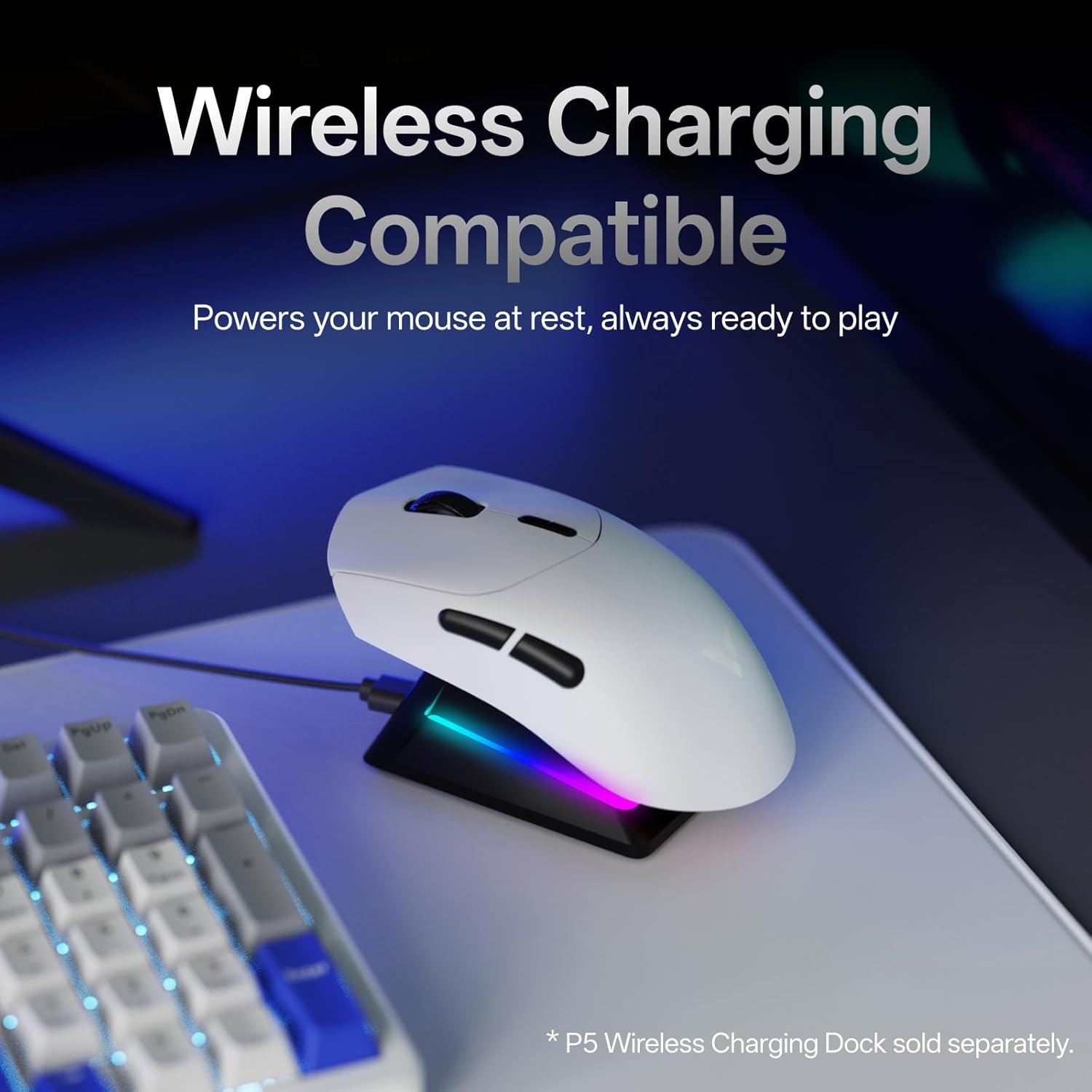
Imagen: The white Rapoo VT7 mouse resting on a wireless charging dock, demonstrating its wireless charging compatibility.
7. A Hub Software
Rapoo provides the "A Hub" driver software for Windows and Mac OS users to unlock the full potential of the VT7 mouse. This software allows you to:
- Customize programmable buttons and macros.
- Adjust DPI settings, including independent X/Y-axis DPI.
- Manage mouse rotation adjustments.
- Utilize onboard memory to save profiles for seamless use across different devices and operating systems.

Imagen: Multiple screenshots of the Rapoo A Hub software interface, showing options for button programming, DPI settings, and other advanced customizations.

Imagen: A screenshot from the A Hub software displaying the DPI settings interface with adjustable X and Y axis sliders.

Imagen: A screenshot from the A Hub software illustrating the key programming interface, allowing users to assign functions and macros to mouse buttons.

Imagen: A screenshot from the A Hub software showing the sensor angle adjustment feature, allowing fine-tuning of mouse movement based on grip style.

Imagen: A screenshot from the A Hub software displaying options for RF strategy, a battery life calculator, and various polling rate selections.
8. Especificaciones
| Característica | Detalle |
|---|---|
| Número de modelo | VT7 |
| Dimensiones del producto | 5.01 x 2.53 x 0.1 pulgadas |
| Peso del artículo | 1.87 onzas (53 g) |
| Batería | 1 Nonstandard Battery (included), up to 750 hours life |
| Tecnología de conectividad | Radio Frequency (2.4GHz Wireless), USB (Wired) |
| Detección de movimiento | Óptico |
| Tasa de sondeo | True 8K Wireless Polling Rate |
| DPI | Up to 26K Independent X/Y DPI |
| Interruptores | 100-Million Mechanical Switch |
| Botones programables | 10 |
| Software | A Hub for Windows & Mac OS (with onboard memory) |
| Color | Blanco |
| Fabricante | Tecnología Co., Ltd. de Shenzhen Rapoo |
9. Solución de problemas
9.1. El ratón no responde
- Asegúrese de que el mouse esté encendido.
- For wireless mode, check if the USB adapter is securely plugged into the computer. Try a different USB port.
- Para el modo cableado, asegúrese de que el cable Tipo C esté conectado de forma segura tanto al mouse como a la computadora.
- Comprueba el nivel de batería. Si está baja, carga el ratón.
9.2. DPI/Button Customization Issues
- Ensure the A Hub software is installed and up-to-date.
- Restart the software and try applying settings again.
- Refer to the software's help section for detailed customization guides.
10. Garantía y soporte
The Rapoo VT7 Wireless Gaming Mouse comes with a manufacturer's warranty. For detailed warranty information, technical support, or service inquiries, please visit the official Rapoo websitio o comuníquese con su servicio de atención al cliente.
Manufacturer: Shenzhen Rapoo Technology Co., Ltd.