
1. Introducción
This manual provides detailed instructions for the installation, operation, and maintenance of the BSEED Smart Wi-Fi Energy Meter, model SPM01-U2EW. This device is designed to accurately measure energy consumption and generation in single-phase electrical circuits, offering smart monitoring capabilities through compatible mobile applications.
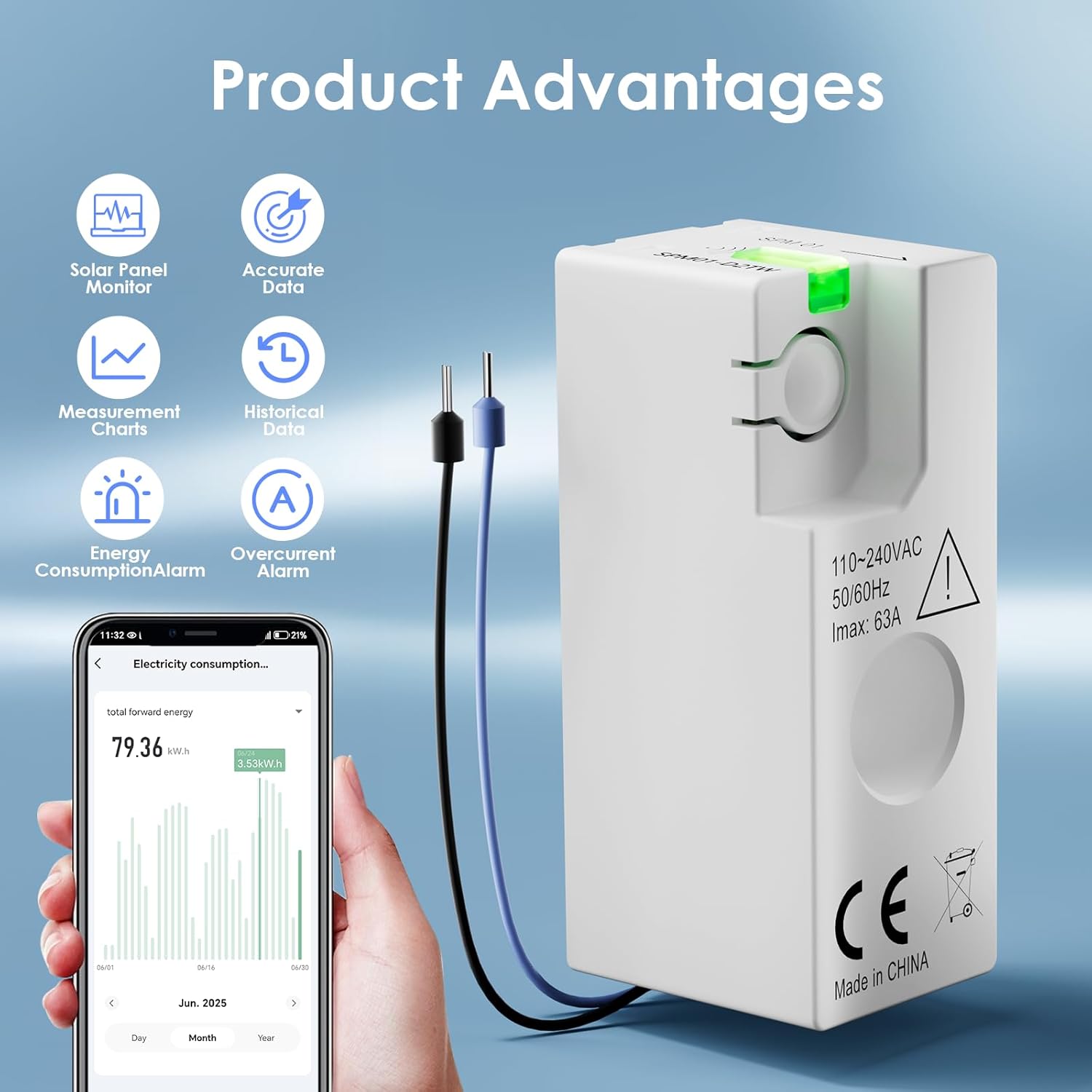
Imagen 1: Másview of the BSEED Smart Wi-Fi Energy Meter and its key features.
2. Información de seguridad
Lea atentamente todas las advertencias e instrucciones de seguridad antes de instalar o utilizar este dispositivo. El incumplimiento de estas instrucciones podría provocar una descarga eléctrica, un incendio u otras lesiones graves.
- Se requiere instalación profesional: La instalación de este dispositivo implica trabajar con alto volumentage electricity. It is strongly recommended to hire a qualified professional electrician for installation.
- Desconectar la energía: Always ensure the main power supply is disconnected before attempting any installation, wiring, or maintenance procedures.
- Cableado correcto: Pay close attention to the wiring diagrams. Incorrect connection of the neutral wire to the live wire will damage the product and poses a safety risk.
- Entorno operativo: Do not expose the device to extreme temperatures, humidity, or corrosive environments. Ensure the operating temperature is within -25 to 60 °C.
- Clase de protección: The device has an IP20 protection class, meaning it is protected against solid objects larger than 12.5mm but has no protection against water. Install in a dry environment.
3. Características del producto
- Accurate Energy Measurement: Provides energy measurement with up to 1% precision. Suitable for single-phase circuits with 220-240V and a maximum current of 63A.
- Diseño compacto: With dimensions of 46.8 x 17.8 x 21.3 mm, its mini size allows for installation in narrow spaces.
- Smart Monitoring & Alerts: Compatible with Smart Life and Tuya applications (2.4 GHz Wi-Fi only). Monitor real-time data such as current, power, voltage, and energy consumption on your smartphone. Features built-in overload and overcurrent alarms that notify your smartphone immediately in case of short circuit or overload.
- Almacenamiento de datos históricos: The application provides free historical data, allowing you to view hourly, daily, weekly, and monthly energy consumption and production. Data is stored permanently for optimized energy management.
- Solar Power Generation Monitoring: Supports both forward and reverse current measurement, enabling accurate monitoring of electricity generation from solar and wind energy systems.
- Amplia aplicabilidad: Suitable for various scenarios including homes, offices, cafes, industrial settings, smart farms, and hotels.
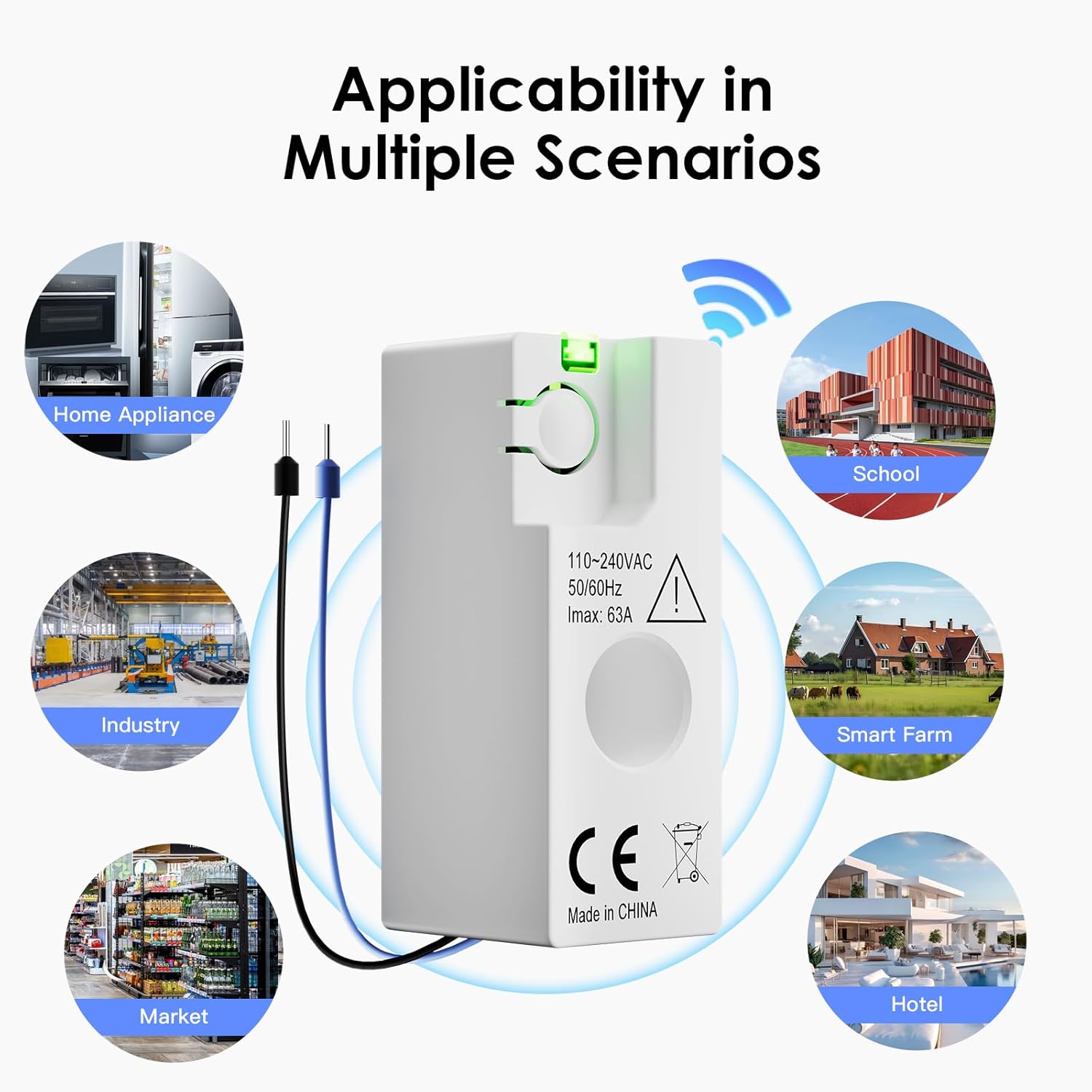
Image 2: Diverse applications of the energy meter.
4. Especificaciones
| Parámetro | Valor |
|---|---|
| Número de modelo | SPM01-U2EW |
| Tipo de comunicación | Wi-Fi / Bluetooth |
| Vol nominaltage Un (CE) | 220-240 V, 50/60 Hz |
| Maximum Current I | máx. 63 A |
| sobrevoltajetagCategoría e | III |
| Vol. De aislamiento nominaltage interfaz de usuario | 250 V |
| Vol nominal de resistencia al impulsotage Uimp | 4 kV |
| Grado de contaminación | 3 |
| Clase de protección | IP20 |
| Temperatura de funcionamiento nominal | -25 a 60 °C |
| Power Consumption (Normal Operation) | 0.5 W |
| Consumo de energía (modo de emparejamiento) | 1 W |
| Energy Measurement Accuracy | 1 % |
| Dimensiones del producto (L x An x Al) | 4.7 x 1.8 x 2.1 cm |
| Peso del producto | 21 gramos |
| Fabricante | BSEED |

Image 3: Technical specifications of the SPM01-U2EW model.
5. Configuración e instalación
5.1 Lista de verificación previa a la instalación
- Ensure you have the necessary tools (e.g., screwdriver, wire strippers).
- Confirm the electrical circuit is single-phase 220-240V, 50/60Hz, with a maximum current of 63A.
- Download the Smart Life or Tuya Smart app from your mobile device's app store.
- Ensure your Wi-Fi network is 2.4 GHz, as the device does not support 5 GHz Wi-Fi.
5.2 Instalación física
- Apague la energía: Before starting any wiring, ensure the main power supply to the circuit is completely turned off at the circuit breaker. Verify with a voltage probador.
- Monte el dispositivo: The compact design allows installation in various electrical boxes or distribution boards.
- Wire the Device: Refer to the wiring diagram below. Connect the live (L) and neutral (N) wires according to the markings on the device and the diagram. The arrow direction on the device indicates the forward current direction. Ensure the blue neutral wire is not incorrectly connected to the live wire, as this will cause damage.
- Restaurar energía: Once wiring is complete and secured, restore power to the circuit. The device's indicator light should illuminate.

Image 4: Wiring diagram and critical installation instructions.
5.3 Emparejamiento de aplicaciones
- Abre la app: Launch the Smart Life or Tuya Smart app on your smartphone.
- Agregar dispositivo: Follow the in-app instructions to add a new device. Typically, this involves selecting 'Electrical Engineering' or 'Energy Meter' from the device list.
- Introduzca los detalles de Wi-Fi: Provide your 2.4 GHz Wi-Fi network name and password when prompted.
- Modo de emparejamiento: The device will enter pairing mode (often indicated by a blinking light). Confirm this in the app to complete the connection.
- Cambio de nombre del dispositivo: Una vez conectado, puedes cambiar el nombre del dispositivo en la aplicación para identificarlo más fácilmente.
6. Instrucciones de funcionamiento
6.1 Monitoreo en tiempo real
After successful pairing, open the Smart Life or Tuya Smart app to view real-time data from your energy meter. The app dashboard will display:
- Corriente (A): Corriente instantánea que fluye a través del circuito.
- Volumentagmi(V): Vol actualtage del circuito.
- Potencia (W): Consumo de energía instantáneo.
- Consumo de energía (kWh): Total accumulated energy consumption.

Image 5: App interface for real-time energy monitoring.
6.2 Historical Data Access
The app stores historical energy data permanently. Navigate to the historical data section within the app to view consumption and production trends:
- View data by hour, day, week, or month.
- Analyze consumption patterns to identify energy-saving opportunities.
6.3 Overload and Overcurrent Alarms
The device is equipped with built-in alarms for overload and overcurrent conditions. If the current or load exceeds safe limits, the device will send an immediate notification to your smartphone via the app. Take appropriate action to prevent damage to appliances or the electrical system.
6.4 Solar Power Generation Monitoring
For systems generating electricity (e.g., solar panels, wind turbines), the meter can measure reverse current. This allows you to accurately track the amount of electricity your system generates and feeds back into the grid or consumes locally. Ensure the device is installed correctly to measure both forward and reverse current flow.
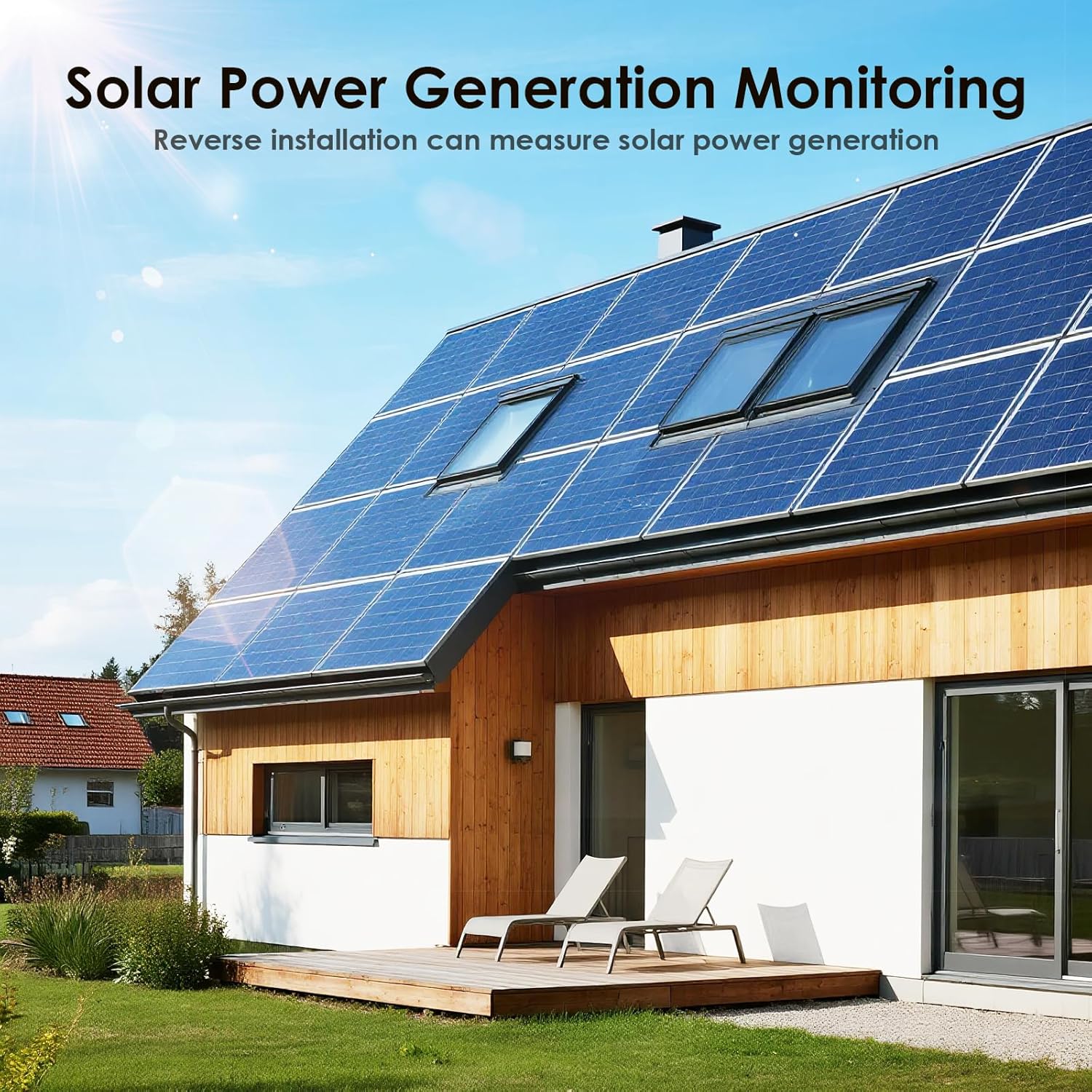
Image 6: The energy meter supports monitoring of solar power generation.
7. Mantenimiento
The BSEED Smart Wi-Fi Energy Meter is designed for minimal maintenance. Follow these general guidelines:
- Limpieza: Ensure the device is clean and free from dust. Use a dry, soft cloth for cleaning. Do not use liquid cleaners or solvents.
- Inspecciones: Periodically check the wiring connections to ensure they are secure. If any damage is observed, disconnect power immediately and consult a professional electrician.
- Actualizaciones de firmware: Keep the Smart Life or Tuya Smart app updated to ensure the latest features and security patches for your device.
8. Solución de problemas
If you encounter issues with your BSEED Smart Wi-Fi Energy Meter, refer to the following common problems and solutions:
- El dispositivo no se conecta a Wi-Fi:
- Asegúrese de que su red Wi-Fi sea de 2.4 GHz. El dispositivo no admite redes de 5 GHz.
- Check if the Wi-Fi signal strength is adequate at the device's location.
- Verifique que la contraseña de Wi-Fi ingresada en la aplicación sea correcta.
- Try restarting your Wi-Fi router and the energy meter.
- Ensure the device is in pairing mode during the connection process.
- No data or incorrect readings in the app:
- Confirm the device is properly connected to your Wi-Fi network and the app.
- Check the physical wiring of the meter. Incorrect wiring can lead to inaccurate readings or no data. Refer to the installation section.
- Ensure the current direction arrow on the device is aligned with the actual current flow.
- Overload/Overcurrent alarms triggering frequently:
- This indicates that the connected circuit or appliances are drawing excessive current. Reduce the load on the circuit.
- If the issue persists, consult a professional electrician to inspect your electrical system.
- Device indicator light is off:
- Compruebe si la fuente de alimentación principal al circuito está encendida.
- Inspeccione el cableado para detectar conexiones sueltas o daños.
- If power is present and wiring is correct, the device may be faulty.
For issues not covered here, or if troubleshooting steps do not resolve the problem, please contact BSEED customer support.
9. Garantía y soporte
BSEED products are manufactured to high-quality standards. For specific warranty information, please refer to the documentation provided with your purchase or contact your retailer. If you require technical assistance or have questions regarding your BSEED Smart Wi-Fi Energy Meter, please contact BSEED customer support through their official websitio o la información de contacto proporcionada con su producto.