
1. Introducción
The Aurzen Roku TV Smart Projector (Model A02A11) offers a comprehensive home entertainment solution with a built-in Roku streaming experience. This portable projector delivers 1080P Full HD resolution, Dolby Audio, and convenient features like auto-focus and keystone correction. Designed for versatility, it is suitable for various environments, from home theaters to outdoor movie nights, and integrates seamlessly with smart home ecosystems.
2. ¿Qué hay en la caja?
- Aurzen EAZZE D1R Roku TV Projector x1
- Control remoto x1 (2 pilas AAA no incluidas)
- Cable de alimentación x1
- Warranty Card x1 & Quick Start Guide x1
- Note: No HDMI Cable Included
3. Producto terminadoview
The Aurzen Roku TV Smart Projector combines high-quality projection with the convenience of the Roku streaming platform. Below are its key features and components.
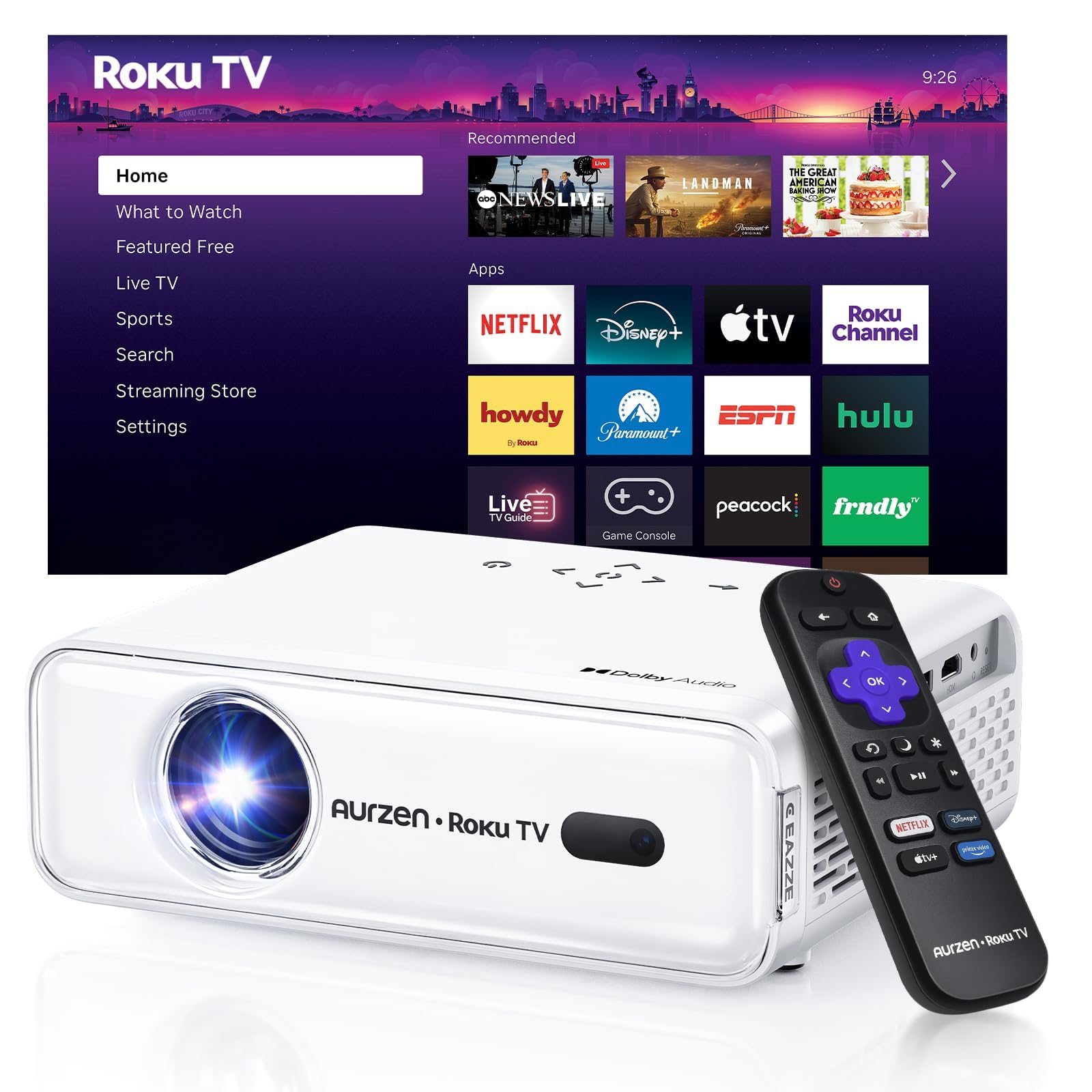
Figura 1: Frente view of the Aurzen Roku TV Smart Projector.
3.1. Roku TV Streaming Experience
Enjoy America's #1 TV streaming platform built directly into your projector. Access popular apps like Netflix, Prime Video, Disney+, Hulu, YouTube, Roku Channel, and Apple TV. A Roku account and internet connection are required for activation.

Figure 2: The simple and fast Roku TV home screen interface.
3.2. High-Definition Visuals
The projector offers 1080P Full HD resolution, providing enhanced clarity and detail for your favorite movies and TV shows. It can project a massive screen size from 60 to 150 inches, ideal for home theater and outdoor viewEn.
3.3. Brightness Levels
Choose from 3 brightness levels to suit your environment:
- Low (LOW POWER): For dim environments like basements.
- Medium (STANDARD): Suitable for cozy bedrooms.
- High (VIVID): For living rooms or outdoor nights, cutting through extra light for sharp visuals.
3.4. Ajustes automáticos
Advanced auto-focus and auto-keystone correction features instantly adjust for a sharp, aligned screen. Simply place the projector, power it on, and enjoy a perfectly adjusted image without manual setup.

Figure 3: Illustration of the automatic focus and keystone correction.
3.5. Immersive Audio
Experience deep, resonant audio with Dolby Audio and built-in Dual 5W speakers. These speakers deliver crisp, powerful sound that fills the room, making you feel part of the action.

Figure 4: Dolby Audio integration for enhanced sound quality.
3.6. Opciones de conectividad
The projector supports dual-band WiFi (2.4G/5G) for smooth, lag-free streaming and Bluetooth 5.2 for connecting to headphones or external speakers. It also includes HDMI and USB ports for wired connections.
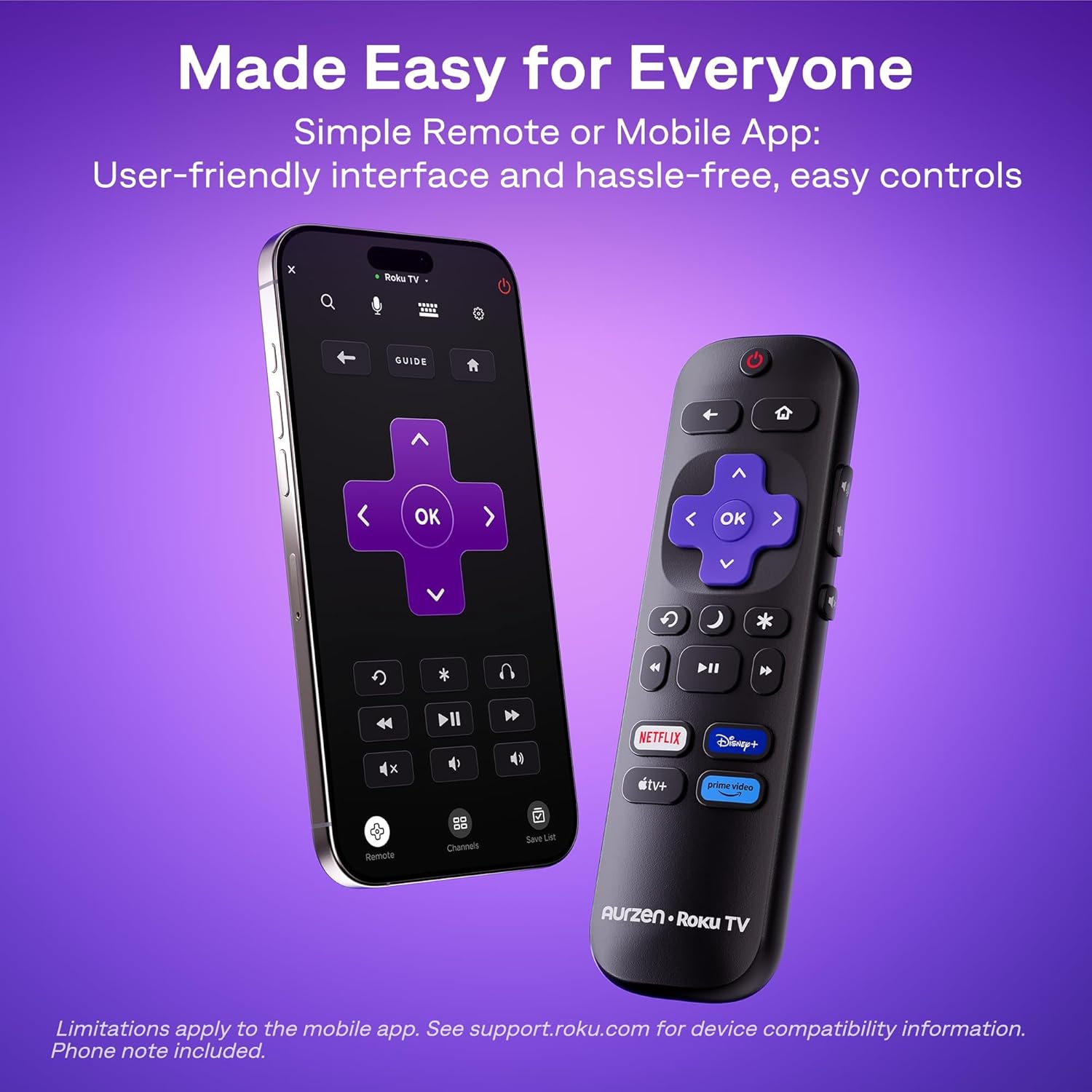
Figura 5: Posterior view of the projector showing USB, HDMI, and audio ports.
3.7. Integración de hogares inteligentes
The projector is compatible with Apple HomeKit, Siri, Alexa, and Google Assistant, allowing for easy voice control and seamless integration into your smart home ecosystem.

Figure 6: Projector's compatibility with various smart home voice assistants.
4. Configuración
4.1. Encendido inicial
- Conecte el cable de alimentación al proyector y a una toma de corriente.
- Presione el botón de encendido del proyector o del control remoto para encenderlo.
- The projector will automatically perform auto-focus and auto-keystone correction upon startup.
4.2. Roku Account and Internet Connection
A Roku account and an active internet connection are required for full functionality and activation of the Roku streaming platform. Follow the on-screen prompts to connect to your Wi-Fi network and set up or log in to your Roku account.
5. Instrucciones de funcionamiento
5.1. Navegación por la pantalla de inicio de Roku
The Roku interface offers intuitive navigation, quick search, and personalized recommendations. Use the included remote control or the Roku mobile app to browse channels, search for content, and access settings.
5.2. Control remoto
The included remote control provides easy access to all Roku functions. For enhanced control, including typing and voice commands, download the Roku mobile app on your smartphone.
5.3. Ajuste de brillo
To change the brightness mode, navigate to the projector settings via the Roku menu and select your preferred brightness level (Low, Medium, or High) based on your viewentorno de ing.
5.4. Casting and Screen Mirroring
The projector supports Apple AirPlay for seamless streaming of videos, photos, and music from your Apple devices. It also supports other casting features for compatible devices.

Figure 7: Stream content effortlessly using Apple AirPlay.
6. Conectividad
6.1 Conexión wifi
Connect to your home network using dual-band Wi-Fi (2.4G/5G) for stable and fast streaming. Navigate to the network settings in the Roku menu to set up your Wi-Fi connection.
6.2. Emparejamiento Bluetooth
Pair Bluetooth 5.2 compatible headphones or speakers for a private listening experience or enhanced audio. Access Bluetooth settings in the Roku menu to pair your devices.
6.3. HDMI and USB Ports
Use the HDMI port to connect external devices such as gaming consoles, Blu-ray players, or laptops. The USB port allows for playback of media files desde una unidad USB.
7. Mantenimiento
7.1. Limpieza de la lente
Limpie suavemente la lente del proyector con un paño suave que no deje pelusa. Para manchas difíciles, utilice una solución limpiadora de lentes diseñada específicamente para superficies ópticas. Evite materiales abrasivos que puedan rayar la lente.
7.2. Limpieza de las rejillas de ventilación
Regularly clean the projector's ventilation grilles to prevent dust buildup, which can affect performance and lead to overheating. Use a soft brush or a can of compressed air to remove dust.
7.3. Almacenamiento
Cuando no lo use, guarde el proyector en un lugar fresco y seco, alejado de la luz solar directa y de temperaturas extremas. Si lo va a guardar durante un periodo prolongado, considere usar el embalaje original o una funda protectora para evitar la acumulación de polvo y daños.
8. Solución de problemas
8.1. Dim Image
Asegúrese de que viewing environment is sufficiently dark. Adjust the projector's brightness setting to High (VIVID) mode if there is ambient light. For optimal clarity, use the projector in a dark room.
8.2. Imagen borrosa o distorsionada
The projector features automatic focus and keystone correction. If the image appears blurry or distorted, try moving the projector slightly to trigger the automatic adjustment. Alternatively, navigate to 'Projector settings' in the Roku menu to manually adjust focus and keystone.
8.3. No hay sonido o la calidad del audio es mala
Check the projector's volume settings. If using external Bluetooth speakers, ensure they are properly paired and charged. For wired connections, verify that audio cables are securely connected. The built-in speakers support Dolby Audio, but for a more immersive experience, consider connecting to a dedicated sound system via Bluetooth or the audio output port.
8.4. Problemas de conectividad
For Wi-Fi problems, ensure your router is working and the projector is within range. Reconnect to the Wi-Fi network via Roku settings. For Bluetooth, ensure the device is in pairing mode. For HDMI/USB, check cable connections and ensure the correct input source is selected.
8.5. Input Lag for Gaming
While the projector offers a large screen, it may not be ideal for fast-paced competitive gaming due to potential input lag. For optimal gaming performance, a dedicated gaming monitor or TV is recommended.
9. Especificaciones
| Característica | Detalle |
|---|---|
| Marca | Aurzen |
| Número de modelo | A02A11 |
| Resolución de pantalla | 1920 x 1080 (1080P Full HD) |
| Brillo | Lúmenes 280 ANSI |
| Tecnología de conectividad | WiFi (2.4G/5G), Bluetooth 5.2, HDMI, USB, Audio |
| Características especiales | Roku Streaming Experience, Dolby Audio, Auto Focus & Keystone, Official Apple AirPlay, Ecosystem Compatible (Apple HomeKit, Siri, Alexa, Google Assistant) |
| Peso del artículo | 4.64 libras |
| Dimensiones del paquete | 13.19 x 9.45 x 4.29 pulgadas |
| Color | Blanco |
10. Garantía y soporte
Aurzen products are designed for quality and reliability. For warranty information, please refer to the Warranty Card included in your product packaging. For technical support or customer service, please visit the official Aurzen webSitio web o contacte directamente con el equipo de atención al cliente. Conserve el recibo de compra para reclamaciones de garantía.
11. Información de seguridad
- No mire directamente a la lente del proyector cuando la lamp está encendido, ya que esto puede causar daño ocular.
- Asegúrese de que haya una ventilación adecuada alrededor del proyector para evitar el sobrecalentamiento. No obstruya ninguna abertura de ventilación.
- Mantenga el proyector alejado del agua u otros líquidos.
- Use only the power cord provided with the projector.
- Do not attempt to open or repair the projector yourself. Refer all servicing to qualified service personnel.
- Mantener fuera del alcance de los niños.