
Introducción
This manual provides essential information for setting up, operating, maintaining, and troubleshooting your NIMO 17.3 Gaming Laptop. Designed for high performance with an AMD Ryzen 9 8945HS processor and Radeon 780M graphics, this laptop offers a powerful computing experience for gaming, creative work, and everyday tasks. Please read this manual thoroughly to ensure optimal use and longevity of your device.
1. Configuración inicial
1.1 Desembalaje y primer encendido
Carefully remove your NIMO laptop and all accessories from the packaging. Place the laptop on a stable, flat surface. Before first use, it is recommended to fully charge the battery.

The NIMO 17.3 Gaming Laptop, ready for initial setup.
1.2 Carga de la batería
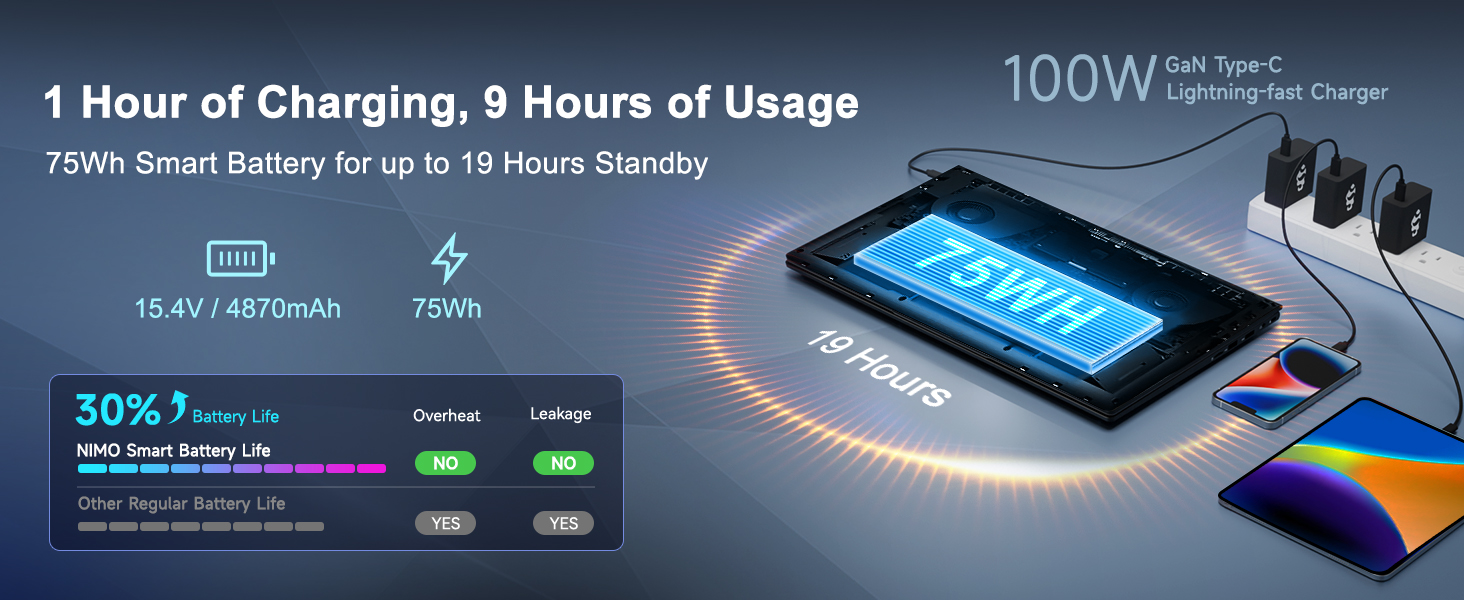
Connect the provided 100W PD Type-C fast charger to the USB-C port on your laptop and then to a power outlet. The charging indicator light will illuminate. Allow the laptop to charge fully before its first use for optimal battery calibration.

The 100W GaN Type-C charger connected to the laptop, illustrating fast charging capability.
1.3 Configuración del sistema operativo
Upon first power-on, you will be guided through the Windows 11 setup process. Follow the on-screen instructions to configure language, region, network settings, and user accounts.
1.4 Configuración del lector de huellas dactilares
For enhanced security and quick login, set up the integrated fingerprint reader during the Windows 11 setup or later via Windows Settings > Accounts > Sign-in options. Follow the prompts to register your fingerprints.

Close-up of the backlit keyboard and integrated fingerprint reader for secure access.
1.5 Conexión de periféricos
Your NIMO laptop features a comprehensive multi-port design for various peripherals:
- USB tipo C 4.0: For ultra-fast data transfer, external displays, and eGPU support.
- USB 3.2: Transferencia de datos de alta velocidad para dispositivos compatibles.
- USB 2.0: Para dispositivos USB estándar.
- HDMI: Conectarse a monitores externos o televisores.
- Ranura para tarjeta SD: Para tarjetas de memoria.
- Headphone Combo Jack: Para salida de audio y entrada de micrófono.
- Ranura de bloqueo Kensington: Por seguridad física.
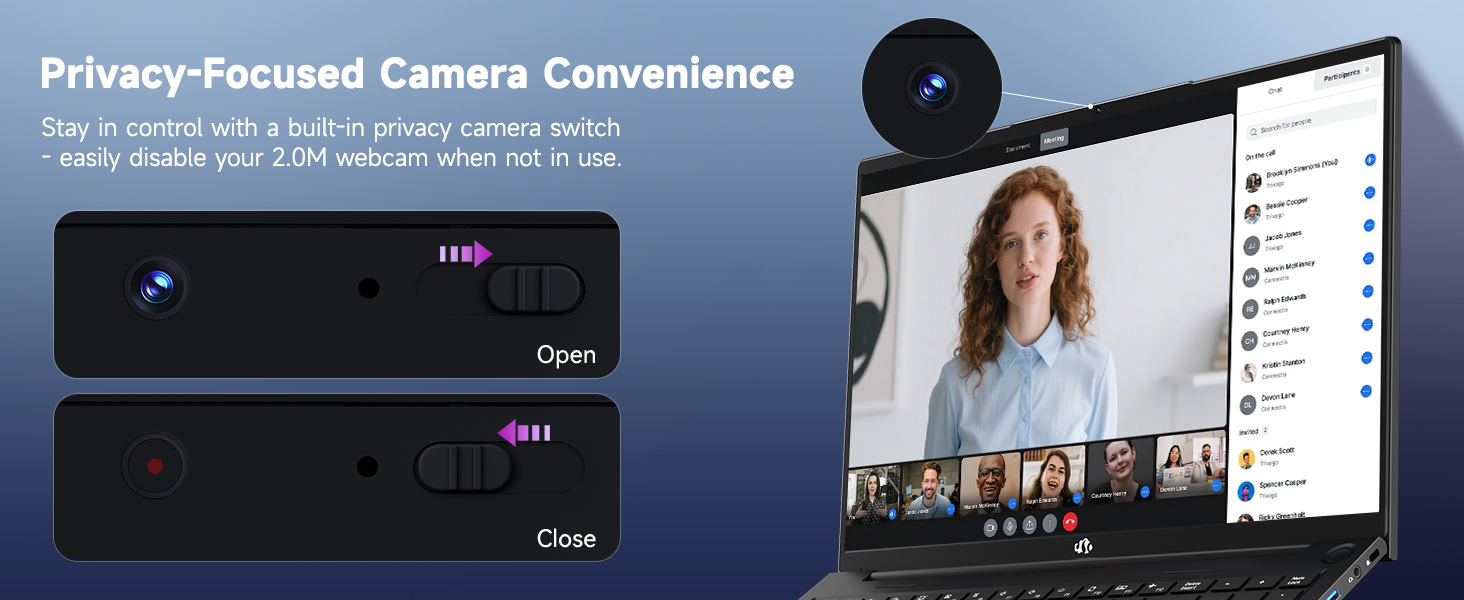
Diagram illustrating the comprehensive multi-port design of the NIMO laptop, including USB-C 4.0, HDMI, USB 3.2, USB 2.0, SD Card slot, Headphone Combo, and Kensington Lock.
2. Instrucciones de funcionamiento
2.1 Modos de encendido/apagado y suspensión
- Encendido: Presione el botón de encendido ubicado en el teclado.
- Apagado: Haga clic en el botón Inicio y luego en Energía > Apagar.
- Modo de sueño: Haga clic en el botón Inicio, luego en Energía > Suspender, o cierre la tapa de la computadora portátil.
2.2 Uso del teclado y el panel táctil
The NIMO laptop features a full-size keyboard with a numeric keypad and adjustable backlighting. Press Fn + F10 (or similar function key depending on model) to cycle through backlight brightness levels. The large touchpad supports multi-touch gestures for navigation.
2.3 Funciones de visualización
Experience clear visuals on the 17.3-inch Full HD (1920x1080) IPS display. This screen provides vibrant colors and wide viewing angles, suitable for various applications from productivity to entertainment.

The NIMO laptop displaying a vibrant image, highlighting its 17.3-inch Full HD IPS screen.
2.4 WebInterruptor de privacidad de cámara
For privacy, your laptop includes a physical webcam privacy switch. Slide the switch to the left to cover the camera lens and disable the webcam, or to the right to uncover and enable it.
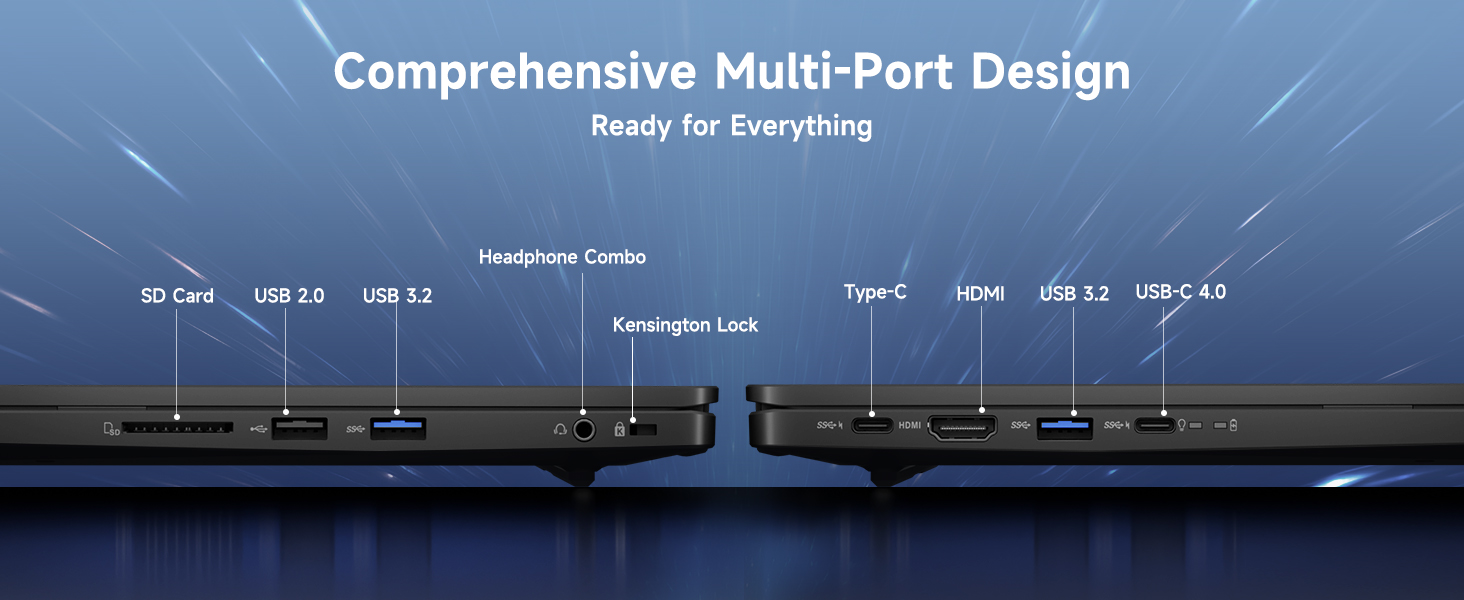
Ilustración de la webcam privacy switch in both open and closed positions, demonstrating how to control camera access.
2.5 Rendimiento superiorview
The NIMO laptop is powered by an AMD Ryzen 9 8945HS processor, offering 8 cores and 16 threads with a max boost clock of 5.2GHz. Integrated AMD Radeon 780M graphics provide capable performance for gaming and demanding creative applications.

Diagrama que muestraasing the AMD Ryzen 9 8945HS processor with its 8 cores/16 threads and integrated Ryzen AI NPU.

Visual representation of the AMD Radeon 780M graphics, emphasizing its capabilities for gaming and creative work.
3. Cuidado y mantenimiento
3.1 Limpieza de la computadora portátil
- Pantalla: Utilice un paño suave y sin pelusa ligeramenteampLimpie con agua o un limpiador de pantallas. No rocíe el líquido directamente sobre la pantalla.
- Teclado y chasis: Utilice un paño suave y seco. Para la suciedad difícil, un paño ligeramente seco.amp Se puede usar un paño. Evite productos químicos agresivos.
- Puertos: Utilice aire comprimido para limpiar suavemente el polvo de los puertos.
3.2 Gestión de la batería
The laptop is equipped with a 75Wh battery. To prolong battery life:
- Evite descargar completamente la batería con frecuencia.
- Guarde la computadora portátil en un lugar fresco y seco si no la utiliza durante períodos prolongados.
- Utilize power-saving settings in Windows 11.

Graphic illustrating smart battery optimization features, including extended battery life, smart power control, safe fast charging, and battery health protection.
3.3 Disipación de calor
The NIMO laptop features an efficient cooling system with dual fans and double copper pipes to manage heat. Ensure that the ventilation openings are not blocked during use to maintain optimal performance and prevent overheating.
Interno view of the laptop's efficient heat dissipation system, featuring dual fans and double copper pipes.
3.4 Actualizaciones de software
Regularly update your Windows 11 operating system and device drivers to ensure system stability, security, and optimal performance. You can check for updates via Windows Settings > Windows Update.
4. Solución de problemas
This section addresses common issues you might encounter with your NIMO laptop.
4.1 Problemas de energía
- La computadora portátil no enciende: Ensure the charger is securely connected and the power outlet is functional. Try holding the power button for 15-20 seconds to perform a hard reset.
- La batería no se carga: Verify the charger is correctly plugged into both the laptop and the wall. Check for any damage to the charger cable or port.
4.2 Problemas de visualización
- No hay visualización en la pantalla: Conecte un monitor externo por HDMI para comprobar si el problema está en la pantalla interna del portátil. Si el monitor externo funciona, es posible que la pantalla interna o su conexión estén defectuosas.
- Pantalla parpadeante: Actualiza tus controladores gráficos. Ajusta la frecuencia de actualización de la pantalla en la configuración de Windows.
4.3 Problemas de conectividad
- Wi-Fi no se conecta: Ensure Wi-Fi is enabled in Windows settings. Restart your router and laptop. Update wireless drivers.
- El dispositivo Bluetooth no se empareja: Ensure Bluetooth is enabled on both devices. Remove and re-add the device in Windows Bluetooth settings.
4.4 Degradación del rendimiento
- Rendimiento lento: Cierre las aplicaciones innecesarias. Revise el Administrador de tareas para detectar un uso elevado de CPU/RAM. Asegúrese de tener suficiente espacio libre en el SSD. Ejecute un análisis de virus.
- Calentamiento excesivo: Ensure ventilation vents are clear. Use the laptop on a hard, flat surface. Consider reducing demanding workloads.
5. Especificaciones técnicas
| Característica | Especificación |
|---|---|
| Marca | NIMO |
| Nombre del modelo | NIMO N175L |
| Tamaño de pantalla | 17.3 pulgadas |
| Resolución de pantalla | 1920 x 1080 píxeles (Full HD) |
| Procesador | AMD Ryzen 9 8945HS (Up to 5.2 GHz) |
| RAM | 32 GB DDR5 |
| Disco duro | SSD de 1024 GB (estado sólido) |
| Coprocesador gráfico | AMD Radeon 780M (integrada) |
| Sistema operativo | Ventanas 11 |
| Tipo inalámbrico | 802.11a/b/g/n/ac |
| Puertos USB | 1x USB 2.0, 3x USB 3.0, 1x USB-C 4.0 |
| Duración media de la batería | 12.8 horas |
| Peso del artículo | 3.84 libras |
| Dimensiones del producto | 15.66 x 9.99 x 0.74 pulgadas |
| Color | Negro |
| Características especiales | Backlit Keyboard, Fingerprint Reader, HD Audio, Numeric Keypad |
6. Garantía y atención al cliente
6.1 Información de garantía
Your NIMO laptop comes with a 2 año de garantía for support and service. Additionally, NIMO offers a Política de devolución de 90 días from the date of purchase for any reason.
Image depicting a technician working on a laptop, symbolizing the 2-year support provided for NIMO products.
Image of a customer receiving a package, representing the 90-day return policy for NIMO products.
6.2 Contactar con el soporte
For any product-related questions, technical assistance, or warranty claims, please contact NIMO customer support:
- Correo electrónico: servicio@nimopc.com
- Professional customer assistance is available to help resolve your issues.
Image of customer service representatives, indicating professional customer assistance is available.