
1. Introducción
This manual provides essential information for the proper setup, operation, and maintenance of your NIMO 15.6 inch Laptop Computer. Please read this manual thoroughly before using your device to ensure optimal performance and longevity. Keep this manual for future reference.
2. Producto terminadoview
2.1. Componentes de la computadora portátil
The NIMO 15.6 inch Laptop features a Full HD display, a backlit keyboard, and an integrated fingerprint reader for secure access. It is powered by an AMD Ryzen 5 3500U processor and runs on Windows 11.

Figura 2.1: Frente view of the NIMO 15.6 inch Laptop, showcasing su pantalla y distribución del teclado.
2.2. Puertos y conectores
Your NIMO laptop is equipped with various ports for comprehensive connectivity, allowing you to connect peripherals and external devices.

Figure 2.2: Expanded Connectivity Options. This image illustrates the location and type of ports available on the laptop, including Type-C (Charge Only), USB 3.0, HDMI, Type-C (Full Function), Charge LED, Micro SD Reader, USB 2.0, USB 3.0, Headphone Combo, and Kensington Lock.
- Type-C (Charge Only): Para entrada de energía.
- USB 3.0: Para transferencia de datos de alta velocidad.
- HDMI: Para conectar a pantallas externas.
- Tipo C (función completa): Supports Power Delivery (PD), DisplayPort (DP), and data transfer.
- LED de carga: Indica el estado de carga.
- Lector Micro SD: For reading Micro SD cards.
- USB 2.0: Para dispositivos USB estándar.
- USB 3.0: Para transferencia de datos de alta velocidad.
- Headphone Combo: Para salida de audio y entrada de micrófono.
- Cerradura Kensington: Por seguridad física.
3. Configuración
3.1. Carga inicial
Before first use, connect the laptop to a power outlet using the provided 65W PD Type-C charger. The Charge LED indicator will illuminate. Allow the battery to charge fully.

Figure 3.1: Type-C 65W PD Charger. This image highlights the versatility of the 65W Power Delivery charger, capable of charging the laptop, tablets, and smartphones, reducing cable clutter.
3.2. Encendido
Open the laptop lid. Press the power button located on the keyboard deck. The laptop will boot up, and you will be guided through the Windows 11 initial setup process.
3.3. Configuración de Windows 11
Follow the on-screen instructions to configure your Windows 11 operating system. This includes selecting your region, language, connecting to a Wi-Fi network, and setting up your user account.
4. Instrucciones de funcionamiento
4.1. Teclado y entrada
The laptop features a backlit keyboard for comfortable typing in various lighting conditions, a responsive touchpad, and a numeric keypad for data entry.

Figure 4.1: Effortless Typing in Any Environment. This image demonstrates the backlit keyboard, touchpad, fingerprint reader, and numeric keypad, enhancing user experience and productivity.
- Teclado retroiluminado: Presione el Fn key and the appropriate function key (usually F3 or F4, indicated by a keyboard icon) to adjust the backlight brightness or turn it on/off.
- Panel táctil: Use the touchpad for navigation. Supports multi-touch gestures for scrolling, zooming, and other functions.
- Teclado numérico: Provides dedicated number keys for efficient data entry.
4.2. Reconocimiento de huellas dactilares
The integrated fingerprint reader allows for secure and quick login. Set up your fingerprint in Windows Settings under 'Sign-in options'.
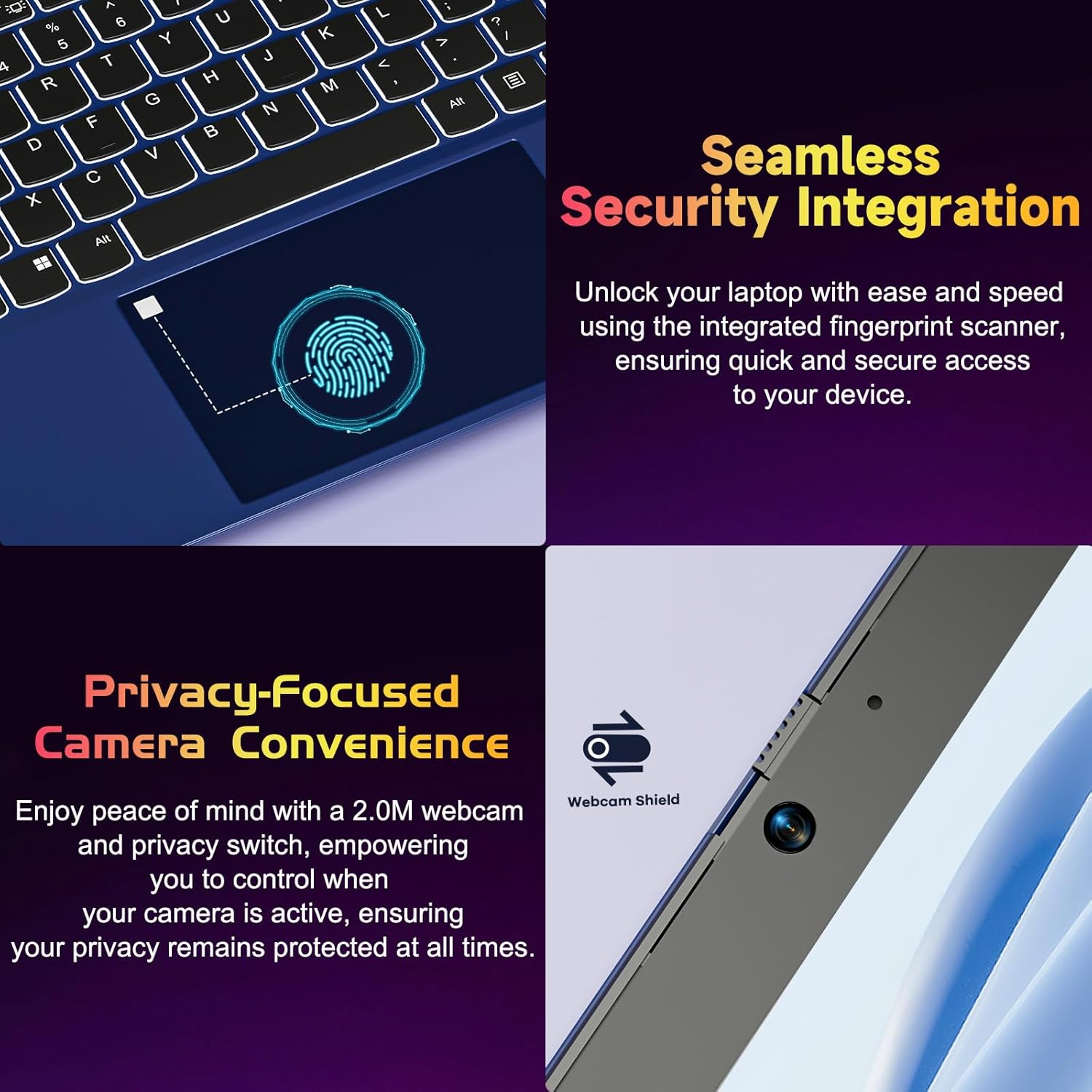
Figure 4.2: Seamless Security Integration and Privacy-Focused Camera. This image highlights the fingerprint scanner for quick and secure access, and the 2.0MP webcam with a physical privacy switch for enhanced user privacy.
4.3. Características de la pantalla
The 15.6 inch Full HD (1920 x 1080 Pixel) IPS display offers vivid visuals and a wide viewing angle. The 180° lay-flat hinge allows for flexible screen positioning, ideal for sharing content.

Figure 4.3: Vivid Full HD Display. This image emphasizes the laptop's 15.6-inch Full HD (1920x1080) IPS display, offering bright visuals and eye protection.

Figure 4.4: 180° Lay-Flat Hinge. This image illustrates the laptop's ability to lay flat, expanding usage scenarios and facilitating content sharing.
4.4. Webcam Privacy
The laptop includes a 2.0MP webcam with a physical privacy switch (Webcam Shield). Slide the switch to cover the camera lens when not in use to ensure your privacy.
5. Mantenimiento
- Limpieza: Utilice un paño suave y sin pelusa para limpiar la pantalla y el exterior. Para manchas difíciles, limpie ligeramenteampEnjuague el paño con agua o un limpiador de pantallas. Evite productos químicos agresivos.
- Cuidado de la batería: Para prolongar la vida útil de la batería, evite descargarla por completo con frecuencia. Guarde la computadora portátil en un lugar fresco y seco si no la va a utilizar durante períodos prolongados.
- Actualizaciones de software: Actualice periódicamente su sistema operativo Windows y sus controladores para garantizar un rendimiento y una seguridad óptimos.
- Expansión de almacenamiento: The laptop supports dual DDR4 SO-DIMM slots and M.2 NVMe SSD for memory and storage expansion. Consult a qualified technician for upgrades.
6. Solución de problemas
6.1. Problemas de energía
- La computadora portátil no enciende: Asegúrese de que la computadora portátil esté cargada. Conecte el cargador y espere unos minutos antes de volver a intentar encenderla.
- La batería no se carga: Verify the charger is properly connected to both the laptop and the power outlet. Try a different outlet.
6.2. Problemas de visualización
- La pantalla está en blanco: Check if the laptop is powered on. Try adjusting screen brightness using the function keys. If an external monitor is connected, ensure it is properly configured.
6.3. Problemas de rendimiento
- La computadora portátil es lenta: Close unnecessary applications. Check for background processes consuming high resources. Ensure sufficient free storage space. Consider performing a system scan for malware.
6.4. Problemas de conectividad
- Wi-Fi no se conecta: Asegúrate de que el wifi esté habilitado. Reinicia el router y la laptop. Revisa la configuración de red en Windows.
7. Especificaciones
| Característica | Detalle |
|---|---|
| Marca | NIMO |
| Nombre del modelo | NIMO N152R |
| Tamaño de pantalla | 15.6 pulgadas |
| Resolución de pantalla | 1920 x 1080 píxeles (Full HD) |
| Procesador | AMD Ryzen 5 3500U (3.7 GHz, 4 Cores, 8 Threads) |
| RAM | 8 GB DDR4 (Upgradable) |
| Velocidad de la memoria | 3200 MHz |
| Disco duro | 256 GB SSD (Upgradable M.2 NVMe) |
| Coprocesador gráfico | AMD Integrated graphics (Vega) |
| Sistema operativo | Ventanas 11 |
| Tipo inalámbrico | 802.11abg |
| Puertos USB | 1x USB 2.0, 2x USB 3.0, 2x USB-C (1x Charge Only, 1x Full Function) |
| Puerto HDMI | Sí |
| Lector Micro SD | Sí |
| Duración media de la batería | 5 horas |
| Peso del artículo | 3.8 libras (1.72 kg) |
| Dimensiones del producto | 14.07 x 8.98 x 0.76 pulgadas |
| Color | Rosa |
| Trasero WebResolución de la cámara | 2 MP |
8. Garantía y soporte
Your NIMO laptop comes with a 2-year warranty, covering manufacturing defects and hardware malfunctions under normal use. Additionally, a 90-day free return policy is provided.

Figure 8.1: After-Sales Support. This image outlines the 2-year warranty, 90-day return policy, and professional customer service available for NIMO products.
8.1. Contactar con el soporte
For technical assistance, warranty claims, or product-related questions, please contact the NIMO U.S.-based support team. Contact information can typically be found on the official NIMO websitio o embalaje del producto.
9. Información de seguridad
Para evitar lesiones o daños a su dispositivo, observe las siguientes precauciones de seguridad:
- No exponga la computadora portátil a temperaturas extremas, luz solar directa o alta humedad.
- Evite colocar objetos pesados sobre la computadora portátil.
- Use only the provided charger or a compatible 65W PD Type-C charger.
- No intente desmontar ni reparar la computadora portátil usted mismo. Consulte a personal de servicio técnico cualificado.
- Mantenga los líquidos alejados de la computadora portátil para evitar descargas eléctricas o daños.
- Asegúrese de que haya una ventilación adecuada al utilizar la computadora portátil para evitar el sobrecalentamiento.