
Producto terminadoview
The Trueque 2.4GHz Ergonomic Wireless Mouse is designed for comfort and efficiency, offering a stable wireless connection and adjustable sensitivity. Its contoured shape and silent click buttons enhance user experience for extended periods of work or leisure.
Guía de configuración
1. Instalación de la batería
Locate the battery compartment on the underside of the mouse. Gently slide open the cover. Insert one AA battery, ensuring correct polarity (+/-). Close the battery cover securely.

Imagen: Parte inferior del mouse que muestra el compartimento de la batería y el almacenamiento del receptor USB.
2. Conexión del receptor USB
The USB receiver is stored within the battery compartment of the mouse. Remove the receiver and plug it into an available USB-A port on your computer. For devices with only USB-C ports, use the included USB-A to USB-C adapter. The mouse will automatically connect, requiring no additional drivers.

Image: USB receiver and Type-C adapter for seamless connection.
Cómo utilizar el ratón
Funciones básicas
The mouse features standard left and right-click buttons, along with a scroll wheel for navigation. The silent click design ensures a quiet working environment.

Image: Silent click feature of the Trueque Wireless Mouse.
Ajuste de la sensibilidad de DPI
The mouse offers three adjustable DPI levels (800, 1200, 1600) to customize tracking speed and precision. Press the DPI button, located below the scroll wheel, to cycle through the settings. Each press changes the sensitivity, allowing you to find your preferred speed for different tasks.

Image: Three adjustable DPI levels for customized tracking speed.
Uso de los botones laterales
The mouse is equipped with two side buttons for enhanced productivity: a 'Forward' button and a 'Back' button. These buttons allow for quick navigation in web navegadores y otras aplicaciones. Nota: Side buttons may not be functional on Mac OS.
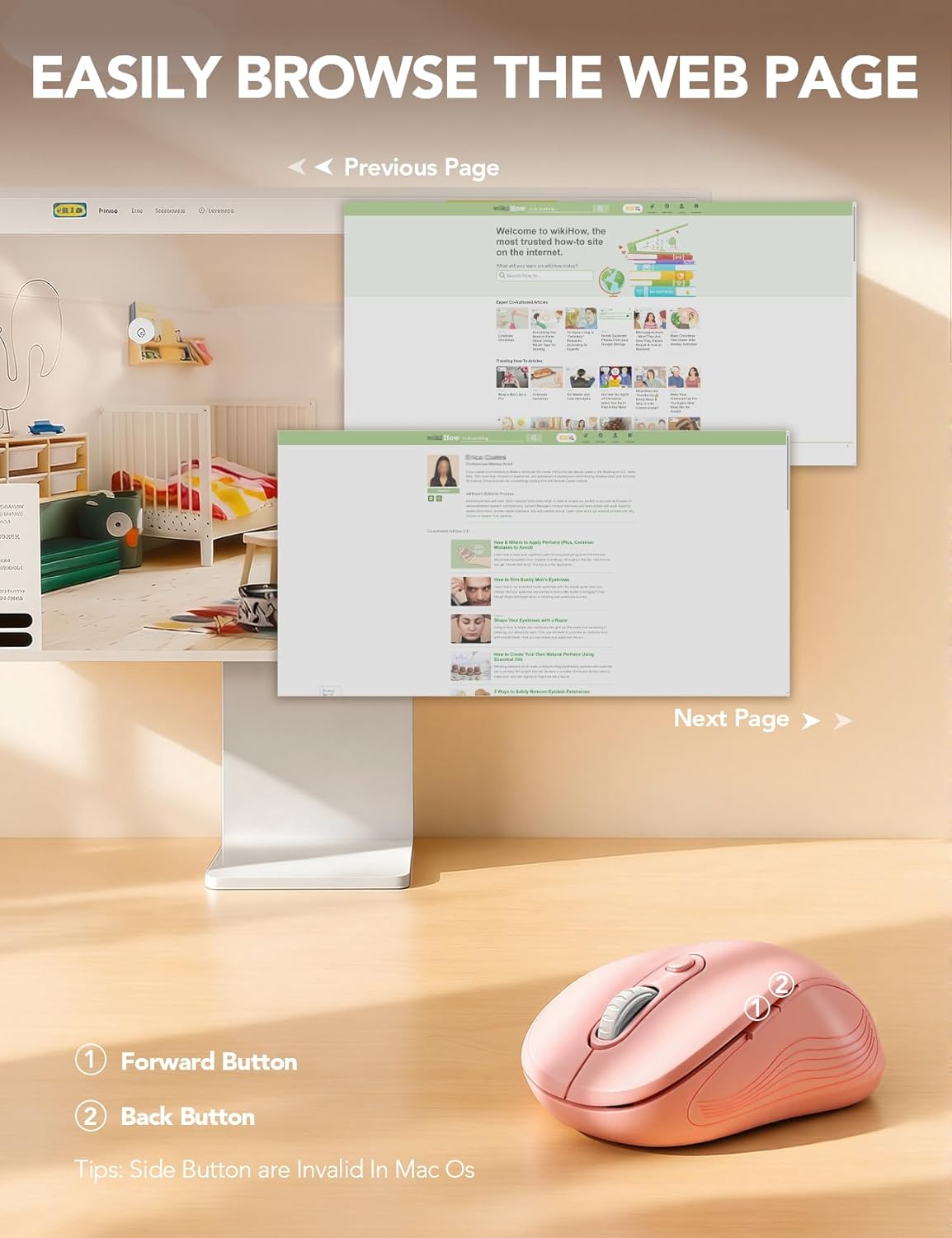
Image: Forward and Back buttons for easy web navegación de la página.
Smart Power-Saving Features
To conserve battery life, the Trueque Wireless Mouse features an automatic sleep mode. After 1 minute of inactivity, the mouse enters a power-saving mode. After 8 minutes of inactivity, it enters a deeper sleep mode. To wake the mouse, simply double-click any button.
Image: Smart power-saving details and components.
Compatibilidad del sistema
The Trueque Wireless Mouse is universally compatible with a wide range of operating systems, including Windows, Mac OS, Linux, and Chrome OS. It works seamlessly with laptops, desktops, and other compatible devices.
Image: Operating system compatibility icons.
Especificaciones técnicas
| Característica | Detalle |
|---|---|
| Dimensiones del producto | 4.1 x 2.4 x 0.1 pulgadas |
| Peso del artículo | 0.63 onzas |
| Tecnología de conectividad | 2.4 GHz inalámbrico (receptor USB) |
| Tecnología de detección de movimiento | Óptico |
| Niveles de DPI | 800 / 1200 / 1600 |
| Botones | 6 (Izquierda, Derecha, Rueda de desplazamiento, DPI, Adelante, Atrás) |
| Tipo de batería | Batería 1 AA (no incluida) |
| Característica especial | Portable, Ergonomic Design, Silent Click |
Cuidado y mantenimiento
To ensure the longevity and optimal performance of your Trueque Wireless Mouse, follow these care guidelines:
- Limpieza: Use a soft, dry cloth to wipe the exterior of the mouse. Avoid using harsh chemicals or abrasive cleaners.
- Almacenamiento: When not in use for extended periods, store the mouse in a cool, dry place. Consider removing the AA battery if storing for several months to prevent potential leakage.
- Manejo: Evite dejar caer el mouse o exponerlo a temperaturas extremas o humedad.
Solución de problemas
If you encounter any issues with your Trueque Wireless Mouse, please refer to the following common solutions:
- El ratón no responde:
- Ensure the mouse is switched ON using the power switch on the underside.
- Check if the AA battery is correctly installed and has sufficient charge. Replace if necessary.
- Verifique que el receptor USB esté conectado correctamente a un puerto USB que funcione en su computadora. Pruebe con otro puerto USB si está disponible.
- If using a USB-C adapter, ensure it is functioning correctly.
- Mouse cursor erratic or not moving smoothly:
- Limpie el sensor óptico en la parte inferior del mouse con un paño suave y seco.
- Asegúrese de usar el ratón sobre una superficie adecuada. Las superficies muy reflectantes o transparentes pueden afectar el seguimiento.
- Ajuste la configuración de DPI utilizando el botón DPI para ver si una sensibilidad diferente mejora el rendimiento.
- Scroll wheel issues (e.g., scrolling in wrong direction):
- This can sometimes be a software-related issue. Ensure your operating system and any mouse-related drivers are up to date.
- Intente reiniciar su computadora.
- Connectivity issues after sleep mode:
- Double-click any mouse button to wake it from sleep mode.
- If the mouse does not wake, try turning the mouse OFF and then ON again using the power switch.
- If issues persist, unplug and re-plug the USB receiver.
Garantía y atención al cliente
Trueque provides a Garantía de 12 meses for this product, covering manufacturing defects from the date of purchase. We are committed to providing excellent customer service.
- Respuesta en 24 horas: Our support team aims to respond to all inquiries within 24 hours.
- Reemplazo de 90 días: Eligible for replacement within 90 days of purchase for covered issues.
- Garantía del fabricante de 360 días: Comprehensive coverage for manufacturing defects for one year.
- Dedicated Brand Care: We value your experience and are here to assist with any questions or concerns.
Para obtener ayuda, por favor contáctenos:
- Teléfono (EE. UU.): 1-866-608-6766
- Horas: Monday-Friday, 9 AM-1 PM PST and 2 PM-6 PM PST

Image: Trueque Customer Support Information.