
1. Introducción
This manual provides essential information for the NIMO 15.6" Gaming Laptop (Model N159). It covers product features, setup procedures, operating instructions, maintenance guidelines, troubleshooting tips, and detailed specifications. Please read this manual thoroughly before using your new laptop to ensure optimal performance and longevity.

Image: The NIMO 15.6" Gaming Laptop, showcasing its display and key features like fingerprint unlock, Type-C PD charger, and backlit keyboard.
2. ¿Qué hay en la caja?
Verifique que todos los artículos estén presentes en el embalaje:
- 1 x NIMO N159 Laptop
- 1 x Type-C 100W PD Fast Charger
- 1 x Manual de usuario (este documento)
- Windows 11 Home Operating System (pre-installed)
- Warranty Information (2 Years Warranty, 90 Days Return)
3. Producto terminadoview
3.1 Características principales
- Procesador: AMD Ryzen 7 7735HS (8 Cores, 16 Threads, up to 4.75GHz)
- Gráficos: Integrated AMD Radeon 680M GPU
- Mostrar: 15.6" Full HD (1920x1080) IPS Anti-Glare Display
- Memoria: 16GB DDR5 RAM (upgradeable)
- Almacenamiento: 1TB PCIe 4.0 SSD (upgradeable)
- Cargando: 100W Type-C PD Fast Charger
- Seguridad: Fingerprint Reader for secure unlock
- Teclado: Backlit Keyboard with Numeric Keypad
- Audio: Dual 2W stereo speakers, dual beamforming microphones
- Webleva: 2MP with physical camera shutter
- Sistema operativo: Inicio de Windows 11

Image: An illustration detailing the AMD Ryzen 7 7735HS processor, highlighting its 8 cores, 16 threads, and integrated Radeon 680M graphics for balanced performance.
3.2 Puertos y Conectores
Familiarize yourself with the available ports on your NIMO laptop:

Image: A detailed diagram illustrating the location and type of ports on the NIMO laptop, including USB 2.0, USB 3.2 Gen1, Type-C Gen2 (multifunction), HDMI 2.0, Audio Jack, Micro SD Reader, and Kensington Lock.
- Puerto USB 2.0: Para conectar dispositivos USB más antiguos.
- Puertos USB 3.2 Gen1 (x4): Para transferencia de datos de alta velocidad con dispositivos USB compatibles.
- Type-C Gen2 Ports (x2, Multifunction): Supports data transfer, video output, and power delivery (100W PD fast charging).
- Puerto HDMI 2.0: Para conectar a pantallas externas o televisores.
- Conector de audio: Para conectar auriculares o altavoces externos.
- Lector Micro SD: Para leer tarjetas de memoria Micro SD.
- Ranura de bloqueo Kensington: Para asegurar su computadora portátil con un candado compatible.
4. Configuración
4.1 Encendido inicial
- Desempaque la computadora portátil y todos los accesorios de la caja.
- Connect the 100W Type-C PD Fast Charger to one of the Type-C ports on the laptop and then to a power outlet.
- Abra la tapa del portátil. Es posible que se encienda automáticamente o que deba presionar el botón de encendido.
- Siga las instrucciones en pantalla para completar la configuración de Windows 11 Home, incluida la selección de idioma, la conexión de red y la creación de la cuenta de usuario.
4.2 Carga de la batería
Before first use, it is recommended to fully charge the laptop battery. The 100W Type-C PD Fast Charger can provide approximately 5 hours of usage time with just 1 hour of charging.

Image: A visual representation of the 100W Type-C lightning-fast charger connected to the NIMO laptop, demonstrating its ability to charge quickly and efficiently.
5. Instrucciones de funcionamiento
5.1 Encendido/apagado y modo de suspensión
- Encendido: Presione el botón de encendido ubicado en el teclado.
- Apagado: Haga clic en el botón Inicio en Windows, luego seleccione Energía > Apagar.
- Modo de sueño: Click the Start button, then select Power > Sleep, or close the laptop lid.
5.2 Using the Fingerprint Unlock
The fingerprint reader is integrated into the touchpad for quick and secure access.
- During Windows setup or later in Windows Settings, configure your fingerprint for login.
- To unlock, simply place your registered finger on the fingerprint reader on the touchpad.
5.3 Adjusting the Backlit Keyboard
The keyboard backlight can be adjusted for comfortable typing in various lighting conditions.

Image: A visual guide demonstrating the fingerprint unlock feature on the touchpad and the functionality of the backlit keyboard, including how to cycle through brightness settings using the F9 key.
- Presione el F9 key to cycle through backlight settings:
- 1 Tap: Light (Temporary)
- 2 Taps: Light (Temporary)
- 3 Taps: Light (Constant)
- 4 Taps: Off
5.4 Usando el Webcam Shutter
For privacy, the laptop includes a physical camera shutter.
- Slide the shutter to the left to open the camera.
- Slide the shutter to the right to close and cover the camera lens.

Image: A visual guide demonstrating the physical camera shutter, showing both the 'Camera Open' and 'Camera Close' statuses for enhanced privacy.
6. Mantenimiento
6.1 Limpieza de la computadora portátil
- Always power off the laptop and disconnect the charger before cleaning.
- Utilice un paño suave y sin pelusa ligeramente seco.ampLimpiar con agua o con un limpiador de pantalla.
- Para el teclado y el chasis, utilice un paño suave y seco. Evite productos químicos agresivos o materiales abrasivos.
- Utilice aire comprimido para limpiar el polvo de las rejillas de ventilación periódicamente.
6.2 Cuidado de la batería
- Evite descargar completamente la batería con frecuencia.
- Guarde la computadora portátil en un lugar fresco y seco si no la utiliza durante períodos prolongados.
- No exponga la computadora portátil a temperaturas extremas.
6.3 Actualizaciones de software
Revise e instale periódicamente actualizaciones del sistema operativo y de los controladores para garantizar un rendimiento y una seguridad óptimos.
7. Solución de problemas
| Problema | Posible causa | Solución |
|---|---|---|
| La computadora portátil no se enciende. | Problema con batería baja o adaptador de corriente. | Connect the charger and wait a few minutes before attempting to power on. Ensure the charger is properly connected to both the laptop and the power outlet. |
| La pantalla está en blanco o negra. | Computadora portátil en modo de suspensión, problema de configuración de pantalla o problema de hardware. | Press any key or the power button to wake from sleep. Try connecting an external monitor to check if the display output works. Restart the laptop. |
| La retroiluminación del teclado no funciona. | Backlight turned off or at lowest setting. | Presione el F9 key repeatedly to cycle through brightness levels and turn on the backlight. |
| Fingerprint unlock not working. | Finger not properly placed, or sensor issue. | Ensure your finger is clean and dry and covers the sensor completely. Re-register your fingerprint in Windows Settings if the issue persists. |
| Rendimiento lento. | Too many applications running, insufficient storage, or outdated drivers. | Close unnecessary applications. Check available storage space. Update Windows and device drivers. |
If you encounter issues not listed here or require further assistance, please contact NIMO customer support.
8. Especificaciones
| Marca | NIMO |
| Nombre del modelo | NIMO N159B |
| Tamaño de pantalla | 15.6 pulgadas |
| Resolución de pantalla | 1920 x 1080 píxeles (FHD IPS) |
| Procesador | AMD Ryzen 7 7735HS (8 Cores, 4.75 GHz Max Turbo) |
| RAM | 16 GB DDR5 (4800 MHz) |
| Disco duro | 1024 GB SSD (PCIe 4.0) |
| Coprocesador gráfico | AMD Radeon 680M (integrada) |
| Sistema operativo | Inicio de Windows 11 |
| Tipo inalámbrico | 802.11a/b/g/n/ac |
| Puertos USB 2.0 | 1 |
| Puertos USB 3.0 | 4 |
| Duración media de la batería | 5 Hours (54Wh, 11.4V/4700mAh) |
| Peso del artículo | 3.8 libras |
| Dimensiones del producto | 14.07 x 8.98 x 0.76 pulgadas |
| Color | Azul |
| Trasero WebResolución de la cámara | 2 MP |
| Características especiales | Backlit Keyboard, Fingerprint Reader, HD Audio, Numeric Keypad |
9. Garantía y soporte
9.1 Garantía del fabricante
Your NIMO N159 laptop is covered by a comprehensive Garantía del fabricante de 2 años from Nimo Direct Inc. This warranty covers defects in materials and workmanship under normal use. For warranty claims, please contact customer support.
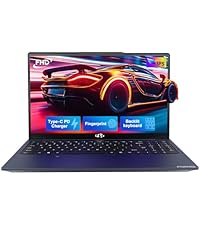
Image: A technician working on a laptop's internal components, representing the 2-year support provided for Nimo products.
Política de devolución de 9.2
Nimo Direct Inc. offers a Política de devolución sin complicaciones de 90 días. You may return any Nimo product for any reason within 90 days of purchase. Please refer to your purchase documentation for specific return procedures.
Image: A delivery person handing a package to a customer, illustrating the 90-day return policy for Nimo products.
9.3 Atención al cliente
For any product-related questions, technical assistance, or warranty claims, please contact our professional after-sales service team. Our dedicated support team is available to resolve issues or facilitate replacements.
- Correo electrónico: servicio@nimopc.com
- En línea: Visit the official NIMO website or product page for contact options.
Image: Customer service representatives wearing headsets, indicating professional customer assistance available via phone and live chat.