
1. Introducción
Thank you for choosing the BOSGAME P3 Mix Mini PC. This manual provides essential information for setting up, operating, maintaining, and troubleshooting your new mini PC. Please read it carefully before use and retain it for future reference.
2. ¿Qué hay en la caja?
Verifique que todos los artículos enumerados a continuación estén incluidos en su paquete:
- 1x P3 MIX Mini PC
- 1 cable HDMI
- 1x soporte VESA y tornillos
- 1x adaptador de corriente
- 1x Manual de usuario
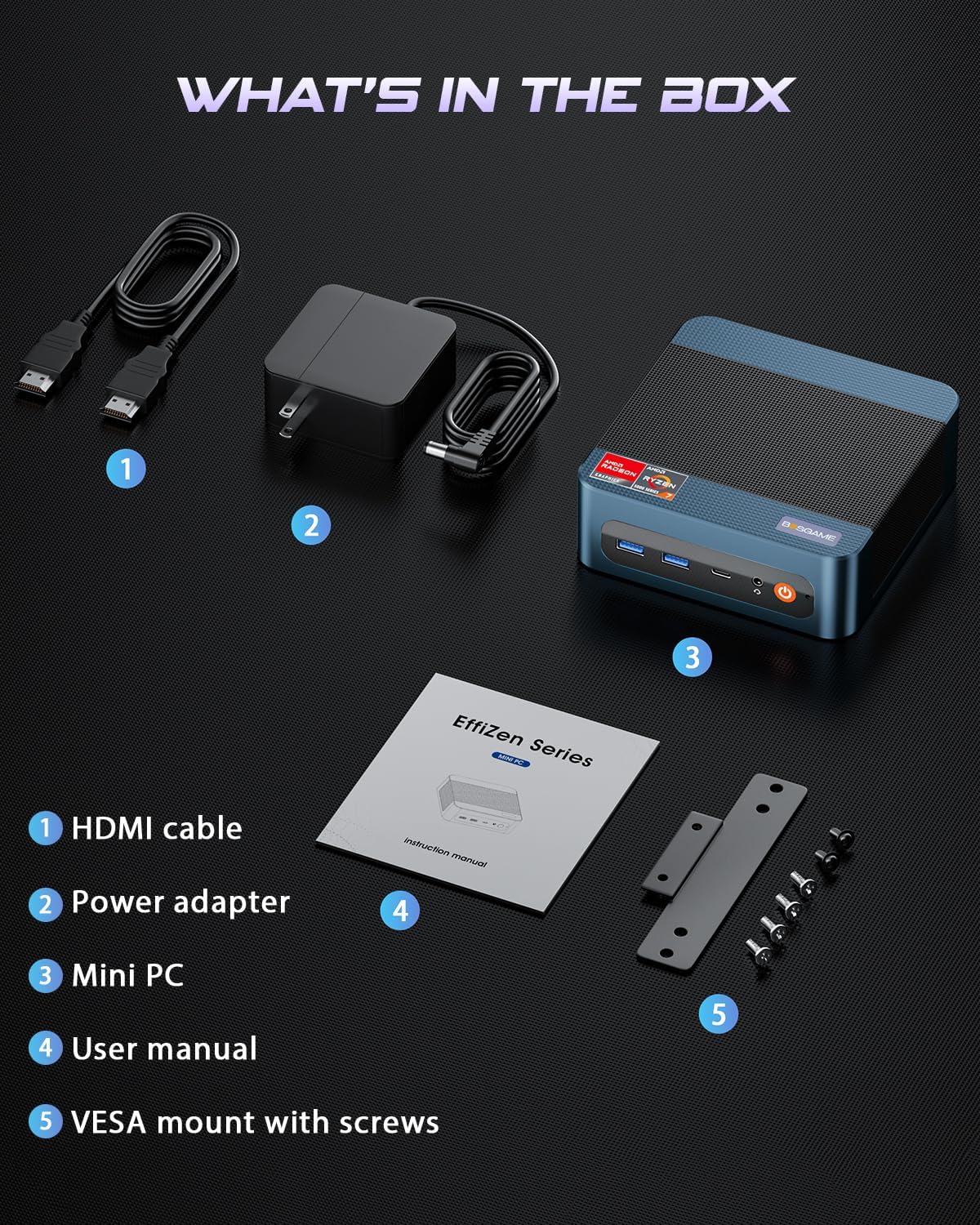
This image displays the BOSGAME P3 Mix Mini PC and its included accessories: an HDMI cable, a power adapter, the mini PC unit, a user manual, and a VESA mount with screws for installation.
3. Producto terminadoview
The BOSGAME P3 Mix Mini PC is a compact desktop computer designed for various applications, from home office tasks to gaming and 4K video editing. It features a powerful AMD Ryzen 7640HS processor and Radeon 760M graphics.

This image highlights the core specifications of the mini PC, including its AMD Ryzen 5 7640HS processor, AMD Radeon 760M GPU, 16GB DDR5 RAM, 512GB M.2 PCIe 3.0 x4 SSD, support for 8K 60Hz display, USB-4 (40Gbps) connectivity, Wi-Fi 6E AX210, and Bluetooth 5.2.
This diagram illustrates the various input/output ports available on the mini PC, including power input, dual 2.5G LAN, HDMI, DisplayPort, USB 2.0, USB 4, USB 3.2 ports, and a 3.5mm audio jack.
Video 3.1: BOSGAME Ryzen 5 7640HS MINI PC OverviewEste vídeo ofrece una visión generalview of the BOSGAME P3 Mix Mini PC, showcasing its compact design, internal components, port layout, and connectivity features.
4. Instrucciones de configuración
4.1 Conexión del adaptador de corriente
- Connect the power adapter cable to the DC 19V 6.3 port on the rear of the mini PC.
- Conecte el adaptador de corriente a una toma de pared.
4.2 Conexión a una pantalla
The P3 Mix Mini PC supports triple display output via HDMI, DisplayPort, and USB4.
- Connect one end of an HDMI cable to the HDMI port on the mini PC and the other end to your monitor.
- For additional displays, connect a DisplayPort cable to the DP port and/or a USB4 cable to the USB4 port, then connect to your respective monitors.
- Asegúrese de que sus monitores estén encendidos y configurados en la fuente de entrada correcta.

This image demonstrates how to set up a triple display configuration with the mini PC, utilizing the DP 1.4, HDMI 2.0, and USB4 ports to connect to multiple monitors.
4.3 Conexión de periféricos
- Connect your USB keyboard and mouse to any available USB ports (USB 2.0, USB 3.2).
- Para acceder a una red cableada, conecte un cable Ethernet a uno de los puertos LAN 2.5G.
- For audio output, connect speakers or headphones to the 3.5mm audio jack.
4.4 Encendido inicial
- After connecting all necessary cables, press the power button located on the front of the mini PC.
- The system will boot up, and you should see the operating system on your connected display(s).
5. Instrucciones de funcionamiento
5.1 Encendido y apagado
- Para encender: Presione el botón de encendido una vez.
- Para desconectar: From the operating system, select 'Shut Down'. Alternatively, press and hold the power button for 5 seconds to force a shutdown (use only when necessary).
- Para reiniciar: From the operating system, select 'Restart'.
5.2 Conectividad de red
- Conexión por cable: Connect an Ethernet cable to one of the two 2.5G LAN ports. The system will automatically detect the connection.
- Conexión inalámbrica (Wi-Fi 6E): Navigate to your operating system's network settings, select the desired Wi-Fi network, and enter the password.
5.3 Conectividad Bluetooth
The mini PC supports Bluetooth 5.2 for connecting wireless peripherals.
- Asegúrese de que su dispositivo Bluetooth esté en modo de emparejamiento.
- On your mini PC, go to the operating system's Bluetooth settings.
- Buscar and select your device to pair.
6. Mantenimiento y actualizaciones
6.1 Actualizaciones de RAM y SSD
The BOSGAME P3 Mix Mini PC allows for easy upgrades of its DDR5 RAM and M.2 PCIe SSD. Always power off and unplug the device before performing any internal maintenance.

This image provides a visual guide for upgrading the RAM and SSD. The process involves removing screws, carefully opening the base plate, repositioning the system fan, and then replacing the memory modules and SSD.
- Apagar y desenchufar: Ensure the mini PC is completely powered off and disconnected from the power source.
- Quitar los tornillos: Locate and remove the screws securing the bottom panel.
- Open Base Plate: Carefully open the base plate to access the internal components.
- Componentes de acceso: You may need to gently move the system fan or other components to gain full access to the RAM and SSD slots.
- Replace RAM/SSD: Install new DDR5 SO-DIMM RAM modules into the dual channel slots (up to 64GB supported) or a new M.2 2280 NVMe PCIe 3.0 SSD (up to 4TB per slot, 8TB total capacity).
- Volver a montar: Carefully reassemble the mini PC, ensuring all connections are secure and screws are tightened.
6.2 Limpieza
- Limpie periódicamente el exterior de la mini PC con un paño suave y seco.
- Use compressed air to clear dust from ventilation grilles to ensure optimal airflow and prevent overheating. Do not insert objects into the vents.
7. Solución de problemas
7.1 Sin energía
- Asegúrese de que el adaptador de corriente esté conectado de forma segura tanto a la mini PC como a una toma de corriente que funcione.
- Verifique que la toma de corriente funcione enchufando otro dispositivo.
- Pruebe con un adaptador de corriente diferente si está disponible y es compatible.
7.2 No hay salida de pantalla
- Check all display cable connections (HDMI, DP, USB4) between the mini PC and the monitor(s).
- Ensure the monitor(s) are powered on and set to the correct input source.
- Try connecting to a single monitor using a different cable or port.
- If you recently reinstalled the operating system, ensure all display drivers are correctly installed. Some users have reported needing specific drivers from the manufacturer for optimal display performance.
7.3 Problemas de conectividad de red
- Wired: Verifique la conexión del cable Ethernet. Verifique que su enrutador/módem funcione correctamente.
- Inalámbrico: Ensure Wi-Fi is enabled in your operating system settings. Re-enter the Wi-Fi password. Restart your router/modem.
7.4 Problemas de rendimiento
- Cierre las aplicaciones innecesarias que se ejecutan en segundo plano.
- Ensure the mini PC has adequate ventilation and is not overheating.
- Busque actualizaciones del sistema operativo y actualizaciones de controladores.
- Verify that the RAM and SSD are properly seated if you have performed an upgrade.
8. Especificaciones
| Característica | Especificación |
|---|---|
| Marca | BOSJUEGO |
| Nombre del modelo | P3 |
| Modelo de CPU | AMD Ryzen 5 7640HS (6C/12T, up to 5.0 GHz) |
| Coprocesador gráfico | Radeon 760M (integrada) |
| Memoria RAM | 16GB DDR5 4800MHz (2x8GB), Max 64GB |
| Capacidad de almacenamiento de memoria | 512GB PCIe 3.0 SSD (M.2 2280), Max 8TB (2x4TB) |
| Sistema operativo | OS11 Support Win/Ubuntu/Linux |
| Interfaz de salida de vídeo | HDMI 2.0, DisplayPort 1.4, USB4 (8K@60Hz) |
| Tecnología de conectividad | LAN dual 2.5G, Wi-Fi 6E (802.11ax), Bluetooth 5.2 |
| Puertos USB | 3x USB 3.2 (10Gbps), 1x USB 4 (40Gbps), 2x USB 2.0 (480Mbps) |
| Salida de audio | 3.5mm Audio Jack |
| Peso del artículo | 1.26 kilogramos |
| Tipo de enchufe de alimentación | Tipo A - 2 pines (Norteamérica) |
9. Garantía y soporte
9.1 Información de garantía
BOSGAME offers a 1-year limited warranty for the P3 Mix Mini PC. This warranty covers manufacturing defects and ensures product quality.
9.2 Atención al cliente
For any product-related inquiries, technical assistance, or warranty claims, please contact BOSGAME customer support. You can reach out via the following methods:
- Correo electrónico: Qingzhuomao@163.com
- En línea: Visit the BOSGAME store on Amazon or their official webSitio para preguntas frecuentes y recursos de soporte.
A professional after-sales team is available to assist you with your needs.