
1. Introducción
This manual provides detailed instructions for the setup, operation, and maintenance of your MAONO A04 Gen2 USB XLR Condenser Microphone and E2 Gen2 Podcast Equipment Bundle. This bundle is designed for high-quality audio recording, streaming, and podcasting, offering versatile connectivity and advanced audio processing capabilities. Please read this manual thoroughly before using the product to ensure optimal performance and longevity.
2. Producto terminadoview
2.1 Componentes
- MAONO A04 Gen2 Condenser Microphone
- MAONO E2 Gen2 Podcast Interface
- Cable XLR
- Cable USB-C
- Microphone Stand and Pop Filter
2.2 Características principales
- USB/XLR Connectivity: The A04 Gen2 microphone offers dual connectivity for direct connection to PCs, smartphones via USB, or to audio interfaces via XLR.
- Sonido con calidad de estudio: Features a professional sound chipset with a 192kHz/24bit sampling rate and a smooth, flat frequency response of 30Hz-16kHz for clear audio reproduction.
- Advanced Software Control: Utilize MAONO Link software (USB Mode only) for microphone gain adjustment, noise reduction, EQ presets, compressor, and limiter.
- Upgraded Podcast Equipment Bundle: The E2 Gen2 interface provides two XLR combo inputs with 60dB gain preamps, USB-C, and 3.5mm ports for versatile connectivity.
- Crystal-Clear Audio with XLR Interface: The E2 Gen2's low-noise preamps deliver rich, clean sound, eliminating the need for external preamps and incorporating noise reduction technology.

Figura 1: The MAONO A04 Gen2 microphone features both USB-C and XLR connection ports. The USB-C port allows direct connection to laptops, desktops, PS4/PS5, and phones. The XLR port connects to audio interfaces or mixers. Note that the microphone is not compatible with Xbox, and the XLR cable is not included with the microphone itself.
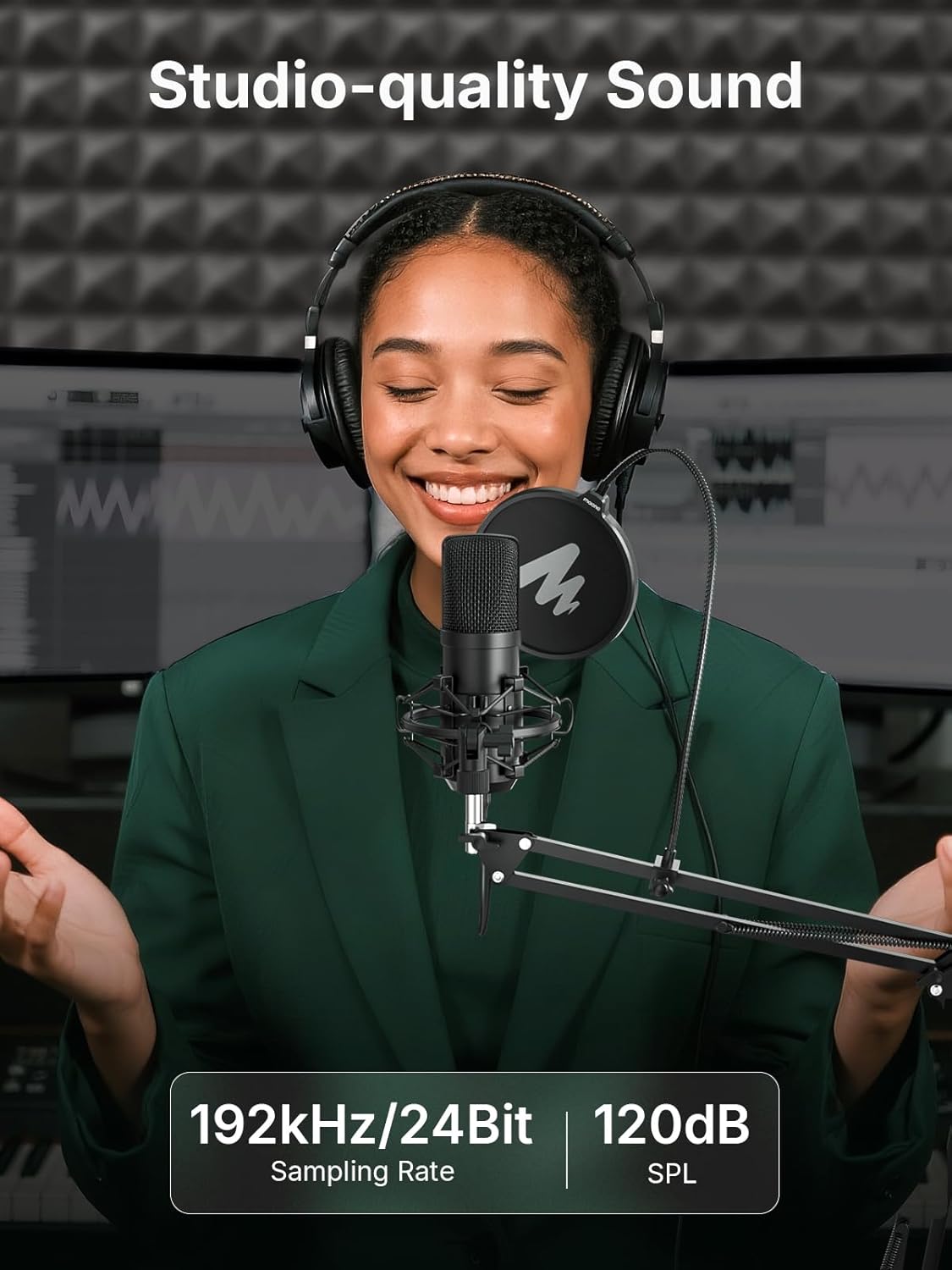
Figura 2: A user is shown recording with the MAONO A04 Gen2 microphone, highlighting its studio-quality sound capabilities. The microphone supports a 192kHz/24Bit sampling rate and 120dB SPL for high-fidelity audio capture.

Figura 3: The MAONO Link software interface is displayed on a laptop, demonstrating its powerful DSP features. Users can control noise cancellation (Slight, Moderate, Aggressive), custom scene presets (Podcast, Live, Game), compressor, and limiter settings for optimized audio. This software enhances the microphone's performance in USB mode.

Figura 4: The MAONO E2 Gen2 podcast interface is shown with two microphones connected. It features two premium mic preamps providing up to 60dB of gain and 48V phantom power, designed to make sound louder and clearer for both condenser and dynamic microphones.

Figura 5: This image illustrates the 2-level intelligent noise reduction feature of the MAONO E2 Gen2 podcast interface. It shows a waveform before and after noise reduction, with options for 'Noise Reduction Low' and 'Noise Reduction High' to achieve clear and pure sound.
3. Configuración
3.1 A04 Gen2 Microphone USB Connectivity
- Connect the USB-C end of the provided USB cable to the USB-C port on the bottom of the A04 Gen2 microphone.
- Connect the other end of the USB cable to an available USB port on your computer (PC/Mac) or smartphone.
- The microphone will be automatically recognized by your operating system. Select it as the input device in your audio settings or recording software.
- Nota: The A04 Gen2 microphone is compatible with laptops, desktops, PS4/PS5, and phones. It is not compatible with Xbox.
3.2 A04 Gen2 Microphone XLR Connectivity
- Connect one end of an XLR cable (not included) to the XLR port on the bottom of the A04 Gen2 microphone.
- Connect the other end of the XLR cable to an XLR input on an audio interface or mixer.
- Ensure phantom power (+48V) is enabled on your audio interface or mixer for the connected XLR input, as the A04 Gen2 is a condenser microphone.
- Select the appropriate input channel on your audio interface/mixer and recording software.
3.3 E2 Gen2 Podcast Interface Setup
- Connect the E2 Gen2 podcast interface to your computer using the provided USB-C cable.
- Connect your A04 Gen2 microphone (or other XLR microphones) to the XLR combo inputs on the E2 Gen2 interface using XLR cables.
- If using condenser microphones, activate the 48V phantom power on the E2 Gen2 for the respective channels.
- Conecte los auriculares a la salida de auriculares para realizar la monitorización.
- For connecting to phones, use the USB-C or 3.5mm ports as required.
4. Operando
4.1 MAONO Link Software Control (USB Mode Only)
When using the A04 Gen2 microphone in USB mode, download and install the MAONO Link software from the official MAONO website. This software provides advanced control over your audio:
- Ganancia del micrófono: Ajuste la sensibilidad de entrada del micrófono.
- Reducción de ruido: Enable or disable noise reduction and select different strengths (Slight, Moderate, Aggressive).
- Preajustes de ecualizador: Apply various scene-specific EQ presets for podcasting, singing, gaming, or live streaming.
- Compresor: Controla el rango dinámico de tu audio, haciendo que los sonidos fuertes sean más silenciosos y los sonidos suaves más fuertes para una salida más consistente.
- Limitador: Prevent audio from exceeding a certain level, protecting against clipping and distortion.
4.2 Reducción de ruido
Both the A04 Gen2 microphone (via MAONO Link software) and the E2 Gen2 podcast interface feature noise reduction capabilities:
- A04 Gen2 (Software): Offers 3 levels of noise reduction (Slight, Moderate, Aggressive) to minimize background noise.
- E2 Gen2 (Hardware): Provides 2 levels of intelligent noise reduction (Low, High) to ensure clear and pure sound, effectively reducing unwanted ambient sounds like fan noise.

Figura 6: This image demonstrates the 3-level noise reduction feature of the MAONO A04 Gen2 microphone. It shows two scenarios: a male user speaking into the microphone with noise reduction options (Slight, Moderate, Aggressive) and a female user with a dog in the background, illustrating how aggressive noise reduction can filter out ambient sounds.
4.3 Two-Person Podcast Setup
The E2 Gen2 podcast interface is ideal for two-person podcasts:
- Connect two microphones (e.g., two A04 Gen2 microphones or other XLR microphones) to the two XLR combo inputs on the E2 Gen2.
- Each host can wear headphones connected to the interface for independent monitoring.
- Adjust individual microphone gains and other settings on the E2 Gen2 to balance the audio levels of both speakers.

Figura 7: Two individuals are shown conducting a podcast using the MAONO E2 Gen2 podcast interface and two microphones. This setup demonstrates the interface's capability to support an excellent two-person podcast with clear audio for both participants.
5. Mantenimiento
Proper maintenance ensures the longevity and optimal performance of your MAONO equipment:
- Limpieza: Use a soft, dry cloth to wipe down the microphone and interface. Avoid liquid cleaners or abrasive materials.
- Almacenamiento: Store the equipment in a dry, dust-free environment when not in use. Use the original packaging or a protective case if available.
- Cuidado de cables: Handle cables gently. Avoid sharp bends, kinks, or excessive pulling. The included cables feature a durable PVC jacket for enhanced flexibility and longevity.
- Condiciones ambientales: Evite exponer el equipo a temperaturas extremas, humedad o luz solar directa.

Figura 8: This image highlights the high flexible and durable PVC jacket of the included cables, demonstrating its resistance to fraying and breakage compared to less durable alternatives. This design ensures a longer lifespan for the cables.
6. Solución de problemas
Si encuentra problemas, consulte los siguientes pasos de solución de problemas comunes:
- Sin salida de sonido:
- Check all cable connections (USB, XLR, headphones).
- Ensure the microphone/interface is selected as the input/output device in your computer's sound settings and recording software.
- Verify microphone gain levels are not set to minimum.
- If using XLR, confirm +48V phantom power is enabled on the interface for condenser microphones.
- Mala calidad de sonido/ruido:
- Adjust microphone gain to avoid clipping (distortion) or being too low (requiring excessive boosting, which can introduce noise).
- Enable or adjust noise reduction settings in MAONO Link software or on the E2 Gen2 interface.
- Asegúrese de hablar directamente al frente del micrófono.
- Check for environmental noise sources and try to minimize them.
- MAONO Link Software Not Recognizing Device:
- Ensure the A04 Gen2 microphone is connected via USB and not XLR.
- Reinicie el software y/o su computadora.
- Buscar actualizaciones de software.
7. Especificaciones
| Característica | Especificación |
|---|---|
| Tipo de micrófono | Condensador |
| Conectividad del micrófono | USB-C, XLR |
| Sampling Rate (A04 Gen2) | 192 kHz/24 bits |
| Frequency Response (A04 Gen2) | 30 Hz-16 kHz |
| Preamp Gain (E2 Gen2) | Hasta 60dB |
| Phantom Power (E2 Gen2) | 48 V |
| Interface Inputs (E2 Gen2) | 2 x XLR Combo Inputs |
| Interface Outputs (E2 Gen2) | USB-C, 3.5 mm |
| Control de software | MAONO Link (USB Mode only) |
8. Garantía y soporte
MAONO products are designed for reliability and performance. For warranty information, technical support, or service inquiries, please refer to the official MAONO website or contact MAONO customer support directly. Keep your purchase receipt as proof of purchase for warranty claims.
MAONO Official Websitio: www.maono.com