
1. Introducción
This manual provides essential information for setting up, operating, and maintaining your NIMO 15.6-inch Light-Gaming Laptop, Model N15A. Designed for productivity, content creation, and light gaming, this laptop features an 8-core AMD Ryzen 7 Pro 6850U processor, AMD Radeon 680M integrated GPU, 16GB LPDDR5 RAM, and a 1TB PCIe 4.0 SSD. Enjoy vibrant visuals on its 15.6-inch Full HD IPS anti-glare display, secure login with an integrated fingerprint touchpad, and convenient typing with a backlit keyboard. The device also supports 100W USB-C fast charging for quick power-ups.
2. ¿Qué hay en la caja?
- 1 x NIMO N15A Laptop
- 1 x Type-C 100W PD Fast Charger
- 1 x Manual de usuario
- Windows 11 Home (Pre-installed)
- 2 Years Warranty, 90 Days Return Information
3. Configuración
3.1 Encendido y carga inicial
Before first use, ensure your NIMO laptop is fully charged. Connect the provided 100W Type-C PD fast charger to the laptop's USB-C port and a power outlet. The charging indicator light will illuminate.
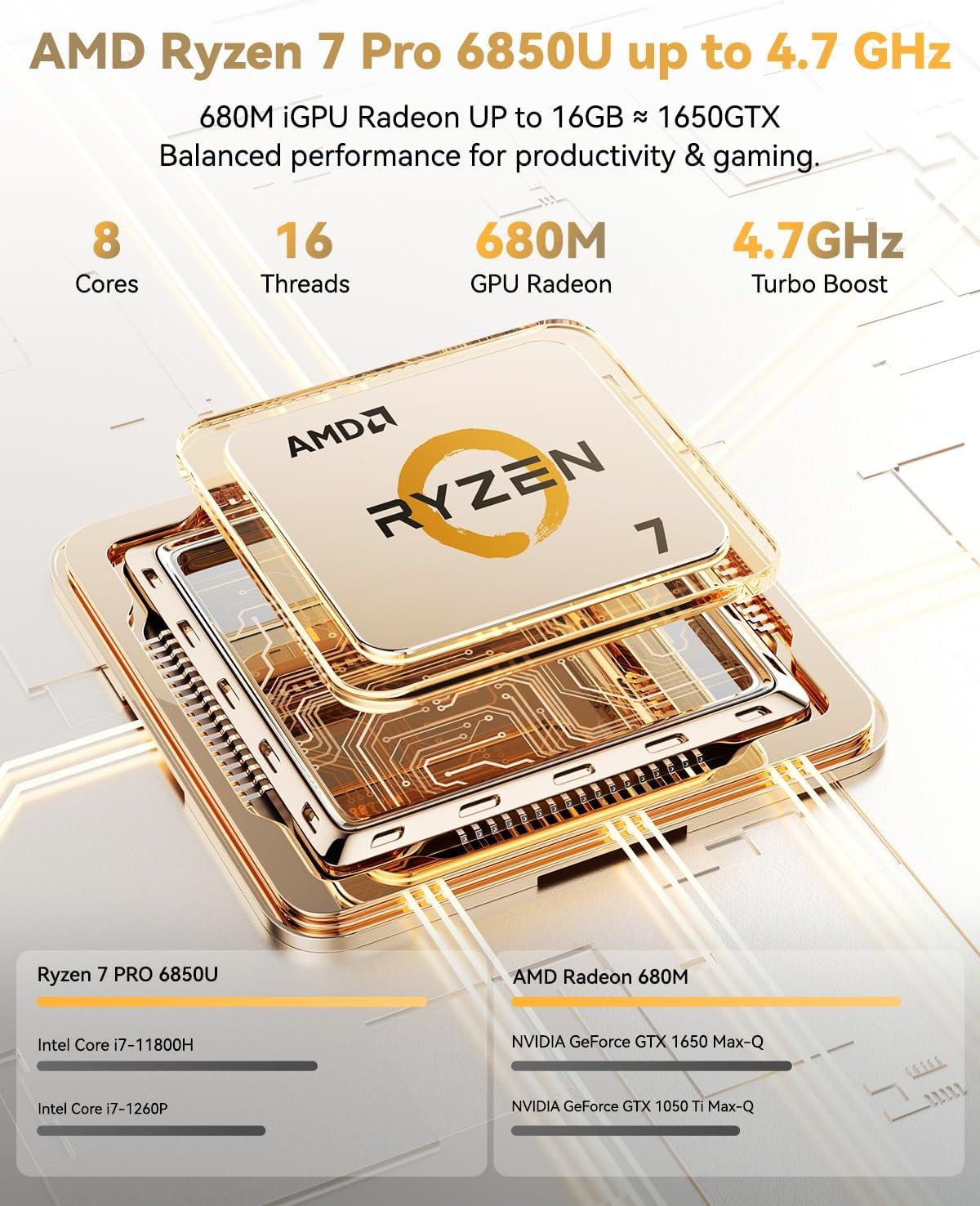
Image: NIMO 15.6-inch laptop displaying the Windows 11 setup screen.
Press the power button located on the top-right of the keyboard to turn on the laptop. Follow the on-screen instructions to complete the initial Windows 11 Home setup, including language selection, network connection, and user account creation.
3.2 Configuración de huellas dactilares
During the Windows setup, you will have the option to set up the integrated fingerprint reader for secure and instant login. Follow the prompts to register your fingerprint. This feature allows you to bypass password entry for quick access.
3.3 Conexión a una red
During setup, select your Wi-Fi network from the list and enter the password. The laptop supports Wi-Fi 6 for fast and stable wireless connectivity.
3.4 Unboxing y revisión inicialview
Vídeo: Un overview of the NIMO 15.6-inch laptop, demonstrating its physical features, ports, and initial setup process, including the backlit keyboard and fingerprint reader.
4. Operating Your NIMO Laptop
4.1 Encendido y apagado
- Para encender: Presione el botón de encendido.
- Para apagar: Click the Start menu, then Power, and select 'Shut down'. Alternatively, press and hold the power button for a few seconds.
4.2 Pantalla
The NIMO N15A features a 15.6-inch Full HD (1920x1080) IPS anti-glare display. This screen provides clear, vibrant visuals with an 85% screen-to-body ratio, ideal for work, streaming, and light gaming.

Image: The NIMO laptop's 15.6-inch Full HD IPS display showcasing vivid colors and sharp details.
4.3 Teclado y panel táctil
The laptop is equipped with a backlit keyboard and a numeric keypad for enhanced productivity in various lighting conditions. The precision gesture touchpad allows for smooth navigation, and the integrated fingerprint touchpad provides secure, instant login.

Image: Close-up of the NIMO laptop's backlit keyboard and the fingerprint sensor on the touchpad.
4.4 Conectividad y puertos
The NIMO N15A offers a variety of ports for versatile connectivity:
- USB-C (Multi-function): Supports 100W Power Delivery (PD) fast charging and data transfer.
- USB 3.2: Transferencia de datos de alta velocidad.
- USB 2.0: Conectividad USB estándar.
- HDMI: Para conectar pantallas externas.
- Lector de tarjetas Micro SD: Para ampliar el almacenamiento o transferir files.
- Toma de auriculares: Para salida de audio.
- Cerradura Kensington: Por seguridad física.
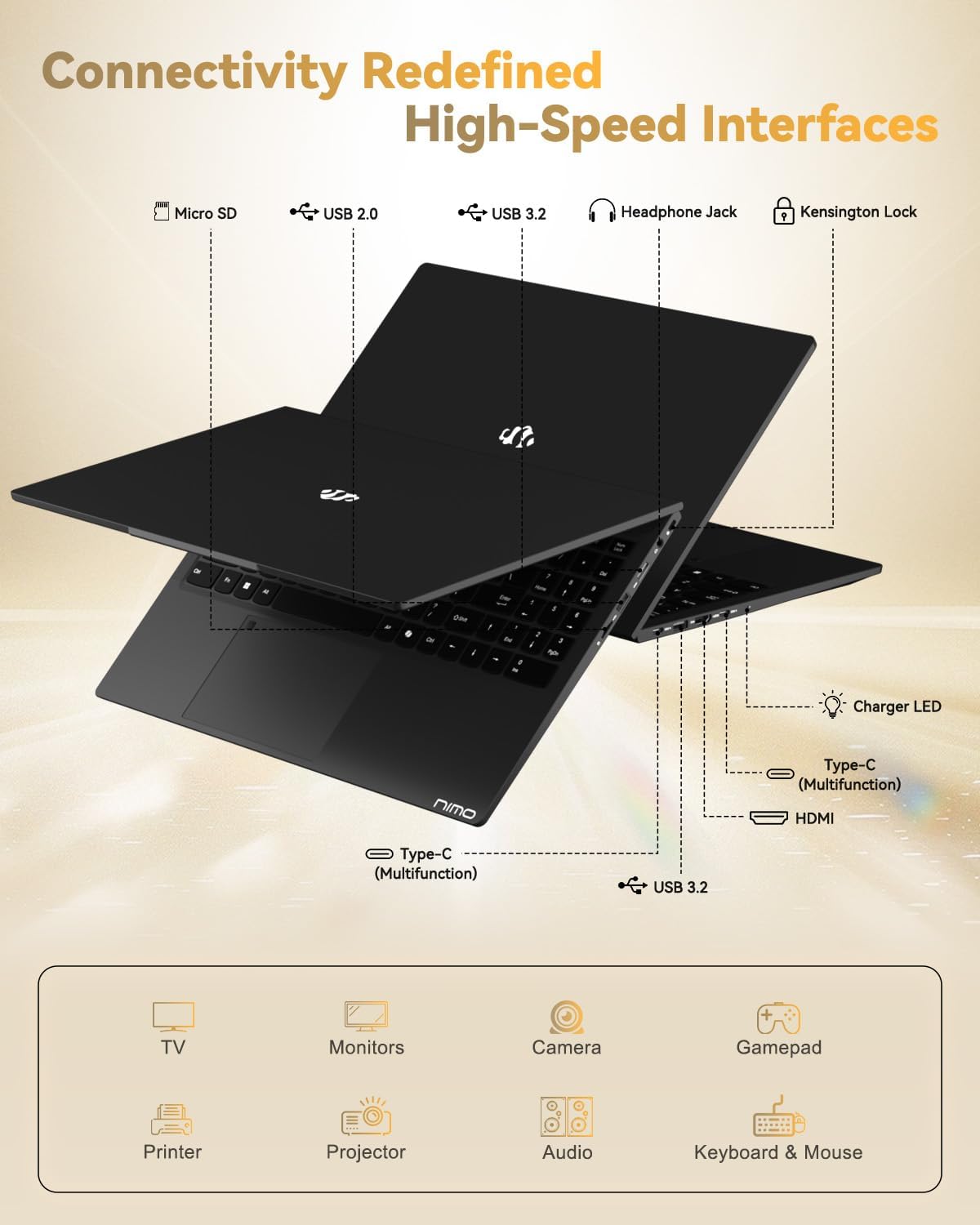
Image: The left and right sides of the NIMO laptop, highlighting the available ports for external devices.
4.5 Webleva
The laptop includes a 2.0 MP front-facing webcam with a physical privacy shutter, ensuring your privacy during video calls and online meetings.

Image: The NIMO laptop's integrated webcam, demonstrating the physical privacy shutter mechanism.
4.6 Rendimiento superiorview
Powered by the AMD Ryzen 7 Pro 6850U processor with 8 cores and 16 threads (up to 4.7GHz), and an AMD Radeon 680M GPU, this laptop delivers smooth multitasking and responsive performance for professional workloads, content creation, and light gaming. It comes with 16GB LPDDR5 RAM and a 1TB PCIe 4.0 SSD for rapid data access and storage.
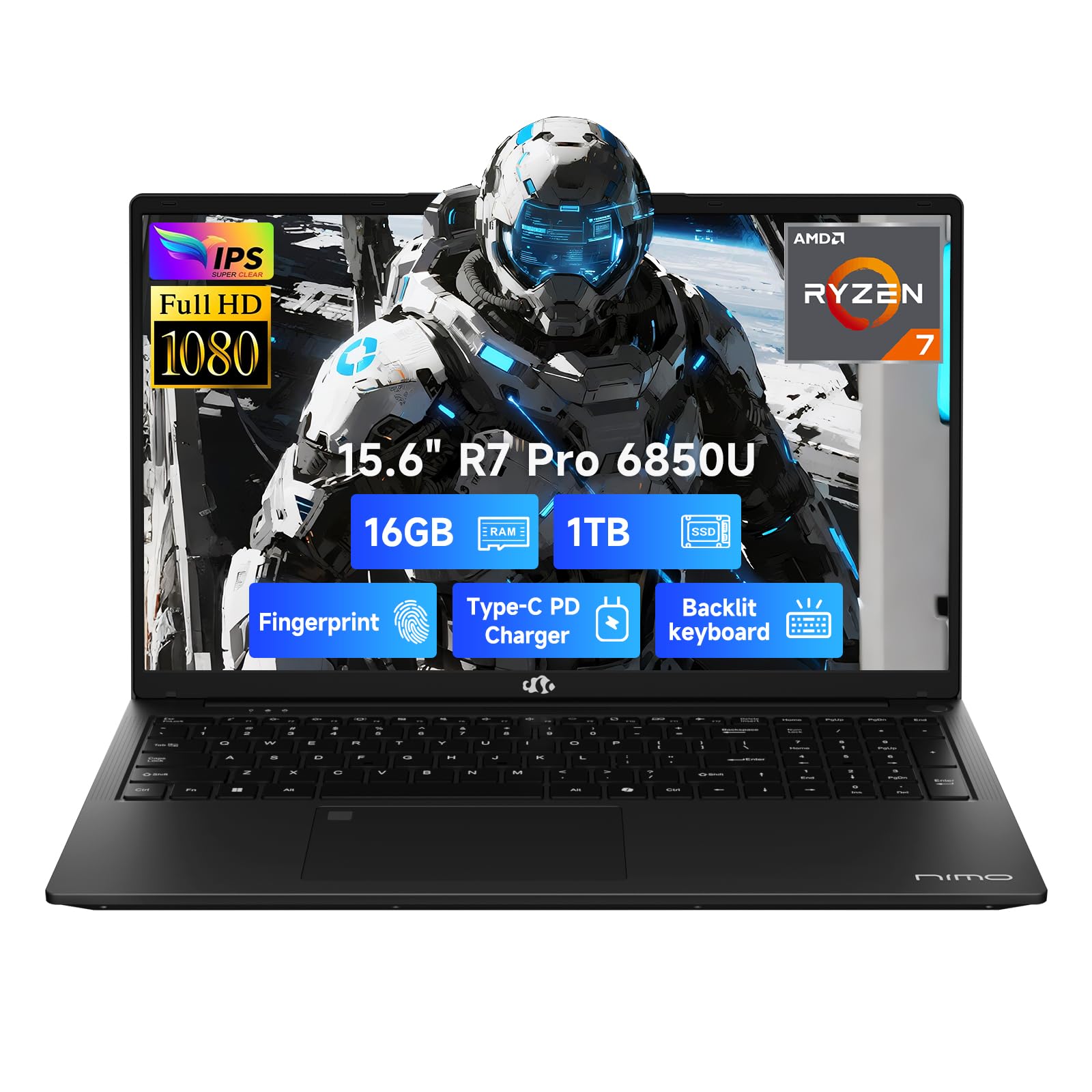
Image: Visual representation of the AMD Ryzen 7 Pro 6850U processor's core specifications.
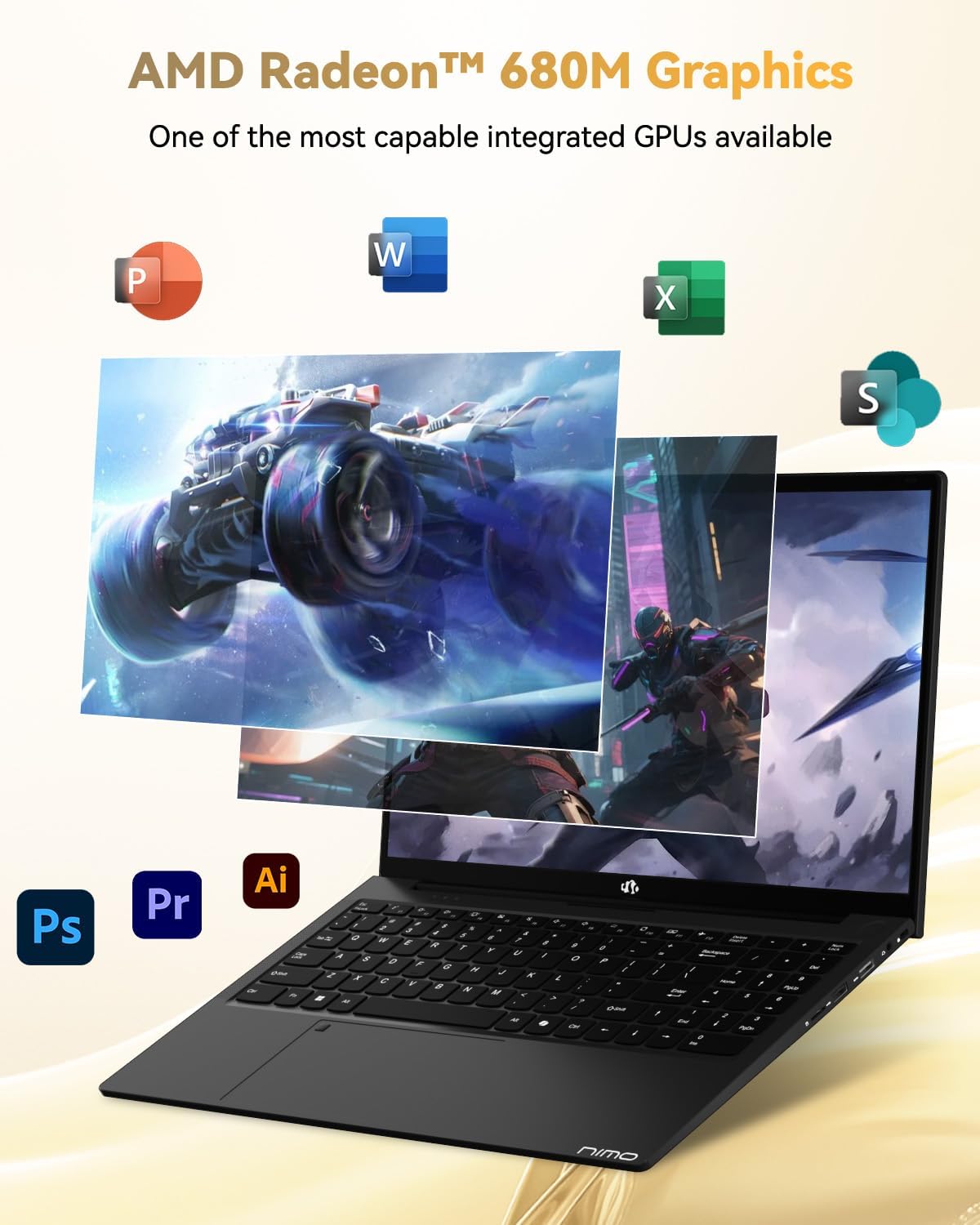
Image: The NIMO laptop showcasing its AMD Radeon 680M graphics performance with various applications.

Image: The NIMO laptop illustrating its capability for seamless multitasking and ampalmacenamiento.
4.7 Batería y carga
The laptop is powered by a 53.58 Watt-hour Lithium Polymer battery, offering up to 9 hours of battery life. The included 100W USB-C PD fast charger can provide up to 2 hours of use with just a 15-minute charge, making it ideal for users on the go.

Image: The NIMO laptop connected to its 100W Type-C fast charger.
4.8 General Usage and Features
Vídeo: Un vídeo promocional muestraasing the NIMO 15.6-inch FHD laptop's various features and use cases, including its display, performance, and portability.
Video: A video highlighting the Nimo Student Laptop's features, including its suitability for students and general use, emphasizing its design and functionality.
5. Mantenimiento y cuidado
To ensure the longevity and optimal performance of your NIMO laptop, follow these maintenance guidelines:
- Uso del cargador: Always use the original 100W Type-C PD fast charger and regularly inspect cables for damage.
- Manejo físico: Hold the laptop by its base, use a protective case, and avoid placing heavy items on it.
- Ventilación: Place the laptop on a hard, flat surface to ensure proper airflow and prevent overheating. Avoid using it on soft surfaces like beds or couches.
- Condiciones ambientales: Keep the laptop away from extreme temperatures, direct sunlight, and moisture.
- Cuidado de la batería: Avoid overcharging the battery. If the battery shows signs of swelling, discontinue use immediately and contact support.
- Seguridad: Set strong passwords, keep your operating system and software updated, and use antivirus software. Regularly back up your data to prevent loss.
- Derrames de líquidos: In case of a liquid spill, immediately unplug the laptop and allow it to dry completely before attempting to power it on.
- Refacción: For any issues or repairs, consult qualified professionals. Do not attempt to disassemble the laptop yourself, as this may void your warranty.
6. Solución de problemas
If you encounter any issues with your NIMO laptop, consider the following basic troubleshooting steps:
- Sin energía: Ensure the charger is securely connected and the power outlet is functional. Try a different outlet or charger if available.
- Problemas de visualización: Si la pantalla está en blanco, prueba a conectar un monitor externo para comprobar si la salida de pantalla funciona. Ajusta la configuración de brillo.
- Rendimiento lento: Close unnecessary applications, check for background updates, or restart the laptop. Ensure sufficient free space on the SSD.
- Problemas de conectividad: Si tiene problemas de Wi-Fi, reinicie el router y la laptop. Si tiene problemas de Bluetooth, asegúrese de que el dispositivo sea detectable y esté dentro del alcance.
- El lector de huellas dactilares no funciona: Asegúrese de que su dedo esté limpio y seco. Si el problema persiste, vuelva a registrar su huella digital en la configuración de Windows.
- Problemas de audio: Check volume levels, ensure headphones are properly connected, and verify audio drivers are up to date.
Para problemas persistentes o cuestiones no cubiertas aquí, consulte la sección Garantía y soporte para obtener información de contacto.
7. Especificaciones
| Característica | Especificación |
|---|---|
| Marca | NIMO |
| Nombre del modelo | NIMO N15A |
| Tamaño de pantalla | 15.6 pulgadas |
| Resolución de pantalla | 1920 x 1080 píxeles (FHD) |
| Tecnología de visualización | IPS |
| Modelo de CPU | AMD Ryzen 7 Pro 6850U |
| Velocidad del procesador | Hasta 4.7 GHz |
| Núcleos de procesador | 8 |
| Tamaño de la memoria RAM instalada | 16 GB LPDDR5 |
| Velocidad del reloj de memoria | 6400 MHz |
| Tamaño del disco duro | 1024 GB (1TB PCIe 4.0 SSD) |
| Coprocesador gráfico | Tarjeta gráfica AMD Radeon 680M |
| Sistema operativo | Inicio de Windows 11 |
| Características especiales | Backlit Keyboard, Fingerprint Reader, HD Audio, Numeric Keypad |
| Tecnología de conectividad | Bluetooth, Wi-Fi (802.11a/b/g/n/ac) |
| Puertos USB totales | 5 |
| Salida de vídeo | HDMI |
| Duración de la batería | 9 Hours (Average) |
| Peso del artículo | 3.75 libras |
| Dimensiones del artículo (largo x ancho x grosor) | 14.07" de largo x 8.98" de ancho x 0.76" de grosor |
8. Garantía y soporte
NIMO stands by the quality of its products. Your NIMO N15A laptop comes with a Garantía del fabricante de 2 años y un Política de devolución sin complicaciones de 90 días. Our laptops undergo rigorous testing to ensure top-tier quality and reliability.

Image: NIMO's commitment to after-sales services, including support and returns.
Cómo ponerse en contacto con el servicio de asistencia
Our dedicated support team is ready to provide quick, effective assistance for a worry-free experience. For any product-related questions or warranty claims, please contact us:
- Correo electrónico: servicio@nimopc.com
- En línea: Visit the official NIMO website or product page for chat support during business hours.

Image: Professional customer assistance available to help with product inquiries.