
Introducción
This manual provides detailed instructions for the installation, operation, and maintenance of your Gawfolk GF490D 49-inch Ultra-Wide Curved Gaming Monitor. Please read this manual thoroughly before using the product to ensure proper setup and optimal performance. Keep this manual for future reference.
Información de seguridad
Siga siempre estas precauciones básicas de seguridad al utilizar su monitor:
- No coloque el monitor sobre un carrito, soporte o mesa inestable.
- No bloquee las aberturas de ventilación.
- No utilizar cerca de agua o fuentes de calor.
- Utilice únicamente el cable de alimentación y el adaptador proporcionados por el fabricante.
- Deje todo servicio a personal de servicio calificado.
- Desenchufe el monitor durante tormentas eléctricas o cuando no lo utilice durante períodos prolongados.
Contenido del paquete
Verifique que todos los componentes estén presentes en el paquete:
- Gawfolk GF490D Monitor
- Monitor Stand Components (Base, Neck)
- Adaptador de corriente y cable
- Cable HDMI
- Cable DisplayPort
- Manual de usuario
Configuración
1. Montaje del soporte
- Retire con cuidado el monitor de su embalaje, manteniéndolo protegido sobre una superficie suave.
- Conecte el cuello del soporte al panel del monitor.
- Fije la base del soporte al cuello utilizando los tornillos provistos.

Figura 1: Illustration of monitor ergonomic adjustments, including height adjustment (0-160mm), wall bracket compatibility (75x75mm), and tilt adjustment (-5° to 15°).
2. Conexión a dispositivos
The monitor is equipped with multiple input ports for various devices:
- Power Connector (DC): Conecte el adaptador de corriente a este puerto y luego a una toma de corriente.
- Puertos HDMI 2.1 (x2): Connect to devices such as PCs, game consoles (PS5/Xbox Series X), or laptops using an HDMI cable.
- Puertos DisplayPort 1.4 (x2): Connect to PCs or other compatible devices using a DisplayPort cable for high-resolution and high-refresh-rate signals.
- Interfaz de salida de audio: Conecte altavoces externos o auriculares.

Figura 2: Trasero view of the monitor showing the available input ports: DC power connector, two DisplayPort 1.4 interfaces, two HDMI 2.1 interfaces, and an audio output interface.
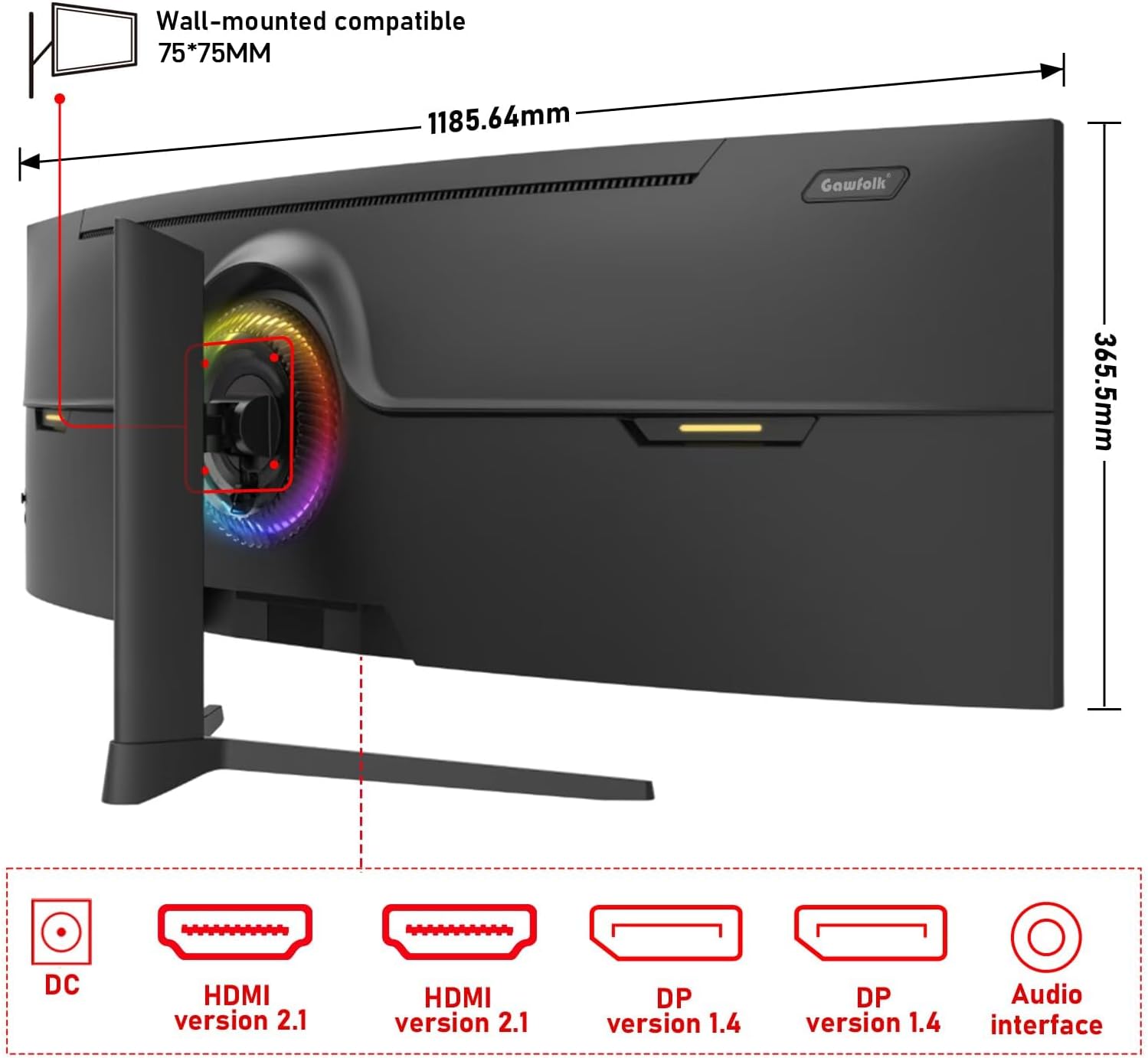
Figura 3: Trasero view of the monitor illustrating its approximate dimensions (1185.64mm width, 365.5mm height without stand) and indicating 75x75mm VESA wall-mount compatibility.
3. Montaje en pared (opcional)
The monitor supports a 75x75mm VESA wall mount. Ensure the wall mount can support the monitor's weight (7.9 kg) and follow the wall mount manufacturer's instructions for installation.
Instrucciones de funcionamiento
1. Encendido / apagado
- Conecte el adaptador de corriente al monitor y a una toma de corriente.
- Press the power button (location typically on the rear or bottom-right of the monitor) to turn the monitor on or off.
2. Ajuste de la configuración de la pantalla
The monitor features an On-Screen Display (OSD) menu for adjusting various settings. Use the joystick or buttons (refer to the physical monitor for exact controls) to navigate the OSD menu.
- Fuente de entrada: Select between HDMI 1, HDMI 2, DP 1, or DP 2.
- Brillo/Contraste: Ajustar la luminancia de la imagen.
- Configuración de color: Modify color temperature, gamma, and color gamut (120% sRGB).
- Frecuencia de actualización: El monitor admite hasta 240 Hz. Asegúrese de que el dispositivo conectado y el cable admitan esta frecuencia de actualización para un rendimiento óptimo.
- Sincronización adaptativa (FreeSync): Enable this feature in the OSD and your graphics card settings to synchronize the monitor's refresh rate with your GPU's frame rate, reducing screen tearing and stuttering.
- Modo de luz azul baja: Activar para reducir la fatiga visual durante el uso prolongado.

Figura 4: The 49-inch 32:9 ultra-wide display with DQHD (5120x1440) resolution, offering an expansive field of view compared to traditional 16:9 QHD (2560x1440) monitors.

Figura 5: Visual comparison demonstrating the smoothness of a 240Hz refresh rate versus lower refresh rates (100Hz and 60Hz), highlighting reduced motion blur and stuttering.

Figura 6: Illustration of Adaptive Sync (FreeSync) technology, showing how it eliminates screen tearing and input lag for a smoother gaming experience compared to when it is disabled.

Figura 7: The 1500R curvature of the screen, designed to provide an immersive viewing experience by conforming to the human eye's natural field of vision.

Figura 8: Display characteristics including 120% sRGB color gamut, 8-bit color depth (16.7 million colors), 3000:1 contrast ratio, and 330 cd/m² brightness, ensuring rich and accurate color reproduction.

Figura 9: A visual comparison demonstrating the difference between a 1000:1 contrast ratio and the monitor's 3000:1 contrast ratio, showing enhanced detail in dark and bright areas.
3. Ajustes físicos
El soporte del monitor permite ajustes ergonómicos:
- Ajuste de altura: Ajuste la altura de la pantalla hasta 160 mm.
- Girar: Rotate the monitor left or right by 15 degrees.
- Inclinación: Adjust the screen tilt from -5 degrees to 20 degrees.
4. RGB Ambient Lighting
The monitor features customizable RGB ambient lighting on its rear. This can be configured through the OSD menu to match your preferences or gaming setup.
Mantenimiento
Limpieza del monitor
- Desenchufe siempre el monitor antes de limpiarlo.
- Utilice un paño suave y sin pelusa ligeramenteampLimpiar con agua o un limpiador de pantalla suave, no abrasivo.
- No rocíe el limpiador directamente sobre la pantalla.
- Avoid using benzene, thinner, or any volatile solvents, as they may damage the monitor's surface.
Solución de problemas
| Problema | Posible causa | Solución |
|---|---|---|
| No hay imagen en la pantalla | Power cable disconnected, video cable disconnected, incorrect input source selected. | Check power and video cable connections. Select the correct input source via the OSD menu. Ensure the computer is powered on. |
| La imagen está borrosa o distorsionada. | Incorrect resolution or refresh rate settings, faulty video cable. | Set the display resolution to 5120x1440 and refresh rate to 240Hz (or compatible with your GPU). Try a different video cable. |
| Desgarro o tartamudeo de pantalla | Adaptive Sync (FreeSync) is not enabled or not supported by GPU/game. | Enable FreeSync in the monitor's OSD menu and your graphics card control panel. Ensure your GPU supports FreeSync. |
| Píxel(es) muerto(s) | Defecto de fabricación. | Refer to warranty policy. A small number of dead pixels may be considered within acceptable manufacturing tolerances. |
| Sin audio | Audio cable disconnected, incorrect audio output selected on PC, monitor volume too low. | Check audio cable connection. Ensure the correct audio output device is selected in your computer's sound settings. Adjust monitor volume. |
Presupuesto
| Característica | Detalle |
|---|---|
| Número de modelo | GF490D |
| Tamaño de pantalla | 49 pulgadas |
| Resolución | DQHD (5120x1440 Pixels) |
| Relación de aspecto | 32:9 |
| Curvatura | 1500R |
| Frecuencia de actualización | 240 Hz |
| Tiempo de respuesta | 1 milisegundo |
| Tipo de panel | VA (LCD Display Technology) |
| Brillo | 350 candelas (cd/m²) |
| Relación de contraste | 3000:1 |
| Gama de colores | 120 % sRGB |
| Viewángulo de ing | 178 grados |
| Sincronización adaptativa | Sincronización libre |
| Entradas de video | 2 HDMI 2.1, 2 DisplayPort 1.4 |
| Salida de audio | 3.5mm Audio Jack |
| Tipo de montaje | Wall Mount (75x75mm VESA compatible) |
| Dimensiones del producto (Pr. x An. x Al.) | 5 x 118.5 x 43 cm (con soporte) |
| Peso del artículo | 7.9 kilogramos |
| Características adicionales | Blue Light Filter, Curved, Frameless, RGB Ambient Lighting |
Garantía y soporte
The Gawfolk GF490D monitor comes with a Servicio postventa de 12 meses (1 year manufacturer warranty). If you encounter any issues or have questions regarding your monitor, please contact Gawfolk customer support for assistance.
Manufacturer: Shenzhen Qinghong Zhuoyue Technology Co., Ltd.