
1. Introducción
This manual provides detailed instructions for the setup, operation, maintenance, and troubleshooting of your Gawfolk 24.5 Inch 300Hz Gaming Monitor, Model GF245C. This monitor features a 24.5-inch FHD 1080p VA panel, a 300Hz refresh rate, 1ms response time, Adaptive Sync technology, 98% sRGB color gamut, and low blue light/flicker-free technology for an enhanced viewExperiencia de aprendizaje.
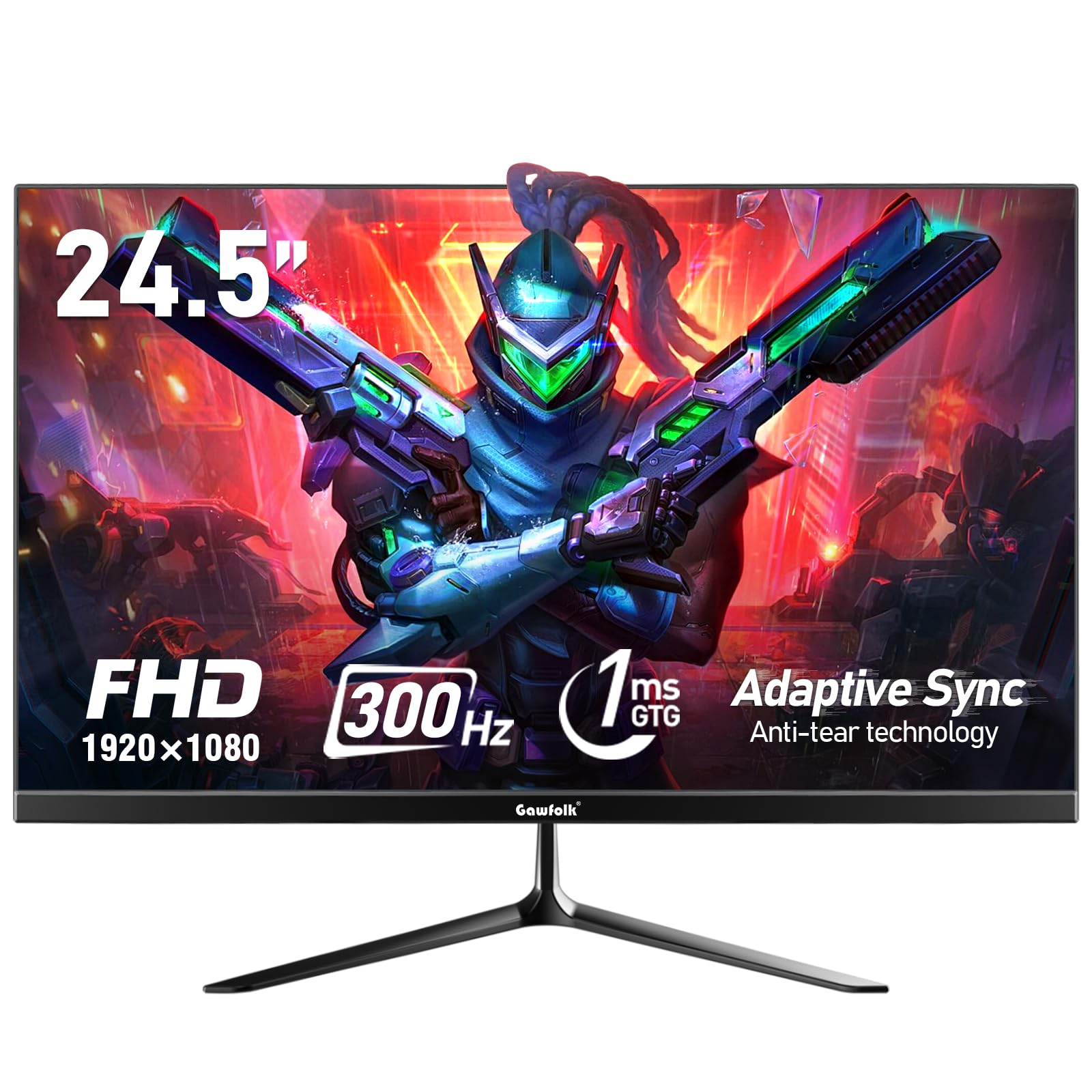
Figura 1: Frente view of the Gawfolk 24.5 Inch 300Hz Gaming Monitor.
2. Instrucciones de configuración
2.1 Contenido del paquete
- Monitor para juegos Gawfolk de 24.5 pulgadas
- Soporte para monitor (base y mástil)
- Adaptador de corriente
- Cable DisplayPort (DP)
- Manual de usuario
2.2 Montaje del soporte
- Retire con cuidado los componentes del monitor y del soporte del embalaje.
- Fije el cuello del soporte al panel del monitor utilizando los tornillos provistos.
- Fije la base del soporte al cuello del soporte, asegurándola con el tornillo designado.
- Coloque el monitor ensamblado sobre una superficie plana y estable.
2.3 Cables de conexión
Asegúrese de que el monitor y la computadora estén apagados antes de realizar cualquier conexión.
- Conexión de energía: Conecte el adaptador de corriente al puerto de entrada de CC del monitor y luego enchufe el adaptador a una toma de corriente.
- Conexión de vídeo: Connect one end of the provided DisplayPort (DP) cable to the DP port on your computer's graphics card and the other end to the DP input on the monitor. Alternatively, use an HDMI cable to connect to an HDMI port.
- Salida de audio: If desired, connect external speakers or headphones to the 3.5mm audio output port on the monitor.
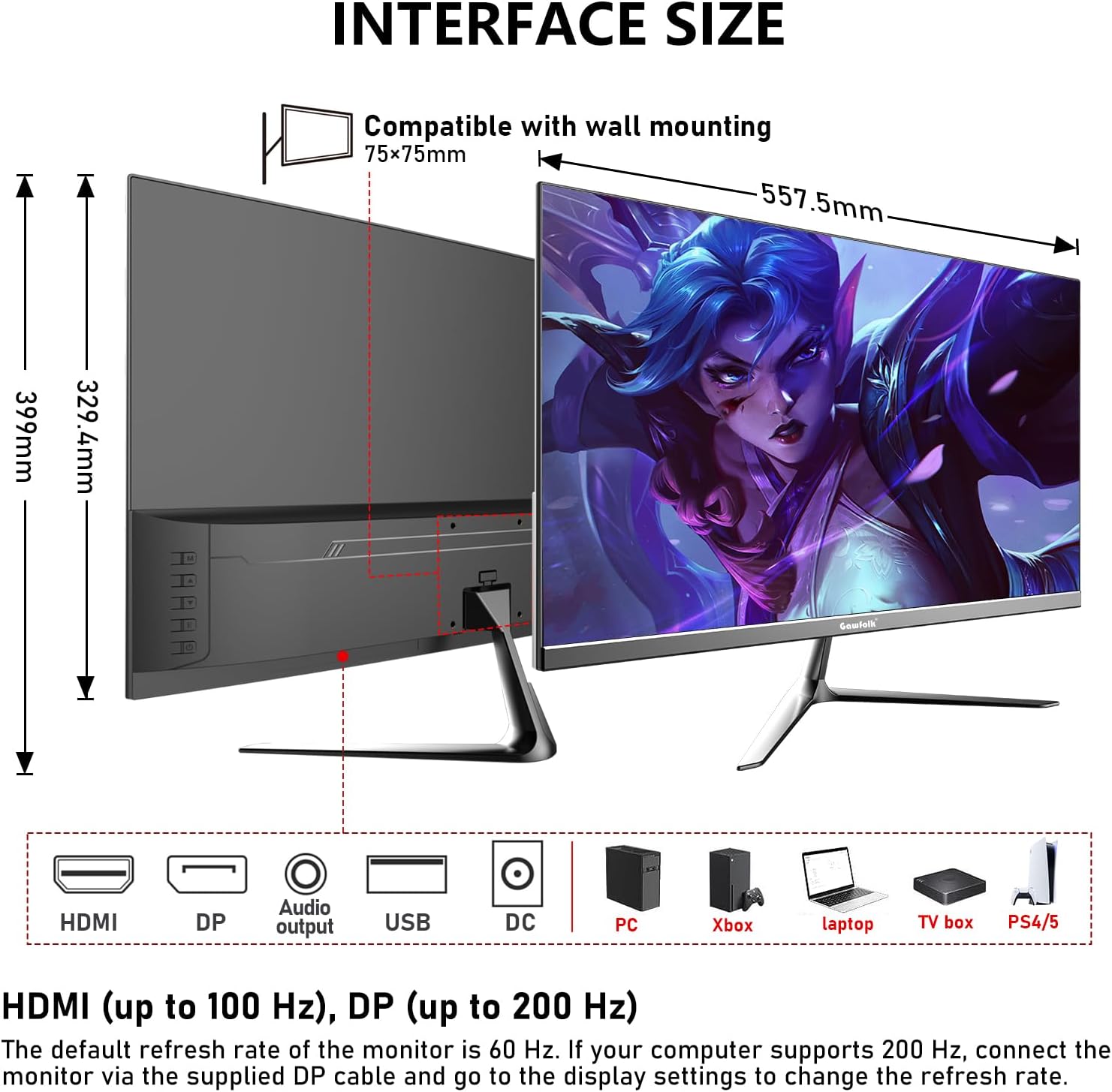
Figura 2: Dimensiones del monitor y disposición del puerto.
2.4 Montaje en pared (opcional)
The monitor supports VESA wall mounting with a 75x75mm pattern. A wall mounting bracket is not included and must be purchased separately. Follow the instructions provided with your VESA mount for proper installation.

Figure 3: Monitor compatible with 75x75mm VESA wall mounting.
3. Instrucciones de funcionamiento
3.1 Encendido y apagado
- To power on the monitor, press the power button located on the back or bottom of the monitor.
- Para apagar, mantenga presionado el botón de encendido hasta que la pantalla se apague.
3.2 Navegación por el menú OSD
The On-Screen Display (OSD) menu allows you to adjust various monitor settings. Use the joystick or buttons (location may vary slightly) on the back or bottom of the monitor to navigate the menu.
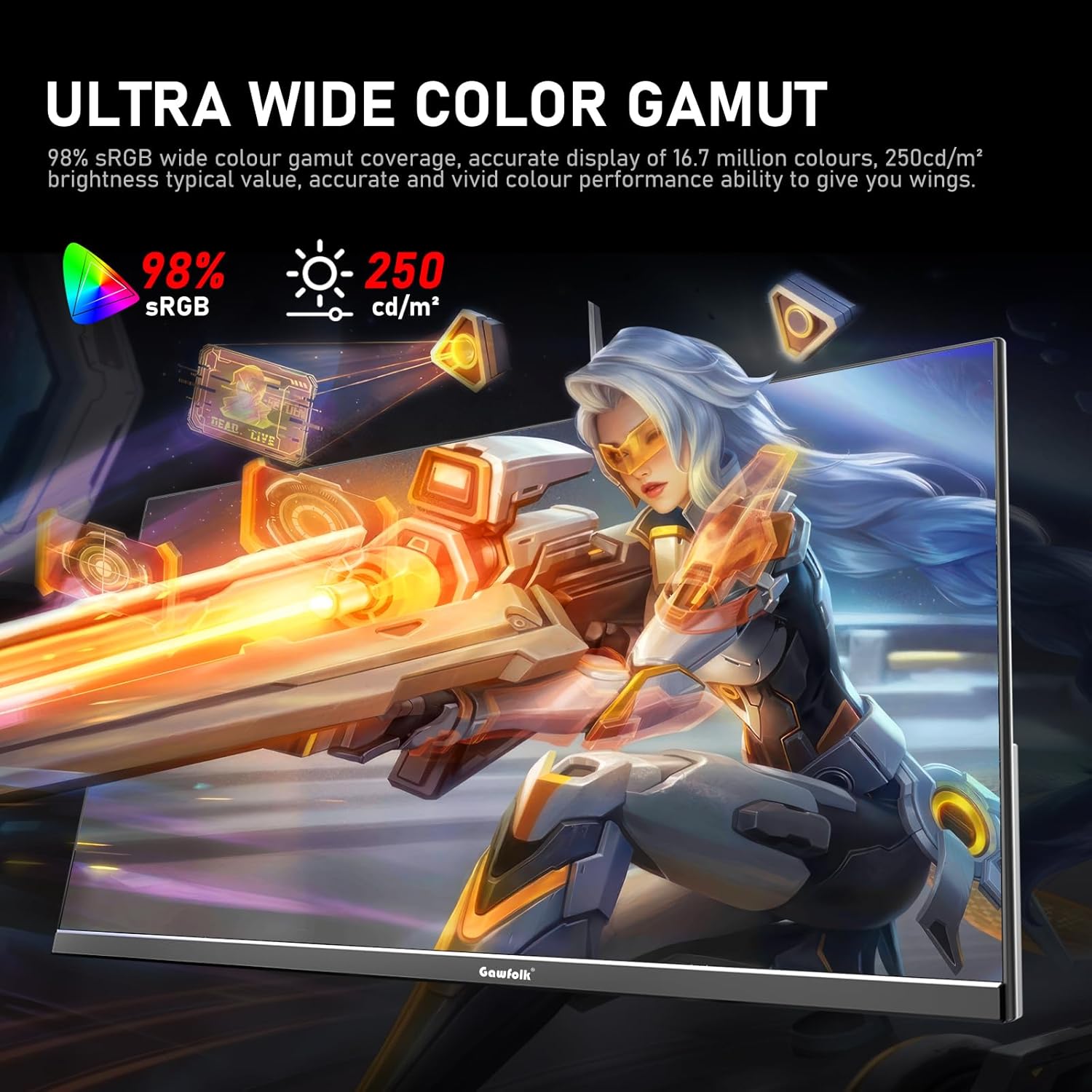
Figura 4: Menú de visualización en pantalla (OSD) para la configuración del monitor.
3.3 Selección de entrada
Access the OSD menu and navigate to the 'Input' or 'Source' section to select between HDMI and DisplayPort inputs.
3.4 Ajuste de la configuración de la pantalla
- Brillo/Contraste: Ajuste estas configuraciones en el menú OSD para adaptarlas a sus necesidades. viewentorno de ing.
- Configuración de color: Fine-tune color temperature, gamma, and other color parameters for optimal visual quality. The monitor supports 98% sRGB for rich colors.
- Frecuencia de actualización: The monitor supports up to 300Hz via DisplayPort and up to 120Hz via HDMI. To change the refresh rate, connect the monitor via the appropriate cable and adjust the display settings within your computer's operating system.

Figure 5: Connectivity options and refresh rate capabilities.
3.5 Tecnología de sincronización adaptativa
This monitor supports Adaptive Sync (FreeSync/G-Sync compatible) to minimize input latency and reduce screen tearing and stuttering during gaming and video playback. Ensure Adaptive Sync is enabled in both the monitor's OSD menu and your graphics card settings.

Figure 6: Visual demonstration of Adaptive Sync technology reducing screen tearing.
3.6 Luz azul baja y sin parpadeo
The monitor incorporates DC global dimming technology for a flicker-free display and a low blue light mode. Activate the low blue light mode in the OSD menu to reduce eye strain during prolonged use.

Figure 7: Illustration of Flicker-Free Technology for eye comfort.
4. Mantenimiento
4.1 Limpieza del monitor
- Siempre apague y desenchufe el monitor antes de limpiarlo.
- Utilice un paño suave y sin pelusa ligeramenteampLimpiar con agua o un limpiador de pantalla suave, no abrasivo.
- No rocíe el limpiador directamente sobre la pantalla.
- Evite utilizar alcohol, amoníaco o limpiadores abrasivos, ya que pueden dañar la superficie de la pantalla.
4.2 Cuidados generales
- Mantenga el monitor alejado de la luz solar directa, del calor excesivo y de la humedad.
- Asegúrese de que haya una ventilación adecuada alrededor del monitor para evitar el sobrecalentamiento.
- Evite colocar objetos pesados sobre el monitor o sus cables.
5. Solución de problemas
Si tiene problemas con su monitor, consulte las siguientes soluciones comunes:
5.1 Sin pantalla/pantalla negra
- Asegúrese de que el cable de alimentación esté conectado de forma segura tanto al monitor como a la toma de corriente.
- Verify that the video cable (DP or HDMI) is firmly connected to both the monitor and your computer.
- Compruebe si la fuente de entrada correcta está seleccionada en el menú OSD del monitor.
- Reinicie su computadora.
- Test the monitor with another device or cable if possible to isolate the issue.
5.2 Pantalla parpadeante
- Ensure the video cable is securely connected. A loose connection can cause flickering.
- Verifique los controladores de su tarjeta gráfica y actualícelos si es necesario.
- Disable Adaptive Sync in your graphics card settings and the monitor's OSD menu to see if the issue persists.
- Verify that the refresh rate is set correctly in your computer's display settings.
5.3 Problemas de calidad de imagen (borrosa, distorsionada)
- Asegúrese de que la resolución de pantalla de su computadora esté configurada a la resolución nativa del monitor (1920x1080).
- Ajuste la configuración de brillo, contraste y color en el menú OSD.
- If using an analog connection (not applicable for this monitor's inputs but general advice), ensure auto-adjustment is performed.
5.4 No Audio from Monitor Speakers/Audio Out
- Ensure the audio output is selected correctly in your computer's sound settings.
- Check the volume level on both the monitor (via OSD) and your computer.
- If using external speakers/headphones, ensure they are properly connected to the monitor's audio output.
6. Especificaciones
| Característica | Especificación |
|---|---|
| Marca | Gente de la calle |
| Número de modelo | GF245C |
| Tamaño de pantalla | 24.5 pulgadas |
| Resolución | FHD 1080p (1920 x 1080 píxeles) |
| Relación de aspecto | 16:9 |
| Frecuencia de actualización | 300 Hz (DP), 120 Hz (HDMI) |
| Tiempo de respuesta | 1 milisegundo (GTG) |
| Tecnología de visualización | Panel VA |
| Viewángulo de ing | 178 grados |
| Brillo | 250 candelas |
| Gama de colores | 98 % sRGB |
| Relación de contraste | 3500:1 |
| Conectividad | DisplayPort, HDMI, 3.5mm Audio Out |
| Sincronización adaptativa | FreeSync, G-Sync Compatible |
| Características adicionales | Flicker-Free, Low Blue Light, Frameless Design |
| Tipo de montaje | Desk Mount, VESA Wall Mount (75x75MM) |
| Dimensiones del artículo (Pr. x An. x Al.) | 6.42" de profundidad x 21.93" de ancho x 15.75" de alto |
| Peso del artículo | 3.48 kilogramos |
7. Garantía y soporte
7.1 Información de garantía
The Gawfolk 24.5 Inch 300Hz Gaming Monitor (Model GF245C) comes with a garantía de un año covering quality problems from the date of purchase.
7.2 Servicio posventa
Ofrecemos una Servicio postventa de 12 meses. If you encounter any problems when using the monitor, please communicate with us in a timely manner for assistance. For support, please refer to the contact information provided with your purchase or visit the official Gawfolk websitio.