
Introducción y másview
The Trueque KM22 Ultra Wireless Keyboard and Mouse Combo offers a full-size, backlit typing experience with a comfortable wrist rest and convenient phone holder. Designed for versatility, it connects wirelessly via a 2.4G USB-A/Type-C receiver, making it compatible with various devices including PCs, laptops, Windows, and Chrome OS. Its quiet keys and long-lasting rechargeable battery ensure an efficient and undisturbed work or gaming environment.

Image: Trueque KM22 Ultra Wireless Keyboard and Mouse Combo, showcasing its full-size design and integrated wrist rest.
Contenido del paquete
Verifique que todos los artículos estén presentes en su paquete:
- Trueque KM22 Ultra Wireless Keyboard
- Trueque Wireless Mouse
- 2-in-1 USB-A/Type-C Receiver
- Cable de carga USB
- Manual de usuario
Video: Unboxing the Trueque Wireless Keyboard and Mouse Combo, showing all included components.
Configuración
- Localice el receptor USB: The 2-in-1 USB-A/Type-C receiver is stored in a compartment on the underside of the mouse. Gently remove it.
- Conecte el receptor: Plug the USB receiver into an available USB-A or USB-C port on your computer or laptop. The system should automatically detect the devices.
- Encendido: Ensure both the keyboard and mouse are switched to the 'ON' position. The power switch for the mouse is located on its underside. The keyboard has a power switch near the top right.
- Carga inicial: For optimal performance, it is recommended to fully charge both the keyboard and mouse before first use. Use the provided USB charging cable.
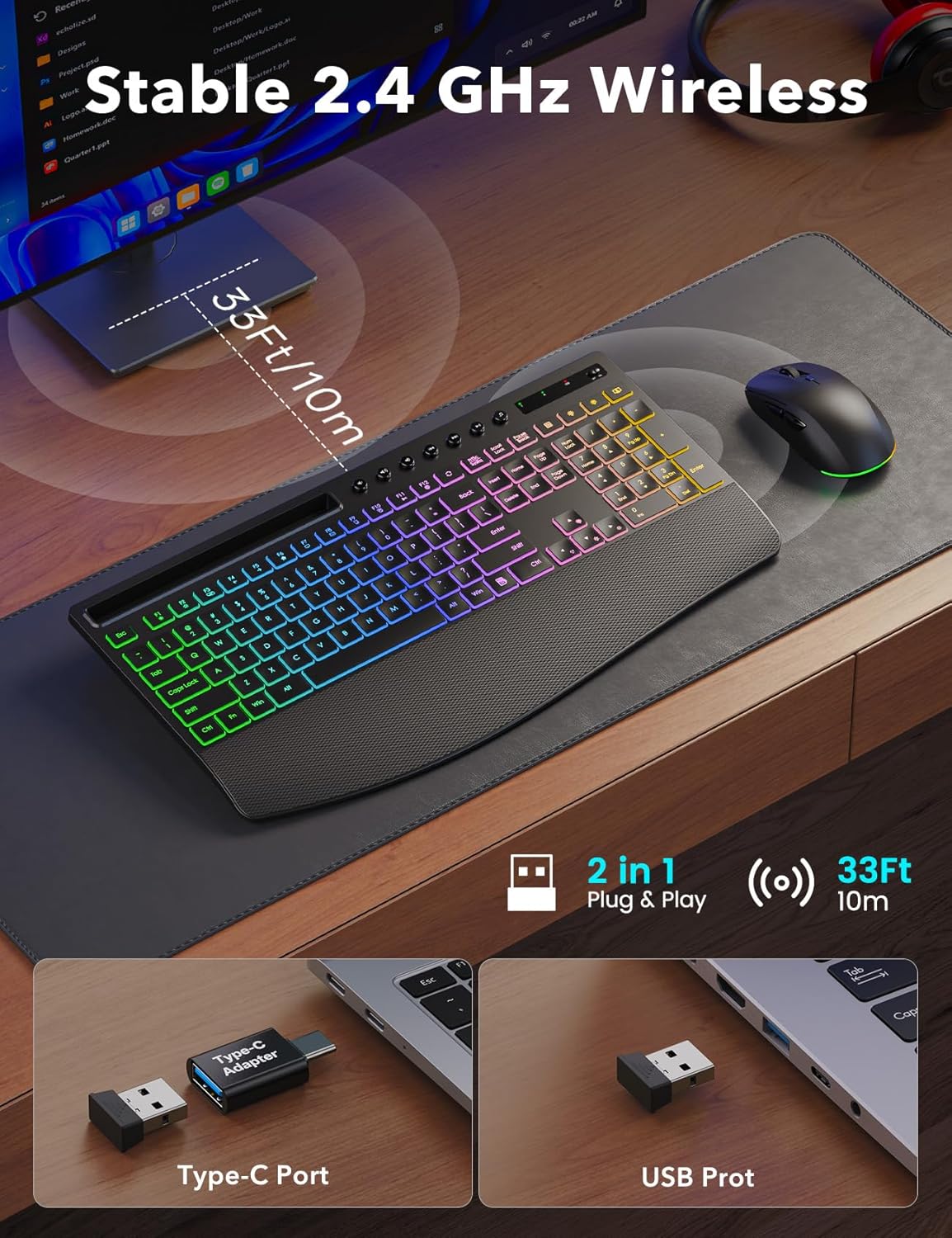
Image: The 2.4G wireless receiver with both USB-A and Type-C adapter options for versatile connectivity.
Instrucciones de funcionamiento
Funciones del teclado
- Control de luz de fondo: The keyboard features 5 lighting effects and 10 backlight colors. Use the dedicated backlight keys (often marked with a lightbulb icon) to cycle through modes and colors. Adjust brightness levels using the Fn key combined with specific arrow keys (refer to the keyboard's keycap legends for exact combinations).
- Teclas multimedia: Dedicated multimedia keys are located at the top of the keyboard for quick access to volume control, play/pause, and other media functions.
- Wrist Rest & Tilt: The integrated wide wrist support is designed for comfort during long typing sessions. Foldable 7° tilt legs on the underside of the keyboard can be extended for a more ergonomic typing angle.
- Ranura para soporte de teléfono: A built-in slot at the top of the keyboard accommodates mobile devices, allowing for easy viewing during multitasking or video calls.
Video: Demonstration of keyboard backlight control, showing various modes and brightness adjustments.
Funciones del mouse
- Ajuste de PPP: The mouse supports multiple DPI settings (800, 1200, 1600 DPI) for adjustable cursor sensitivity. Use the dedicated DPI button, usually located near the scroll wheel, to cycle through settings.
- Botones laterales: The mouse includes side buttons for convenient forward and backward navigation in web navegadores u otras aplicaciones.
- Control de luz de fondo: To turn the mouse backlight on or off, press and hold the scroll wheel for approximately 5 seconds.

Image: The Trueque wireless mouse, highlighting its backlit feature, DPI settings, and quiet click design.
Mantenimiento
- Limpieza: Utilice un paño suave y seco para limpiar las superficies del teclado y el ratón. Para una limpieza más profunda, utilice un paño ligeramente seco.amp Se puede utilizar un paño con jabón suave, asegurándose de que no entre líquido en el dispositivo.
- Cuidado de la batería: To prolong battery life, avoid fully discharging the devices frequently. Recharge when the low battery indicator appears. Store in a cool, dry place when not in use for extended periods.
- Almacenamiento: When transporting or storing, ensure the USB receiver is securely placed in its compartment within the mouse to prevent loss.
Solución de problemas
- Sin conexión: Ensure the USB receiver is firmly plugged into a working USB port. Check that both the keyboard and mouse are powered on. Try plugging the receiver into a different USB port.
- La luz de fondo no funciona: Verify that the backlight is enabled using the dedicated keys. Adjust brightness levels. Ensure the device has sufficient battery charge.
- El ratón no responde: Check the mouse's power switch. Ensure the USB receiver is connected. If the mouse has a backlight, check if it's on, indicating power.
- Mouse Scrolling Issues: If the mouse scroll wheel is unresponsive, try turning the mouse off and on again. Ensure the mouse is fully charged.
- Conexión intermitente o con retraso: Move the keyboard and mouse closer to the USB receiver. Avoid placing the receiver near other wireless devices that might cause interference.
Presupuesto
| Dimensiones del producto | 16.8 x 9 x 0.9 pulgadas |
| Peso del artículo | 2.59 libras |
| Capacidad de la batería del teclado | 4000 mAh (recargable) |
| Capacidad de la batería del ratón | 800 mAh (recargable) |
| Tecnología de conectividad | Conexión inalámbrica de 2.4 GHz |
| alcance inalámbrico | Hasta 33 pies (10 metros) |
| Iluminar desde el fondo | 5 Lighting Effects, 10 Backlight Colors, 5 Brightness Levels |
| DPI del ratón | Hasta 1600 DPI (ajustable) |
| Características especiales | Backlit, Light Up Keys, Ergonomic, Rechargeable, Spillproof, Wrist Rest, Phone Holder |
| Dispositivos compatibles | Chromebook, Laptop, Notebook, MacBook Air, MacBook Pro, iMac, Tablet, Smartphone, Personal Computer, Television (Some shortcut keys may have limited function on macOS) |

Image: Detailed dimensions of the Trueque KM22 Ultra Keyboard and Mouse.
Garantía y soporte
Trueque offers a 12-month warranty and 360 days of brand care for this product. For any inquiries, technical support, or warranty claims, please contact our customer service team.
Correo electrónico de atención al cliente: truequeservice@outlook.com

Image: Trueque customer support details, including contact information and warranty period.