
1. Introducción
The ZTE U60 Pro MU5250 is a portable 5G Wi-Fi 7 router designed to provide high-speed internet connectivity on the go. It features an ultra-high-speed 5G-A network, the flagship Snapdragon X75 chip platform, and advanced Wi-Fi 7 technology. This device is equipped with a 10,000 mAh high-capacity battery, offering extended usage and the ability to function as a power bank for other electronic devices. Its 3.5-inch HD touchscreen allows for easy network management and traffic monitoring. The U60 Pro supports up to 64 simultaneous device connections and offers convenient NFC one-touch connectivity, intelligent AI scenes, and AI voice management for a fast, stable, and efficient internet experience.

Imagen 1.1: Frente view of the ZTE U60 Pro MU5250, showing its 3.5-inch display with network information.
2. Configuración
2.1 Contenido del paquete
Antes de comenzar, asegúrese de que todos los componentes estén presentes:
- ZTE U60 Pro MU5250 5G Pocket Wi-Fi 7 Router
- Adaptador de CA
- Manual de usuario (este documento)
2.2 Instalación de la tarjeta SIM
To enable 5G connectivity, a compatible SIM card must be installed.
- Localice la ranura de la tarjeta SIM en el costado del dispositivo.
- Using the provided SIM ejector tool (if applicable) or a small pin, gently press into the small hole next to the SIM tray to eject it.
- Place your 5G-enabled Nano-SIM card into the tray, ensuring proper orientation.
- Vuelva a insertar con cuidado la bandeja SIM en el dispositivo hasta que encaje en su lugar.
2.3 Encendido / Apagado
To power on the device, press and hold the power button located on the side until the screen illuminates. To power off, press and hold the power button until the power-off options appear on the screen, then select 'Power Off'.
2.4 Conexión Wi-Fi inicial
After powering on, the device will automatically search for a 5G network. You can connect to the Wi-Fi network using one of the following methods:
- Conexión manual: On your device (phone, laptop, etc.), search for available Wi-Fi networks. Select the network name (SSID) displayed on the U60 Pro's screen and enter the password (also displayed on the screen).
- Conexión NFC de un solo toque: For Android phones with NFC enabled, tap your phone against the NFC area on the U60 Pro. Your phone will automatically connect to the Wi-Fi network without requiring a password.

Image 2.1: Illustrates the NFC one-touch connection process for quick Wi-Fi access.
3. Instrucciones de funcionamiento
3.1 Interfaz de pantalla táctil
The 3.5-inch HD touchscreen provides a minimalist user interface for managing the device. You can view network status, data usage, signal strength, battery level, and adjust basic settings directly from the screen. Swipe and tap gestures are used for navigation.
3.2 Conexión de varios dispositivos
The ZTE U60 Pro supports simultaneous connections for up to 64 devices, allowing multiple users to share the 5G network. Connect devices using the standard Wi-Fi connection method as described in Section 2.4.
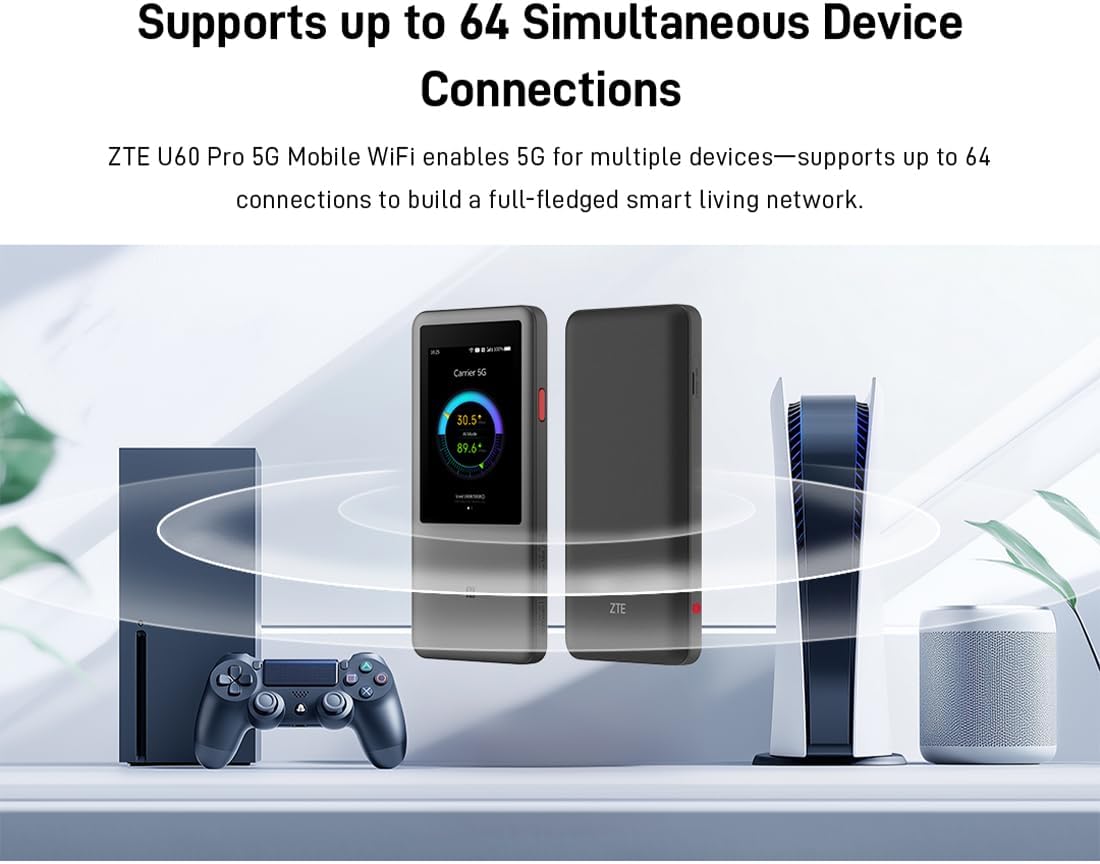
Image 3.1: The ZTE U60 Pro providing 5G Wi-Fi connectivity to various electronic devices.
3.3 AI Smart Scene Modes
The device features intelligent AI Scene technology with dynamic bandwidth allocation. It adjusts bandwidth and priority for applications based on user usage patterns to ensure smooth operation. Available modes include:
- Modo de anclaje: Optimized for live streaming.
- Modo de conferencia: Prioritizes video conferencing applications.
- Modo de vídeo: Enhances video playback and streaming.
- Modo de velocidad: Maximizes overall network speed.
- Modo de juego: Reduces latency for online gaming.
3.4 AI Voice Management (via ZTE Smart Life APP)
The ZTE Smart Life APP enables effortless device management, including AI voice control. This feature allows for intelligent management of the router through voice commands. Download the ZTE Smart Life APP from your device's app store.

Image 3.2: The ZTE Smart Life APP interface demonstrating AI voice management capabilities.
3.5 Funcionalidad del banco de energía
The U60 Pro can also serve as a power bank. With its 10,000 mAh battery and 18W reverse fast charging, you can charge other electronic devices by connecting them to the router's appropriate port (e.g., USB-C).
4. Mantenimiento
4.1 Cuidado de la batería
El dispositivo está equipado con una batería de 10,000 mAh. Para maximizar su duración:
- Evite temperaturas extremas.
- Utilice el cargador rápido de 27 W proporcionado para una carga óptima.
- Para almacenamiento a largo plazo, cargue la batería aproximadamente al 50 % y guárdela en un lugar fresco y seco.
4.2 Cuidado general del dispositivo
To ensure the longevity and optimal performance of your ZTE U60 Pro:
- Mantenga el dispositivo limpio y sin polvo. Utilice un paño suave y seco para limpiarlo.
- Evite exponer el dispositivo al agua o a la humedad excesiva.
- No deje caer ni someta el dispositivo a impactos fuertes.
- Asegúrese de que haya una ventilación adecuada durante su uso para evitar el sobrecalentamiento.
5. Solución de problemas
If you encounter issues with your ZTE U60 Pro, refer to the following common solutions:
5.1 Sin conexión de red
- Comprobar tarjeta SIM: Ensure the SIM card is correctly inserted and activated with a 5G data plan.
- Intensidad de la señal: Verify the signal strength indicator on the device's screen. Move to an area with better 5G coverage if the signal is weak.
- Reiniciar el dispositivo: Power off and then power on the U60 Pro.
- Configuración de red: Check network settings via the touchscreen or ZTE Smart Life APP to ensure APN settings are correct (usually automatic).
5.2 Problemas de conectividad Wi-Fi
- Contraseña incorrecta: Double-check the Wi-Fi password displayed on the U60 Pro's screen.
- Límite de dispositivos: Ensure you have not exceeded the maximum of 64 connected devices.
- Restart Connected Device: Restart the device attempting to connect to the Wi-Fi.
- Reinicio del enrutador: Restart the ZTE U60 Pro.
5.3 Velocidad de Internet lenta
- Intensidad de la señal: A weak 5G signal will result in slower speeds.
- Límite de datos: Check if your data plan has a fair usage policy or if you have exceeded a data cap, which might throttle speeds.
- AI Scene Mode: Ensure the appropriate AI Scene mode (e.g., Speed Mode) is selected for your activity.
- Interferencia: Move the device away from other electronic devices that might cause interference.
6. Especificaciones
The following table details the technical specifications of the ZTE U60 Pro MU5250:

Image 6.1: The Snapdragon X75 Flagship Chip-set Platform, central to the router's performance.
| Característica | Detalle |
|---|---|
| Marca | ZTE |
| Nombre del modelo | MU5250 |
| Número de modelo del artículo | MU5250 |
| Fabricante | ZTE |
| Característica especial | 5G Connection, Wi-Fi 7, AI Scenes, Voice Control, Power Bank |
| Tecnología de conectividad | 5G, Wi-Fi |
| Generación Wi-Fi | Wifi 7 |
| Estándar de comunicación inalámbrica | 802.11a, 802.11ac, 802.11b, 802.11g, 802.11n |
| Clase de banda de frecuencia | Doble banda |
| Frecuencia | 5 GHz |
| Velocidad de transferencia de datos | 4.29 Gigabits per second (Download) |
| Velocidad máxima de transferencia de datos ascendente | 3600 Megabits per second (Wi-Fi 7 Peak Throughput) |
| Número de antenas | 9 (Omnidirectional 5G Array) |
| Cobertura | Wide and complete (360° full-band coverage) |
| Método de control | Tocar |
| Sistema operativo | ZyNOS |
| Protocolo de seguridad | WPA3 |
| Router Firewall Security Level | Básico |
| Batería(s) | 1 AAA - included (Note: Product description mentions 10,000 mAh, likely internal) |
| Peso del artículo | 435 gramos |
| Componentes incluidos | Adaptador de CA |
| Dispositivos compatibles | Game Console, various Wi-Fi enabled devices |
| Usos recomendados para el producto | Streaming, Gaming, Outdoor/Travel, Small Office |
| Conectividad a Internet | Sí |
| Modem Compatible | No (Functions as a standalone 5G router) |
| Compatibilidad con hogares inteligentes | Not Smart Home Compatible |
| Disponibilidad de repuestos | Información no disponible |
| Actualizaciones de software garantizadas hasta | Información no disponible |

Image 6.2: Highlighting the 5G ultra-high-speed network of the ZTE U60 Pro MU5250.

Image 6.3: Illustration of the 9 omnidirectional 5G antennas providing 360° full-band coverage.
7. Soporte y garantía
7.1 Atención al cliente
For further assistance, technical support, or inquiries not covered in this manual, please refer to the official ZTE support channels or contact your retailer.
7.2 Información de garantía
Warranty terms and conditions may vary by region and retailer. Please refer to the warranty card included with your product or consult your point of purchase for detailed warranty information.