
Carlinkit Mini Ultra
Carlinkit Mini Ultra Wireless CarPlay & Android Auto Adapter User Manual
Modelo: Mini Ultra
Introducción
The Carlinkit Mini Ultra is designed to convert your vehicle's existing wired CarPlay or Android Auto system into a wireless experience. This adapter provides a convenient plug-and-play solution, allowing you to enjoy seamless smartphone integration without the need for cables. It supports both Apple CarPlay (iOS 10+) and Android Auto (Android 11+) for compatible vehicles.
Información de seguridad
Always prioritize safety while driving. Do not attempt to operate or adjust the adapter or your smartphone while the vehicle is in motion. Ensure the adapter is securely connected to prevent dislodgement. Adhere to all local traffic laws and regulations.
¿Qué hay en la caja?
- Carlinkit Mini Ultra Adapter (Product)
- OTG Adapter (USB-A to USB-C)
- Color Box Packing
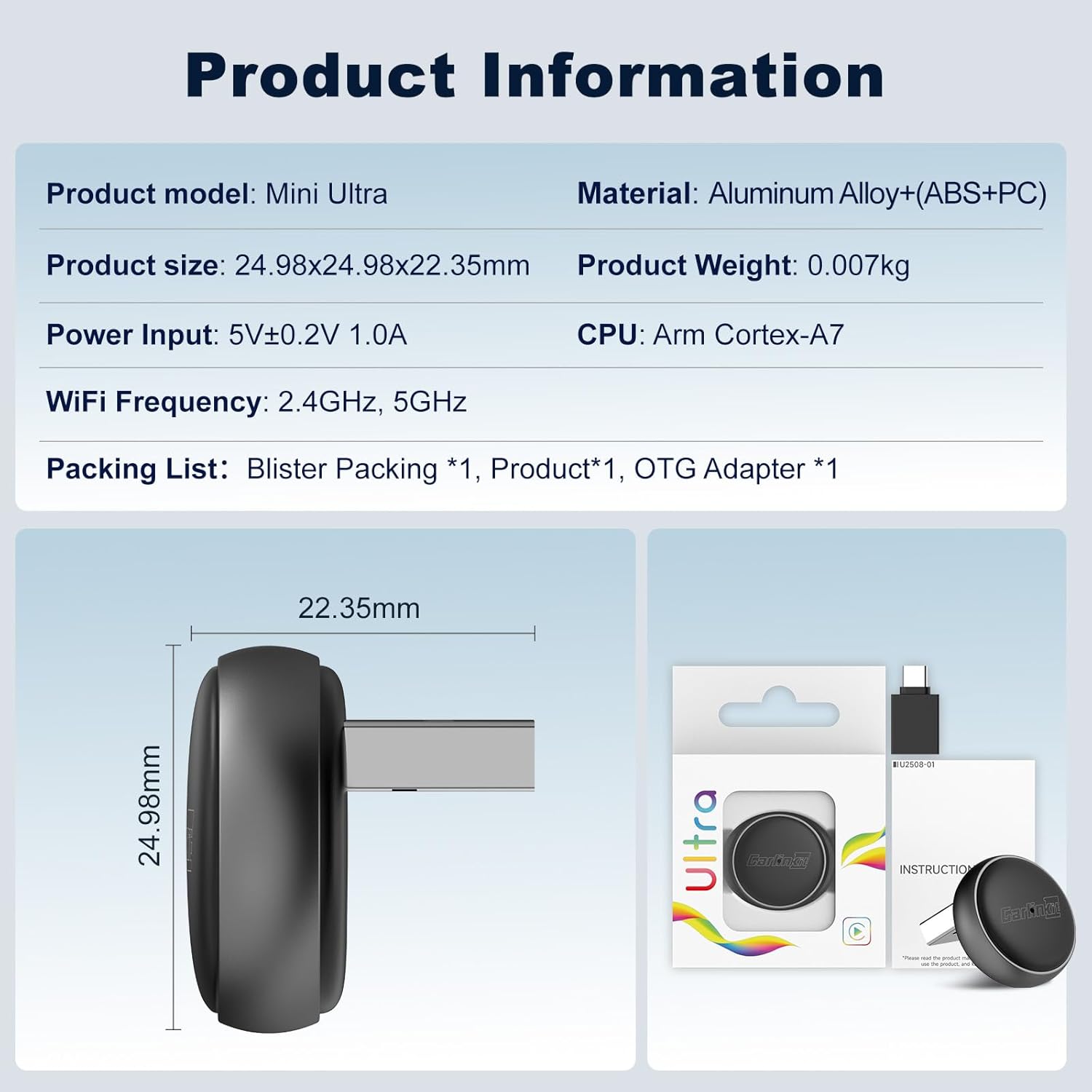
Image: The Carlinkit Mini Ultra adapter, its OTG adapter, and packaging, illustrating the contents of the box.
Requisitos de compatibilidad
Before setup, ensure your vehicle and smartphone meet the following requirements:
- Vehículo: Must have a factory-installed wired CarPlay or wired Android Auto system. The adapter does not convert a non-CarPlay/Android Auto system to one. Not compatible with BMW or Tesla vehicles.
- iPhone: Requires iOS 10 or later for Wireless CarPlay.
- Teléfono Android: Requires Android 11 or later for Wireless Android Auto.

Image: Visual representation of vehicle and phone compatibility for the Carlinkit Mini Ultra adapter, showing supported wired CarPlay and Android Auto systems.
Instrucciones de instalación
Follow these steps to set up your Carlinkit Mini Ultra adapter:
- Step 1: Insert the Adapter. Plug the Carlinkit Mini Ultra adapter into your car's USB-A port. If your car only has a USB-C port, use the included OTG adapter. The adapter's indicator light will illuminate.
- Step 2: Enable Bluetooth and Wi-Fi on Your Phone. On your iPhone or Android phone, go to your settings and ensure both Bluetooth and Wi-Fi are turned on.
- Step 3: Pair Your Phone. On your car's infotainment screen, a Bluetooth device name (e.g., "Vehiconn_XXXX") will appear. On your phone, search for this Bluetooth device and pair with it. Confirm any pairing requests on both your phone and car screen.
- Step 4: Connect to CarPlay/Android Auto. After successful Bluetooth pairing, your phone will automatically connect to the adapter via Wi-Fi. Tap "Connect" or "Agree" on your car's screen to initiate wireless CarPlay or Android Auto.

Image: A four-step visual guide demonstrating how to connect the Carlinkit Mini Ultra adapter, from plugging it in to establishing a wireless CarPlay/Android Auto connection.
Video: This video demonstrates the Carlinkit Mini Ultra adapter, showing its compact design, easy installation into a car's USB port, and seamless conversion of wired CarPlay/Android Auto to wireless. It highlights features like high-fidelity audio, voice commands for navigation and calls, split-screen multitasking, and automatic connection upon entering the vehicle.
Instrucciones de funcionamiento
Once connected, the Carlinkit Mini Ultra provides a fully integrated wireless experience:
- Conexión automática: After the initial setup, the adapter will automatically connect to your phone when you start your car, providing a "get in and go" experience.
- Native Control Retention: All original car controls, including steering wheel buttons, touchscreen, and rotary knobs, remain fully functional with wireless CarPlay/Android Auto.
- Control de voz: Utilize your car's original microphone for voice commands (Siri for CarPlay, Google Assistant for Android Auto) for navigation, music playback, calls, and more, ensuring hands-free operation.
- Audio de alta fidelidad: Enjoy clear audio quality through your car's sound system for music, podcasts, and calls.
- Multitarea en pantalla dividida: Many vehicles support split-screen functionality, allowing you to view navigation and control media simultaneously.

Image: This image illustrates how the Carlinkit Mini Ultra adapter allows users to maintain control over their car's infotainment system using existing touch, steering wheel, knob, and voice controls.
Mantenimiento y actualizaciones
To ensure optimal performance and compatibility, keep your Carlinkit Mini Ultra adapter updated:
- Actualizaciones por aire (OTA): The adapter supports OTA firmware updates. This allows for performance improvements, bug fixes, and enhanced compatibility with new car models or phone OS versions.
- Actualización de firmware:
- Conecte el adaptador al puerto USB de su automóvil.
- Turn on Wi-Fi on your mobile phone and connect to the adapter's Wi-Fi signal (the network name will be displayed on your car screen or in the adapter's settings).
- Abrir una web navegador en su teléfono e ingrese el URL: 192.168.50.100
- Navigate to the settings interface and click on 'Upgrade' to check for and install available updates.
- Limpieza: Utilice un paño suave y seco para limpiar el adaptador. Evite usar limpiadores líquidos o materiales abrasivos.

Image: A visual guide detailing the steps to access the adapter's background settings and perform an Over-The-Air (OTA) firmware update.
Solución de problemas
Si tiene problemas, pruebe las siguientes soluciones:
- Sin conexión:
- Ensure your car has wired CarPlay/Android Auto.
- Verifique que Bluetooth y Wi-Fi estén habilitados en su teléfono.
- Forget the Bluetooth connection on your phone and car, then re-pair.
- Pruebe con un puerto USB diferente en su automóvil si está disponible.
- Restart your phone and car's infotainment system.
- Audio Issues (Drops/Distortion):
- Check for firmware updates for the adapter.
- Asegúrese de que no haya otros dispositivos Bluetooth interfiriendo.
- Adjust audio settings on your car's system.
- Rendimiento lento/retraso:
- Asegúrese de que el sistema operativo de su teléfono esté actualizado.
- Close unnecessary apps on your phone.
- Perform an OTA update on the adapter.
- El adaptador no se enciende:
- Verifique la conexión USB.
- Ensure the car's USB port is active (some ports may only activate with the ignition on).
- Pruebe con un puerto o cable USB diferente.
Presupuesto
| Modelo del producto | Mini Ultra |
| Tamaño del producto | 24.98 mm x 24.98 mm x 22.35 mm |
| Peso del producto | 0.007 kilogramos |
| Entrada de potencia | 5 V ± 0.2 V 1.0 A |
| Frecuencia de Wi-Fi | 2.4 GHz, 5 GHz |
| UPC | Brazo Cortex-A7 |
| Material | Aluminum Alloy + (ABS+PC) |
| Tipo de conector | USB-A / Tipo-C |
| Temperatura de funcionamiento | -20 °C a 60 °C (-4 °F a 140 °F) |
Image: Detailed product information for the Carlinkit Mini Ultra, including model, dimensions, weight, power input, Wi-Fi frequency, CPU, and materials.
Información de garantía
The Carlinkit Mini Ultra adapter comes with a 1 año de garantía A partir de la fecha de compra. Esta garantía cubre defectos de fabricación y mal funcionamiento en condiciones normales de uso. Conserve su comprobante de compra para cualquier reclamación de garantía. La garantía no cubre daños causados por mal uso, accidentes, modificaciones no autorizadas o instalación incorrecta.
Apoyo
For further assistance, technical support, or warranty inquiries, please contact Carlinkit customer service through the official website or your retailer's support channels. You may also refer to the FAQ section on the Carlinkit webSitio para preguntas comunes y soluciones.
Ask a question about this manual
Ask about setup, troubleshooting, compatibility, parts, safety, or missing instructions. Manuals+ will review the question and use this page’s manual context to help answer it.