
Introducción
Thank you for choosing the Trueque Wireless Mouse. This manual provides detailed instructions to help you set up, operate, and maintain your new ergonomic wireless mouse. Designed for comfort and efficiency, this mouse features a stable 2.4GHz wireless connection, adjustable DPI levels, and six responsive buttons for enhanced productivity.
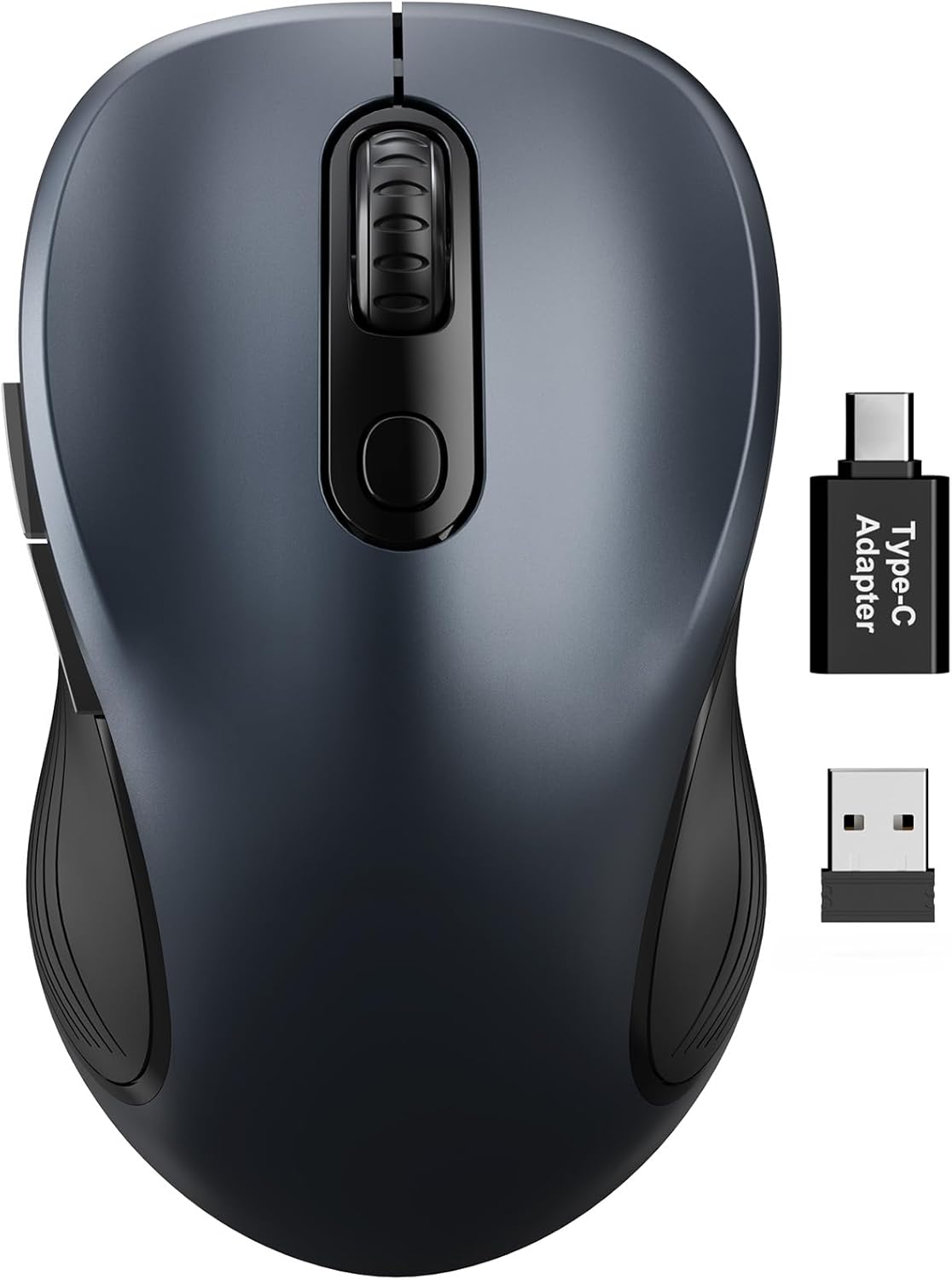
Figure 1: Trueque Wireless Mouse. Un general view of the Trueque Wireless Mouse in Space Gray.
Producto terminadoview
Familiarize yourself with the components and design features of your Trueque Wireless Mouse.
Componentes del ratón
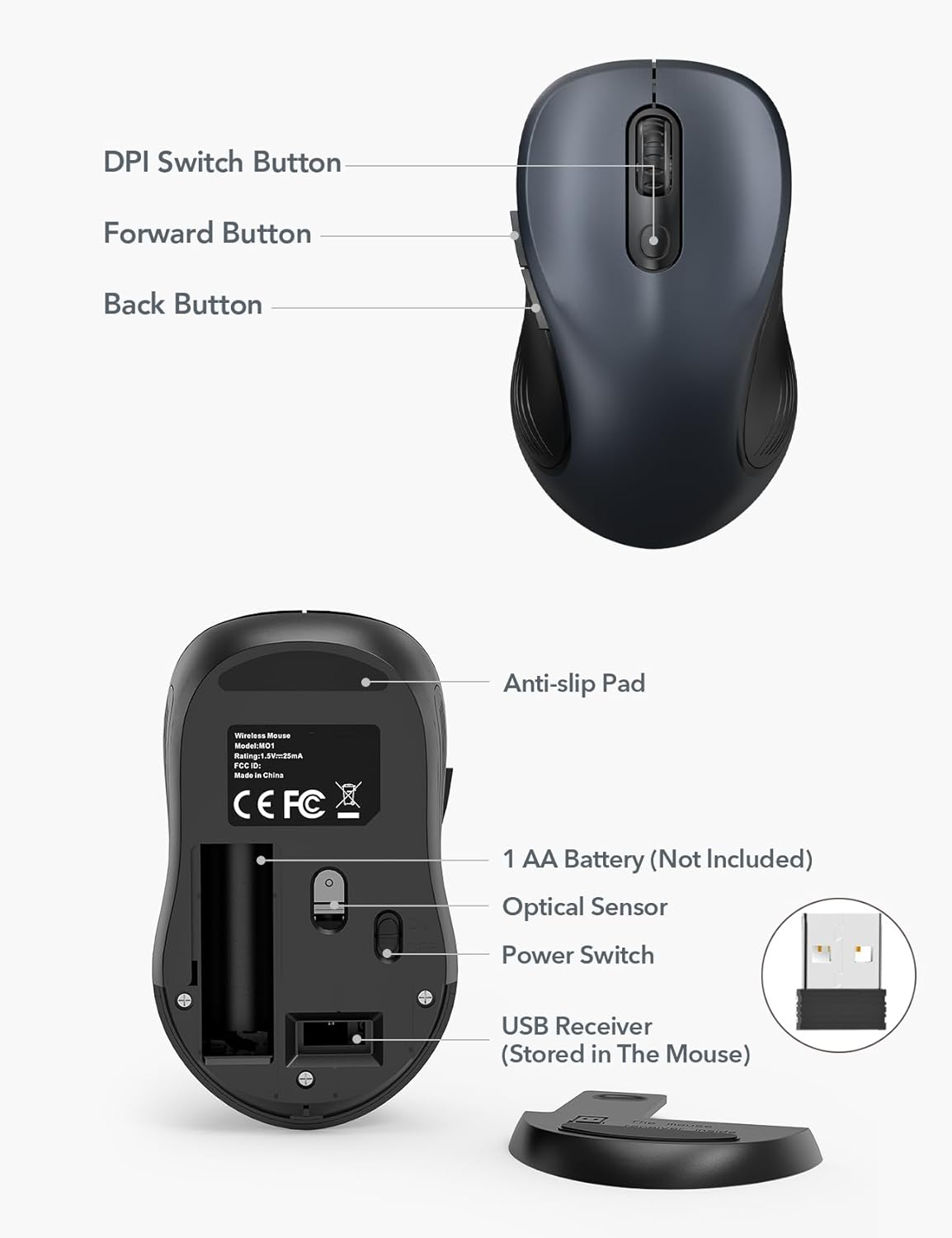
Figure 2: Mouse Components. This image shows the top and bottom views of the Trueque Wireless Mouse, highlighting key components such as the DPI Switch Button, Forward Button, Back Button, Anti-slip Pad, AA Battery compartment, Optical Sensor, Power Switch, and the USB Receiver storage slot.
- Botón de cambio de DPI: Ajusta la sensibilidad del cursor.
- Botón de avance: Navega hacia adelante en web navegadores o file exploradores.
- Botón Atrás: Navega hacia atrás en web navegadores o file exploradores.
- Almohadilla antideslizante: Proporciona estabilidad durante el uso.
- 1 AA Battery (Not Included): Power source for the mouse.
- Sensor óptico: Realiza un seguimiento del movimiento del ratón.
- Interruptor de alimentación: Enciende o apaga el ratón.
- USB Receiver (Stored In The Mouse): Conecta el mouse de forma inalámbrica a su computadora.
Diseño ergonómico
The mouse features a natural curved shape and a skin-friendly silicone grip to minimize thumb and wrist strain, ensuring comfort during extended use.

Figure 3: Ergonomic Comfort. This image shows a hand comfortably resting on the Trueque Wireless Mouse, highlighting its ergonomic design for all-day use.
The mouse is designed to fit small to medium hands. Refer to the hand size guide below to determine if this mouse is suitable for your palm length and width.

Figure 4: Hand Size Guide. This image provides a guide for palm length and width to determine the ideal fit for the mouse, suggesting it's suitable for palms under 7.5 inches.
Diseño liviano
Weighing less than 60 grams, the mouse is lightweight and portable, ideal for everyday carry and travel.

Figure 5: Lightweight and Portable. This image shows the mouse being easily stored in a bag, emphasizing its lightweight design for portability.
Instrucciones de instalación
Follow these steps to set up your Trueque Wireless Mouse for first-time use.
1. Instale la batería
The mouse requires one AA battery (not included).
- Abra la tapa del compartimiento de la batería ubicada en la parte inferior del mouse.
- Inserte una batería AA, asegurándose de la polaridad correcta (+/-).
- Cierre la tapa del compartimento de la batería.
Figure 6: Battery and USB Receiver Location. This image illustrates the battery compartment and the storage slot for the USB receiver on the underside of the mouse.
2. Conecte el receptor USB
The USB receiver is stored within the mouse for convenience.
- Gently remove the USB receiver from its storage slot on the bottom of the mouse.
- Conecte el receptor USB a un puerto USB-A disponible en su computadora.
- If your device only has USB-C ports, use the included USB-A to USB-C adapter. Connect the USB receiver to the adapter, then plug the adapter into your device's USB-C port.
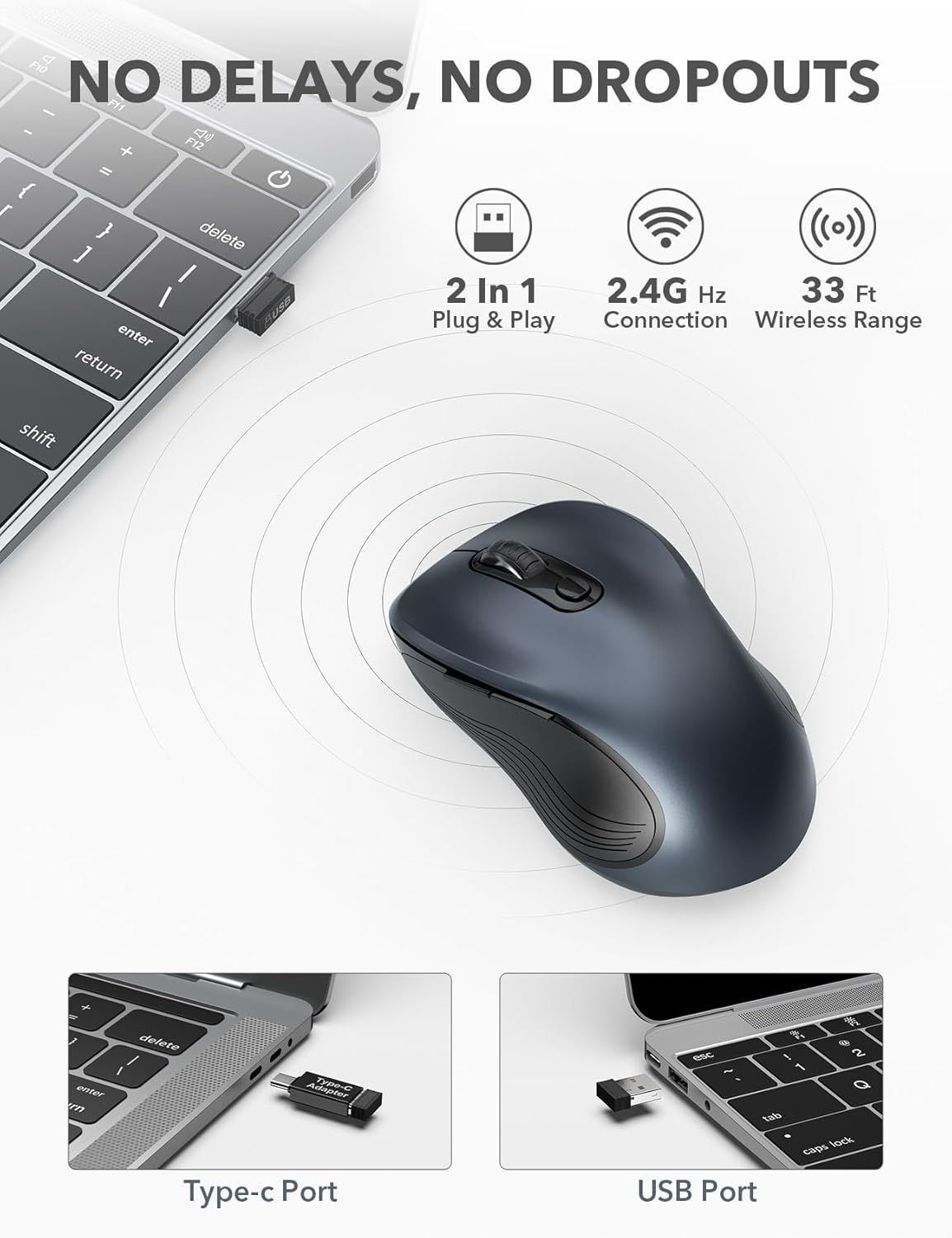
Figure 7: USB Receiver Connection. This image demonstrates how to connect the 2.4GHz USB receiver to both a standard USB-A port and a USB-C port using the provided adapter.
3. Encender
Slide the power switch on the underside of the mouse to the "ON" position. The mouse will automatically connect to the receiver.
4. Compatibilidad
The Trueque Wireless Mouse is compatible with various operating systems, including Windows, Mac OS, Linux, and Chrome OS.

Figure 8: Operating System Compatibility. This image shows the Trueque Wireless Mouse is compatible with Windows, Chrome OS, Mac OS, and Linux.
Instrucciones de funcionamiento
Encendido/apagado
Use the power switch on the bottom of the mouse to turn it on or off. Turning the mouse off when not in use helps conserve battery life.
Ajuste de DPI
The mouse features 3 adjustable DPI (Dots Per Inch) levels to control cursor sensitivity.
- Press the DPI Switch Button (located behind the scroll wheel) to cycle through the available DPI settings: 800, 1200, and 1600 DPI.
- Select the DPI level that best suits your preference for speed and precision.
Figure 9: DPI Levels. This image illustrates the three adjustable DPI settings (800, 1200, 1600) available on the mouse.
Botones Atrás y Adelante
The side buttons provide quick navigation:
- El Botón de avance (top side button) allows you to navigate forward in web navegadores o file exploradores.
- El Botón Atrás (bottom side button) allows you to navigate backward in web navegadores o file exploradores.
Modo de reposo automático
To conserve battery, the mouse enters an auto-sleep mode after 1 minute of inactivity.
- To wake the mouse, double-click any button.
- A single AA battery can last up to 16 months thanks to this smart feature.

Figure 10: Battery Life and Auto-Sleep. This image highlights the mouse's long battery life (up to 16 months) and its power-saving auto-sleep mode.
Función de clic silencioso
The mouse is designed with silent click buttons to minimize noise, making it suitable for quiet environments.

Figure 11: Silent Click Comparison. This image visually compares the low sound level of the Trueque mouse (20dB) to other common sounds like breathing (10dB), office noise (50dB), and an alarm (70dB).
Mantenimiento
Reemplazo de batería
When the mouse performance degrades or it stops responding, it's time to replace the AA battery.
- Apague el mouse usando el interruptor de encendido.
- Abra la tapa del compartimiento de la batería.
- Retire la batería AA vieja.
- Inserte una nueva batería AA, observando la polaridad correcta.
- Close the battery compartment cover and turn the mouse on.
Limpieza
Para mantener un rendimiento y una higiene óptimos:
- Disconnect the mouse from your computer and turn it off.
- Utilice un paño suave y sin pelusa ligeramenteampLimpie con agua o una solución de limpieza suave el exterior del mouse.
- Evite que entre humedad en las aberturas.
- No utilice productos químicos agresivos ni limpiadores abrasivos.
Solución de problemas
| Problema | Solución |
|---|---|
| El ratón no responde |
|
| El movimiento del cursor es errático o irregular |
|
| Back/Forward buttons not working |
|
Presupuesto
| Característica | Detalle |
|---|---|
| Marca | Trueque |
| Modelo | M01_19 |
| Tecnología de conectividad | 2.4 GHz inalámbrico (receptor USB) |
| Detección de movimiento | Óptico |
| Niveles de DPI | 800 / 1200 / 1600 |
| Número de botones | 6 (Izquierda, Derecha, Rueda de desplazamiento, DPI, Adelante, Atrás) |
| Orientación de la mano | Ambidextro |
| Fuente de poder | 1 pilas AA (no incluidas) |
| Duración de la batería | Up to 16 months (with auto-sleep) |
| alcance inalámbrico | Hasta 33 pies (10 metros) |
| Dimensiones del producto | 10.41 x 6.1 x 0.25 cm |
| Peso del artículo | 68.04 gramos |
| Características especiales | Ergonomic Design, Silent Click, Auto-Sleep Mode, USB-A to USB-C Adapter Included |
Garantía y soporte
The Trueque Wireless Mouse is backed by a 12-month warranty from the date of purchase. This warranty covers manufacturing defects under normal use.
For technical support, warranty claims, or any questions regarding your product, please contact Trueque customer service. Please have your purchase information ready when contacting support.
Nota: La garantía no cubre daños causados por mal uso, accidentes, modificaciones no autorizadas o instalación incorrecta.