
EXknight M4-S1
EXknight Magnetic Keyboard for iPhone M4-S1 User Manual
Model: M4-S1
1. Producto terminadoview
The EXknight Magnetic Keyboard Kit is designed to provide a tactile typing experience for your iPhone. It features a compact, wireless mini Bluetooth keyboard and a precision 3D printed magnetic backplate, allowing for a secure, snap-on connection to compatible iPhone models. The keyboard utilizes metal dome switch technology for clear, clicky feedback, enhancing the typing experience without the bulk of traditional mechanical switches.
2. ¿Qué hay en la caja?
- EXknight Mini Bluetooth Keyboard
- 3D Printed Magnetic Backplate
- Cable de carga USB

Image: The EXknight Mini Bluetooth Keyboard and its accompanying magnetic backplate, shown separately.
3. Configuración
3.1 Carga del teclado
Before first use, ensure the keyboard is fully charged. Connect the provided USB charging cable to the keyboard's charging port and to a standard USB power source. The charging indicator light will show the charging status.
3.2 Encendido / Apagado
Locate the power switch on the side of the keyboard. Slide the switch to the 'ON' position to power on the device. Slide it to 'OFF' to power it down when not in use to conserve battery.

Image: The back of the EXknight Mini Bluetooth Keyboard, highlighting the power switch and model information.
3.3 Emparejamiento Bluetooth
- Asegúrese de que el teclado esté encendido.
- En tu iPhone, navega hasta Ajustes > Bluetooth.
- Turn on Bluetooth. Your iPhone will search for available devices.
- The EXknight keyboard should appear in the "Other Devices" list, typically as "M4" or similar. Tap on it to connect.
- Once connected, the keyboard will show as "Connected" under "My Devices".
Video: This video demonstrates the process of pairing the EXknight Magnetic Keyboard with an iPhone via Bluetooth.
3.4 Attaching to iPhone
The magnetic backplate is designed to securely attach to your iPhone. Align the magnetic backplate with the back of your iPhone, ensuring a firm connection. Then, align the EXknight Mini Bluetooth Keyboard with the magnetic backplate. The strong magnets will snap the keyboard into place, creating a stable typing setup.
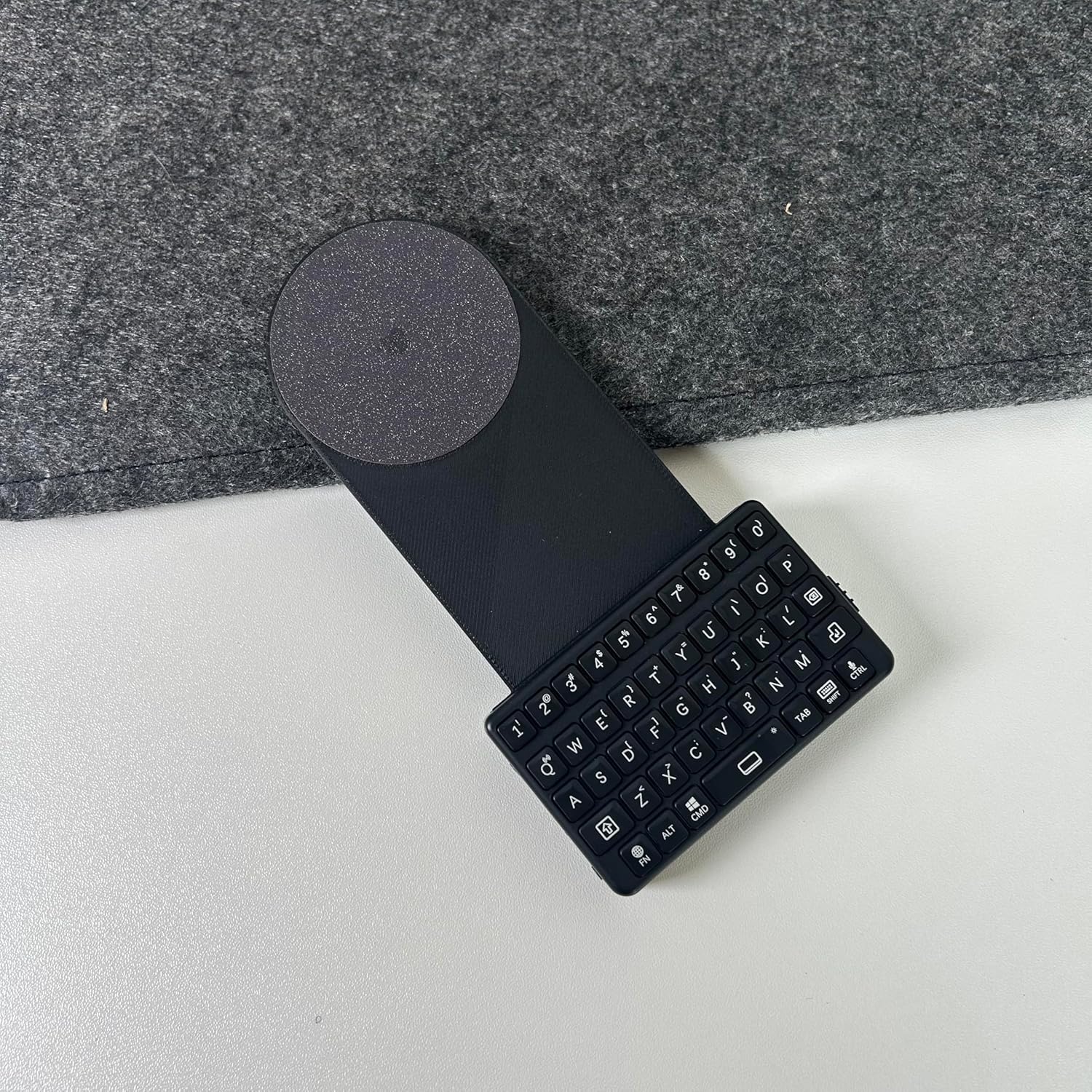
Image: The EXknight Mini Bluetooth Keyboard securely attached to its magnetic backplate.

Image: The EXknight Magnetic Keyboard system, with the keyboard and backplate attached to an iPhone, ready for use.
4. Instrucciones de funcionamiento
4.1 Escritura básica
Once paired and attached, the EXknight Magnetic Keyboard functions as a standard QWERTY keyboard for your iPhone. Simply open any application that requires text input (e.g., Messages, Notes, Safari) and begin typing. The input will appear on your iPhone screen.

Image: A user demonstrating typing on the EXknight Magnetic Keyboard while it is attached to an iPhone.
4.2 Funciones especiales
The keyboard includes several function keys for enhanced control:
- Tecla FN: Press and hold the FN key to access secondary functions printed on certain keys (e.g., numbers, symbols).
- Tecla ALT: Used for alternative character inputs, depending on your iPhone's language settings.
- CMD Key: Functions as the Command key on iOS, enabling shortcuts like Copy (CMD+C), Paste (CMD+V), etc.
- Tecla TAB: Moves the cursor to the next input field or indents text.
- Tecla Shift: For capitalization and accessing upper-case symbols.
5. Mantenimiento
- Limpieza: Use a soft, dry cloth to wipe the keyboard and backplate. Avoid abrasive cleaners or excessive moisture.
- Almacenamiento: Guarde el teclado en un lugar fresco y seco, alejado de la luz solar directa y de temperaturas extremas.
- Cuidado de la batería: Para una duración óptima de la batería, evite descargar completamente el teclado con frecuencia. Cárguelo regularmente.
6. Solución de problemas
- El teclado no se empareja:
- Asegúrese de que el teclado esté encendido y completamente cargado.
- Make sure Bluetooth is enabled on your iPhone.
- Intente apagar y encender nuevamente el teclado.
- Forget the device in your iPhone's Bluetooth settings and attempt to pair again.
- Ensure the keyboard is within the Bluetooth range of your iPhone (typically 10 meters).
- Las teclas no responden:
- Compruebe si el teclado está conectado mediante Bluetooth.
- Recargue el teclado si la batería está baja.
- Reinicia tu iPhone e inténtalo nuevamente.
- La fijación magnética es débil:
- Ensure both the magnetic backplate and the keyboard are clean and free of debris.
- Verify that the magnetic backplate is correctly aligned with your iPhone.
7. Especificaciones
| Número de modelo | M4-S1 |
| Marca | EXcaballero |
| Dispositivos compatibles | iPhone (e.g., 12-16 Pro Max / 14-16 Plus series) |
| Tecnología de conectividad | Bluetooth |
| Descripción del teclado | Clicky dome switch |
| Característica especial | Accesorio magnético portátil |
| Color | Negro |
| Material | Acrilonitrilo butadieno estireno |
| Dimensiones del producto | 6.3 x 1.77 x 0.47 pulgadas (Teclado) |
| Peso del artículo | 3.17 onzas (Teclado) |
| Baterías | 1 batería no estándar (incluida) |
8. Garantía y soporte
For warranty information and customer support, please refer to the documentation included with your purchase or visit the official EXknight website. You may also contact EXknight customer service directly for assistance with product inquiries, troubleshooting, or warranty claims.
Manufacturer: Elektronic X Technology Limited
Documentos relacionados - M4-S1
 |
Manual de uso y cuidado del enfriador de vinos y bebidas Marathon Serie M4 Manual completo de usuario y cuidado para enfriadores de vinos y bebidas de doble zona de la serie Marathon M4, que cubre información de seguridad, instalación, funcionamiento, mantenimiento y garantía. |
 |
UQ mobile & au: Repair and Delivery Service Wide with AppleCare Services & iCloud+ Comprehensive support service for iPhone and iPad users from UQ mobile and au, including device replacement, Apple official support, and iCloud+ storage. Details the repair fee refund service via Ponta Pass. |
 |
Manual de uso y cuidado del enfriador de vinos y bebidas de doble zona Marathon Serie M4 This comprehensive use and care manual provides essential information for Marathon M4 Series Dual Zone Wine & Beverage Coolers, including detailed installation instructions, operating procedures, maintenance guidelines, and warranty details for models M4-D200SS, M4-D200BLS, M4-D200PANR, M4-D250SS, M4-D250BLS, and M4-D250PANR. |
 |
AppleCare+ con cobertura contra robo y pérdida: detalles del plan, cobertura y costos para iPhone, iPad y Apple Watch Resumen completo de AppleCare+ con Robo y Pérdida, que detalla la cobertura por daños accidentales, robo y pérdida para Apple Watch, iPad y iPhone. Incluye cargos por servicio, deducibles, costos del plan y procedimientos de reclamación. |
 |
Shinko RG-M4 シリーズ MECHATROLINK-4 デジタル入出力 SDevice ユニット 取扱説明書 神港テクノス株式会社のRG-M4シリーズ MECHATROLINK-4対応デジタル入出力SDeviceユニットの取扱説明書です。仕様、取り付け、配線、操作方法、安全上の注意について詳しく解説しています。産業用途に最適。 |
 |
Guía de actualización del firmware del SYNCO M4 Una guía completa para actualizar el firmware del monitor selfie SYNCO M4, resolver problemas de conectividad del iPhone 17 y garantizar un rendimiento óptimo. |